System Overview
The home screen of psLens (System Overview) gives you a quick health overview of all your connected PeopleSoft databases, with a focus on anything that currently needs attention.
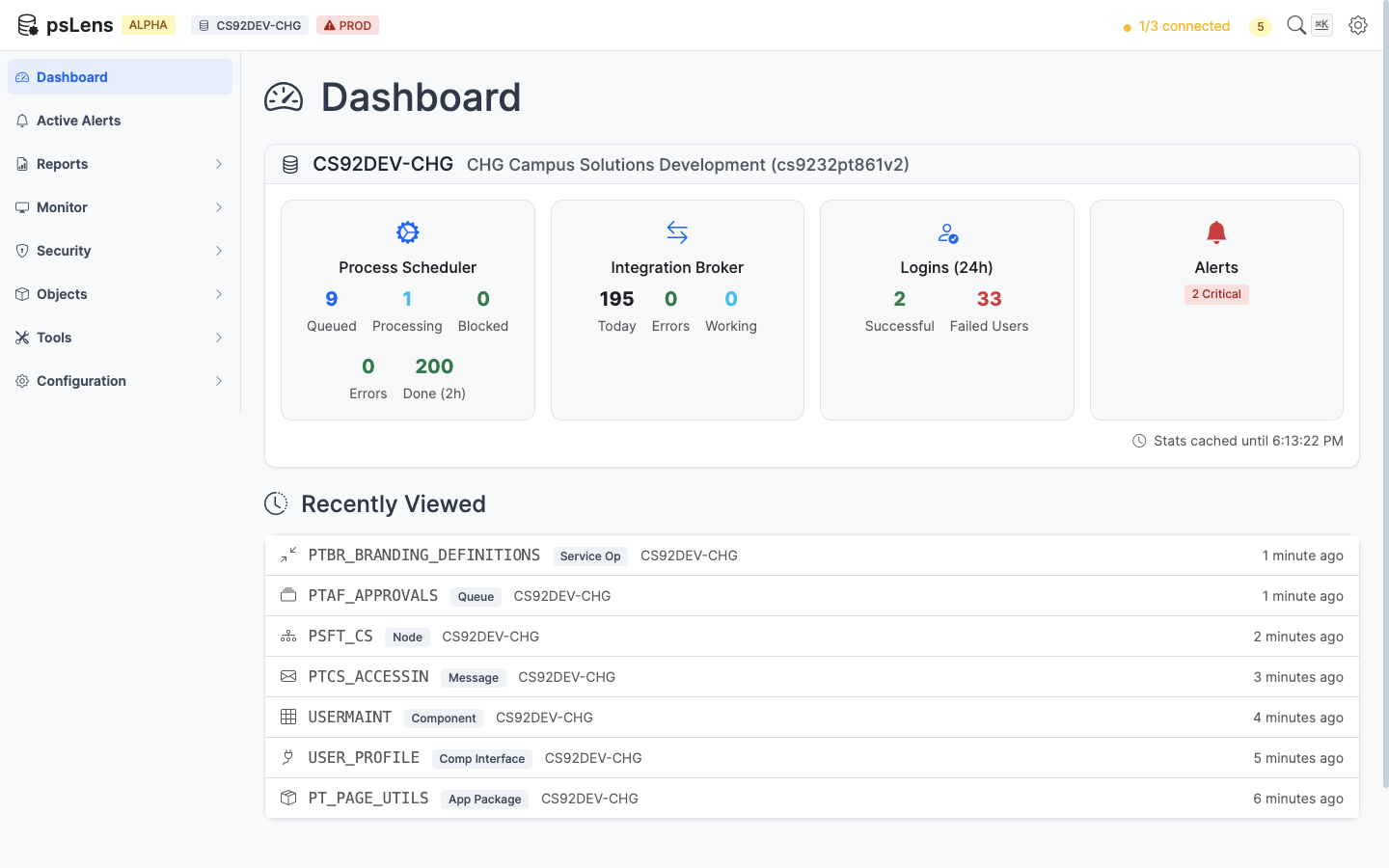
The psLens dashboard showing database connection status and active alerts
What You See on the Dashboard
Alert Summary
The top section of the dashboard shows active alerts grouped by database. Each alert card tells you:
- What type of issue was found (for example, long-running processes or IB errors)
- How many items were found in this check
- When the check last ran
- A link to the relevant monitor page for more detail
Alerts are color-coded by severity:
| Color | Severity | Meaning |
|---|---|---|
| Red | Critical | Immediate attention recommended |
| Yellow | Warning | Should be investigated |
| Blue | Info | Low priority, worth noting |
If there are no active alerts, the dashboard shows an “all clear” state.
Database Cards and Health Scores
For each active database connection, the dashboard renders a database card with four operational monitoring categories. Each category displays a visual 0–100 circular health ring, a health tier label, and key operational metrics:
| Status Tier | Score Range | Color | Icon | Meaning |
|---|---|---|---|---|
| Healthy | 90 – 100 | Green | Operations normal; no critical issues or high error rates. | |
| Degraded | 60 – 89 | Yellow | Moderate errors, stalled queues, or active warnings detected. | |
| Critical | 0 – 59 | Red | Severe issues, active critical alerts, or blocked queues. |
Each score begins at 100 points and applies bounded deductions based on real-time database queries and active alert states:
1. Process Scheduler Health Score
Evaluates Process Scheduler queue health, blocked jobs, and recent execution failures:
- Active Critical Process Alerts: -25 points per active alert (capped at 50 points total).
- Active Warning Process Alerts: -10 points per active alert (capped at 20 points total).
- Currently Blocked Processes: -15 points per process currently in Blocked status (RunStatus 14, capped at 40 points total).
- Process Errors Today: -2 points per process ending in Error (3), Not Successful (10), or Warning (13) since midnight (capped at 20 points total).
2. Integration Broker Health Score
Evaluates messaging throughput, stalled contracts, and synchronous/asynchronous transaction failures:
- Active Critical IB Alerts: -25 points per active alert (capped at 50 points total).
- Active Warning IB Alerts: -10 points per active alert (capped at 20 points total).
- IB Errors & Timeouts Today: -2 points per failed or timed-out message since midnight (capped at 30 points total).
- IB Working / Stalled Items Today: -2 points per message in New or Working status since midnight (capped at 15 points total).
3. User Logins (24h) Health Score
Evaluates authentication activity and failed sign-on attempts over the rolling 24-hour window:
- Active Failed Logins Alert: -30 points if the
failed_loginscritical alert is currently firing. - Unique Users with Failed Logins (last 24h): -1 point per unique operator ID with failed login attempts recorded in
PSPTLOGINAUDIT(capped at 30 points total).
4. Active Alerts Health Score
Evaluates the overall system alert posture across all enabled alert checkers:
- Active Critical Alerts: -25 points per active critical alert across any checker (capped at 60 points total).
- Active Warning Alerts: -10 points per active warning alert across any checker (capped at 30 points total).
- Active Info Alerts: -2 points per active informational alert (capped at 10 points total).
Note on Muted Alerts: Alerts that are currently muted (suppressed) in psLens are excluded from health score deductions so maintenance windows or known issues do not artificially lower the score.
Database Connection Status
The dashboard also shows whether psLens can connect to each configured database. A database that is unreachable will still show in the list but will be marked as disconnected. Alerts for a disconnected database won’t run until the connection is restored.
How Alerts and Health Scores Are Refreshed
The dashboard uses a live connection to the psLens server. Alert results are updated automatically on the page as new check results arrive — you do not need to manually refresh.
Alert checks run on a background schedule (default: every 5 minutes). The timestamp on each alert card shows when that specific check last completed.
Navigating from the Dashboard
Each alert item on the dashboard has a direct link to the relevant page in psLens. For example:
- A long-running process alert links to the Process Monitor entry for that process instance
- An IB operation error alert links to the IB Monitor entry for that operation
- A process error alert links to the Process Monitor entry for that process
Dismissing Alerts
Alert results are automatically cleared when the underlying issue resolves. For example, if a long-running process finishes, its alert disappears from the dashboard on the next check cycle. There is no manual dismiss — the alerts always reflect the current state of the system.
Alert Configuration
Alerts are configured in config.yaml. You can enable or disable individual alert types, adjust thresholds, and exclude specific processes or operations. See Configuration and Alerts for details.