Object Relationships — Structural guide and Mermaid diagrams illustrating how PeopleSoft fields, records, pages, components, menus, portal CREFs, and security definitions interrelate.
psLens lets you search and explore the core PeopleSoft metadata objects that define how the application is built. Every object type has the same two-step flow: a search page where you find what you’re looking for, and a detail page that consolidates everything psLens knows about that object across the database.
Useful when you need to look up an object without firing up App Designer.
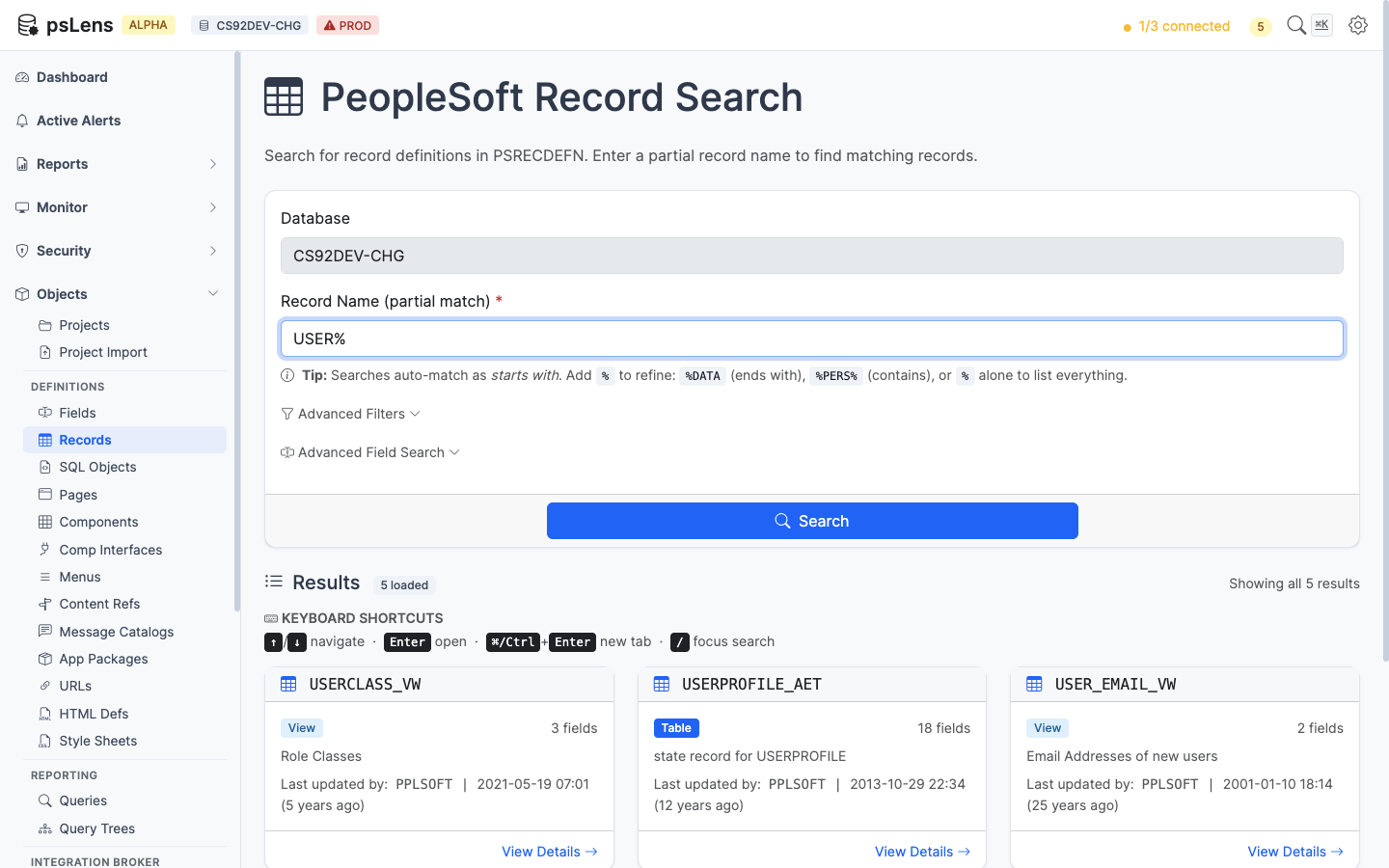
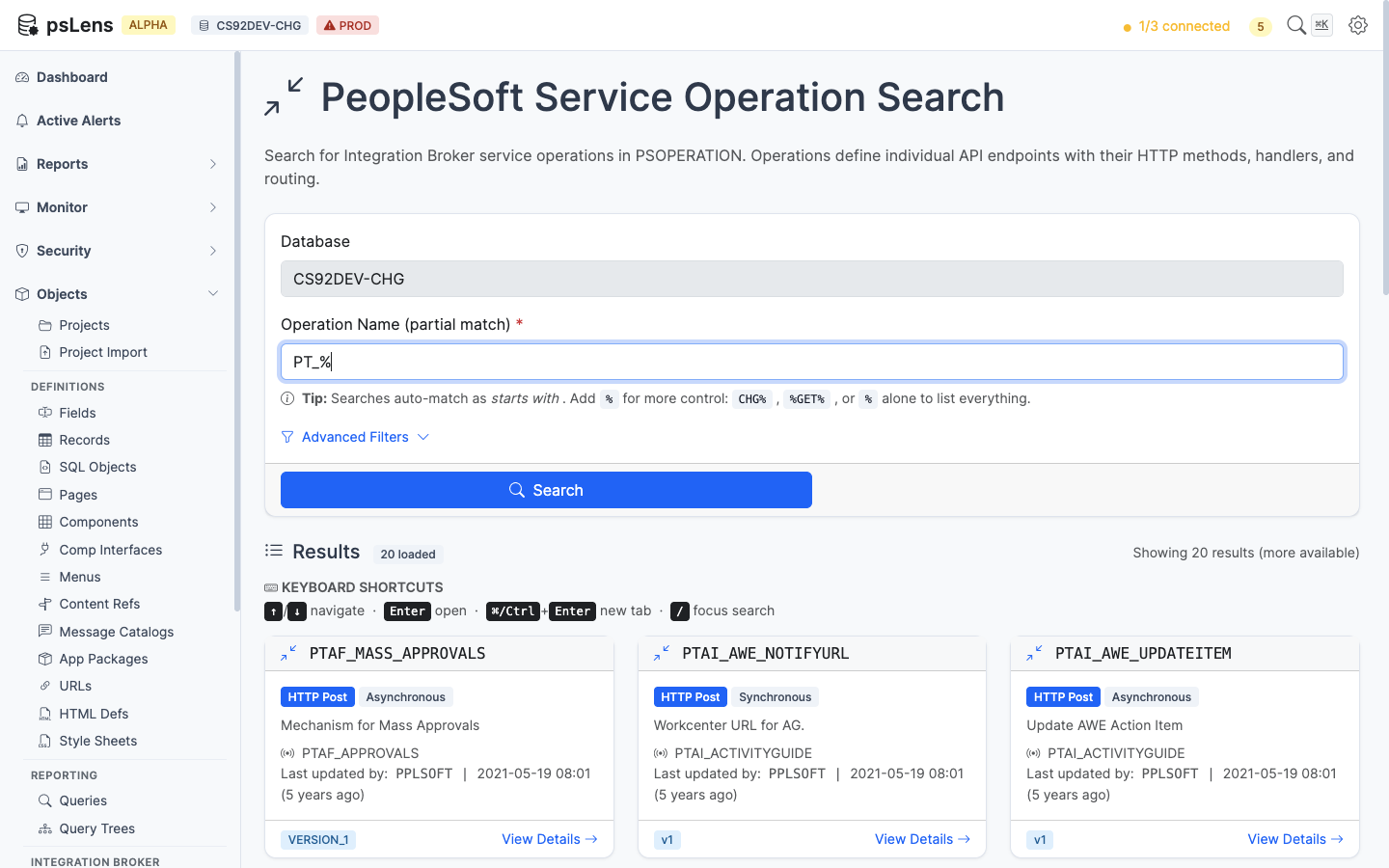
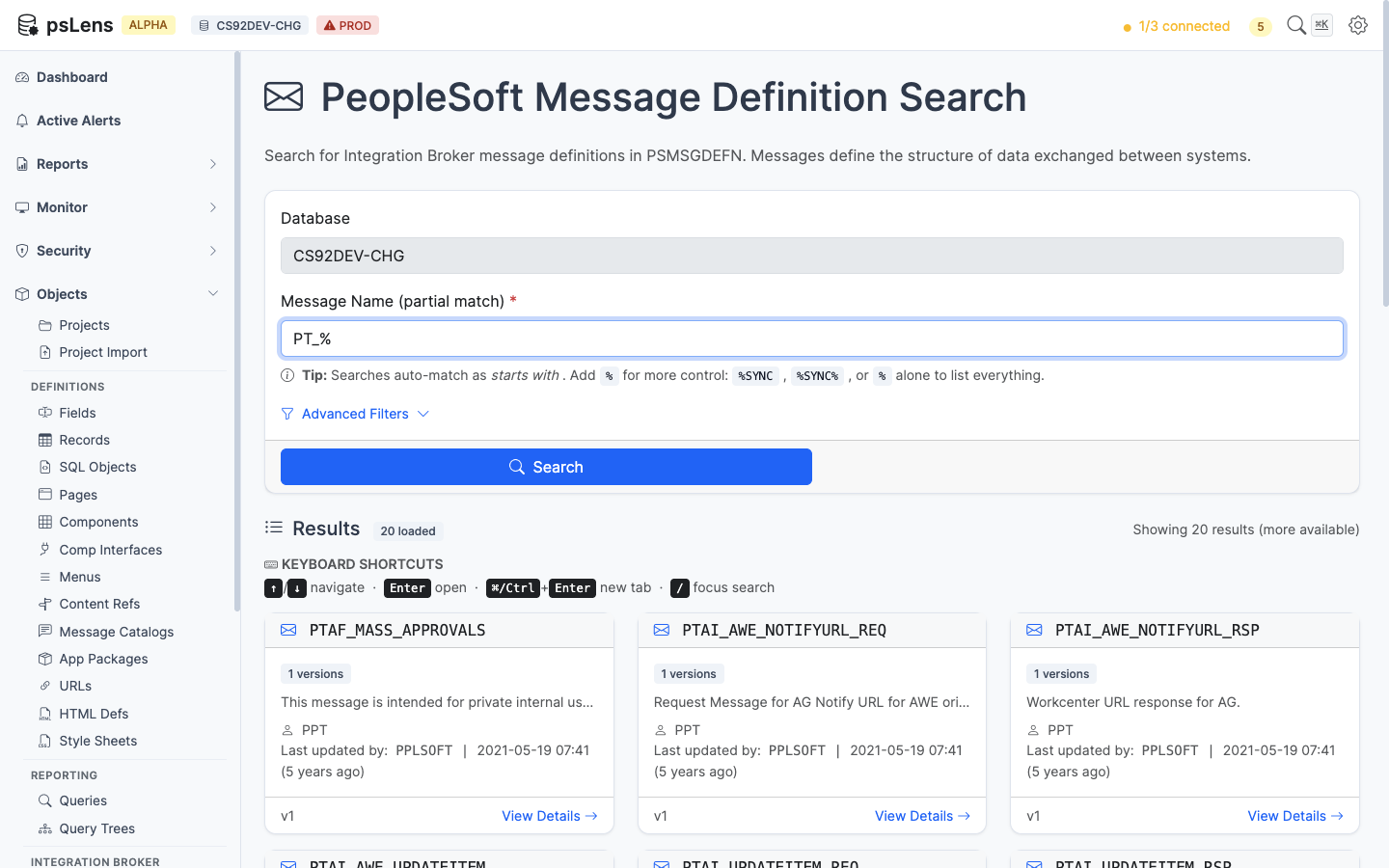
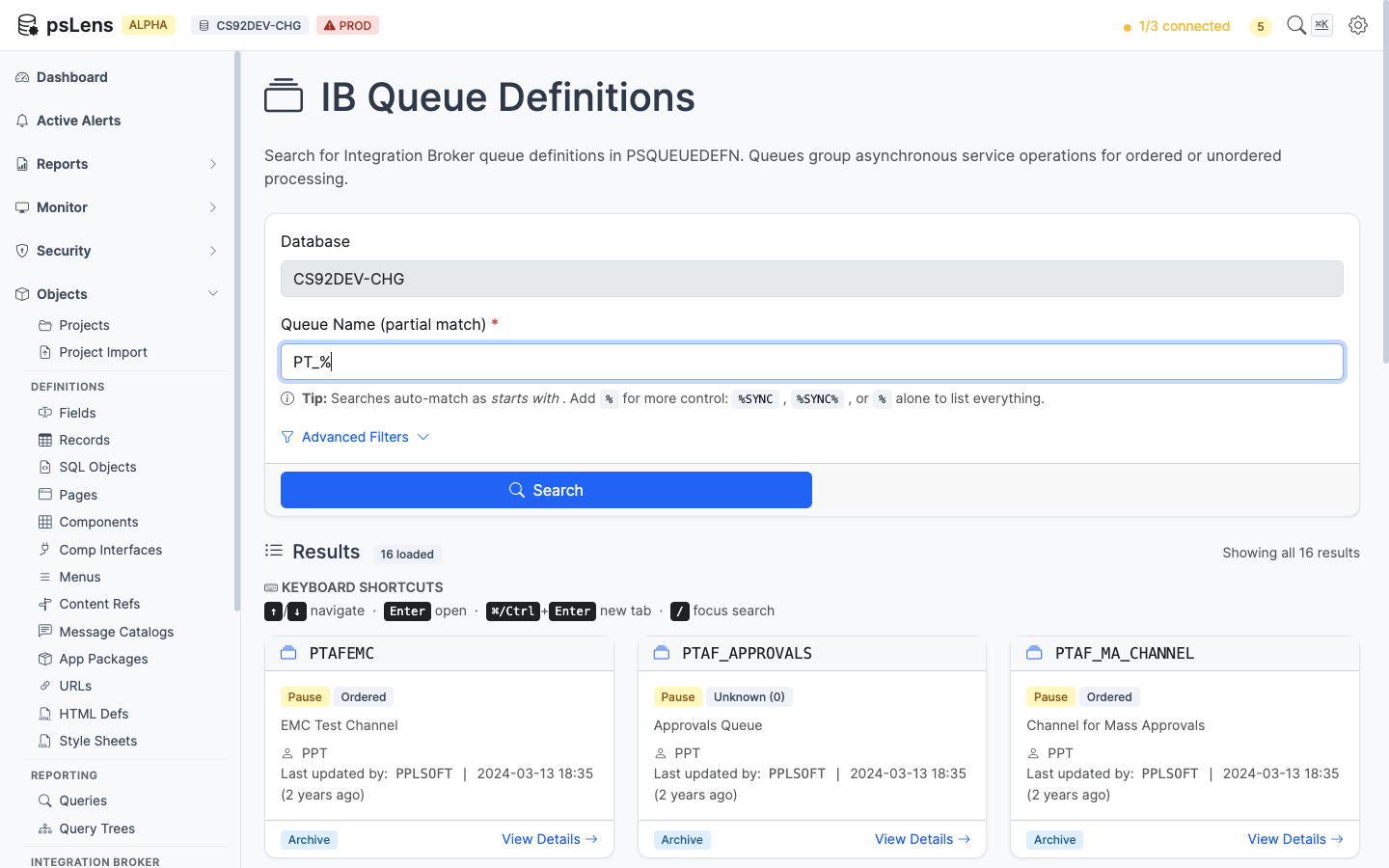
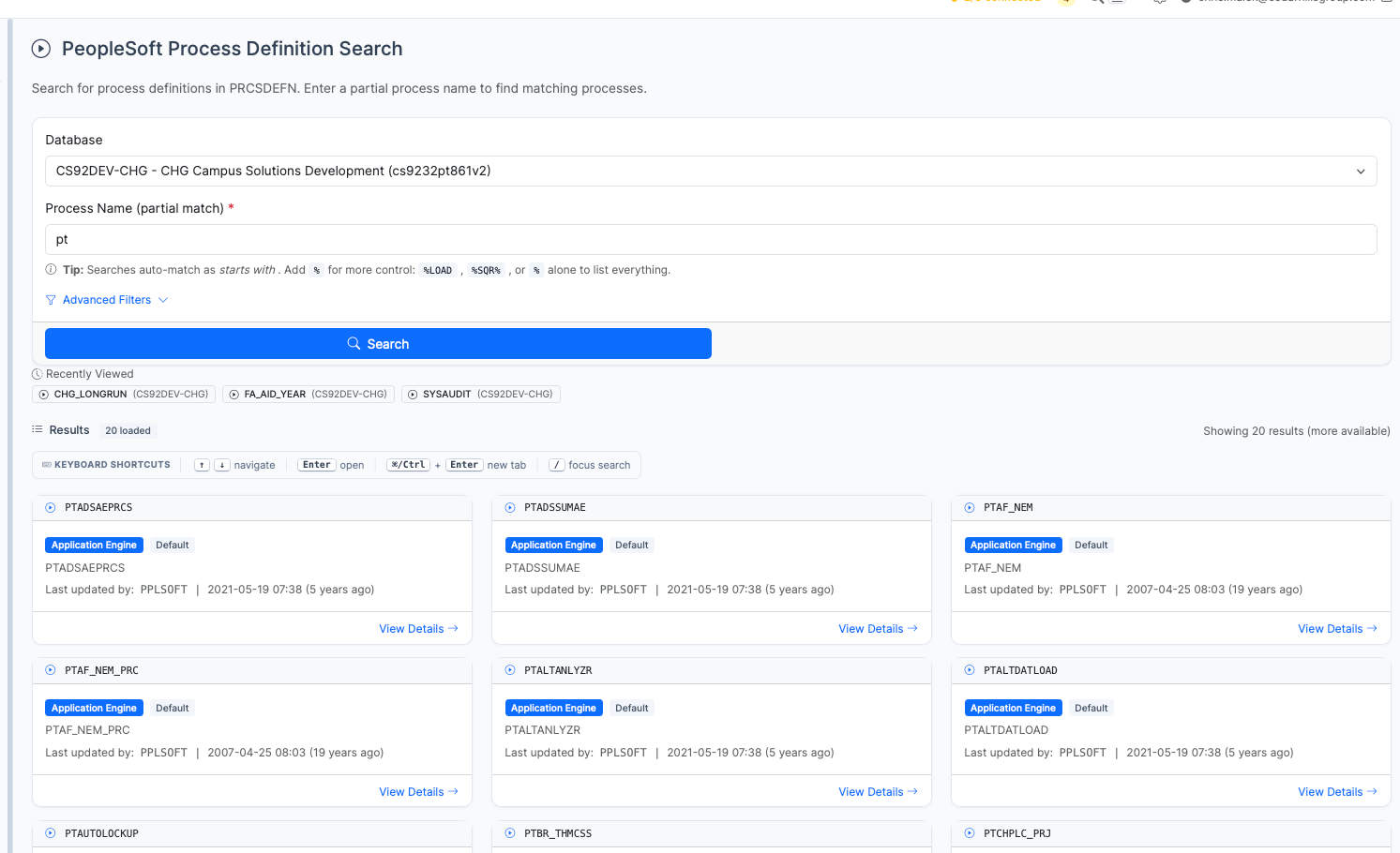
Searching for records by name with results displayed as cards
Search and Navigation
How Search Works
All metadata pages share the same search behavior:
Type at least a partial name in the search box.
Results appear automatically after a short pause (no need to press Enter).
Results are paginated — scroll down to load more.
Click any result card to open the detail view.
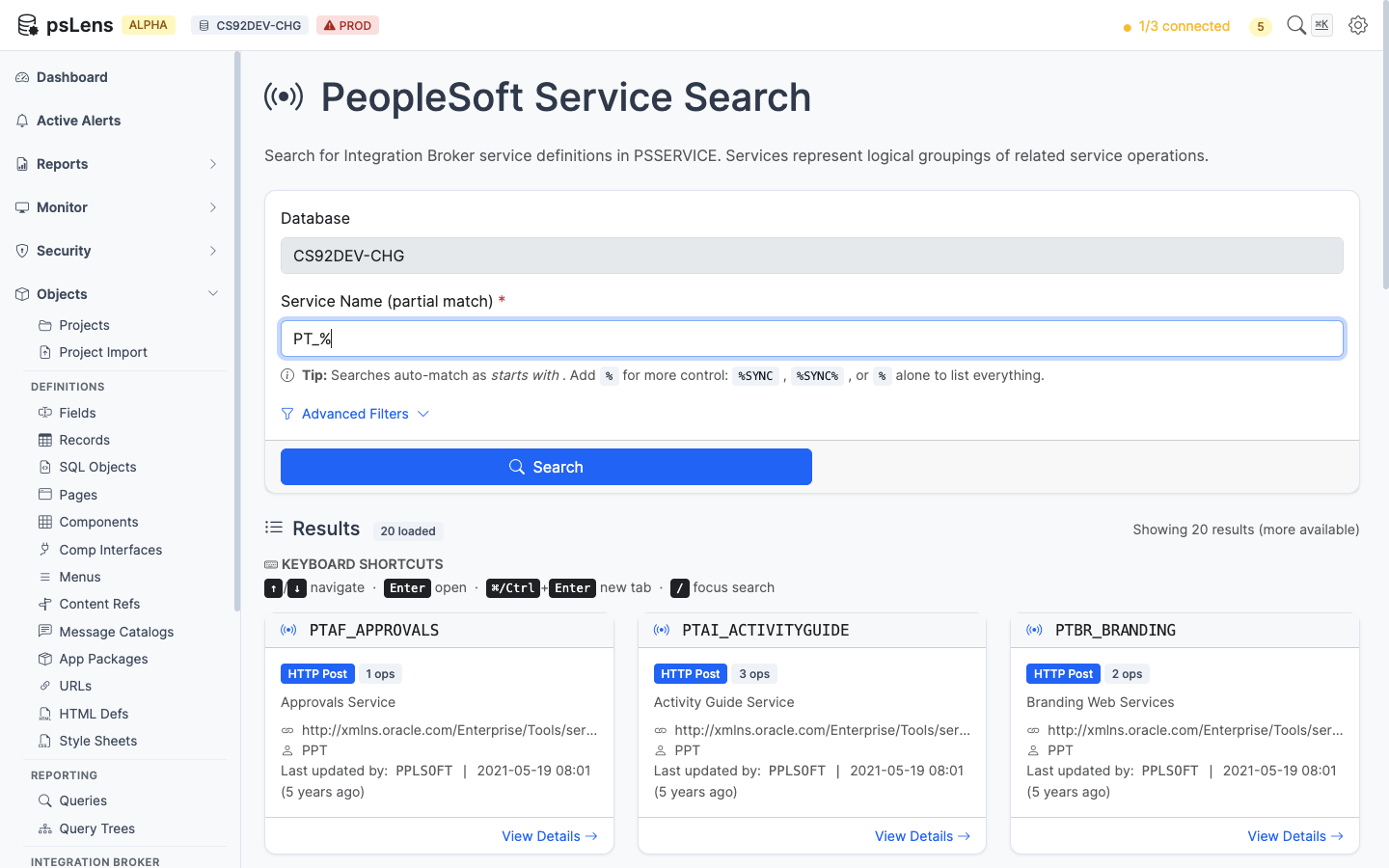
Search auto-matches as starts with — typing PS finds PSCLASSDEFN, PSMENUITEM, and so on. For more control, include % yourself: %SECURITY (ends with), %PERS% (contains), or just % to list every row. The per-object pages below note when a specific search box uses different behavior (for example, SQL Object search runs against the SQL text body, not just the name).
Cross-Object Navigation
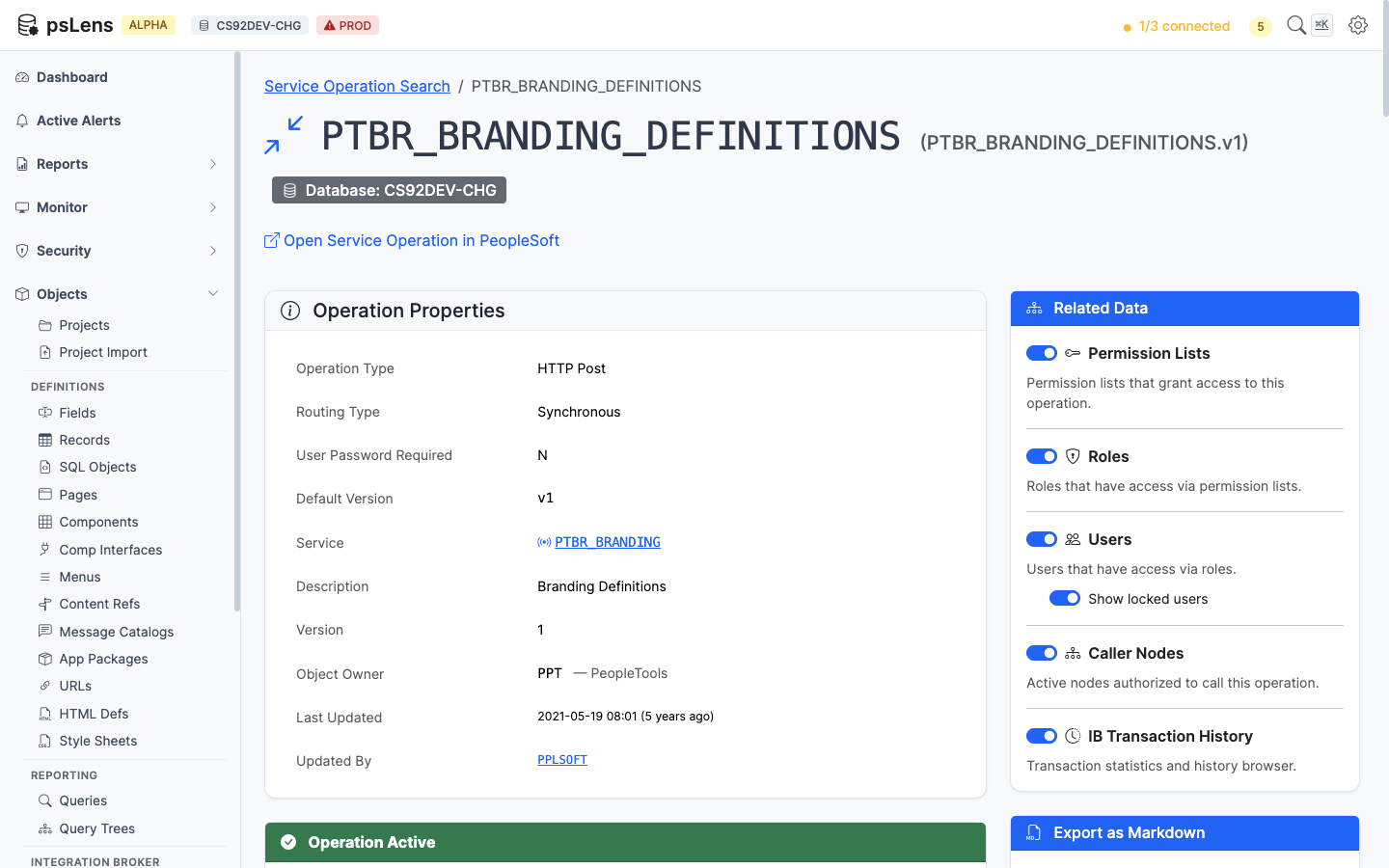
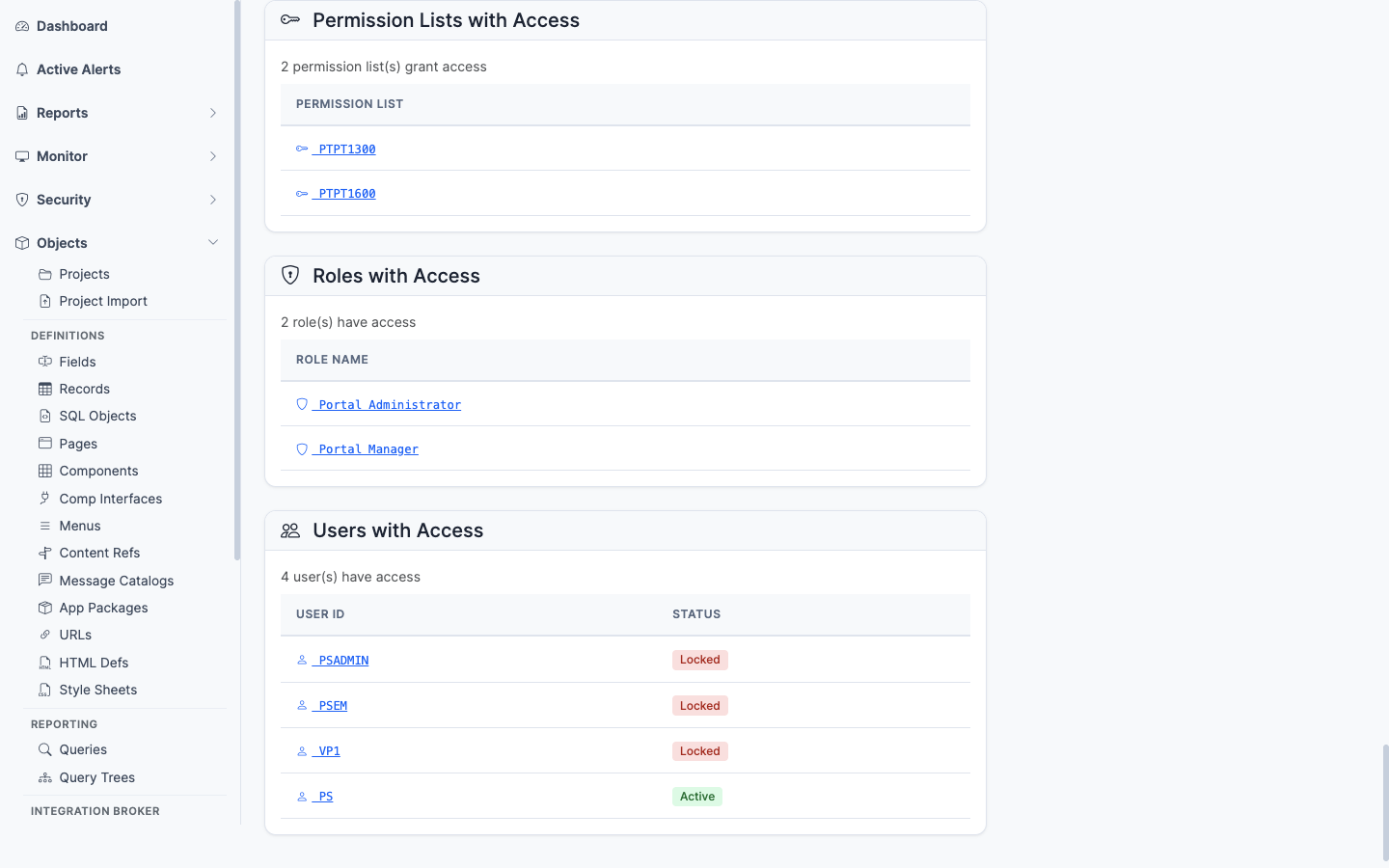
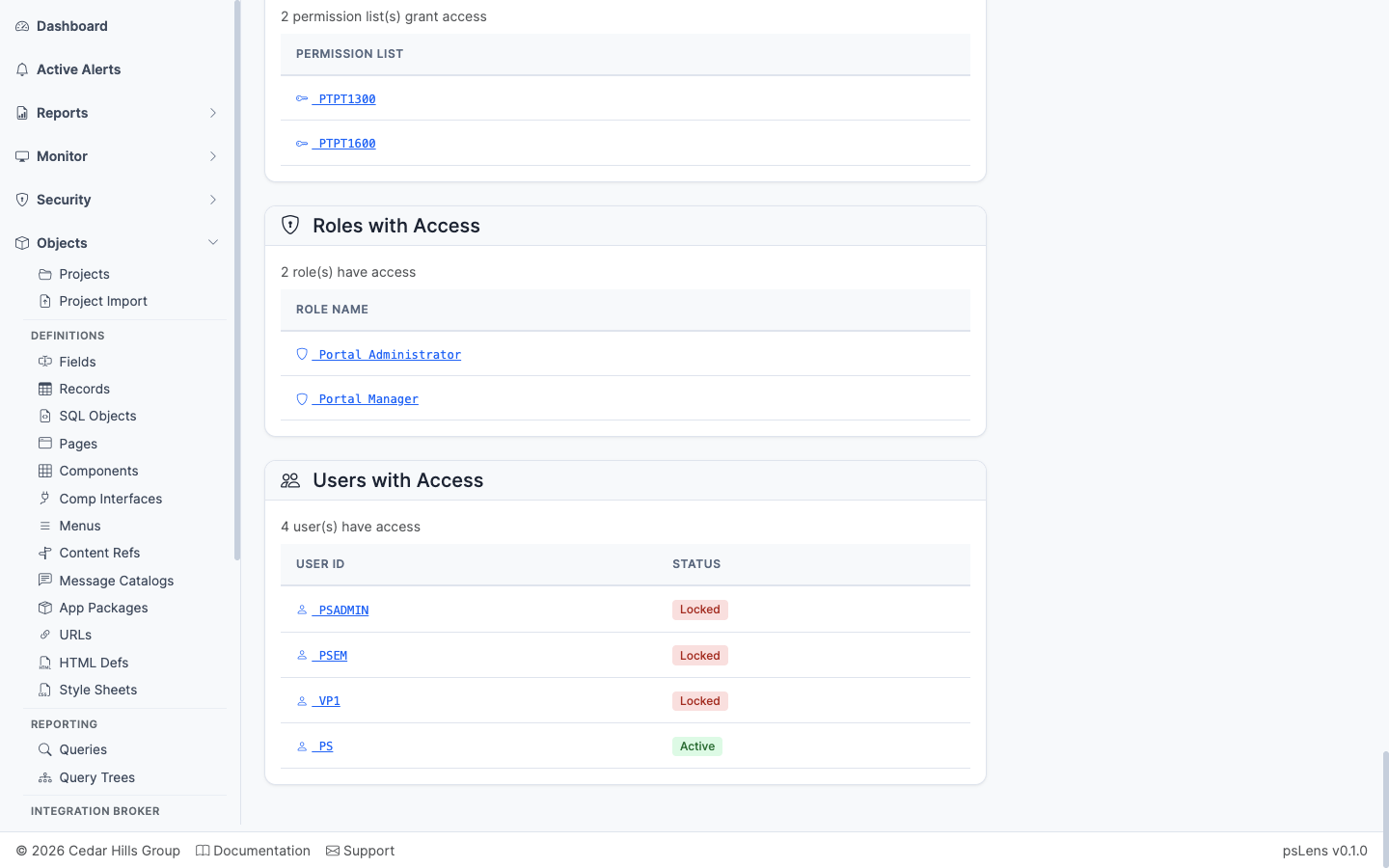
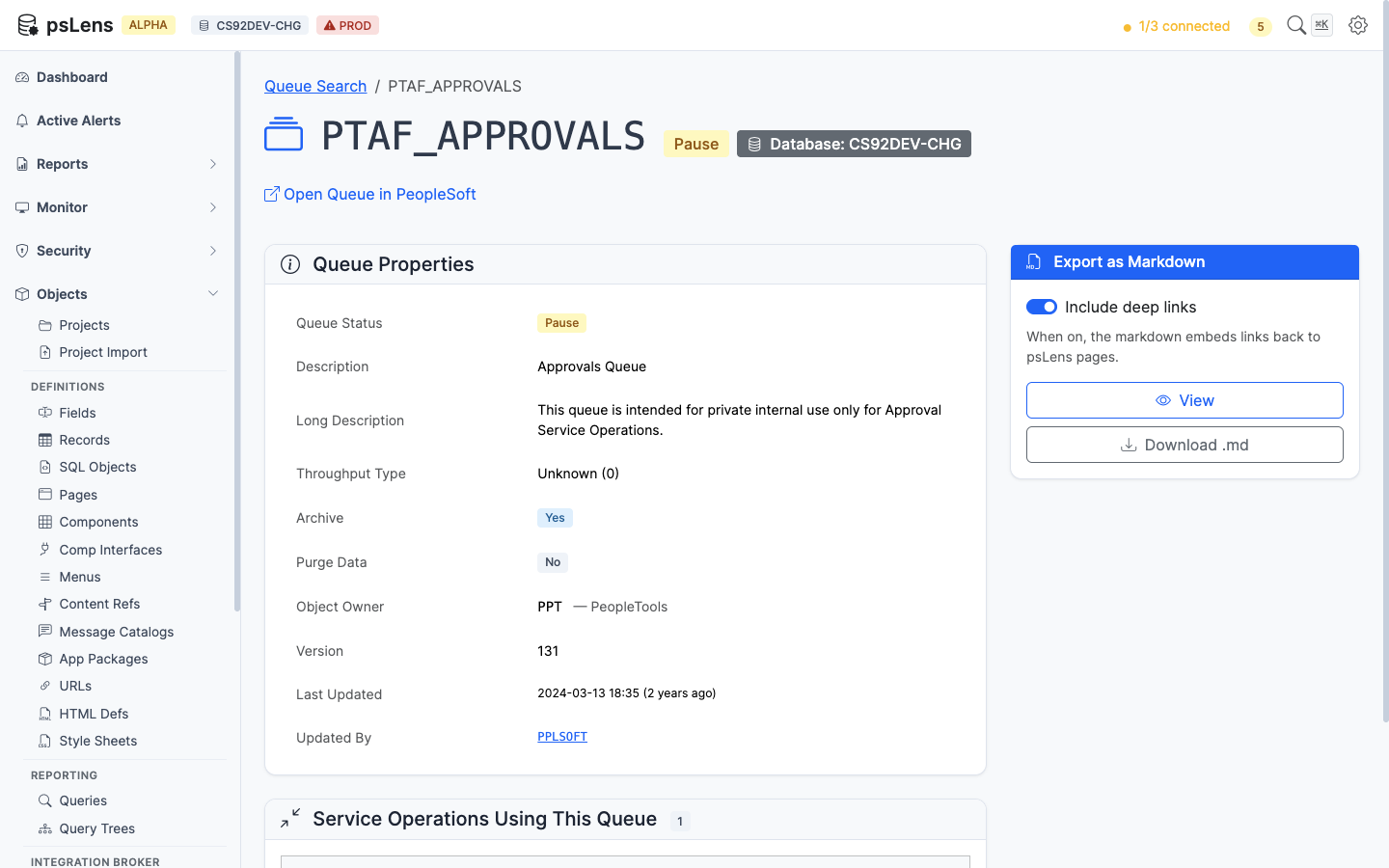
The detail page for each object type follows a consistent layout: main properties on the left, and a right-side Related Data sidebar with toggles that fetch additional information on demand. Toggling a panel ON fires a request, and the result loads inline. Each toggle runs a single query against the underlying tables (PSPRSMDEFN ancestors, PSPCMPROG references, etc.) and renders the result in place. The pattern is the same across every object type.
Where it makes sense, every linked reference (a record name, a field name, a component, a project) is clickable and navigates to that object’s own detail page, so you can chase a question across the application metadata in a few clicks.
Exporting Object Definitions
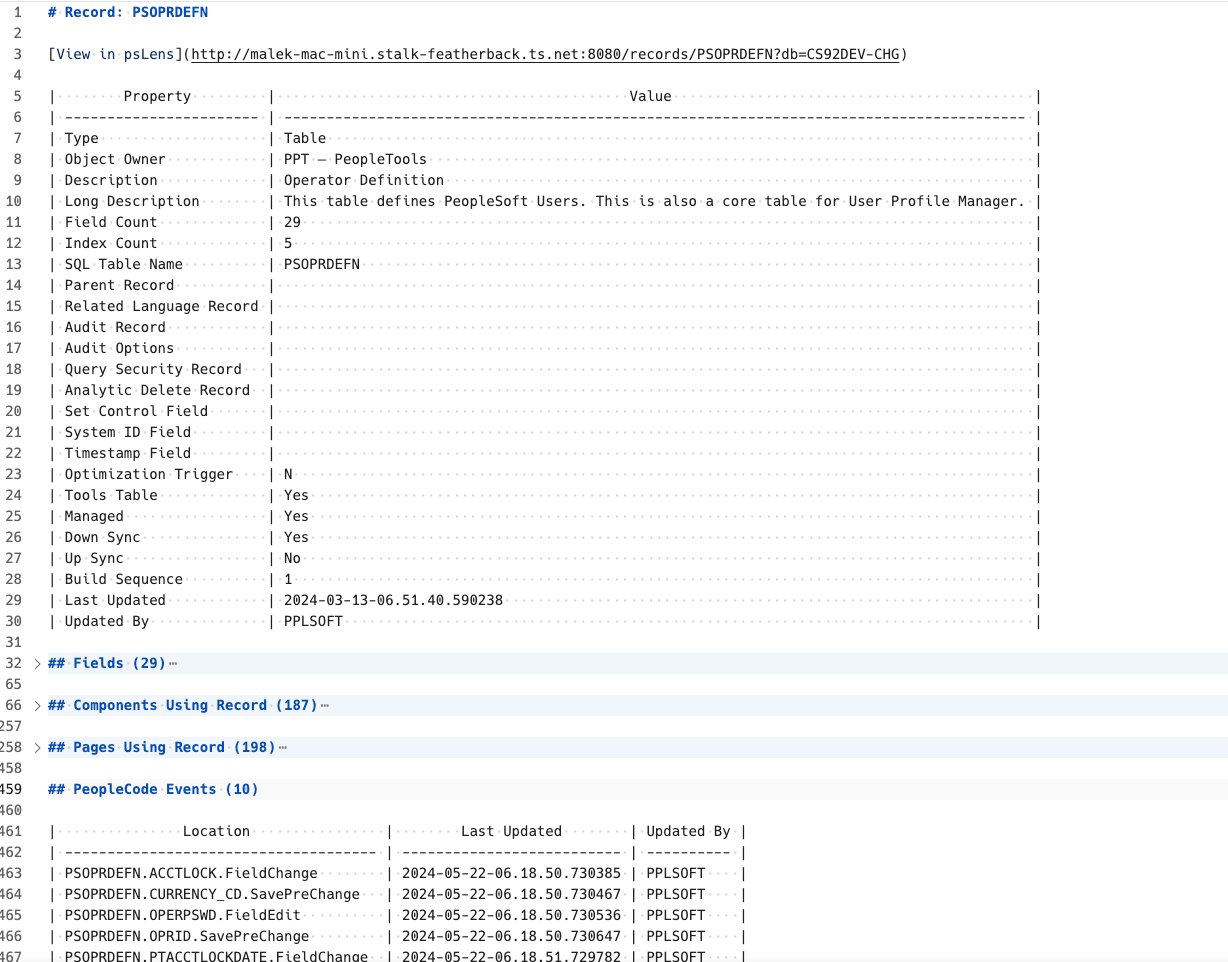
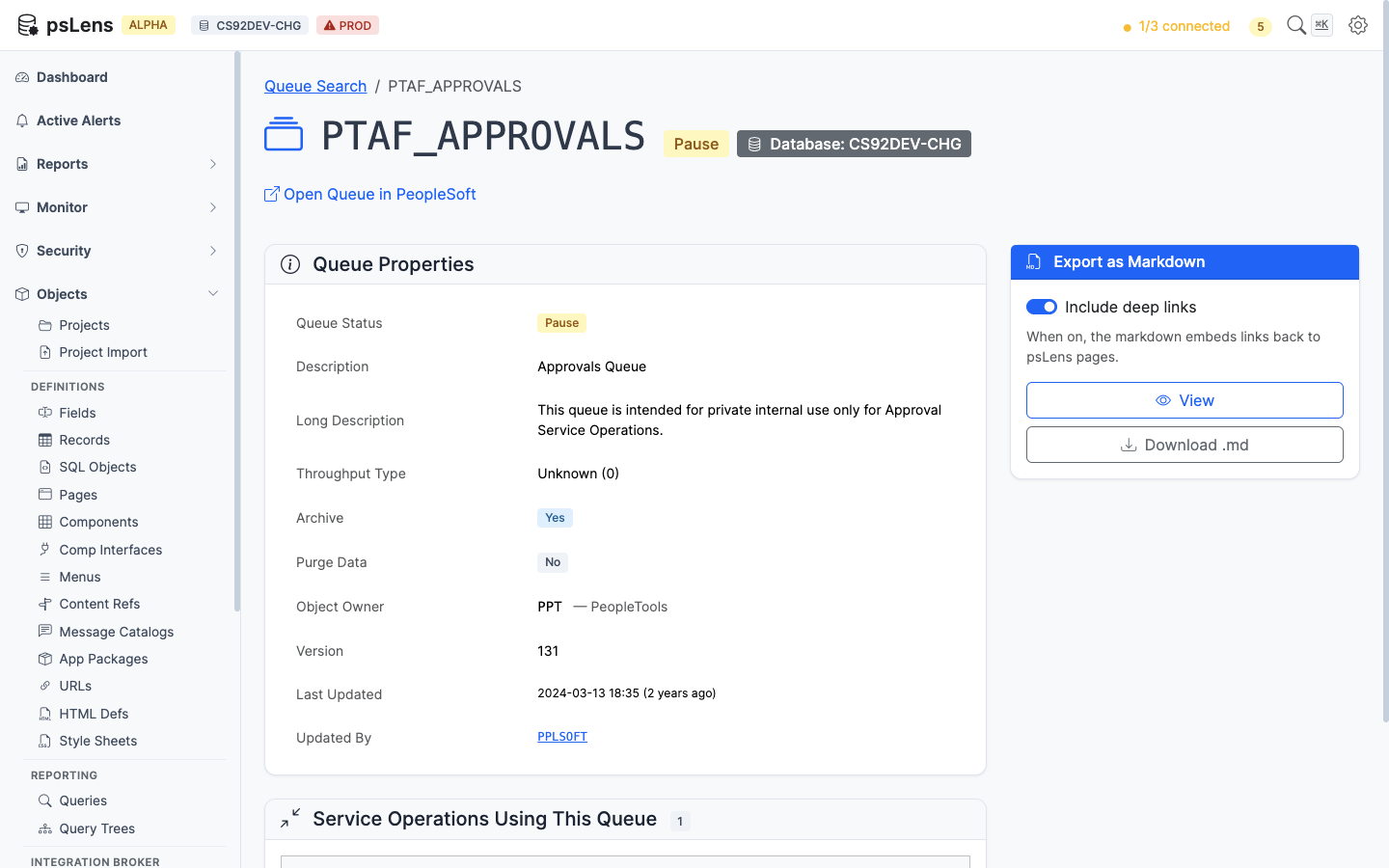
Every PeopleSoft object detail page in psLens supports exporting its full definition as a Markdown file. Look for the Export as Markdown card on the detail page. This is useful for documentation, code reviews, or sharing object details outside of psLens — and the structured Markdown format is ideal as input to AI tools like ChatGPT or Claude.
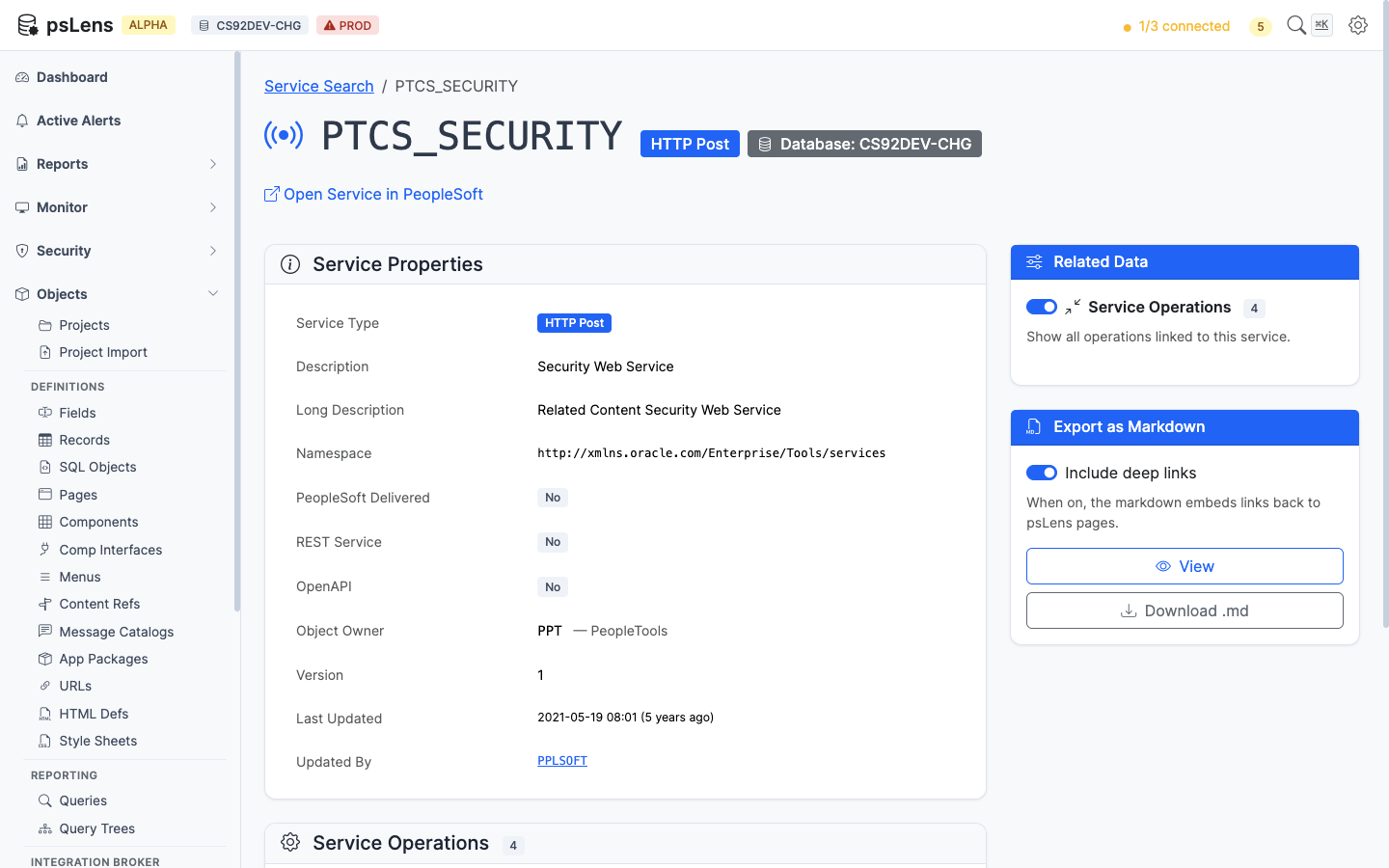
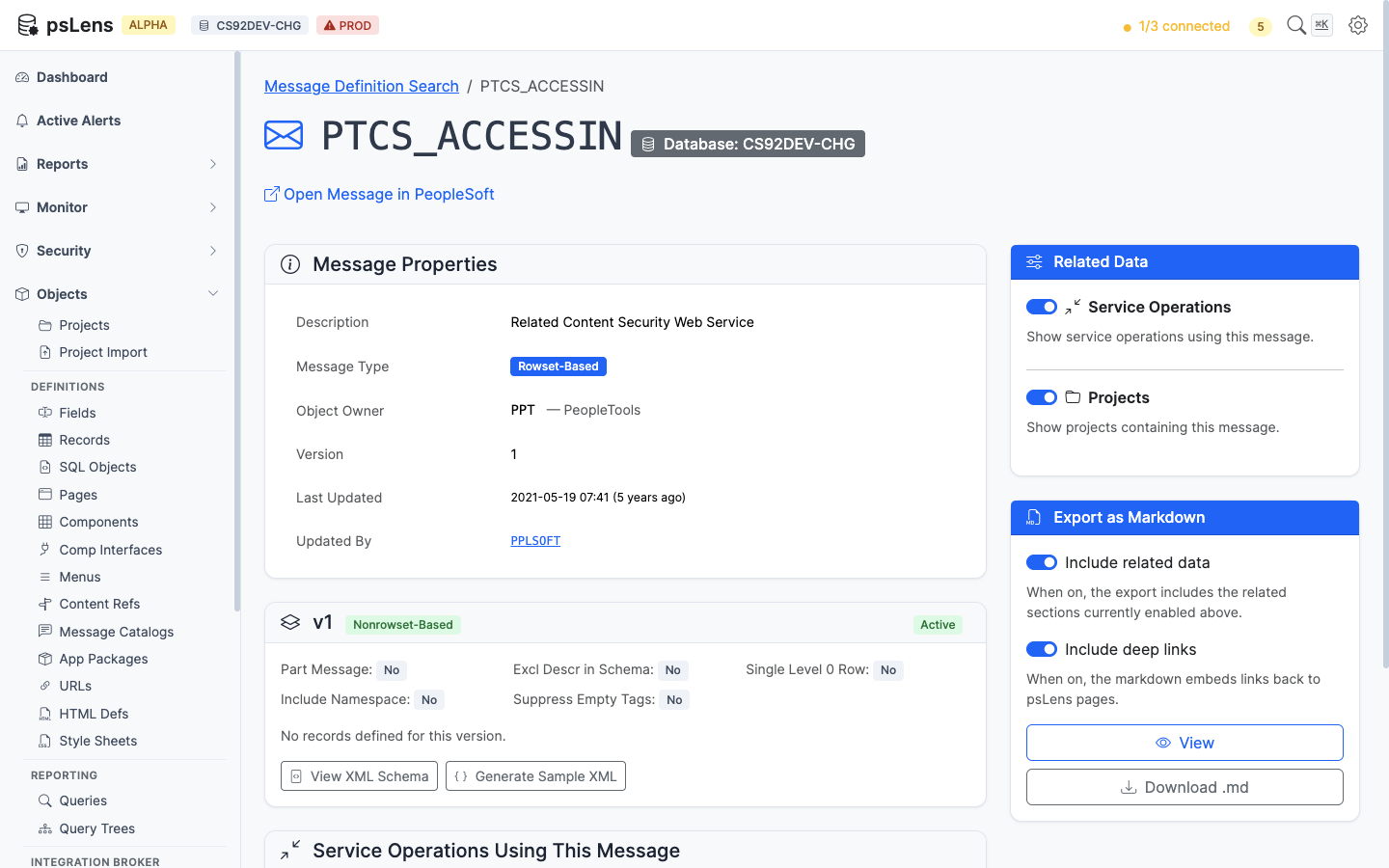
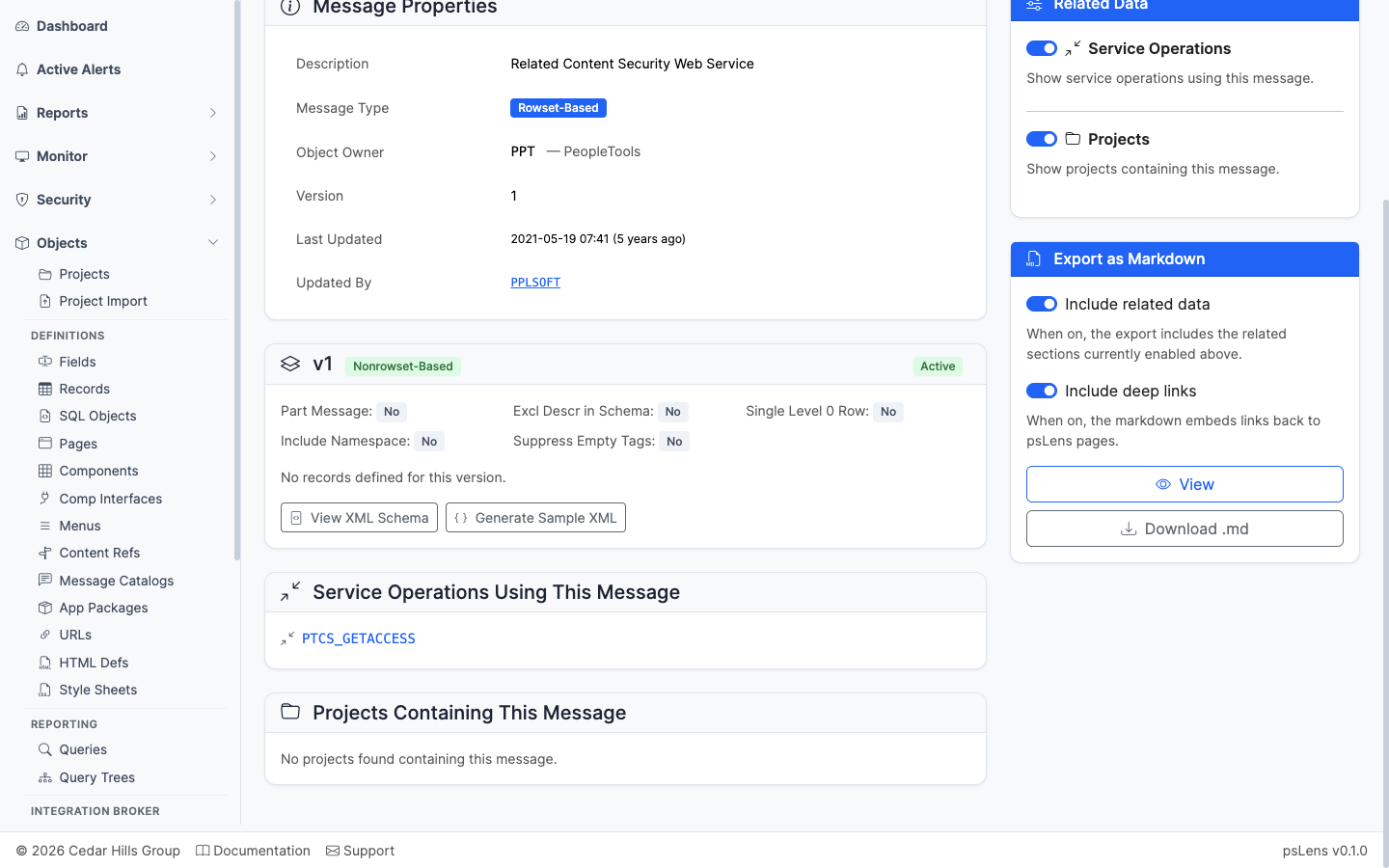
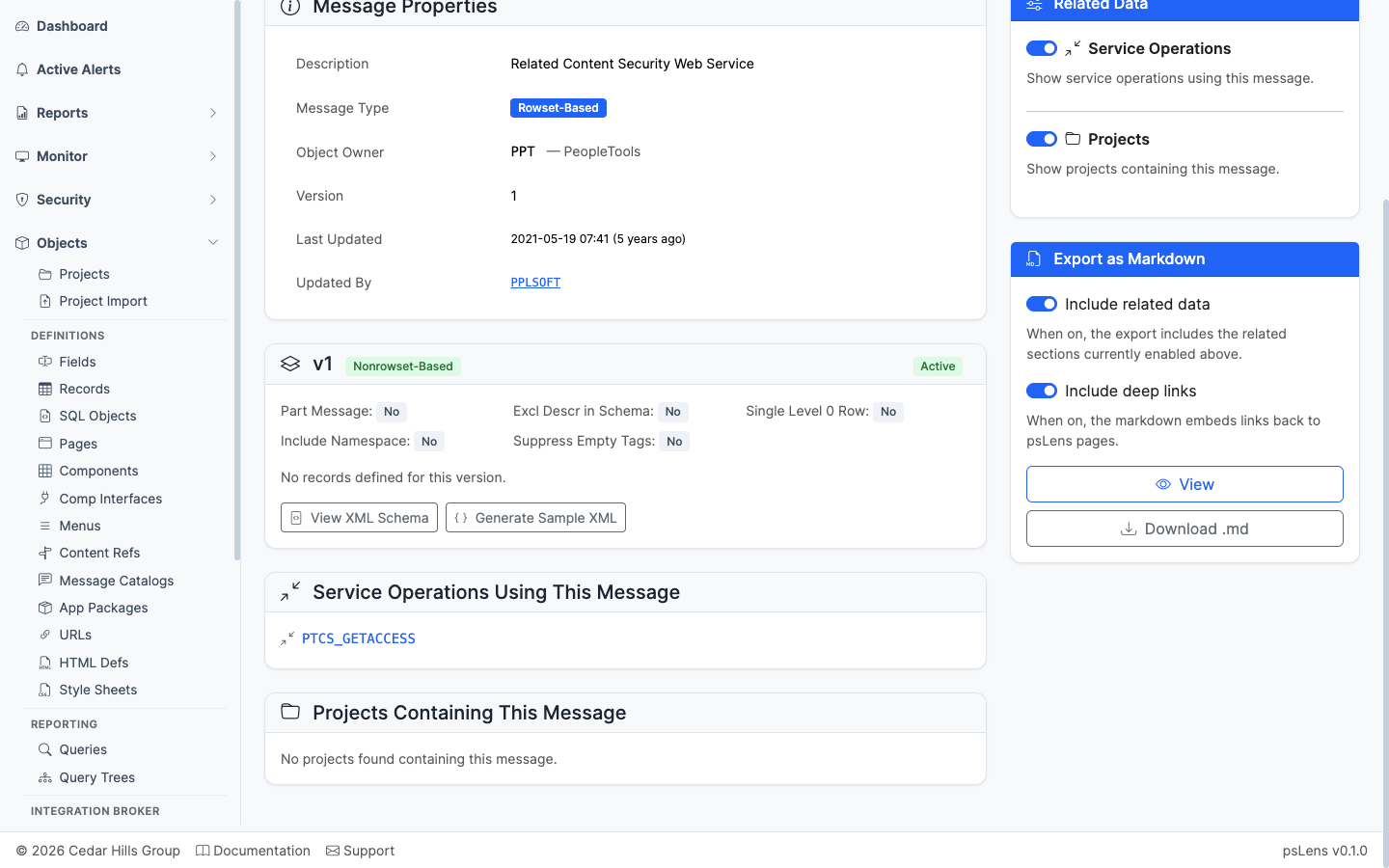
The export preserves object structure, related data, and code in a format that works in docs, code review, and AI workflows
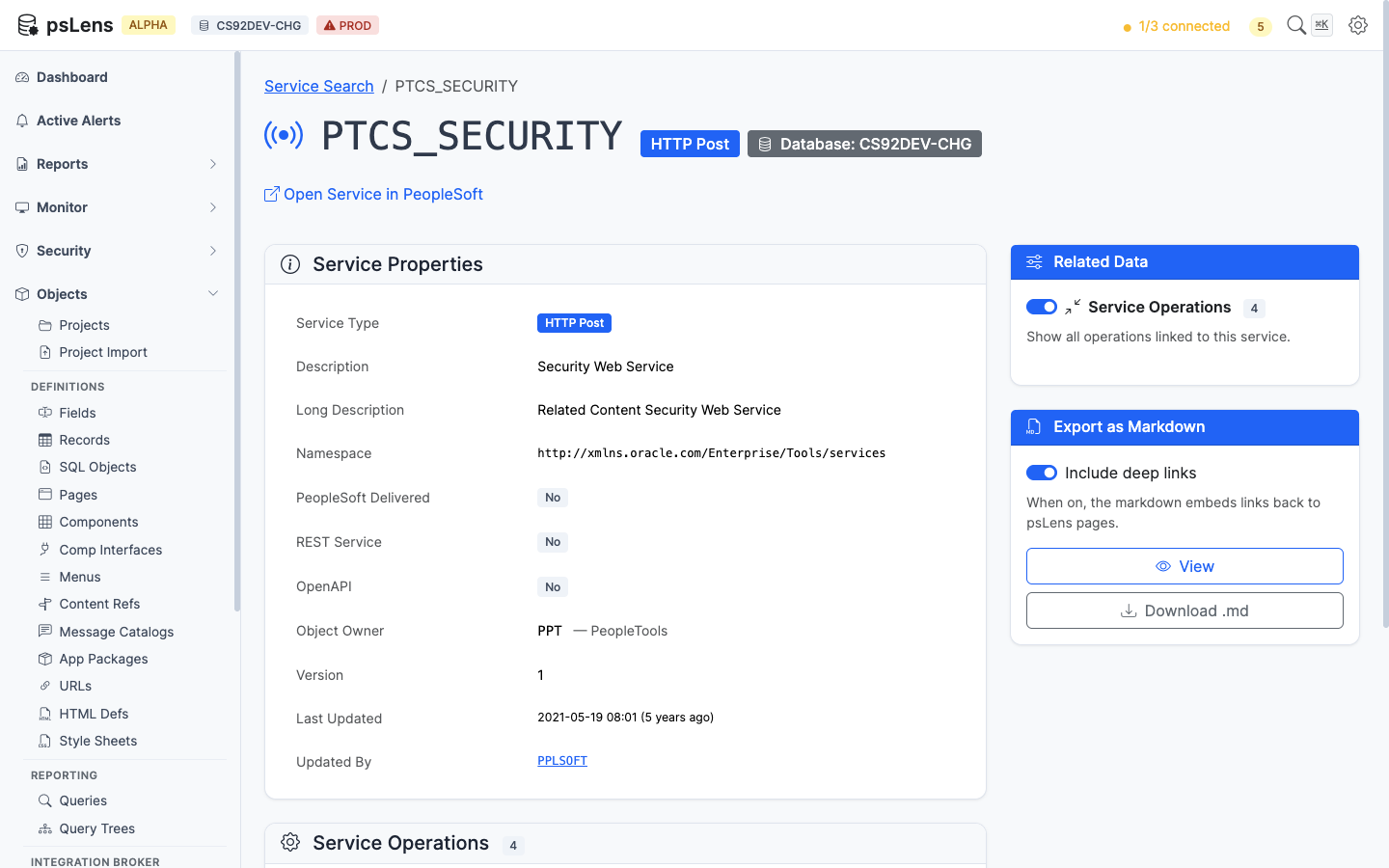
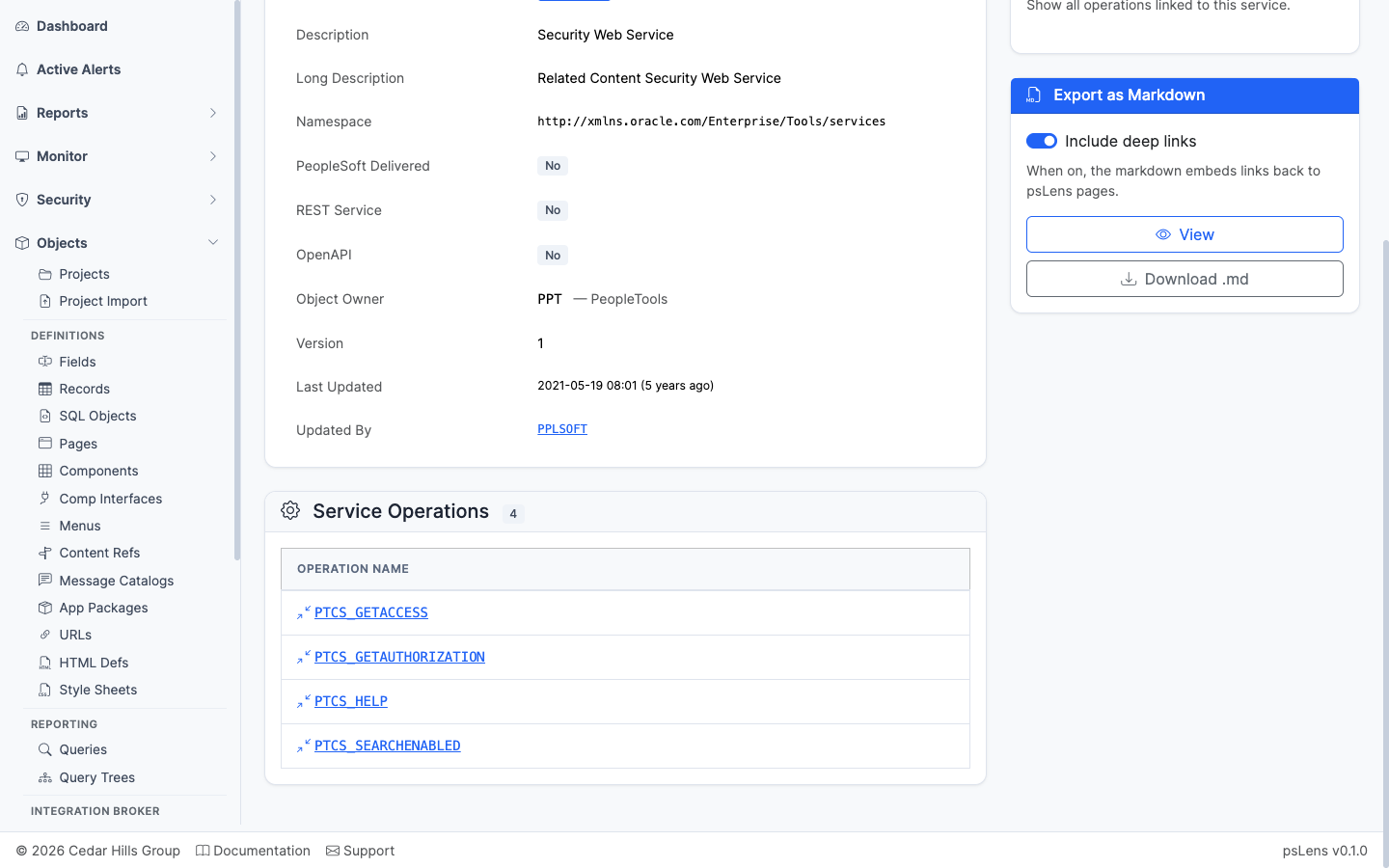
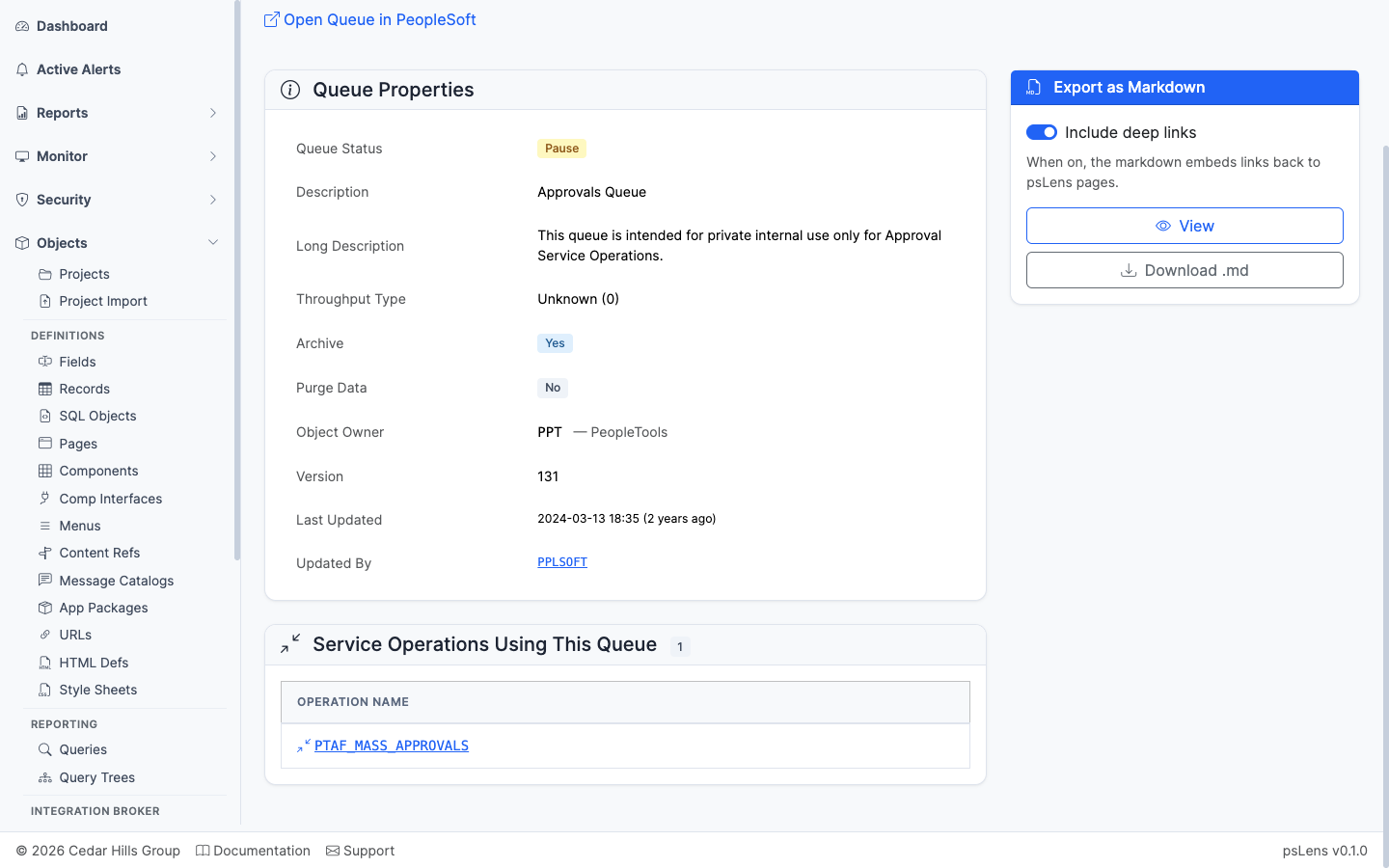
Each detail page consolidates the object definition, related data, and export path in one browser view
Deep Links to PIA
Every detail page surfaces a link out to the corresponding App Designer or PIA navigation in PeopleSoft, so you can jump from a psLens view straight into the live environment when you need to make a change.
See Metadata Browsing Live
The object docs show the surface area. A live walkthrough is where the value becomes obvious: how quickly a user can move from a name search to the exact record, page, component, service, or process definition they need.
Relationships and database table mappings between PeopleSoft fields, records, pages, components, menus, portal CREFs, Component Interfaces, Integration Broker, Application Engine, Query Security Trees, BI Publisher, Fluid UI, Related Content, File Layouts, Application Data Sets, and security definitions.
Tailored Operational Context
Target Database:—
Context Type:—
Alert Severity:—
Triggered Time:—
Firing Context:—
Overview
This page documents the relationships between core PeopleSoft metadata objects—fields, records, pages, components, menus, portal content references, Component Interfaces, Integration Broker definitions, Application Engine programs, Query Security Trees, BI Publisher reporting, Fluid UI, Related Content, File Layouts, Application Data Sets, and security definitions—and their underlying PeopleTools database tables.
PeopleSoft metadata is structured as an object hierarchy where granular data definitions build upward into visual pages, transaction components, menu structures, and portal navigation links. Security grants wrap around components, menus, Component Interfaces, web services, and portal content references to determine runtime user authorization.
Core Application Metadata Stack
The core application metadata stack consists of six object types:
Fields (PSDBFIELD): Define atomic data attributes including field name, data type, length, decimal precision, and label definitions (PSDBFLDLABL).
Records (PSRECDEFN, PSRECFIELD): Group fields into logical record definitions mapped to physical SQL tables (RECTYPE = 0), SQL views (RECTYPE = 1), derived work buffers (RECTYPE = 2), subrecords (RECTYPE = 3), dynamic views (RECTYPE = 5), query views (RECTYPE = 6), or temporary tables (RECTYPE = 7).
Pages (PSPNLDEFN, PSPNLFIELD): Define user interface screens containing visual controls (edit boxes, drop-down lists, check boxes, scroll areas, grids) bound to specific record fields.
Components (PSPNLGRPDEFN, PSPNLGROUP): Group one or more pages into a complete online business transaction. Every component relies on a primary search record (SEARCHRECNAME) to drive key selection and search dialogs.
Menus (PSMENUDEFN, PSMENUITEM): Organize components into logical menu bars (BARNAME) and menu items (ITEMNAME).
Portal Content References / CREFs (PSPRSMDEFN): Define navigation nodes, URLs, content providers (PORTAL_CNTPRV_NAM), and parent folders in the portal registry tree.
Security in PeopleSoft governs access to components, menu items, Component Interfaces, web services, and portal content references through five security layers:
User Accounts (PSOPRDEFN): Represent individual user accounts containing symbolic IDs, default local nodes, user class settings, and assigned roles.
User Roles (PSROLEUSER, PSROLEDEFN): Assign role definitions to users.
Permission Lists (PSROLECLASS, PSCLASSDEFN): Map permission list definitions to roles.
Menu & Component Authorizations (PSAUTHITEM): Authorize specific actions (Get, Add, Update/Display, Update/Display All, Correction) granted by permission lists for menu items and components.
Portal Permissions (PSPRSMPERM): Grant permission lists (PORTAL_PERMTYPE = 'P') or roles (PORTAL_PERMTYPE = 'R') access to portal folders and content references.
flowchart TD
    User["User ID (PSOPRDEFN)"] -->|Assigned Roles| RoleUser["User Role Assignment (PSROLEUSER)"]
    RoleUser -->|Maps to| Role["Role Definition (PSROLEDEFN)"]
    Role -->|Includes Classes| RoleClass["Role Class Grant (PSROLECLASS)"]
    RoleClass -->|Maps to| PermList["Permission List (PSCLASSDEFN)"]
    PermList -->|Grants Actions| AuthItem["Authorized Item (PSAUTHITEM)"]
    AuthItem -->|Target Menu & Item| MenuItemSec["Menu Item (PSMENUITEM)"]
    MenuItemSec -->|Target Component| ComponentSec["Component (PSPNLGRPDEFN)"]
    PermList -->|CREF Grant| PortalPerm["Portal Permission (PSPRSMPERM)"]
    Role -->|CREF Grant| PortalPerm
    PortalPerm -->|Authorizes Access| CREFSec["Portal Content Reference (PSPRSMDEFN)"]
Component Interface (CI) Architecture & Security
Component Interfaces expose online components (PSPNLGRPDEFN) for external API invocation, Excel-to-CI batch loads, and web service integrations:
CI Definitions (PSBCDEFN): Define Component Interface metadata, pointing to a target underlying component (PNLGRPNAME, MARKET) and primary search record.
CI Properties & Keys (PSBCITEM): Map exposed Component Interface properties, collections, methods, and parameters to page controls and record fields on the underlying component.
CI Security Grants (PSAUTHBUSCOMP): Authorize permission lists (CLASSID) to execute specific Component Interface actions (AUTHORIZEDACTIONS bitmask: Get, Create, Save).
Integration Broker (IB) Architecture & Web Services Security
Integration Broker manages synchronous and asynchronous messaging, REST and SOAP web services, routings, handlers, and external message nodes:
Services (PSSERVICE): Logical groupings of related service operations.
Service Operations (PSOPERATION): Individual operations defining operation type (Asynchronous One-Way, Asynchronous Read-Sub, Synchronous, REST), message body definitions, and default versions.
Operation Versions (PSOPRVERDFN): Versioned definitions of service operations mapping request and response messages.
Routings (PSIBRTNGDEFN): Directional communication rules mapping sender nodes to receiver nodes, specifying transformations and transport connectors.
Handlers (PSOPRHDLR): Code execution units (Application Classes or App Engines) that process incoming or outgoing service operation messages.
Message Nodes (PSMSGNODEDEFN): External system or local environment connection targets.
Queues (PSQUEUEDEFN): Asynchronous execution queues governing message sequencing and concurrency.
Web Service Security (PSAUTHWS): Authorizes permission lists (CLASSID) to execute specific Service Operations (IB_OPERATIONNAME) within a Service (IB_SERVICE_NAME).
Query Security Trees & BI Publisher (XMLP) Pipeline
PeopleSoft Query definitions interface with Query Security Trees for record authorization, and feed data into BI Publisher templates for document generation:
Query Access Trees (PSTREEDEFN, PSTREENODE, PSTREELEAF): Hierarchical record structures organizing records into query access groups. Permission lists (PSCLASSDEFN) are granted access to specific tree nodes.
Query Definitions (PSQRYDEFN, PSQRYRECORD): Queries selecting record data filtered by query tree security grants.
Connected Queries (PSCONQRSDEFN, PSCONQRSMAP): Hierarchical structures linking multiple queries into a single nested XML payload.
BI Publisher Data Sources (PSXPDATASRC): Data source definitions wrapping PS Queries, Connected Queries, or XML files.
Report Definitions (PSXPRPTDEFN, PSXPTMPLDEFN): Report definitions linking data sources to RTF, PDF, or Excel templates (PSXPTMPLFILEDEF).
Fluid UI definitions and Related Content services deliver responsive navigation tiles and contextual sidebar panels:
Fluid Components (FLUIDMODE = 1): Components designed for responsive layout across desktop and mobile devices.
Portal Tile Attributes (PSPRSMSYSATTRVL): System attribute key/value pairs attaching Fluid tile properties (ALLOW_NAVBAR_TILES, PORTAL_HIDE_FROM_NAV) to content references (PSPRSMDEFN).
Related Content Services (PSPTCSSRVDEFN): Service definitions specifying target components, iScripts, or external URLs for contextual display.
Related Content Configurations (PSPTCS_SRVCFG, PSPTCS_MAPFLDS): Configuration mappings linking target related content services to specific host component fields and keys.
PeopleCode programs bind to metadata definitions through key schemes stored in PSPCMPROG, PSPCMTXT, and PSPCMNAME. The OBJECTID1 column in PSPCMPROG identifies the parent object type that owns the code:
Record PeopleCode (OBJECTID1 = 1): Attached to record fields. Stores events like FieldChange, RowInit, SaveEdit, and FieldFormula.
Menu PeopleCode (OBJECTID1 = 3): Attached to menu items for ItemSelected events.
Page PeopleCode (OBJECTID1 = 9): Attached to pages for page activate events.
Component PeopleCode (OBJECTID1 = 10): Attached to components at the component level (OBJECTID3 = 12), component record level (OBJECTID3 = 1), or component record-field level (OBJECTID3 = 1 with OBJECTID4 = 2).
Component Interface PeopleCode (OBJECTID1 = 74): Attached to Component Interface properties and methods.
Application Package PeopleCode (OBJECTID1 = 104): Attached to Application Package classes and methods.
The PSPCMNAME table stores every object reference parsed from PeopleCode programs, enabling bidirectional cross-referencing between source code and metadata definitions.
Process Scheduler definitions and PeopleSoft Query definitions interface with records and components:
Process Definitions (PRCSDEFN): Map batch processes (Application Engines, SQR, COBOL, BI Publisher) to parent process types (PRCSTYPE) and target components (PRCSDEFNPNL). Process groups (PRCSDEFNGRP) control user authorization to run processes from specific components.
PeopleSoft Queries (PSQRYDEFN): Query definitions reference record definitions (PSQRYRECORD) and selected fields (PSQRYFIELD). Access to record data within Query Manager is governed by Query Security Trees (PSTREENODE), which are granted to permission lists (PSCLASSDEFN).
flowchart TD
    PrcsDefn["Process Definition (PRCSDEFN)"] -->|Runs from Component| PrcsPnl["Process Component (PRCSDEFNPNL)"]
    PrcsPnl -->|Target Component| CompPrcs["Component (PSPNLGRPDEFN)"]
    PrcsDefn -->|Grouped in| PrcsGrp["Process Group (PRCSDEFNGRP)"]
    QueryDefn["Query Definition (PSQRYDEFN)"] -->|Selects Records| QueryRec["Query Record (PSQRYRECORD)"]
    QueryRec -->|Points to| RecordQry["Record Definition (PSRECDEFN)"]
    RecordQry -->|Tree Access Controlled by| QueryTree["Query Tree Node (PSTREENODE)"]
    PermListQry["Permission List (PSCLASSDEFN)"] -->|Grants Tree Access| QueryTree
PeopleTools Table Reference
The table below lists the primary PeopleTools database tables and primary key structures for major metadata and security objects.
When a user accesses an online component, Component Interface, web service, or portal content reference, PeopleSoft evaluates authorization through a multi-tier resolution path:
Top-Down User Authorization Evaluation
The runtime engine identifies the user’s OPRID in PSOPRDEFN.
PSROLEUSER fetches all roles assigned to OPRID.
PSROLECLASS collects all permission lists (CLASSID) mapped to those roles.
PSAUTHITEM verifies if any collected permission list grants authorized actions for the requested MENUNAME, BARNAME, and ITEMNAME.
PSAUTHBUSCOMP checks whether the user’s permission lists authorize Component Interface actions for a requested BCNAME.
PSAUTHWS checks whether the user’s permission lists authorize execution of a requested Service (IB_SERVICE_NAME) and Operation (IB_OPERATIONNAME).
PSPRSMPERM checks whether the user’s permission lists or roles authorize access to the target portal content reference (PORTAL_OBJNAME).
Bottom-Up Security Audit Path
To audit which users hold access to a specific component, CI, or web service:
Components: Identify the menu item (PSMENUITEM) pointing to PNLGRPNAME, query PSAUTHITEM for permission lists (CLASSID), query PSROLECLASS for roles, and query PSROLEUSER for assigned users.
Component Interfaces: Query PSAUTHBUSCOMP for permission lists with non-zero AUTHORIZEDACTIONS on BCNAME, then resolve roles (PSROLECLASS) and users (PSROLEUSER).
Integration Broker Web Services: Query PSAUTHWS for permission lists authorized for IB_SERVICE_NAME and IB_OPERATIONNAME, then resolve roles (PSROLECLASS) and users (PSROLEUSER).
2 - Projects
Browse and inspect App Designer project definitions (PSPROJECTDEFN) and their constituent metadata items.
Tailored Operational Context
Target Database:—
Context Type:—
Alert Severity:—
Triggered Time:—
Firing Context:—
Projects are PeopleSoft’s primary mechanism for grouping metadata objects together for migration between environments (e.g., from Development to Testing to Production). Every project definition is stored in PSPROJECTDEFN, and the items contained within a project are registered in PSPROJECTITEM.
psLens allows you to search and inspect project definitions directly, showing you the exact list of objects included in a project and letting you compare project items across different database environments.
Object Relationships
Projects bundle application metadata for lifecycle management and environment migration:
Groups Metadata Objects: Projects (PSPROJECTDEFN) contain project items (PSPROJECTITEM) referencing records, fields, pages, components, PeopleCode, and other definitions.
How psLens Improves Project Inspection
In Application Designer, inspecting projects requires opening individual project files, expanding object trees, and manually cross-referencing upgrade action flags prior to migration.
psLens displays project properties, paginated item inventories categorized by object type, migration health flags for non-standard actions, and cross-database environment comparison on a single screen.
Search Page
URL: /projects?db={database}
The Project Search page lets you locate projects by name (using a prefix match).
Basic Search: Type a partial name (e.g., HR or PT) to search. Search matches as starts with. You can use the % wildcard for more complex queries: %UPGRADE% finds any project containing “UPGRADE”, or % alone lists all projects.
Advanced Filters:
Operator ID: Filter projects last updated by a specific operator (user).
Customized Only: Filter to show only projects marked as customized.
Date Range: Filter projects based on their last updated date.
Detail Page
URL: /projects/{PROJECTNAME}?db={database}
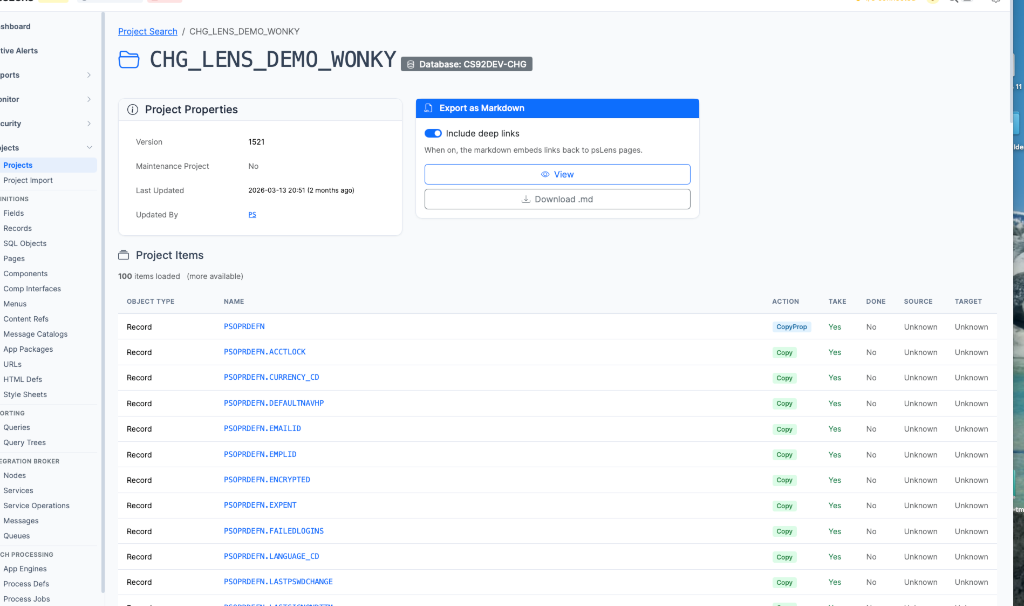
Project detail for CHG_LENS_DEMO_WONKY: properties and item list
The Project Detail page shows:
Project Properties: Shows metadata about the project itself, such as the description, version, object owner, release, release label, update flags, and the user who last updated it.
Project Items: Displays a paginated list of all objects contained within the project, grouped and sorted by object type (e.g., Records, Fields, Pages, Components, PeopleCode).
Flagging non-standard project items
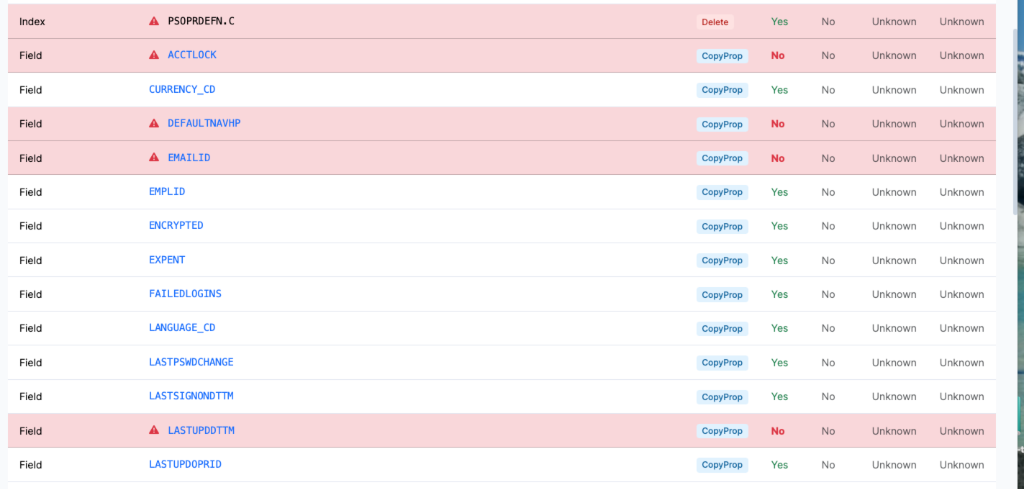
Migration & Health Flags: psLens automatically flags non-standard project items in red (as shown above). This highlights things that can cause issues with migrations, such as upgrade flags and actions (e.g., Delete actions or items with Take set to No). This gives you a quick check on the state of your project before migrating.
Compare to Database: If you have multiple databases configured in psLens, you can select another database from the card on the page to run a project comparison.
Export as Markdown: Export the entire project definition and its items list to a markdown file, which is ideal for change logs, migration documentation, or code reviews.
3 - Project Import
Import and compare PeopleSoft XML project files against the target database to review object states and perform PeopleCode/SQL diffs.
Tailored Operational Context
Target Database:—
Context Type:—
Alert Severity:—
Triggered Time:—
Firing Context:—
Project Import lets you upload an XML export file of a PeopleSoft project (the .xml files exported from App Designer via Tools -> Copy Project -> To File).
This lets you inspect the contents of a project file (including embedded PeopleCode, SQL, and HTML definitions) and compare it against any of the configured databases before actually migrating or importing the project into the environment.
Object Relationships
Project Import previews external project files against database metadata:
Compares XML Items to Database: Project Import parses project XML files to compare embedded items against live database definitions (PSPROJECTITEM).
How psLens Improves Project Import Analysis
In Application Designer, comparing an exported XML project file against a target environment requires logging into the target database and executing a project copy or compare operation.
psLens allows developers to drag-and-drop XML project files to inspect embedded PeopleCode, SQL, and HTML definitions offline, running content-hash diffs against target databases before migrating.
Uploading a Project XML
URL: /project-import
To import a project:
Go to the Project Import page.
Click the file upload box or drag-and-drop your PeopleSoft project XML file (up to 25MB).
The server will parse the XML and add the project to your local imports history list.
Project XML View
Once imported, you are presented with the Project XML View:
Metadata Summary: Shows the source database where the project was exported, export date, export Operator ID, and file stats.
Flat Items List: A single flat table listing every object in the project, categorized by type (Record, Field, Component, etc.).
Source Code View: Items that contain code (PeopleCode, SQL, or HTML) are marked with an icon. Clicking on these items will expand them inline to show the source code directly in your browser.
Database Comparison
You can compare the imported XML project against any of your active databases:
Select the target database from the dropdown in the comparison card.
Click Compare.
psLens runs a comparison check for each object:
PeopleCode: Performed via content hashing (ignoring line endings and trailing whitespace) to determine if the code is identical or different, since timestamps are often unreliable across migrations.
Other Objects: Performed via the LASTUPDDTTM timestamp on the target database table.
Compare Statuses
Same: The object in the XML file is identical to the one in the target database.
Different: The code contents differ between the XML and the database.
DB Newer: The object in the database has a newer timestamp than the one in the XML.
DB Older: The object in the database has an older timestamp than the one in the XML.
Not in DB: The object does not exist in the target database.
No DB Lookup: The object type is not supported for automatic database comparison.
4 - Definitions
Browse PeopleSoft data, interface, and code definitions: records, fields, pages, components, and more.
Definitions
psLens provides read-only exploration and cross-referencing for core PeopleSoft application definitions.
4.1 - Fields
Browse PeopleSoft field definitions with cross-references to records, pages, PeopleCode, component interfaces, queries, and projects.
Tailored Operational Context
Target Database:—
Context Type:—
Alert Severity:—
Triggered Time:—
Firing Context:—
Fields (PSDBFIELD) are the fundamental, individual data elements in PeopleSoft—like an employee ID, first name, date of birth, or monetary amount. Think of a field as an individual column in a spreadsheet or a single entry box on a form. Every database table column and page control across PeopleSoft is built on top of a field definition. psLens reads field definitions from PSDBFIELD (and field labels from PSDBFLDLABL) and stitches them together with the rest of the metadata so you can see, in one place, everywhere a given field is used.
Object Relationships
Fields form the lowest-level data layer in the PeopleSoft object hierarchy:
Included in Records: Fields (PSDBFIELD) are grouped into record definitions (PSRECFIELD) to form physical database tables, SQL views, and derived work buffers.
Bound to Page Controls: Fields are bound to user interface controls (PSPNLFIELD) on pages to view or edit data.
Exposed in Component Interfaces: Fields map to Component Interface properties (PSBCITEM) for programmatic API integrations.
Referenced in Queries & PeopleCode: Fields are selected in PeopleSoft Queries (PSQRYFIELD) and referenced in PeopleCode logic across the application.
How psLens Improves Field Inspection
In Application Designer, assembling a complete picture of a field’s usage requires opening the field definition for properties and labels, right-clicking to run Find Object References for record usage, executing a separate Find In search across PeopleCode, manually running SQL against PSPNLFIELD and PSBCITEM to find page and CI usage, running Query Manager searches across databases, and inspecting containing App Designer projects one at a time for migration history.
psLens surfaces field properties, label definitions, containing records, page bindings, Component Interface properties, PeopleCode call sites, and query references on a single screen with one-click drilldowns.
Search Page
URL: /fields?db={database}
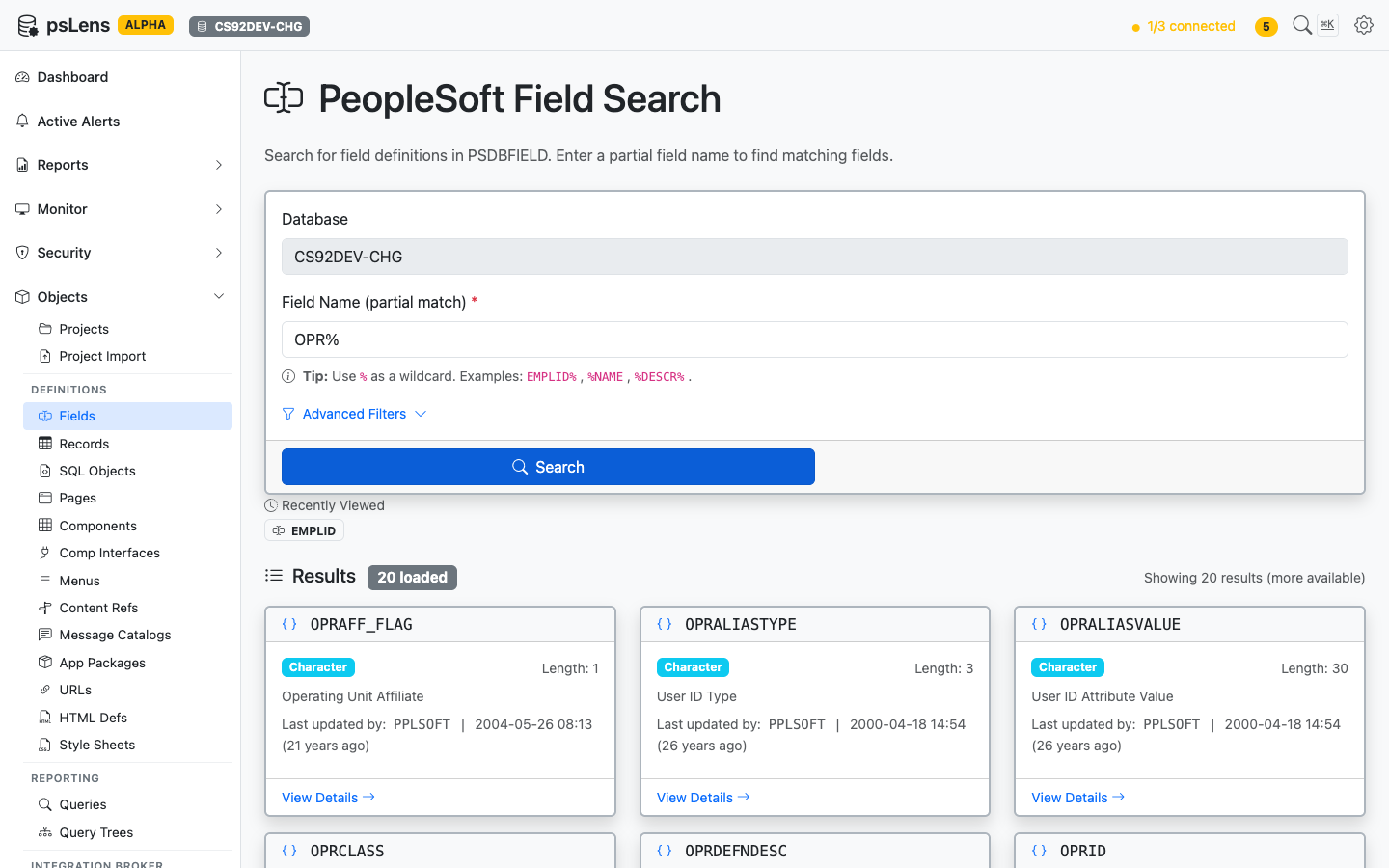
Field search results for OPR%
Type a partial field name to find matching definitions. Search auto-matches as starts with — EMPLID finds EMPLID, EMPLID_TBL, EMPLID_PNL, etc. Include % yourself for more control: %NAME (ends with), %DESCR% (contains), or just % to list every row. Each result card shows the field type and length, the long-name description, and the last-updated timestamp so you can spot recently modified objects at a glance. The Advanced Filters panel lets you narrow by field type, last-updated date, or owner. Recently viewed fields are surfaced just above the results.
Detail Page
URL: /fields/{FIELDNAME}?db={database}
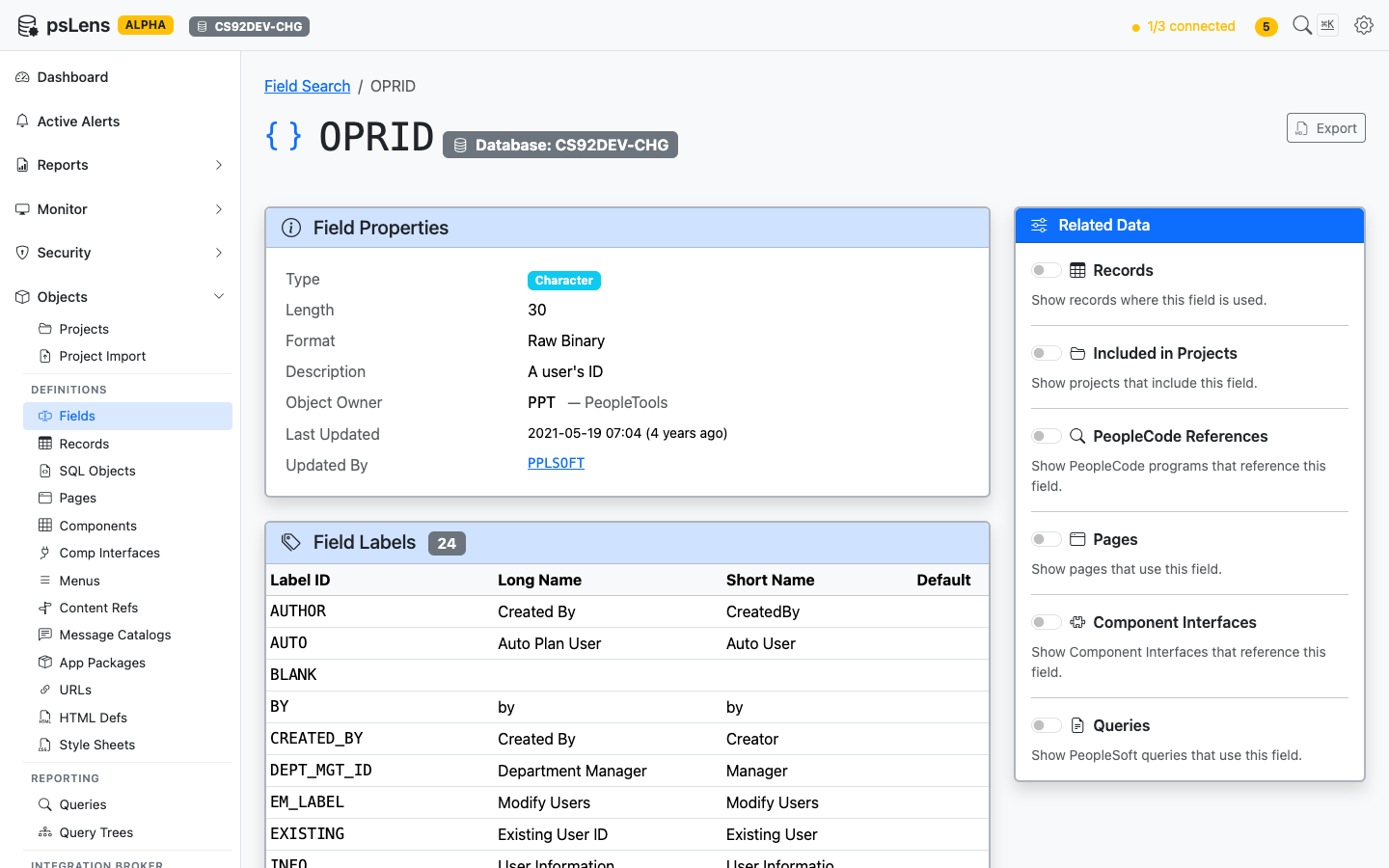
Field detail page for OPRID — default view, no panels expanded
The main pane shows the Field Properties card (type, length, format, description, object owner, last-updated metadata) and a Field Labels card with every long/short name pair defined in PSDBFLDLABL, including which one is the default label. The Export button in the top right downloads the full definition as Markdown. The Related Data sidebar holds six toggles that fetch additional context on demand.
Related Data Panels
Toggle any panel on to load it inline beneath the main content. Each panel returns the count of objects found and a sortable list with deep-links into the corresponding psLens detail pages, so you can chase a field reference into the record, page, or PeopleCode program that uses it without losing your place.
Records
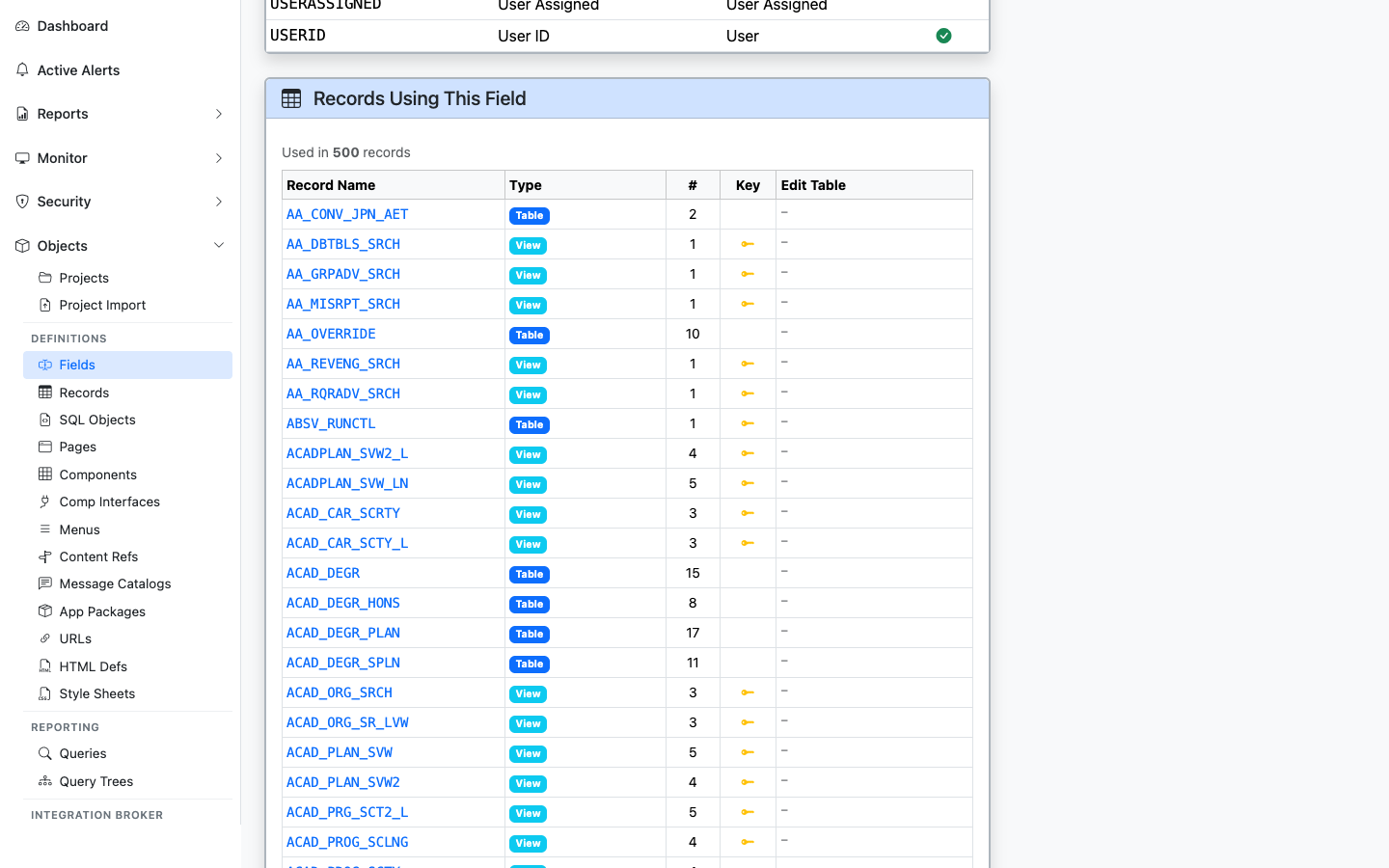
Every record that includes this field, with type (Table/View) and Edit Table indicator
Lists every record where the field appears, with record type, the position number within the record, key-field indicator, and whether the field is configured with an Edit Table prompt. Sourced from PSRECFIELD / PSRECFIELDDB.
Included in Projects
App Designer projects that include this field
Shows every App Designer project (PSPROJECTITEM) that contains this field as a project item. Useful for tracing which customization or release introduced or modified the field.
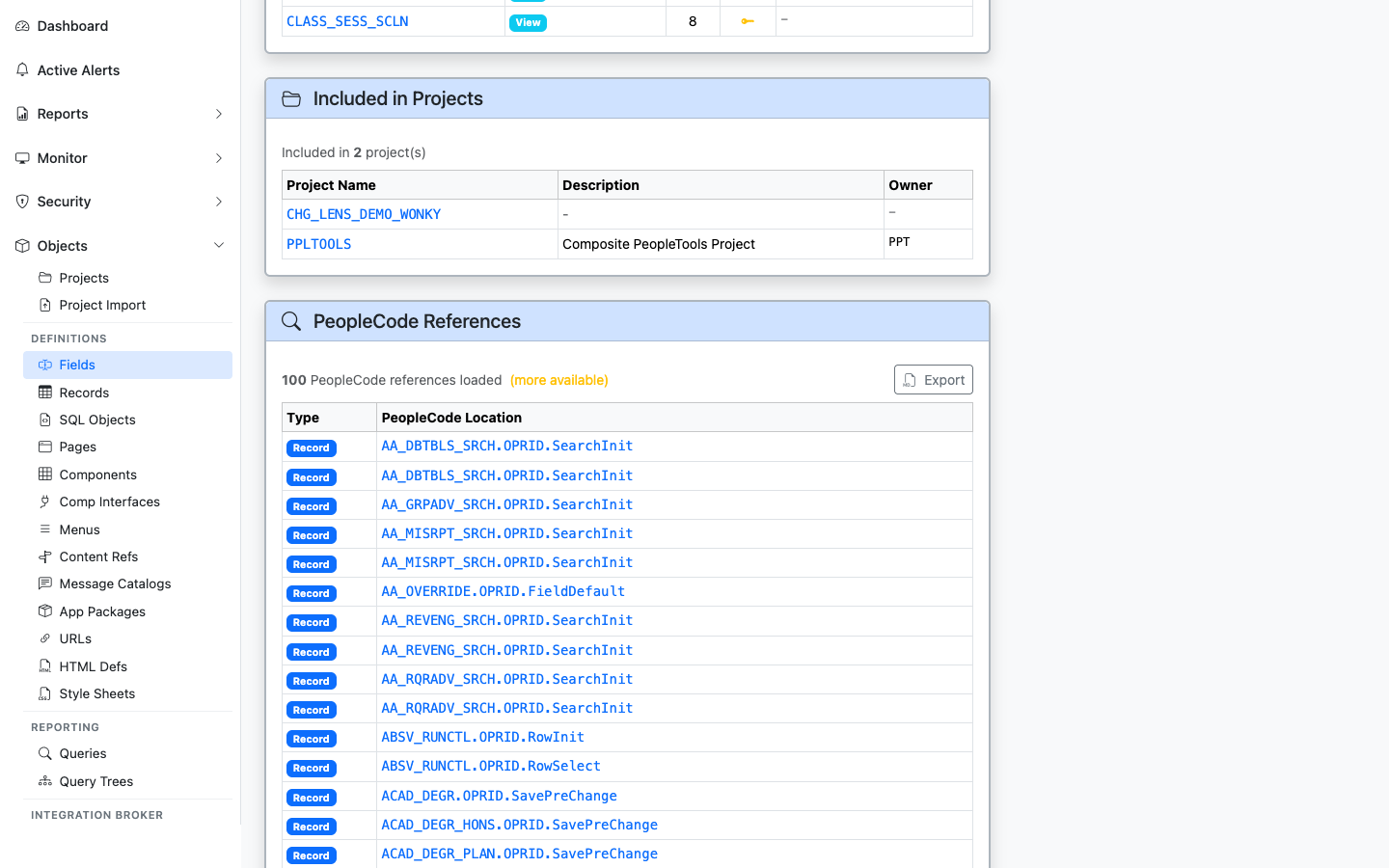
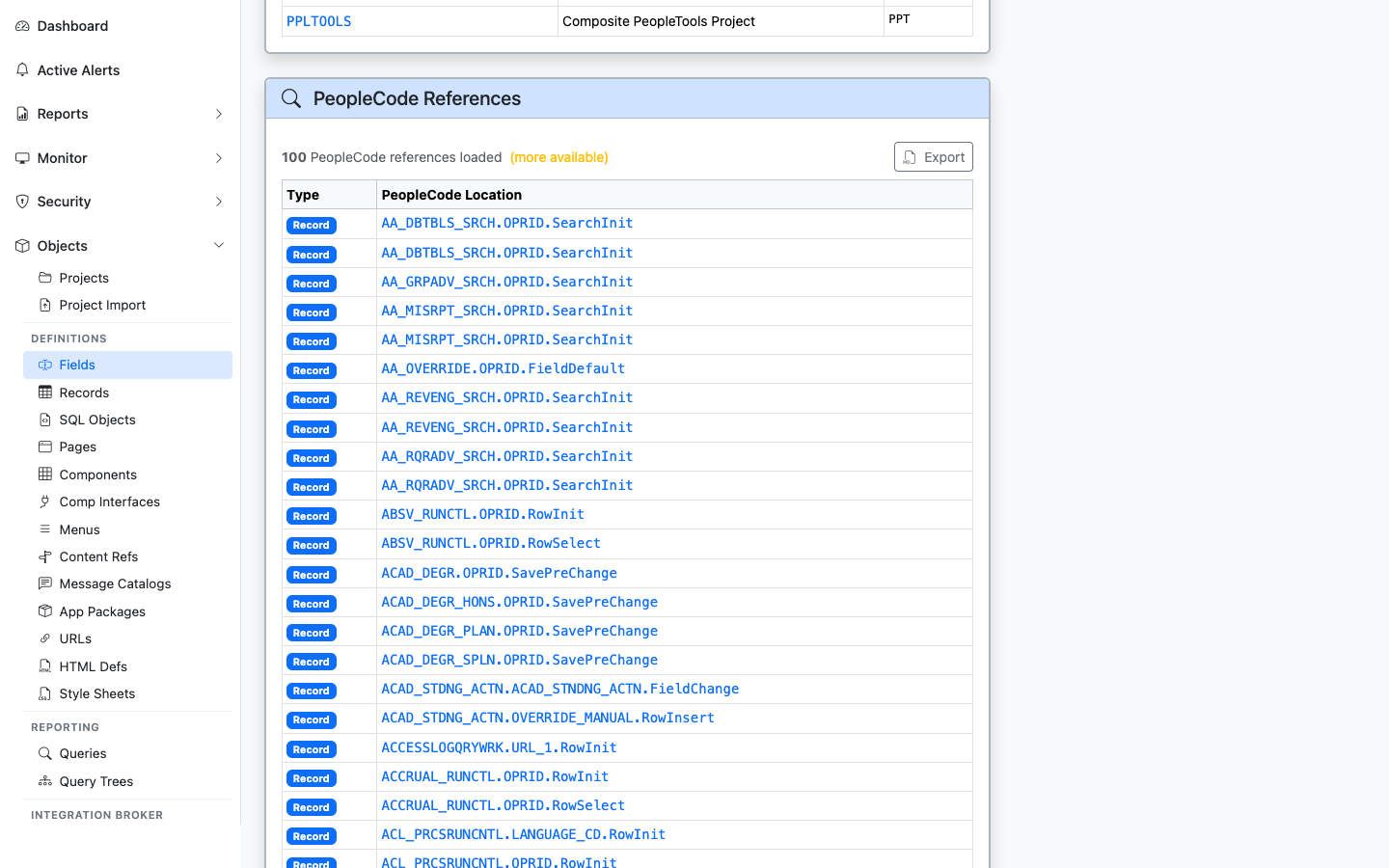
PeopleCode References
PeopleCode programs that reference this field
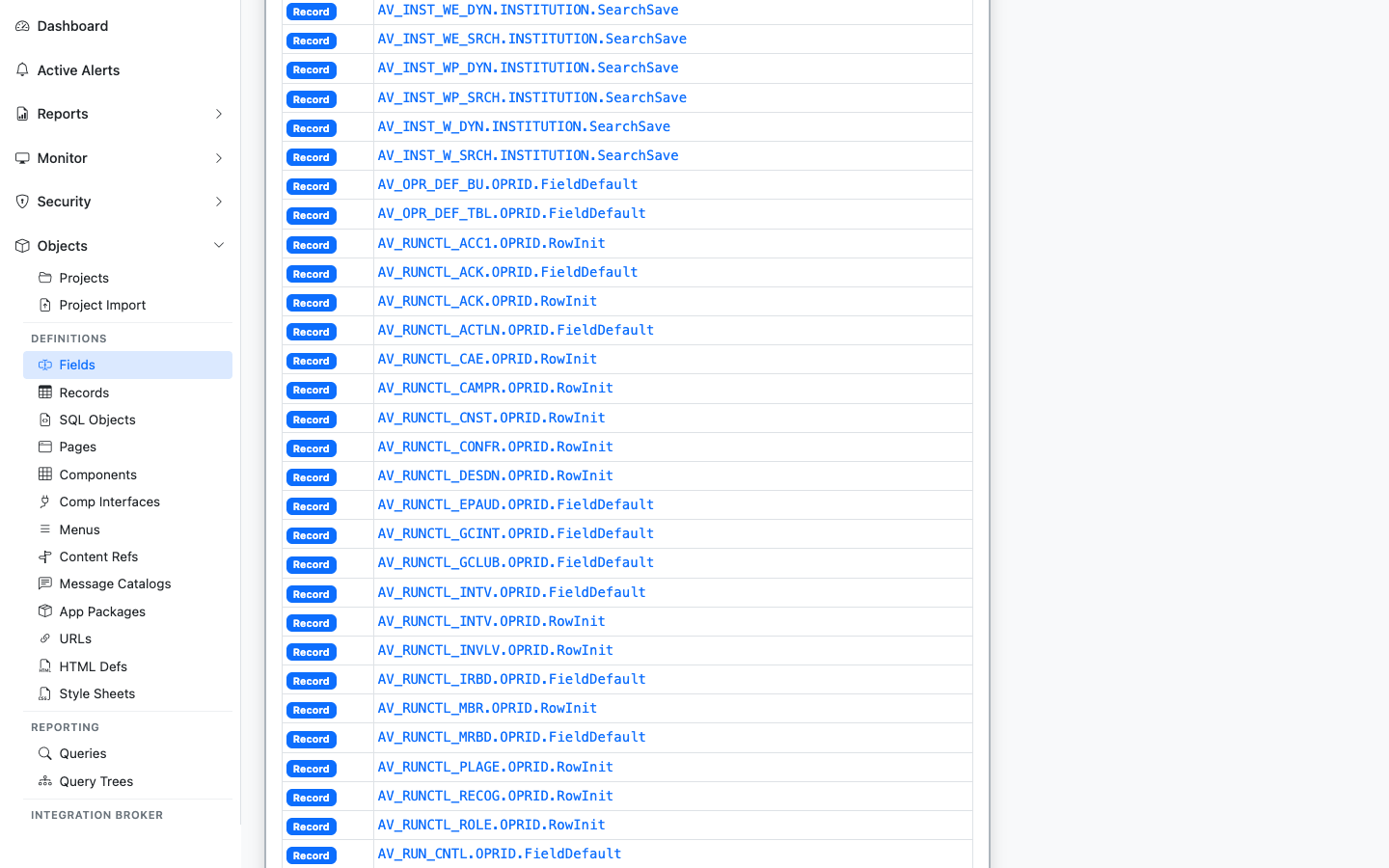
Lists PeopleCode programs that mention the field: record PeopleCode, component PeopleCode, application package methods, and more. Each result links to the parent object’s detail page so you can drill into the program.
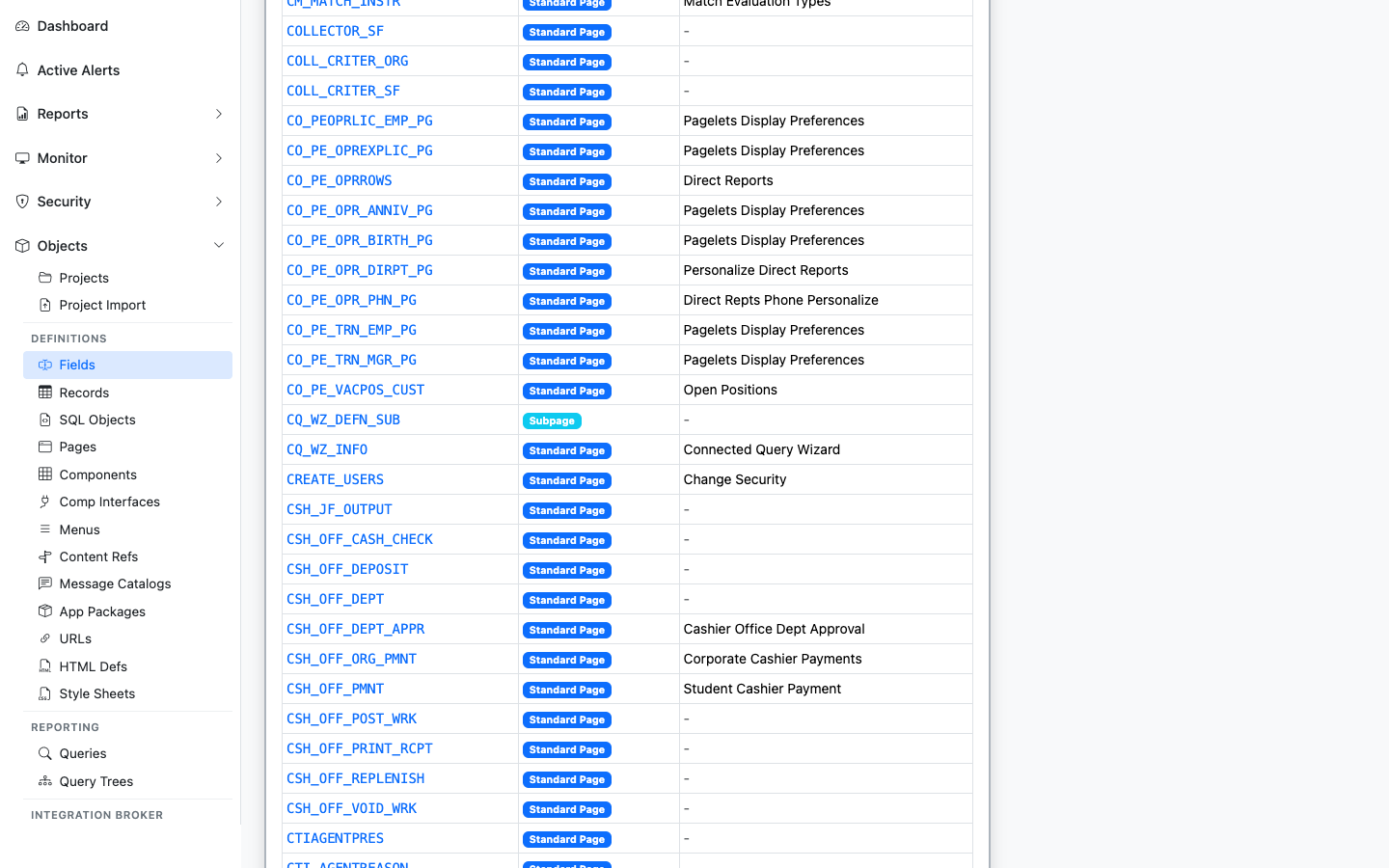
Pages
Pages with field controls bound to this field
Lists pages (PSPNLFIELD) where a control on the page is bound to this field, with the record context. Useful for impact analysis when changing a field’s type or length.
Component Interfaces
Component Interfaces that expose this field as a property
Lists Component Interfaces that expose this field as a CI property. The integration surface area for the field. Sourced from PSBCITEM.
Queries
PeopleSoft Queries that reference this field
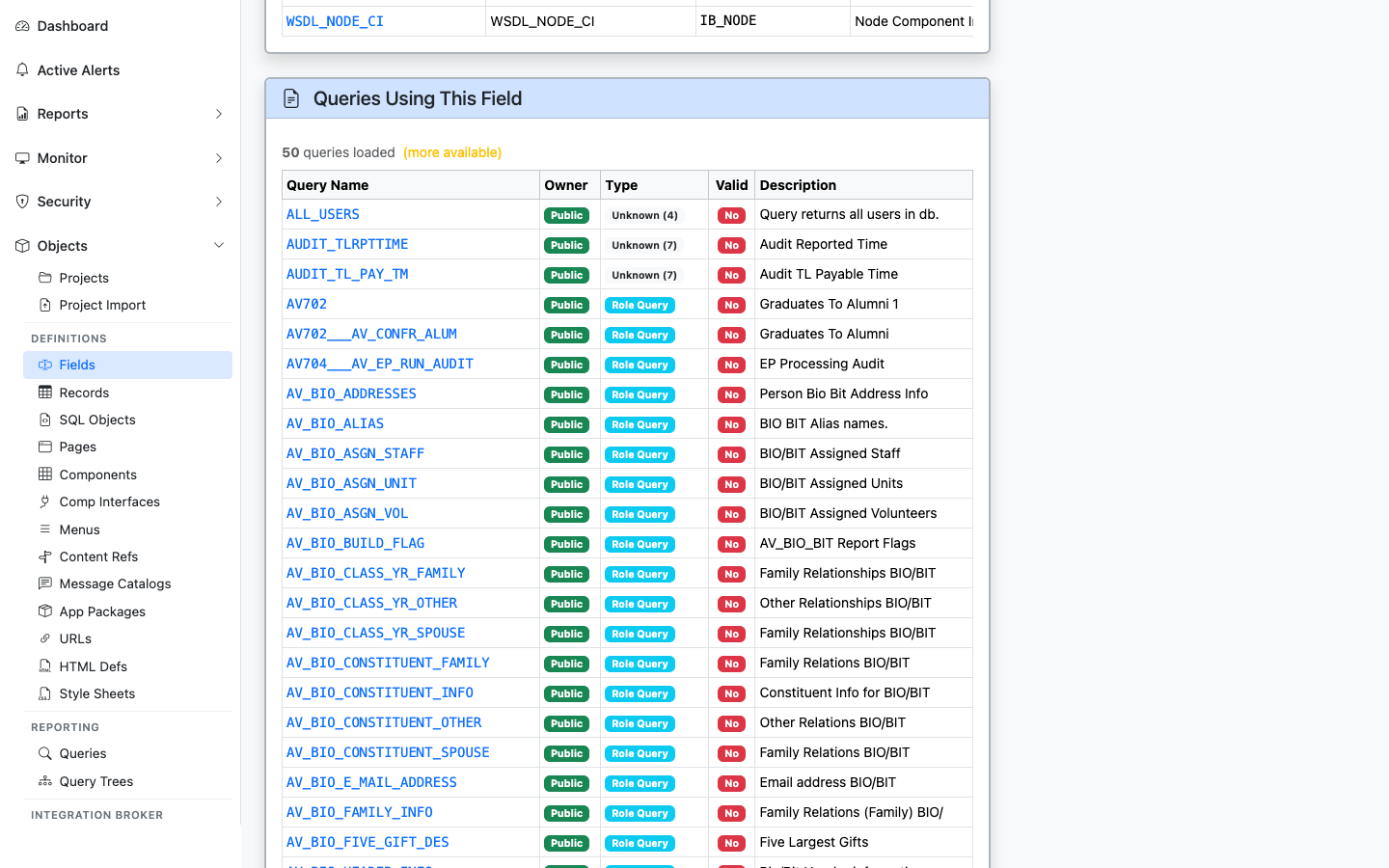
Lists PeopleSoft Queries (PSQRYFIELD) that reference this field in a SELECT, WHERE, or ORDER BY. Useful for security and audit work: “who has reports built on this column?”
4.2 - Records
Browse PeopleSoft record (table) definitions with fields, indexes, related pages, components, PeopleCode, and live data preview.
Tailored Operational Context
Target Database:—
Context Type:—
Alert Severity:—
Triggered Time:—
Firing Context:—
Records are PeopleSoft’s table/view definitions — every database table, SQL view, derived/work record, and dynamic view is registered in PSRECDEFN. psLens reads the record definition plus its field list from PSRECFIELD and stitches it together with everywhere the record is referenced in pages, components, PeopleCode, queries, projects, and trees. The Records page has 12 related-data panels covering pages, components, PeopleCode, queries, trees, prompt-table back-references, AE statements, COBOL SQL statements, project membership, and a live row sample.
Object Relationships
Records connect underlying field definitions to user interfaces and security structures:
Contains Fields: Records group individual field definitions (PSDBFIELD) into ordered record fields (PSRECFIELD).
Bound to Pages: Fields on a record are bound to controls (PSPNLFIELD) on page definitions (PSPNLDEFN).
Primary Search for Components: Records act as primary search records (SEARCHRECNAME) driving component key selection dialogs.
Defined by SQL Objects: View-type records (RECTYPE = 1) derive their SELECT SQL definitions from SQL Objects (PSSQLDEFN).
How psLens Improves Record Inspection
A complete impact assessment for a record change in Application Designer requires opening the record definition for properties, fields, and events, running Find Object References to find pages using it, walking found pages to identify parent components, executing Find In searches across PeopleCode, manually querying PSAESTMTDEFN, PSQRYRECORD, and PSTREENODE for AE, query, and tree usage, checking prompt-table back-references, and opening SQL clients to sample rows.
psLens consolidates record schema fields, page bindings, component trees, PeopleCode events, query usage, prompt-table relationships, AE/COBOL SQL statements, project membership, and a live row sample into one page.
Search Page
URL: /records?db={database}
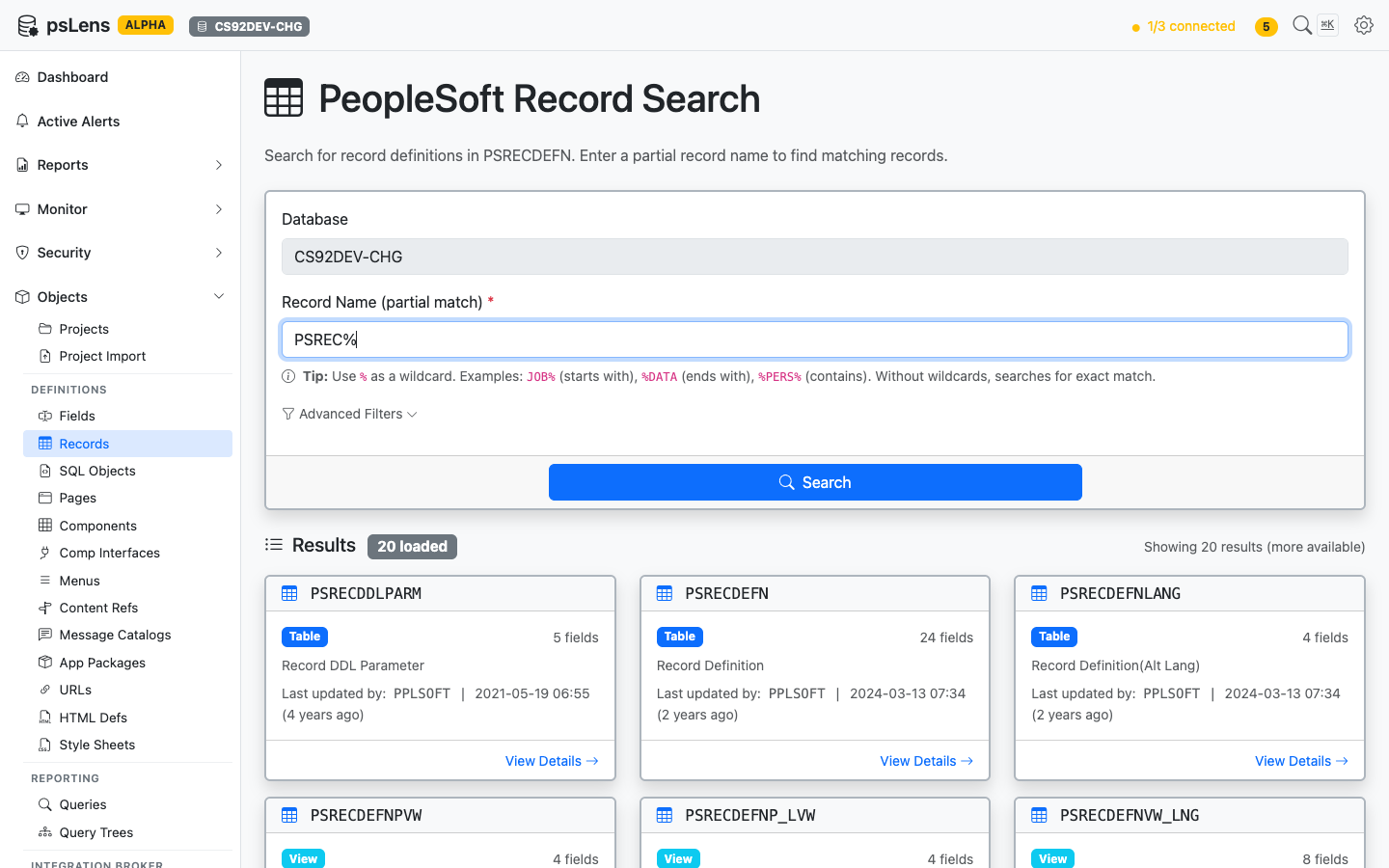
Record search results for PSREC% — note the record type pill (Table/View) and field count on each card
Search auto-matches as starts with — typing JOB finds JOB, JOB_DATA, JOBCODE, etc. For more control, include % yourself: %DATA (ends with), %PERS% (contains), or just % to list every row. Each card shows record type, field count, the descriptive long name, and last-updated metadata. The Advanced Filters panel lets you filter by record type (Table, View, Derived/Work, Subrecord, Dynamic View, Query View, Temp Table), object owner, and last-updated date.
Detail Page
URL: /records/{RECNAME}?db={database}
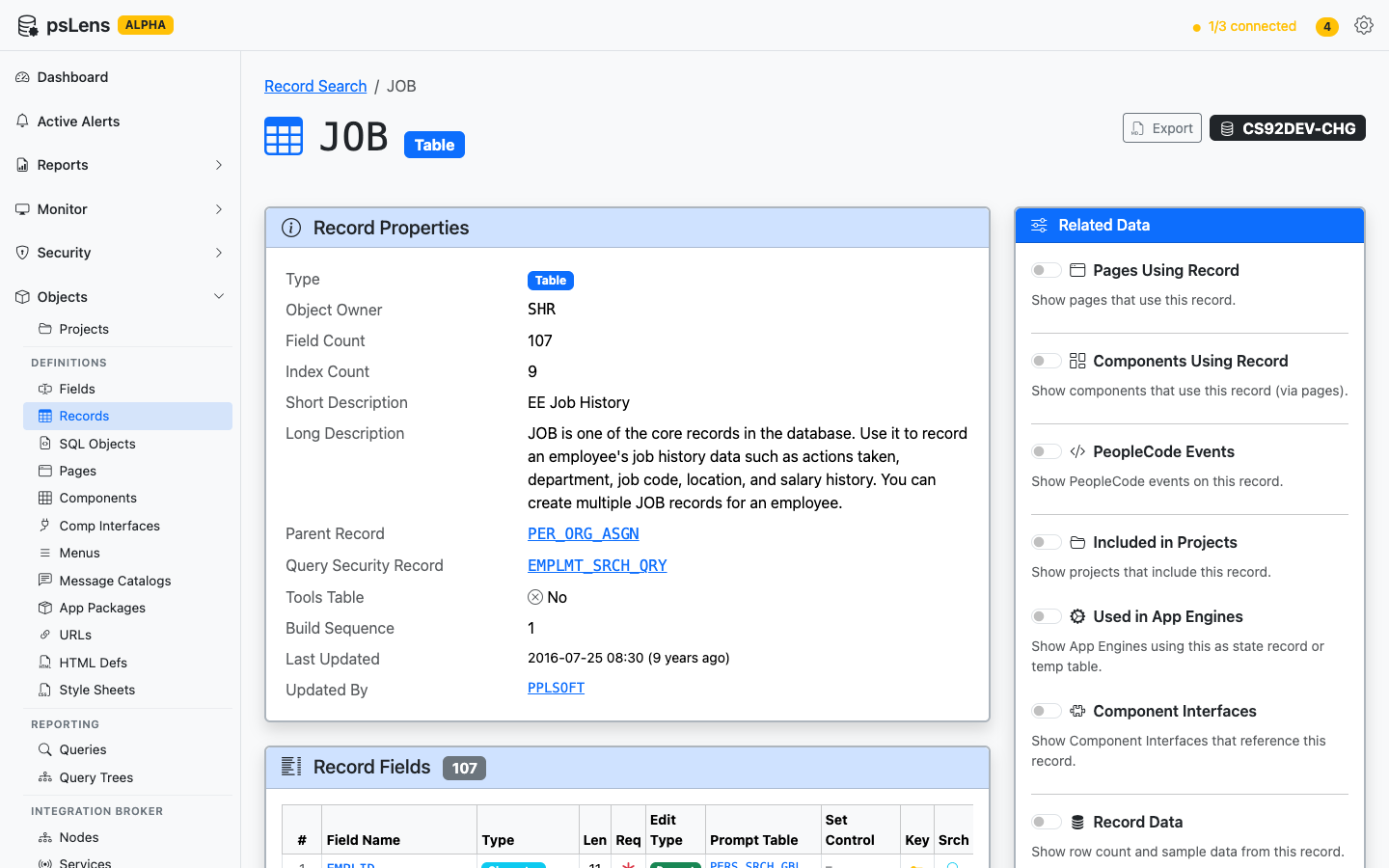
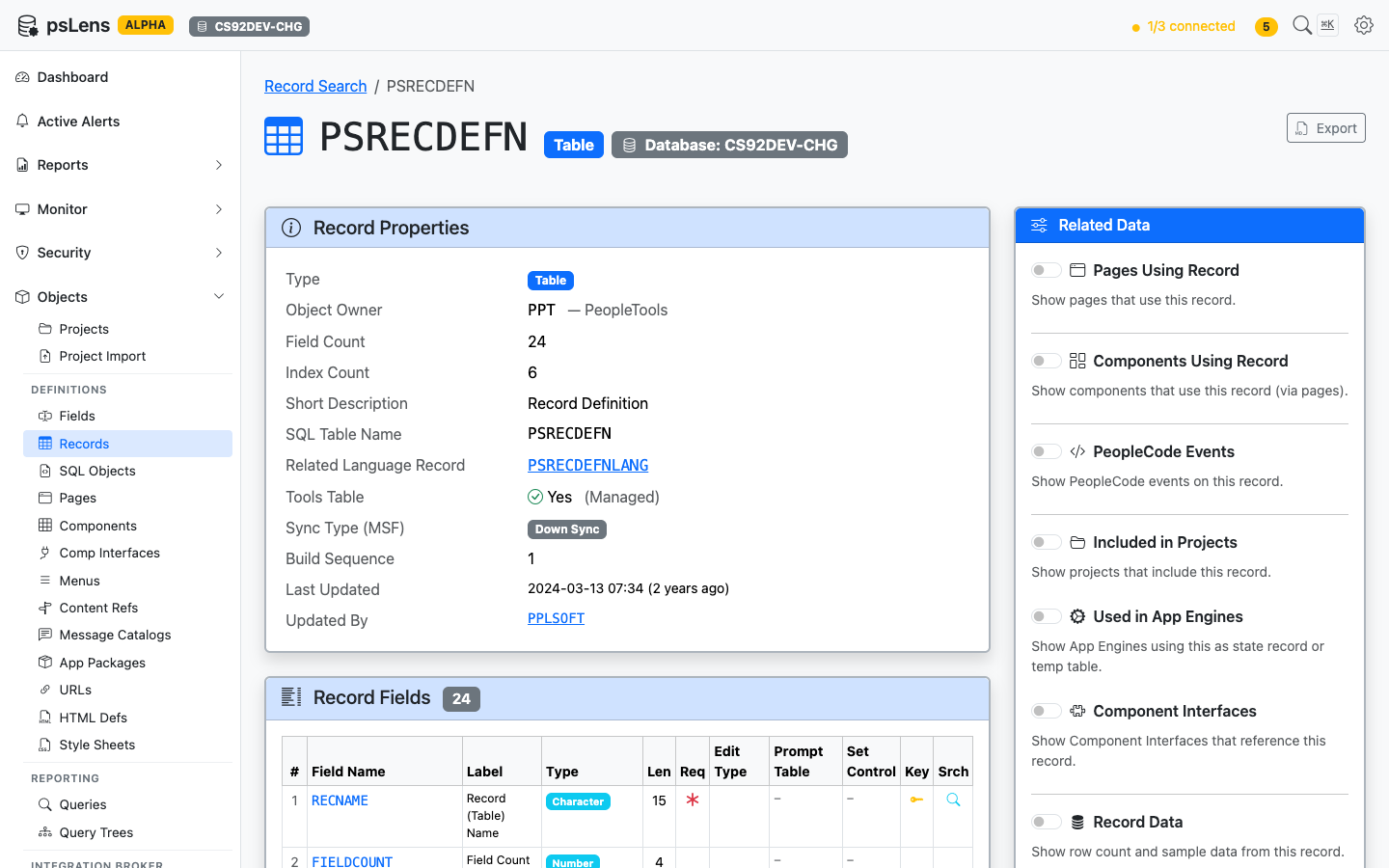
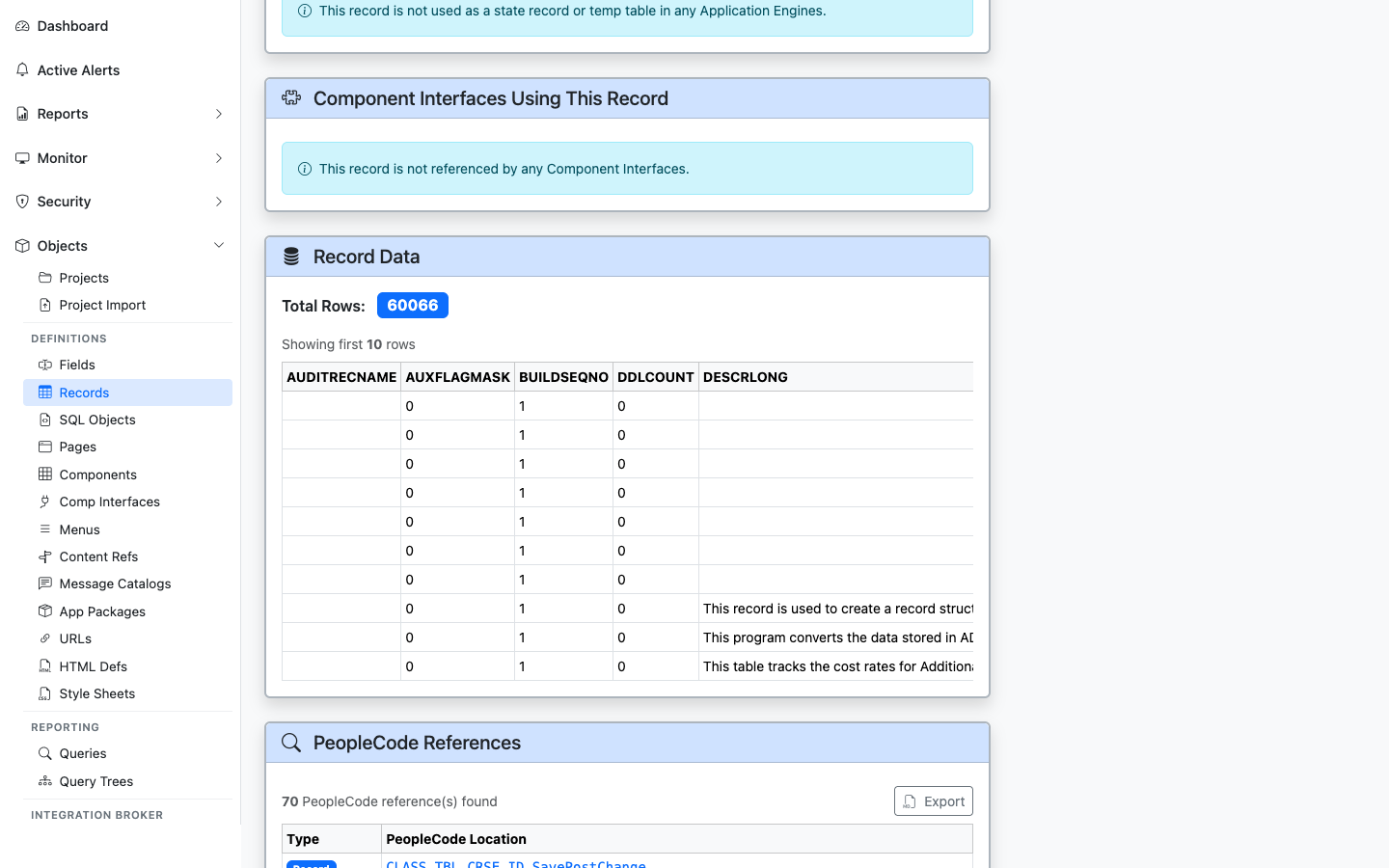
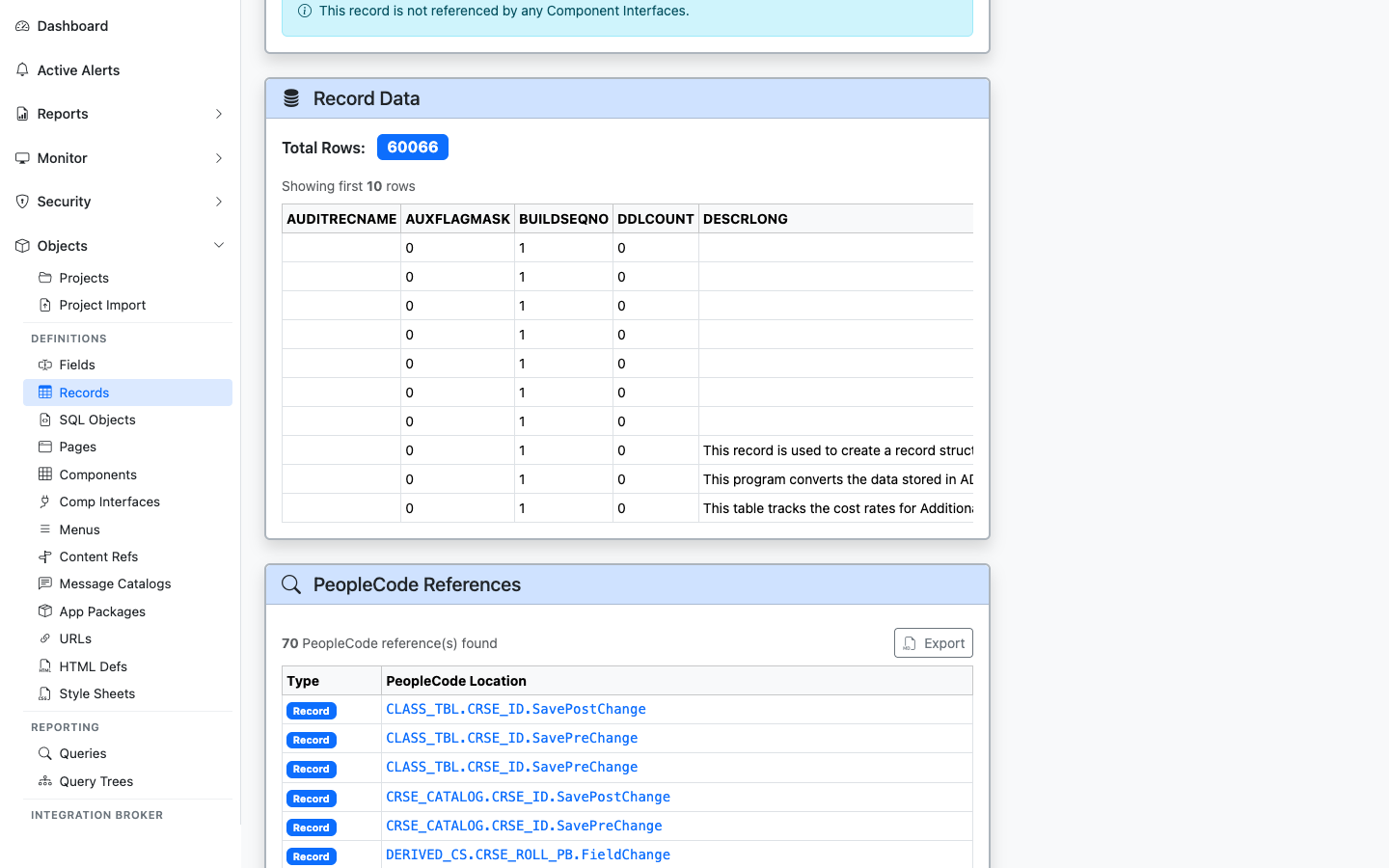
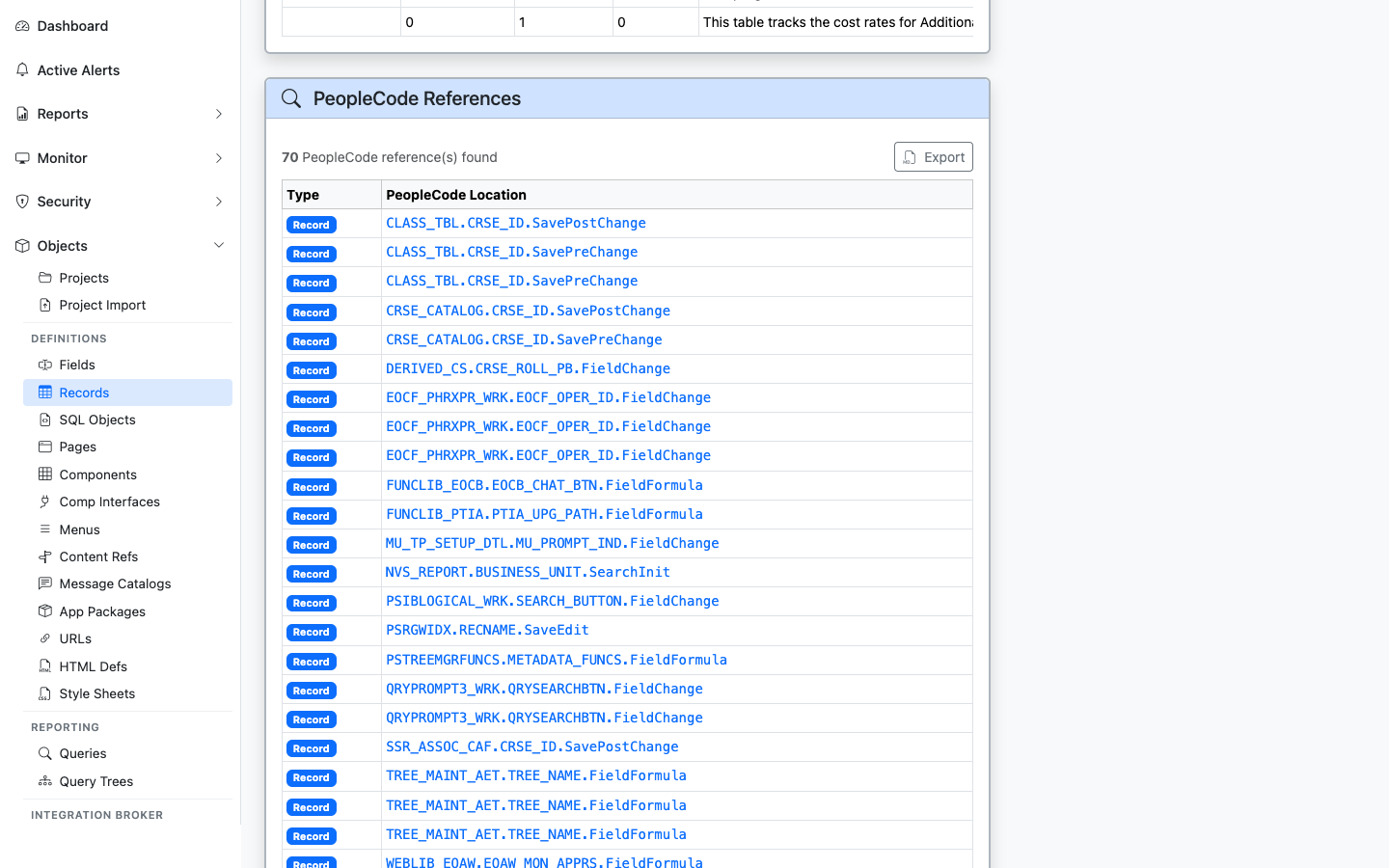
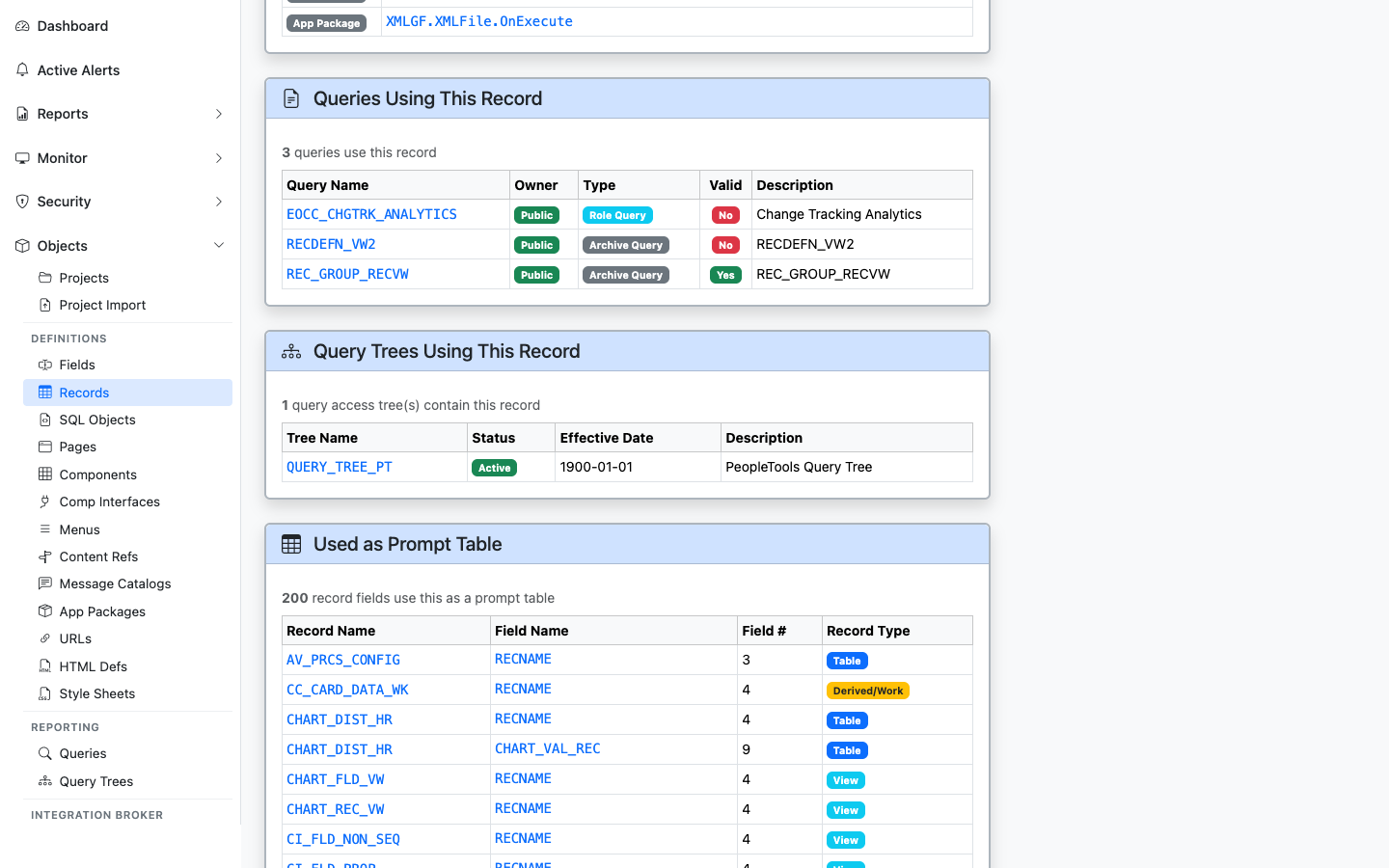
Record detail page for PSRECDEFN — default view with properties, field list, and the Related Data sidebar
The main pane shows Record Properties (type, owner, audit options, system table flag, description, audit timestamps) and a full Record Fields table with each field’s type, length, key indicators, default value, and Edit Table prompt — every detail you’d otherwise open App Designer to confirm. The Export button downloads the full record definition as Markdown. The Related Data sidebar holds 12 toggles — the broadest set of any object type — covering every place this record is referenced.
Related Data Panels
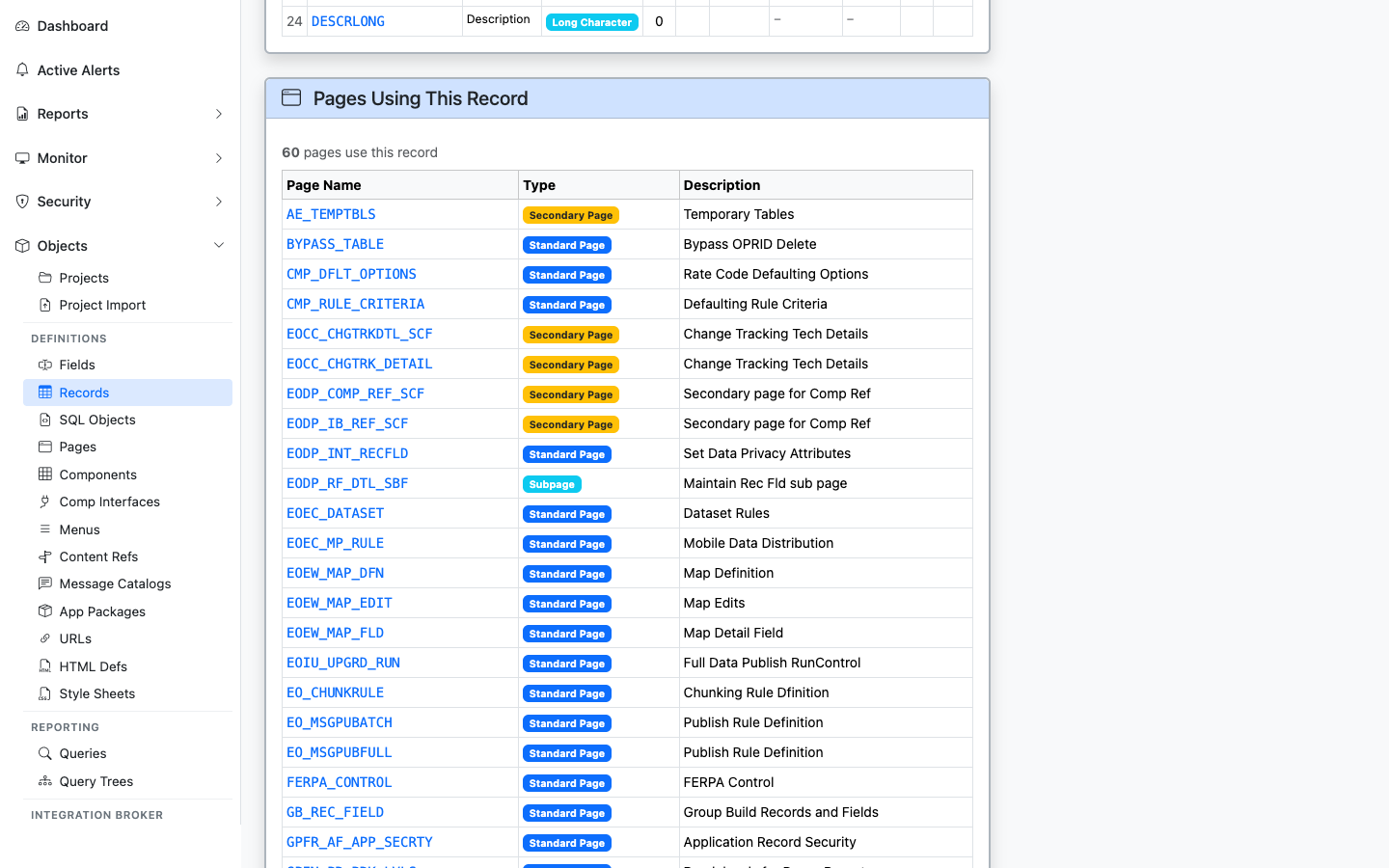
Pages Using This Record
Pages that bind a control to this record
Lists pages with controls bound to this record (PSPNLFIELD join on RECNAME). Useful for impact analysis when changing the record schema.
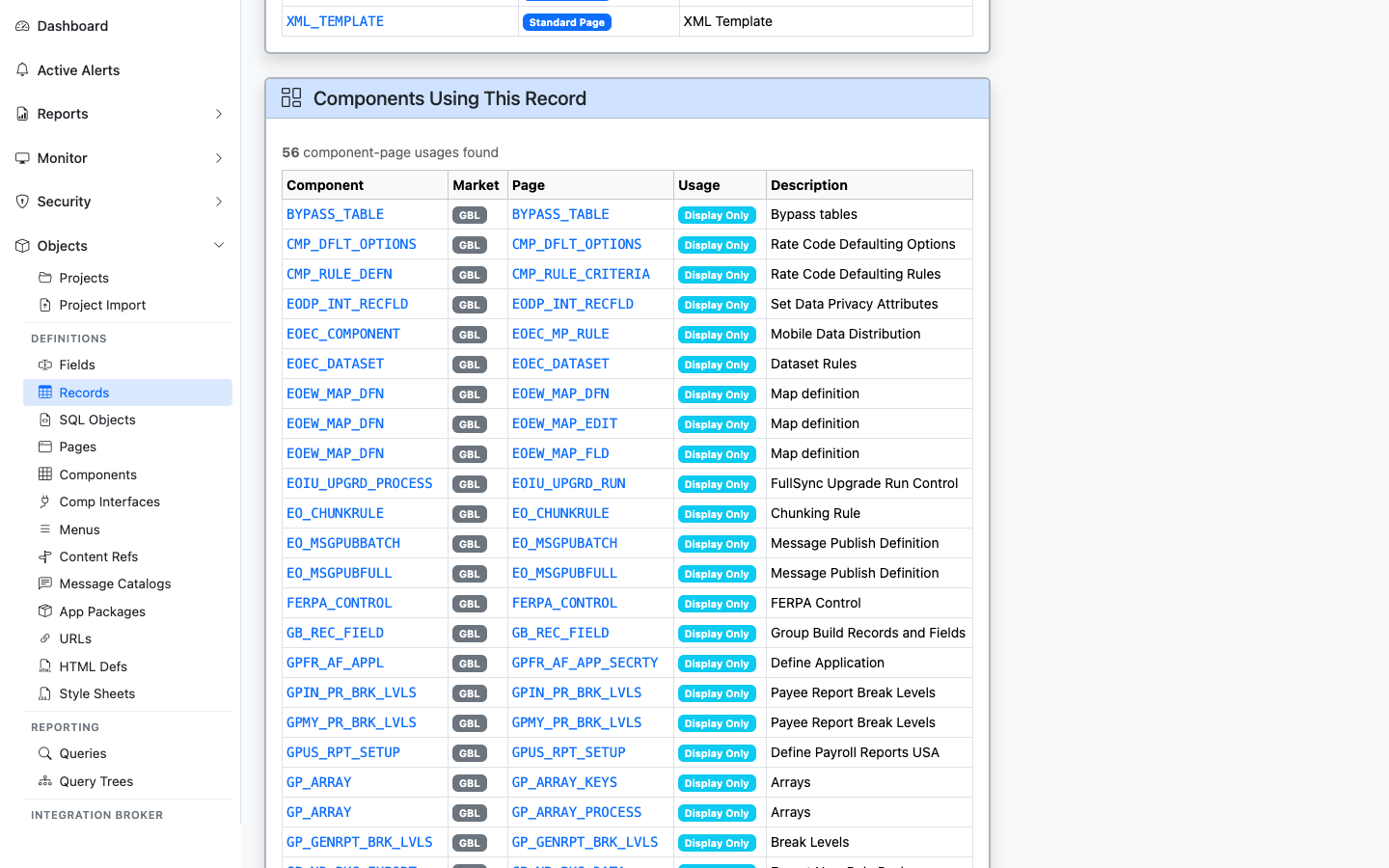
Components Using This Record
Components whose pages reference this record
Lists every component containing a page bound to this record — gives you the user-facing transactions affected by the record.
PeopleCode Events
Record PeopleCode events defined on this record
Lists record-level PeopleCode events (FieldChange, RowInit, SaveEdit, etc.) attached to fields of this record. Sourced from PSPCMPROG.
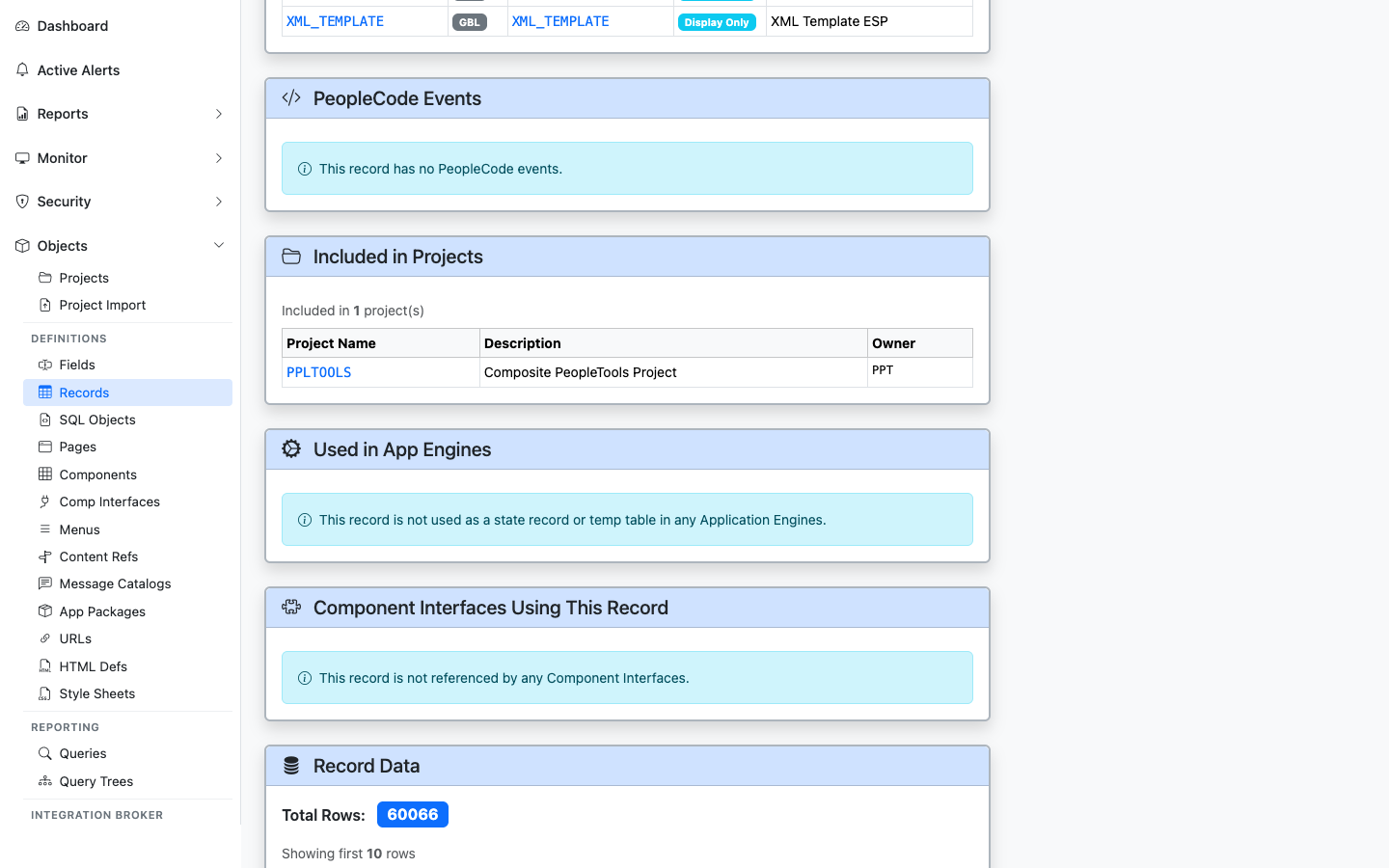
Included in Projects
App Designer projects that include this record
Lists App Designer projects (PSPROJECTITEM) that include this record — useful for migration history and change tracking.
Used in App Engines
Application Engine programs that reference this record
Lists Application Engine programs whose SQL or PeopleCode steps reference this record. Sourced from PSAESTMTDEFN text scans.
Component Interfaces Using This Record
CIs whose underlying component is built on a page that uses this record
Lists Component Interfaces whose underlying component contains a page bound to this record — the integration surface area.
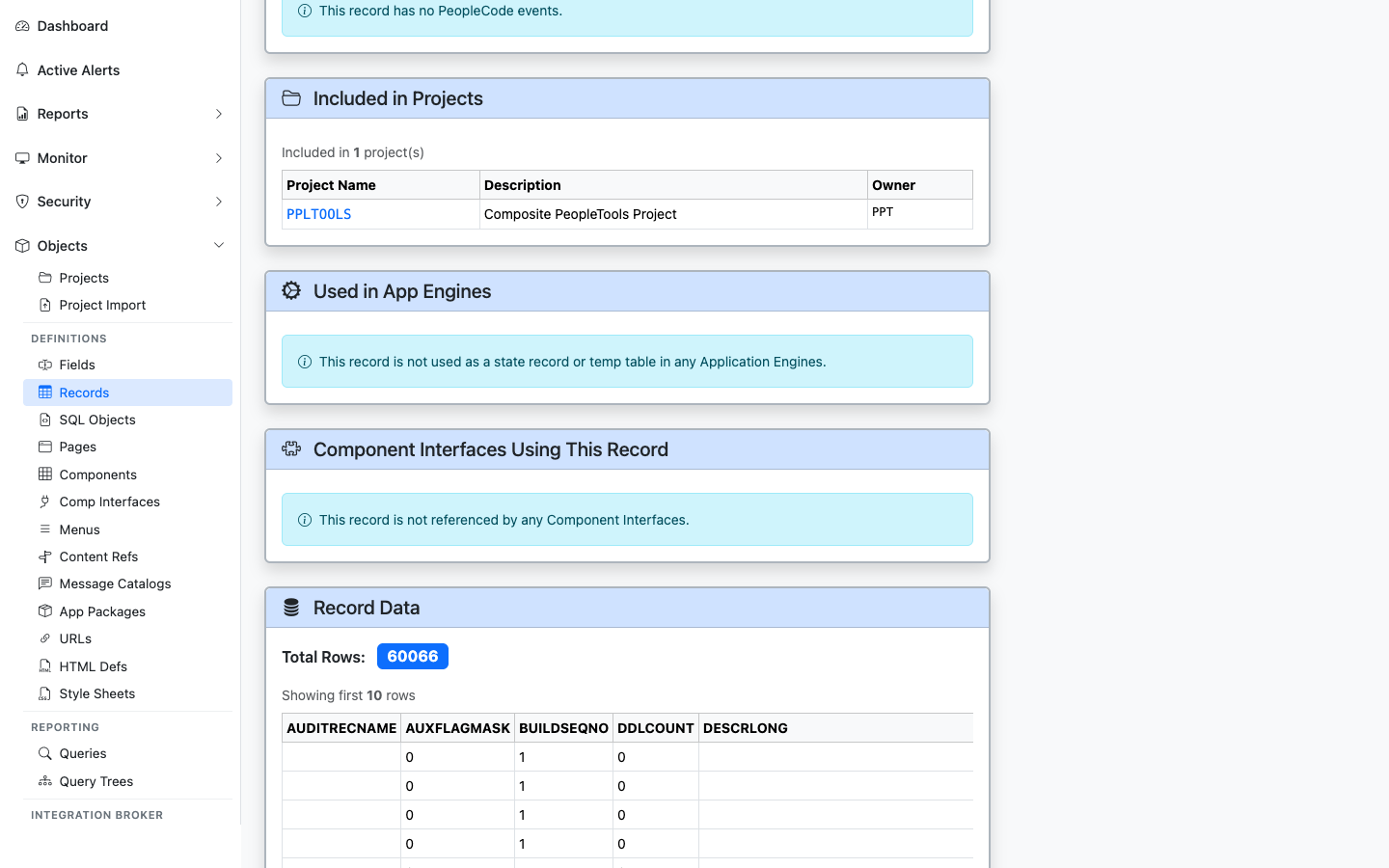
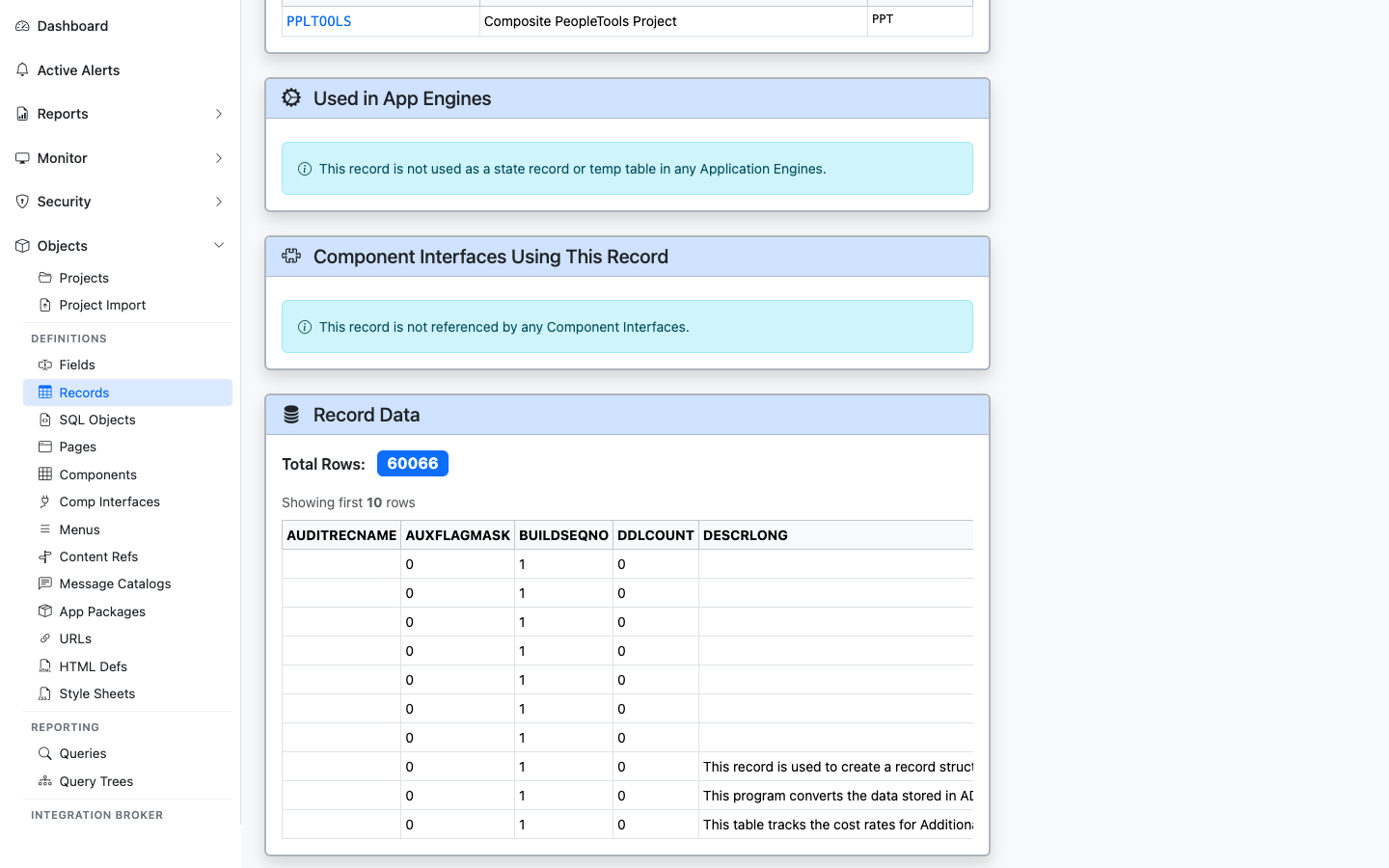
Record Data
Live sample data from the record itself
Pulls a live sample of rows from the record using the psoftQL API — first ~10 rows with every column. Lets you see what the data actually looks like without opening App Designer’s Run-In-Query or a separate SQL client.
PeopleCode References
Any PeopleCode program that mentions this record by name
Broader than “Events” — finds any PeopleCode anywhere in the database that mentions this record by name (component, page, app package, app engine, message, signon, FieldFormula, etc.).
Queries Using This Record
PeopleSoft Queries that include this record
Lists PeopleSoft Queries (PSQRYRECORD) that include this record in a FROM clause. Critical for audit work — “who is reporting from this table?”
Query Trees Using This Record
Query Tree nodes that expose this record to query authors
Lists Query Tree nodes (PSTREENODE) where this record appears — determines which query authors can build queries against it.
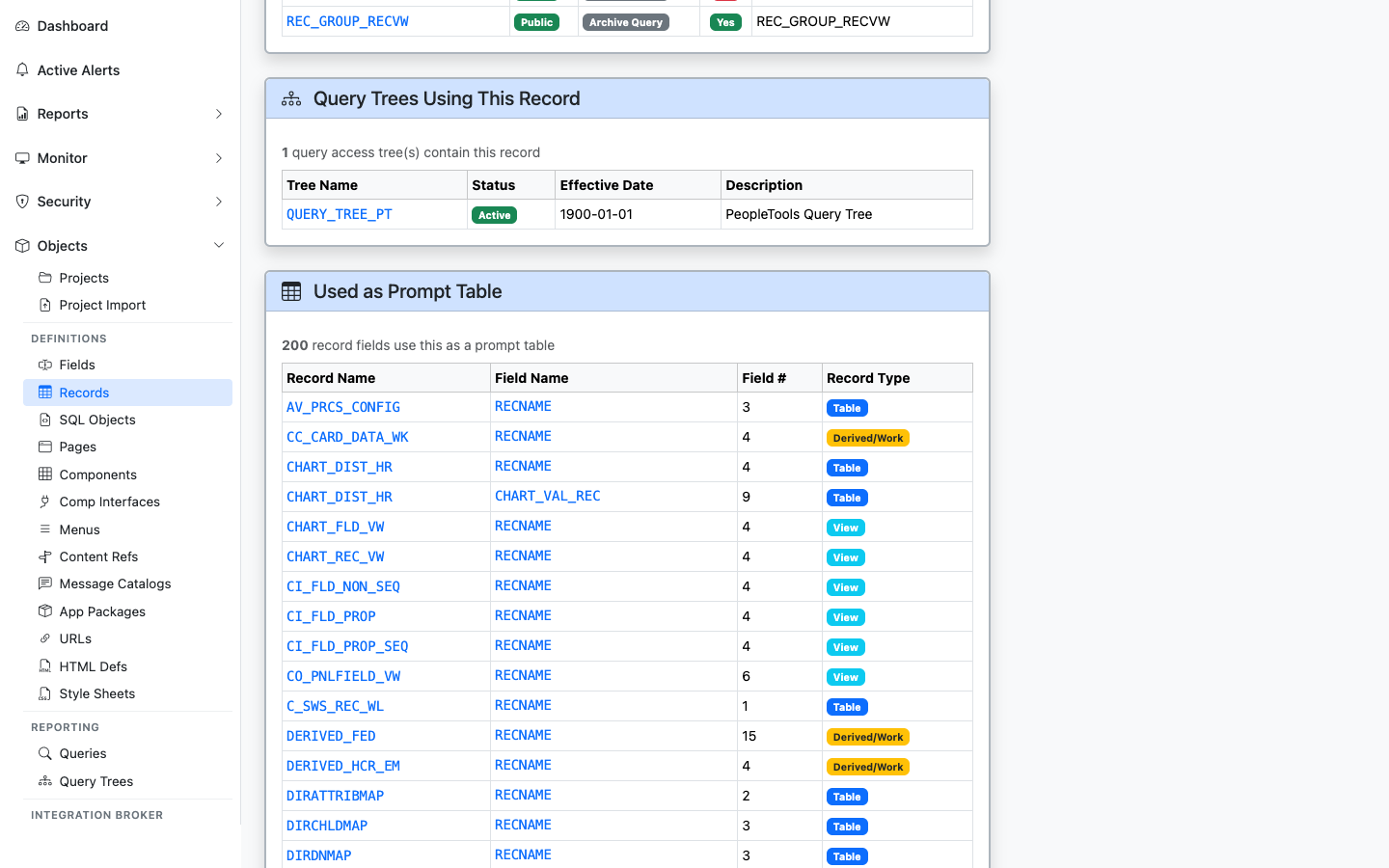
Used as Prompt Table
Other records whose fields use this record as an Edit/Prompt table
Lists fields on other records that point to this record as their Edit Table / Prompt Table — shows the lookup relationships that hang off this record.
COBOL SQL Statements
Lists stored COBOL SQL statements (SQLSTMT_TBL) that reference this record in their statement text, program name, or statement name. Displays the COBOL program (PGM_NAME), statement type (STMT_TYPE), statement name (STMT_NAME), and formatted SQL text.
4.3 - SQL Objects
Browse PeopleSoft SQL Object definitions — views, synonyms, and indexes — with source SQL and project membership.
Tailored Operational Context
Target Database:—
Context Type:—
Alert Severity:—
Triggered Time:—
Firing Context:—
SQL Objects are the PeopleSoft application’s standalone SQL artifacts — view definitions and other named SQL fragments stored in PSSQLDEFN / PSSQLTEXTDEFN. Unlike a record’s automatically-generated DDL, these are SQL bodies the developer hand-wrote and PeopleSoft keeps versioned with the rest of the metadata. psLens pulls the source SQL plus the related record (when the SQL object is a view tied to a record definition) so you don’t switch into App Designer to read the SQL.
Object Relationships
SQL Objects define custom SQL statements for database views and code modules:
Defines Record Views: SQL Objects (PSSQLDEFN) contain the underlying SELECT statements that define SQL view records (RECTYPE = 1).
Called by PeopleCode & App Engines: Standalone SQL objects are executed in code via FetchSQL() or Application Engine SQL actions.
How psLens Improves SQL Object Inspection
Reading SQL Objects in Application Designer requires searching SQL definitions, opening the object editor, right-clicking to find backing records, and checking projects individually for migration history.
psLens presents syntax-highlighted SQL source code inline, with direct links to backing record definitions and project membership.
Search Page
URL: /sqlobjects?db={database}
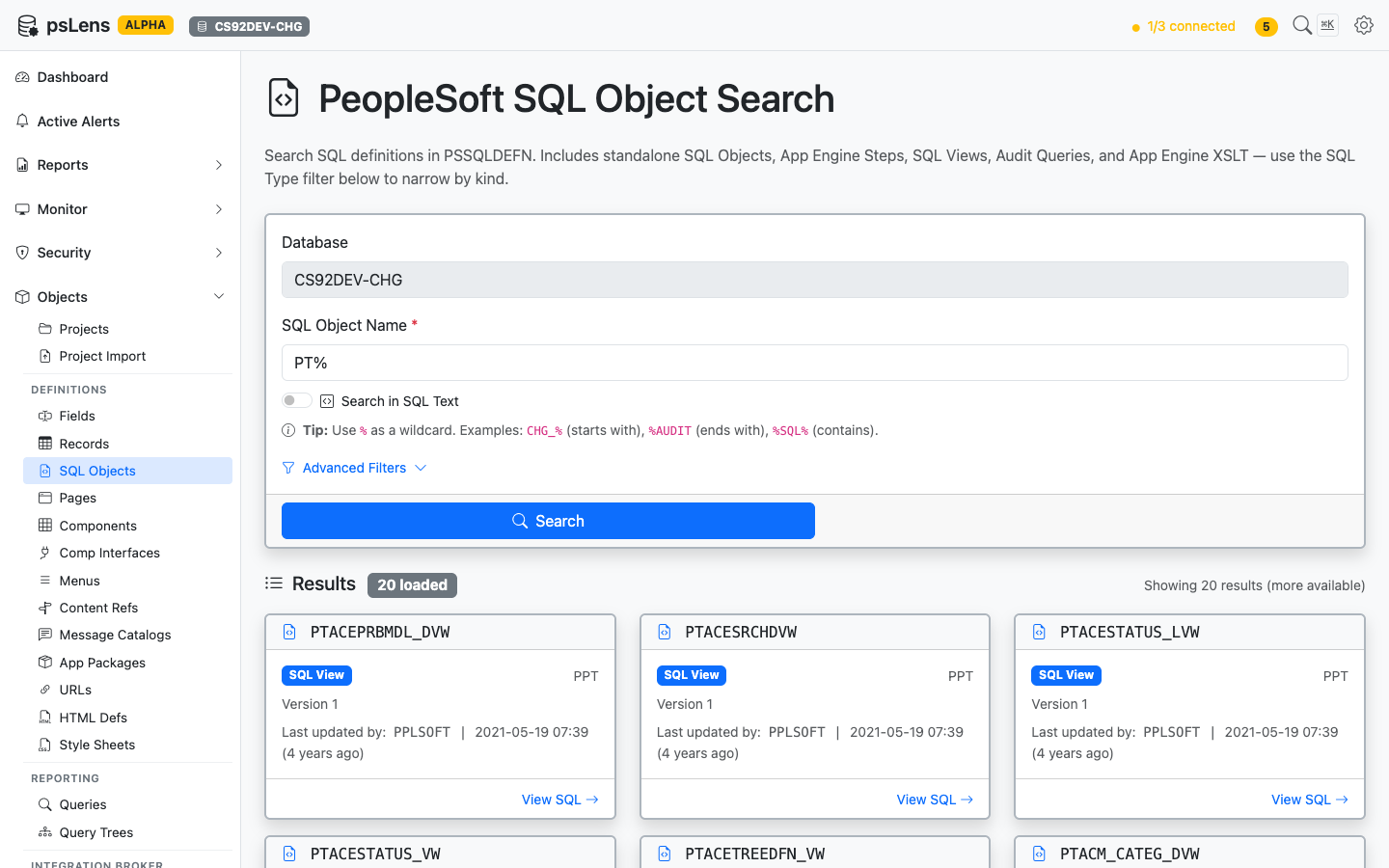
SQL Object search results for PT%
Search auto-matches as starts with. Typing PT finds every SQL object whose ID begins with PT. Include % yourself for ends-with (%VW) or contains (%AUDIT%) patterns, or use % alone to list every row. Each result shows the object name, type, and last-updated info, useful when you’re tracing where a view body is defined or hunting for a delivered SQL fragment.
Detail Page
URL: /sqlobjects/{NAME}?db={database}
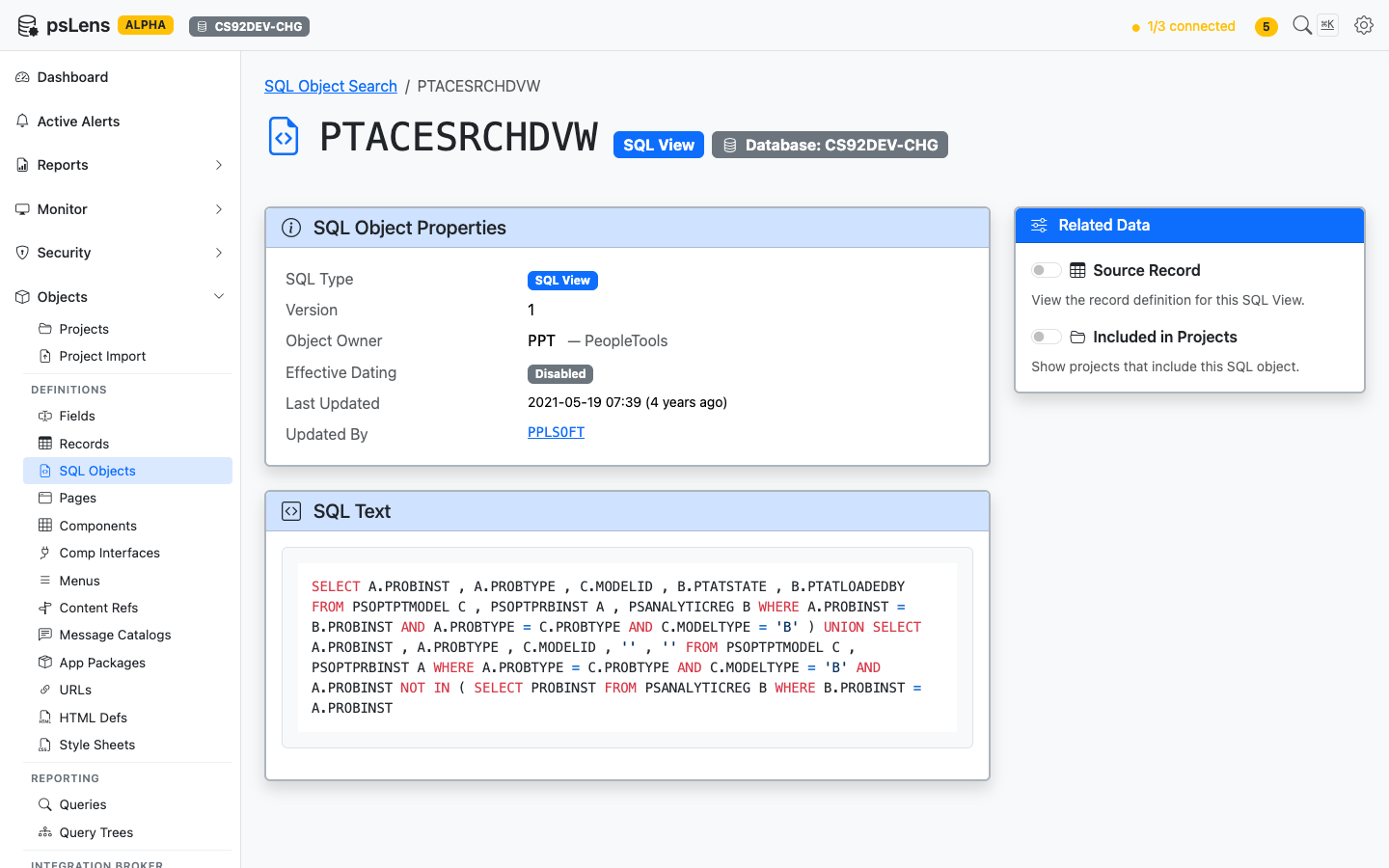
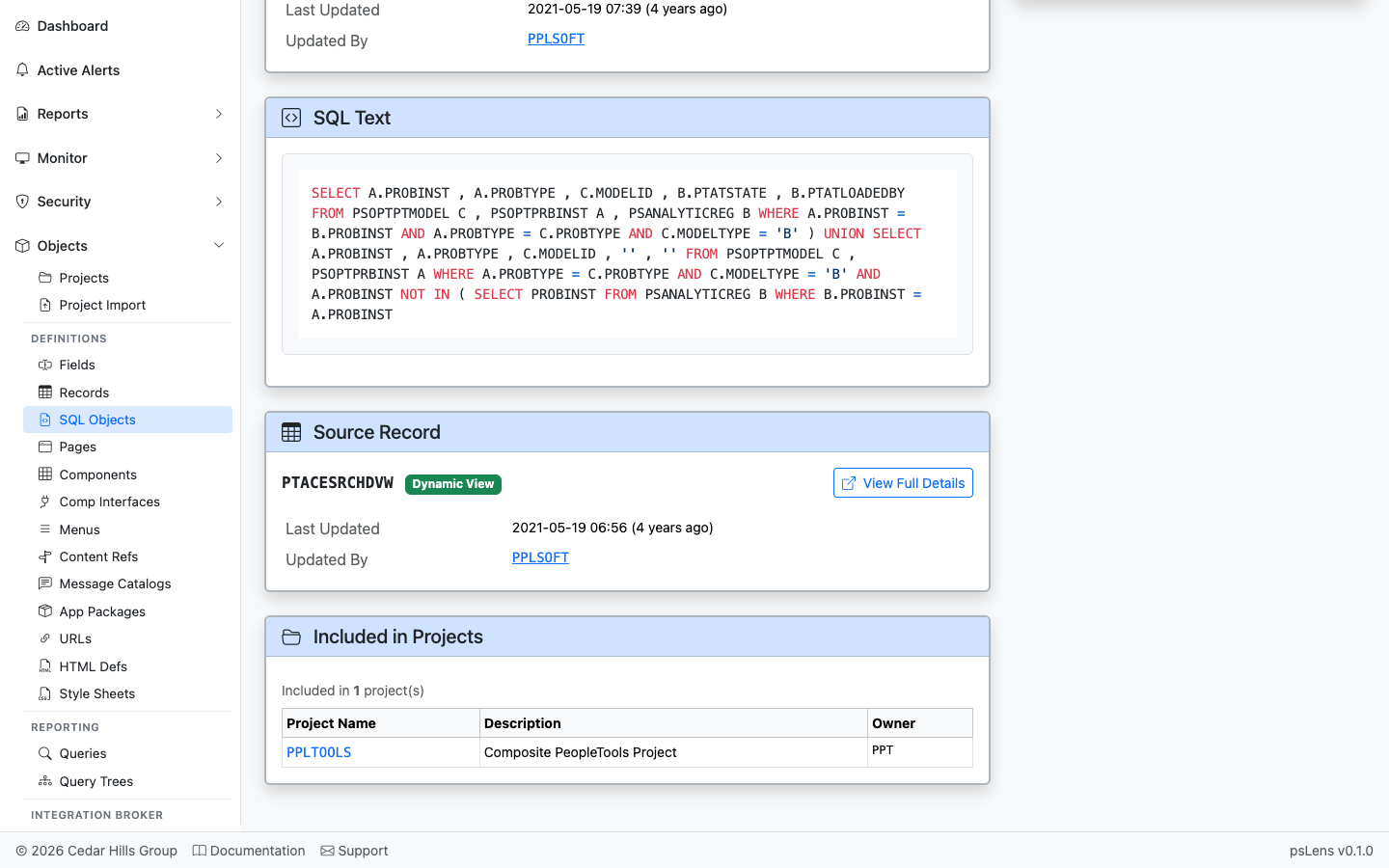
SQL Object detail page for PTACESRCHDVW
The main pane shows the object’s properties and the full Source SQL body, syntax-highlighted and copyable, so you can see what the view SELECTs without an App Designer round-trip. The sidebar has two related-data toggles.
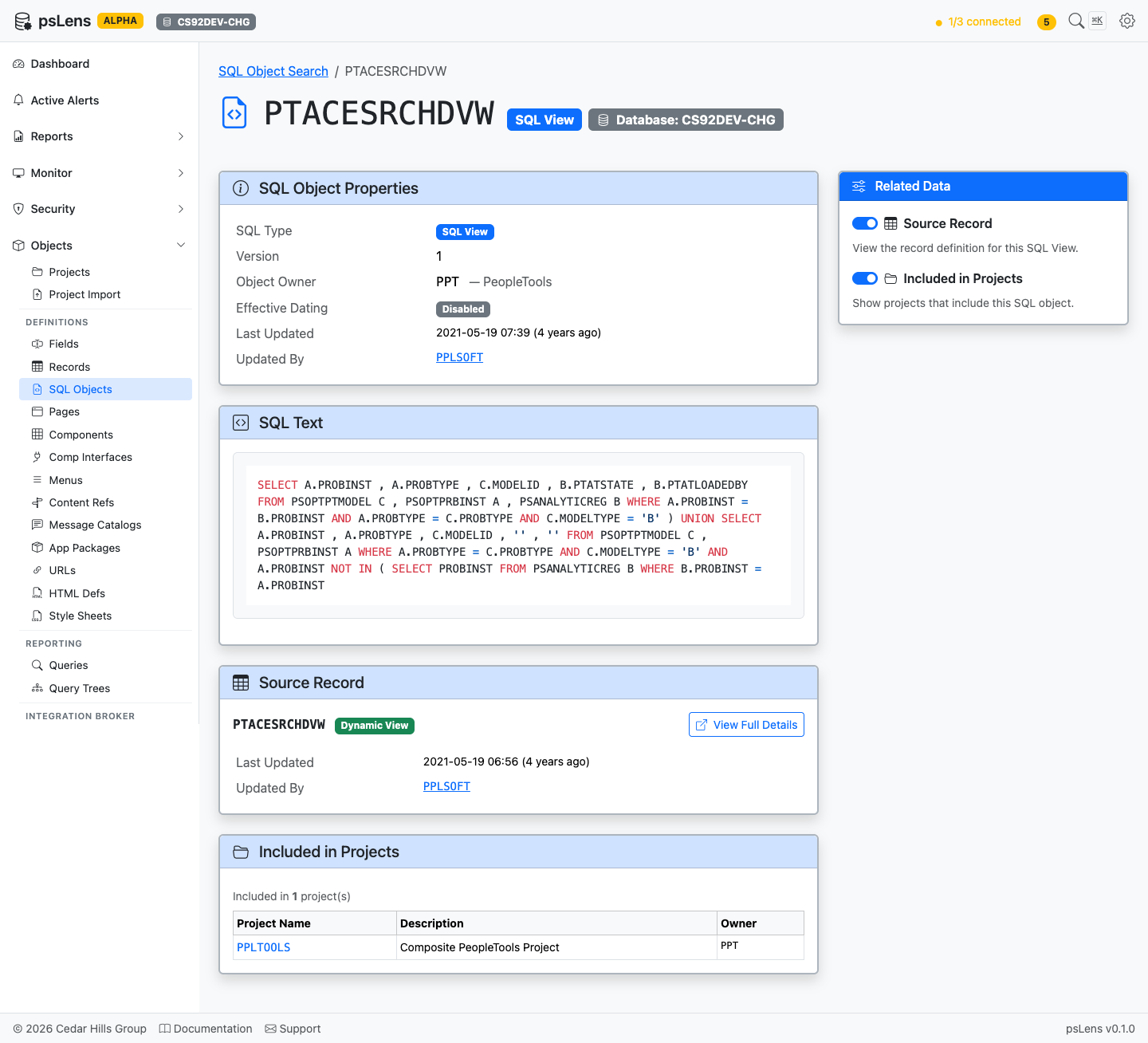
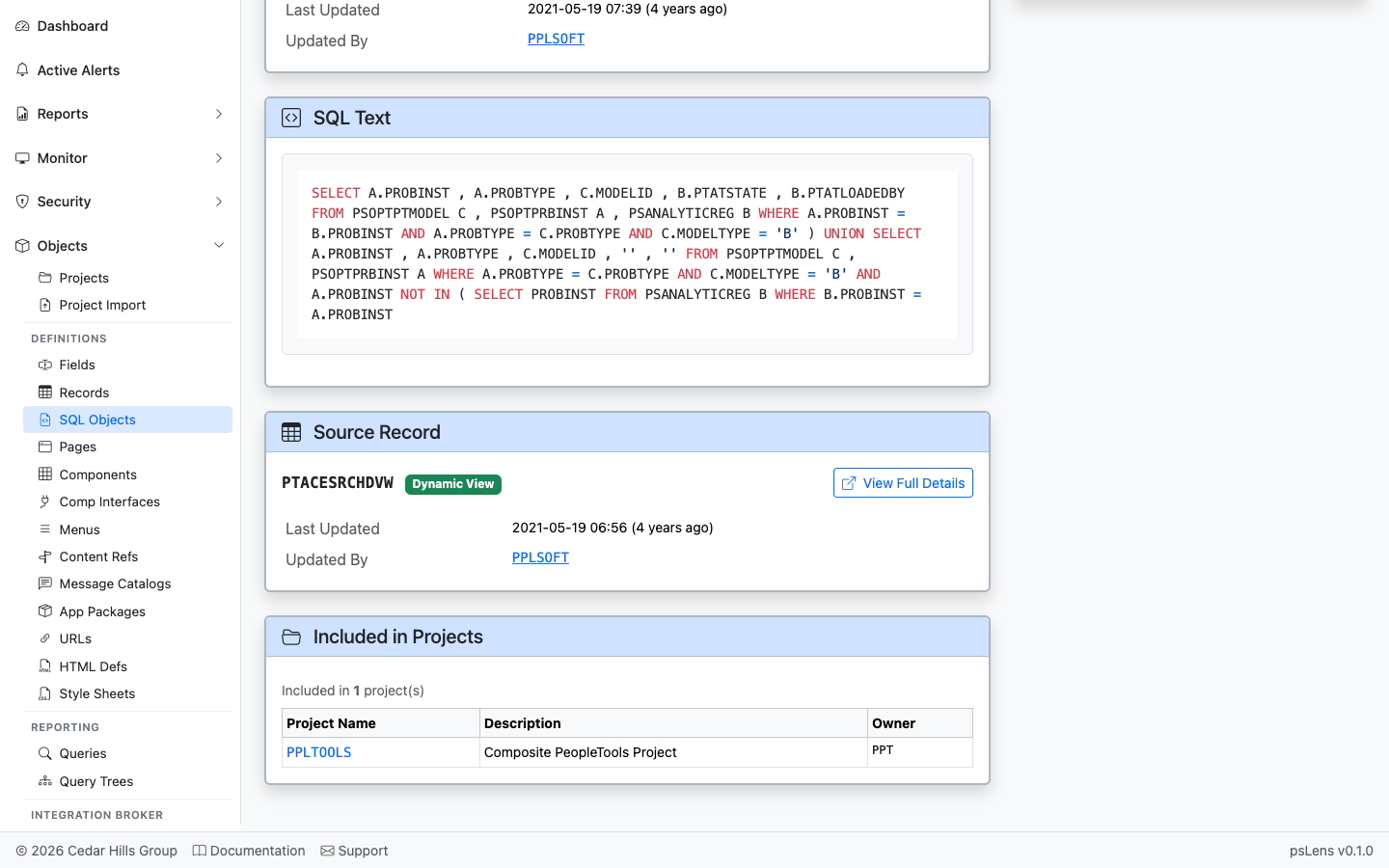
All panels expanded: Source Record and Project membership
Related Data Panels
Source Record
Direct link into the matching record detail page
When the SQL object is the body of a view-type record, this panel links into the parent record’s detail page so you can see the field list and the rest of the record metadata in one click.
Included in Projects
App Designer projects that include this SQL object
Lists projects that contain this SQL object as a project item. Useful for tracing migration history of view DDL changes.
4.4 - File Layouts
Browse PeopleSoft File Layout definitions — segments, fields, file format attributes, projects, and PeopleCode references.
Tailored Operational Context
Target Database:—
Context Type:—
Alert Severity:—
Triggered Time:—
Firing Context:—
File Layout definitions (PSFLDDEFN) map structured flat files, CSVs, fixed-position files, and XML documents to PeopleSoft rowsets and record structures. PeopleTools Object Type 31 definitions store file format specifications in PSFLDDEFN, segment hierarchies in PSFLDSEGDEFN, and field attributes in PSFLDFIELDDEFN. Batch processes and PeopleCode programs query these definitions at runtime to parse inbound files or render outbound data extracts.
psLens pulls the file layout properties, segment hierarchy tree, mapped records, field positional attributes, owning App Designer projects, and referencing PeopleCode programs into a single browser view.
Object Relationships
File Layouts translate external files into PeopleSoft record structures:
Maps File Segments to Records: File Layouts (PSFLDDEFN) contain segment hierarchies (PSFLDSEGDEFN) that map file lines to underlying target records (RECNAME_FILE).
Maps File Fields to Record Fields: File fields (PSFLDFIELDDEFN) map positional or delimited file data to specific record fields.
Invoked in PeopleCode & App Engines: Batch programs instantiate File Layouts (GetFileLayout) to parse or generate flat files.
How psLens Improves File Layout Inspection
In Application Designer, inspecting File Layouts requires expanding segment nodes in the tree control, clicking into individual field properties, and running Find In PeopleCode searches for referencing scripts.
psLens presents layout format properties, segment hierarchies, field positional attributes, project membership, and referencing PeopleCode programs in a single view.
Search Page
URL: /filelayouts?db={database}
Search: Search by File Layout name or description (prefix match). Wildcard % search is supported (for example, %BANK% to find banking layout definitions or % to list all rows).
Filters: Filter search results by last updated operator (LastUpdOprid), last updated date range (DateFrom / DateTo), or customized definitions (CustomizedOnly).
Metadata Cards: Each result card displays the file layout name, description, file format type (CSV, Fixed, or XML), segment count, and last updated operator and timestamp.
Detail Page
URL: /filelayouts/{FLNAME}?db={database}
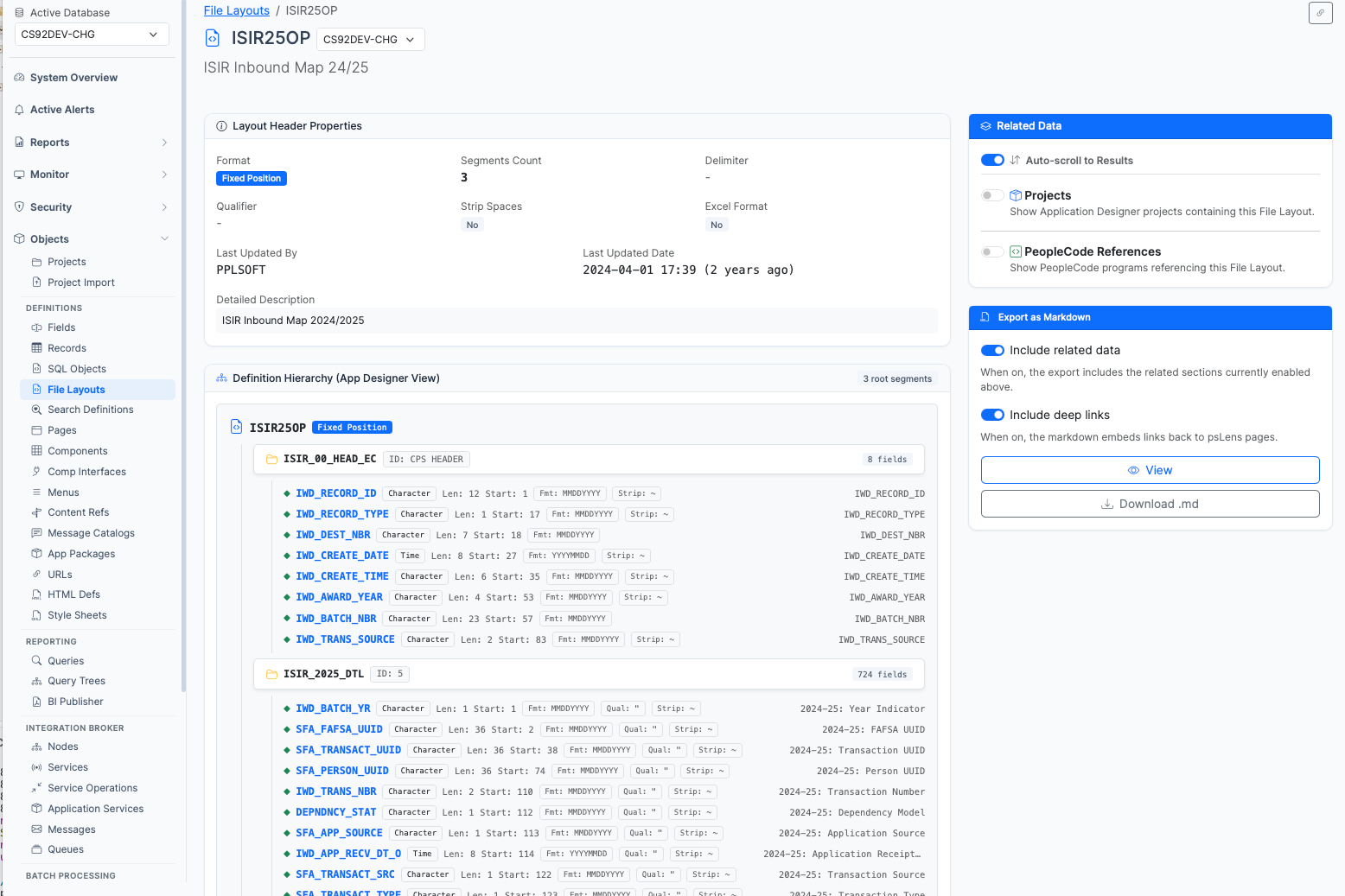
File Layout detail page for ISIR25OP showing definition hierarchy tree and header properties
The Detail Page consolidates the definition attributes, segment hierarchy, field specifications, and cross-object references:
File Layout Properties: Displays description, file format type (CSV, Fixed Position, XML), record delimiter, field qualifier, space stripping behavior, Excel formatting flags, segment count, and modification audit metadata (LASTUPDDTTM, LASTUPDOPRID).
Segment & Field Hierarchy: Renders a tree of segments (PSFLDSEGDEFN) and fields (PSFLDFIELDDEFN). For each segment, psLens displays its parent segment, segment ID prefix, mapped record (RECNAME_FILE), and field count. For each field, psLens lists the field name, start position, length, decimal precision, date format mask, and date separator.
Export as Markdown: Generates a structured Markdown export (/filelayouts/{FLNAME}/export) containing an ASCII segment hierarchy tree, complete field lists, project membership, and referencing PeopleCode programs.
Related Data Panels
Included in Projects
Queries PSPROJECTITEM where OBJECTTYPE = 31 to display Application Designer projects containing this File Layout definition.
PeopleCode References
Queries PSPCMNAME to list all PeopleCode programs (Application Engine steps, Component PeopleCode, Record PeopleCode, or Application Package methods) that reference the File Layout name in code statements.
4.5 - Pages
Browse PeopleSoft page definitions with field controls, source records, subpages, components, and PeopleCode.
Tailored Operational Context
Target Database:—
Context Type:—
Alert Severity:—
Triggered Time:—
Firing Context:—
Pages are the visual screens users interact with in PeopleSoft: the panel definitions from PSPNLDEFN and the per-control bindings from PSPNLFIELD. psLens shows the full control list (every field, label, group box, and subpage on the page), the underlying records each control reads from, and the rest of the metadata graph hanging off the page: which components include it, which PeopleCode is attached, which projects contain it.
Object Relationships
Pages bridge individual record fields to complete application transactions:
Binds Record Fields: Pages (PSPNLDEFN) contain visual controls (PSPNLFIELD) bound to fields (FIELDNAME) on underlying records (RECNAME).
Grouped in Components: One or more pages are assembled into a component definition (PSPNLGROUP) to create a complete transaction.
Includes Subpages: Pages embed reusable subpages and secondary pages to modularize user interface design.
How psLens Improves Page Inspection
Investigating page definitions in Application Designer requires opening the page layout, double-clicking individual controls to verify record and field bindings, querying PSPNLGROUP to find parent components, checking page properties for Activate PeopleCode, and walking owning projects for migration history.
psLens presents the full control inventory, distinct underlying records, embedded subpages, containing components, Activate PeopleCode, and project membership in a single view with everything one click away.
Search Page
URL: /pages?db={database}
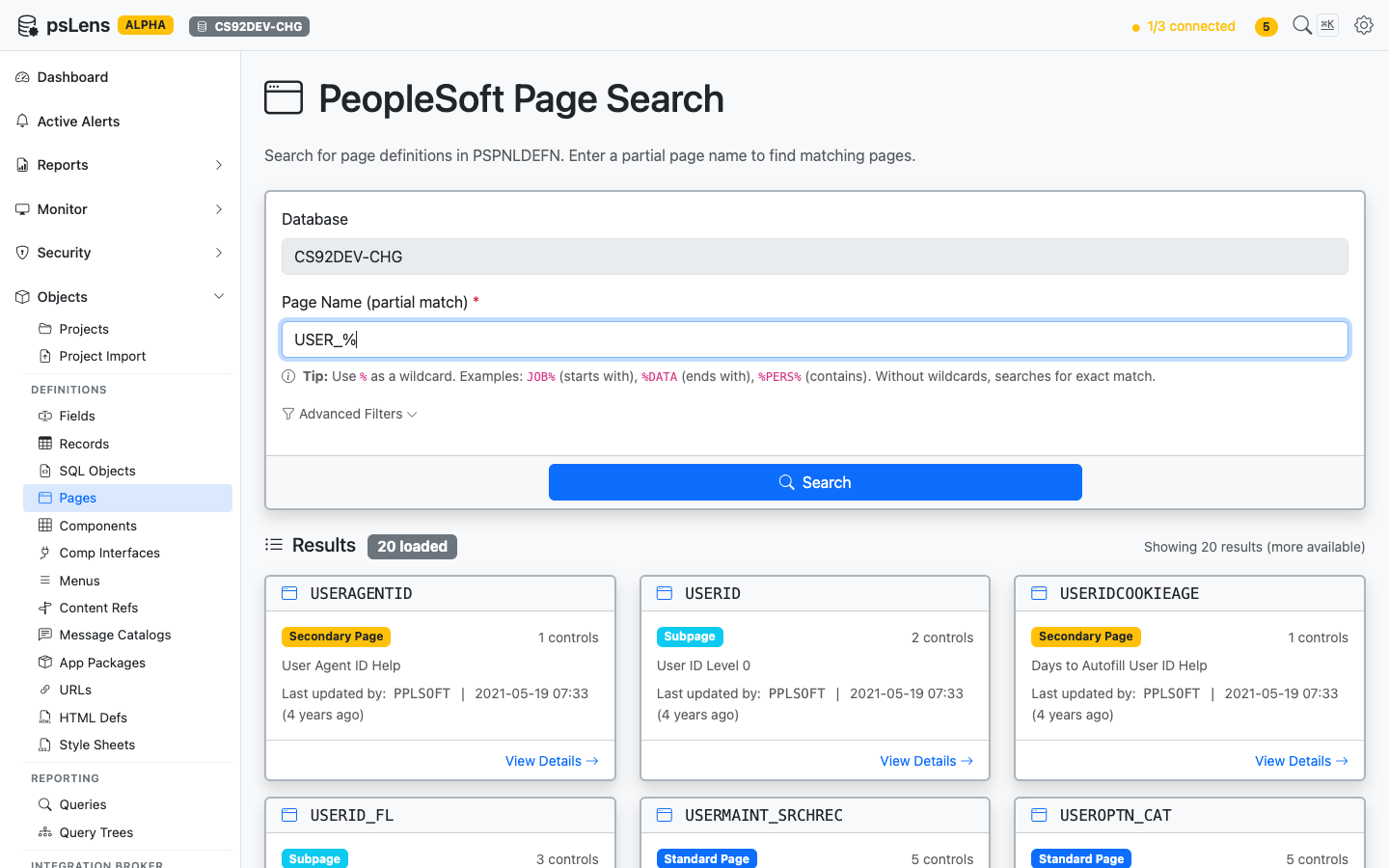
Page search results for USER_%
Wildcard % search supported. Each result card shows the page type (Standard Page, Subpage, Secondary Page, or Search Record) so you can spot reusable subpages versus standalone screens at a glance. The Advanced Filters panel lets you exclude subpages or limit to standard pages only.
Detail Page
URL: /pages/{PAGENAME}?db={database}
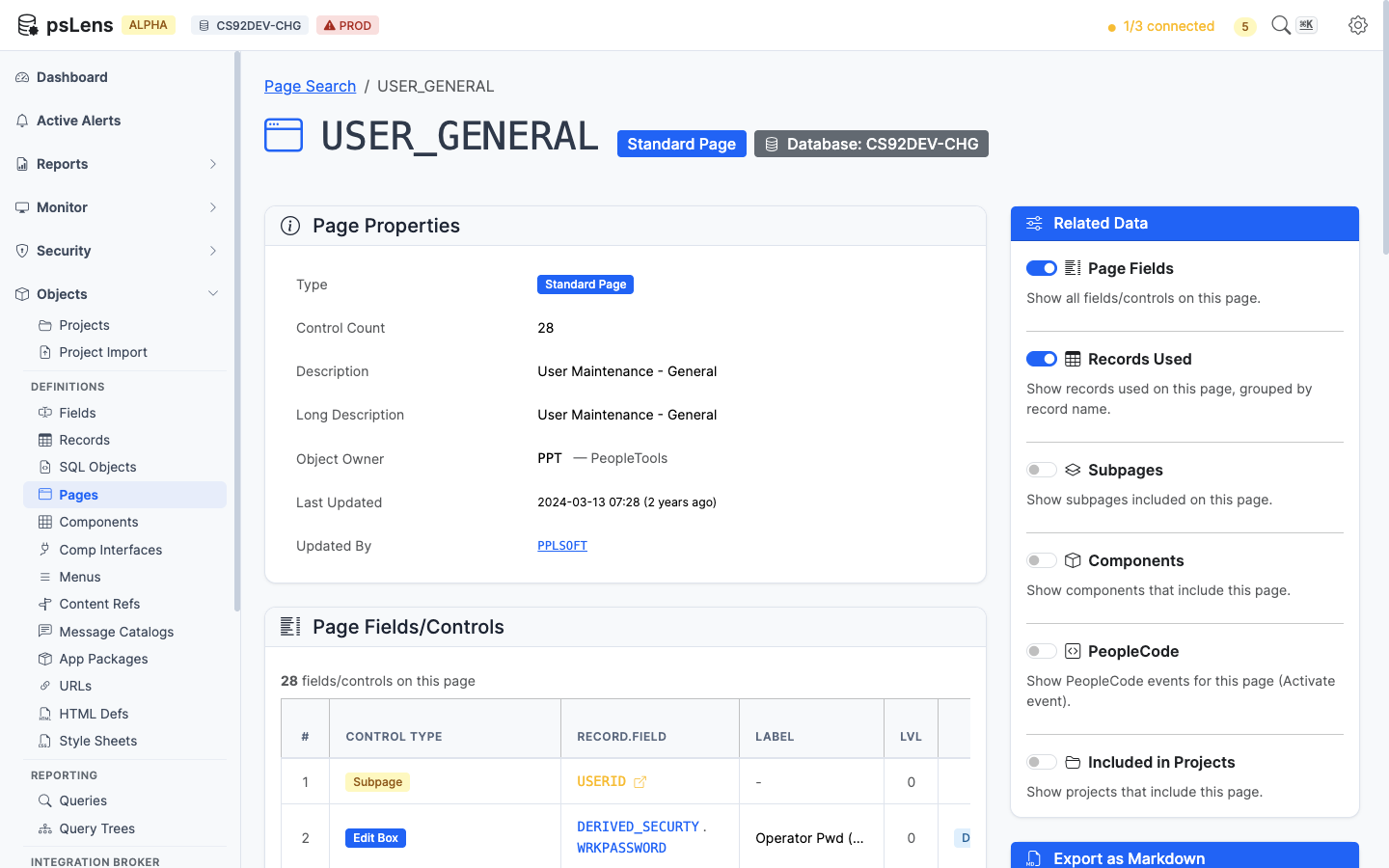
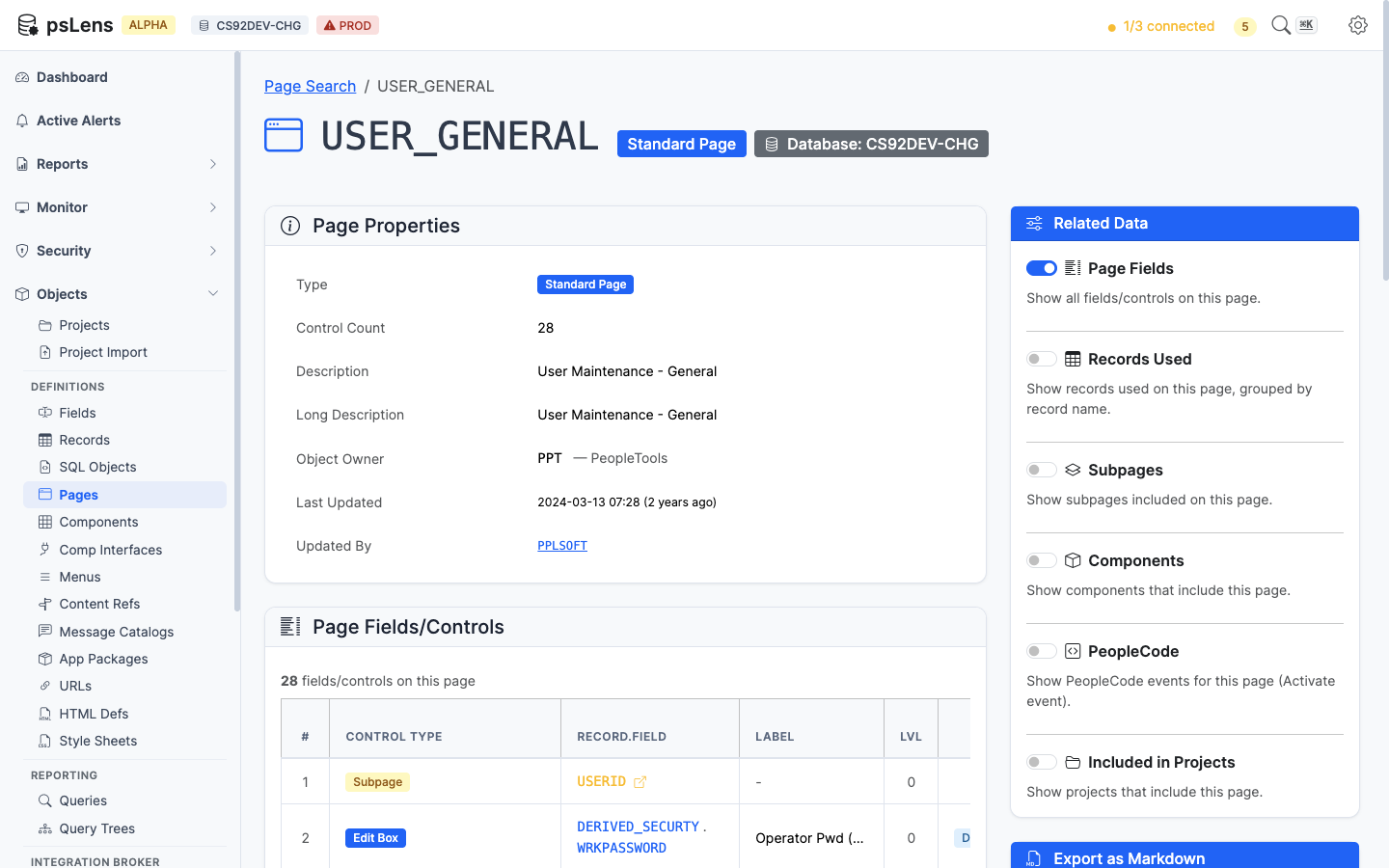
Page detail for USERPROFILEPAGE — default view
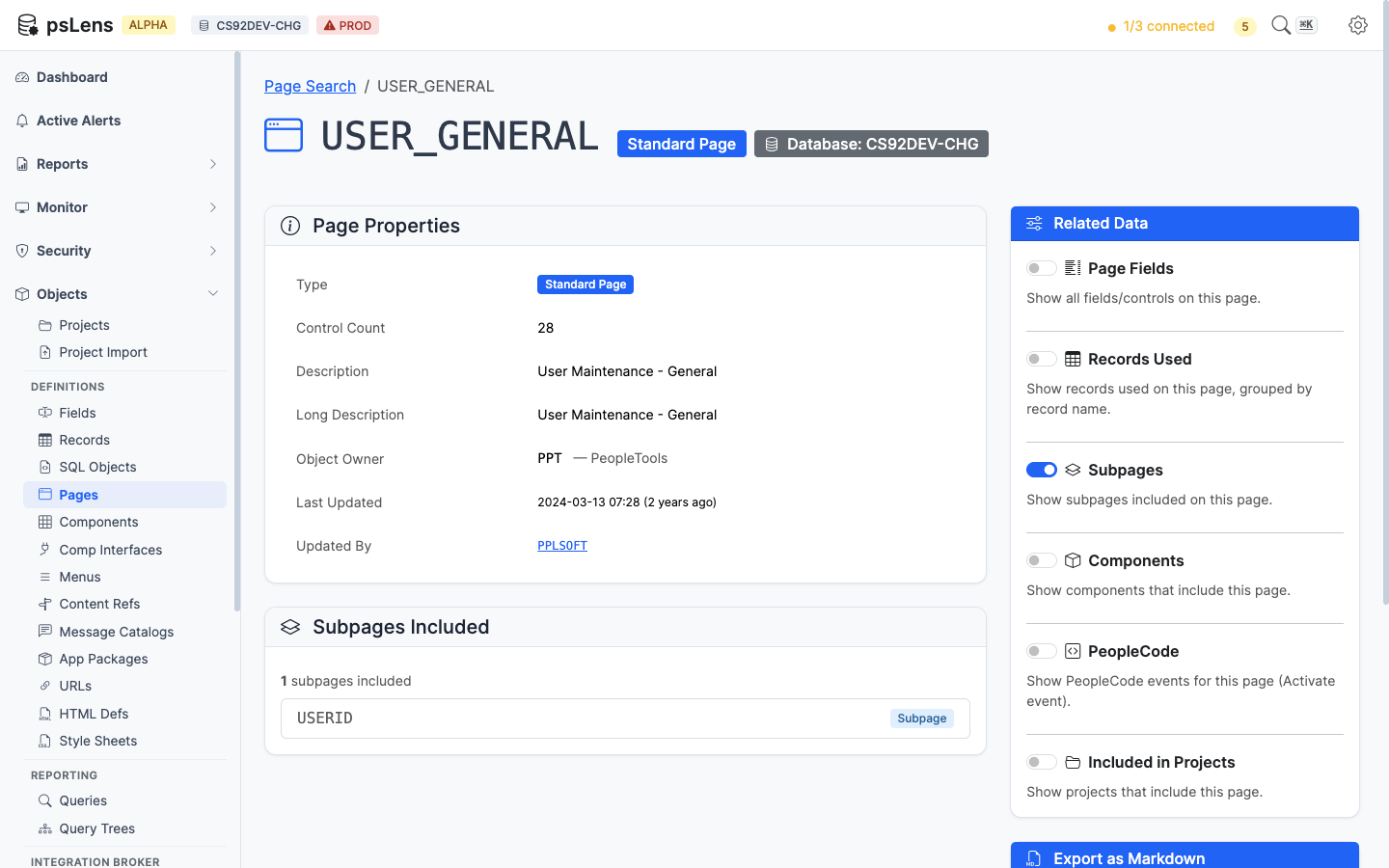
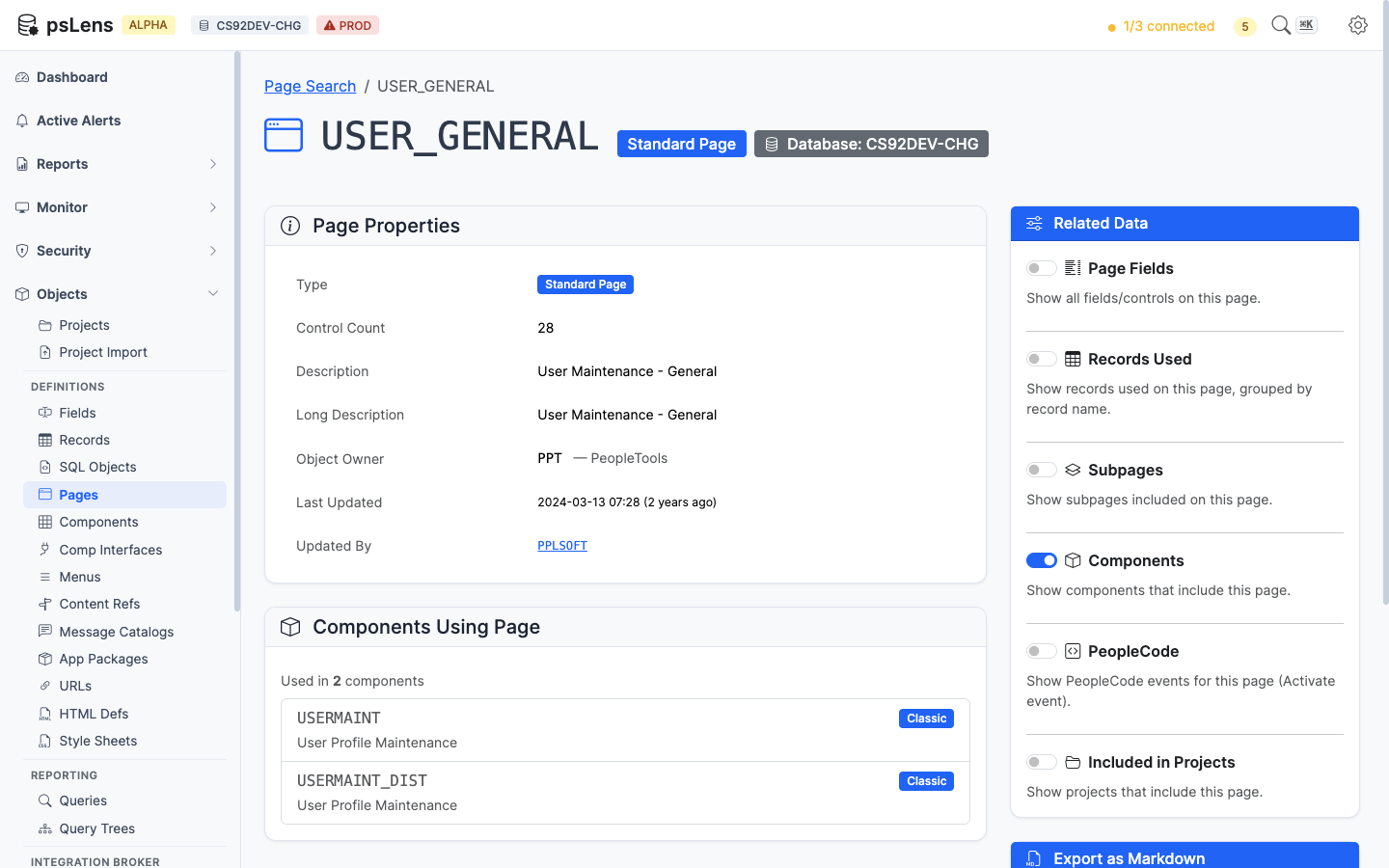
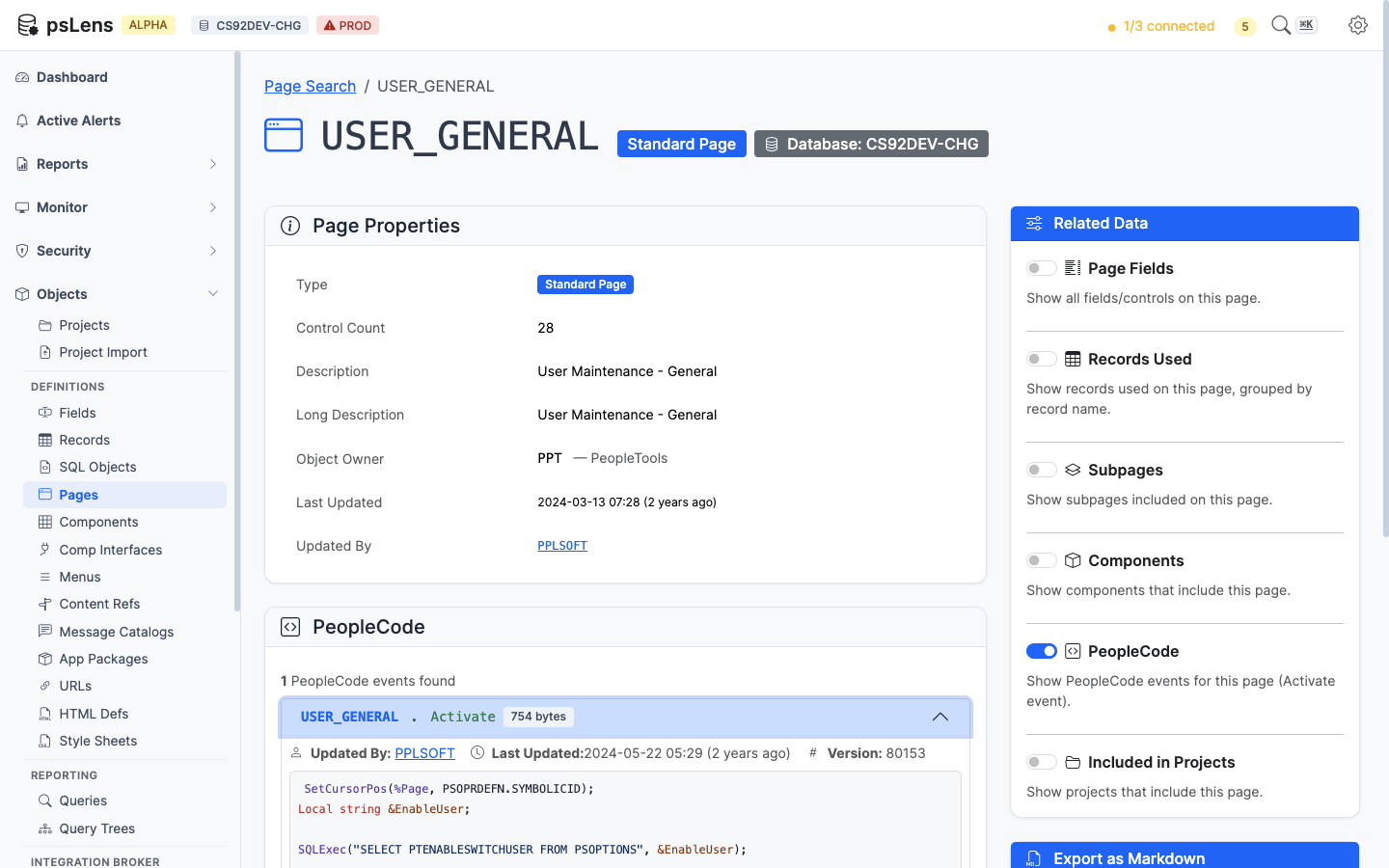
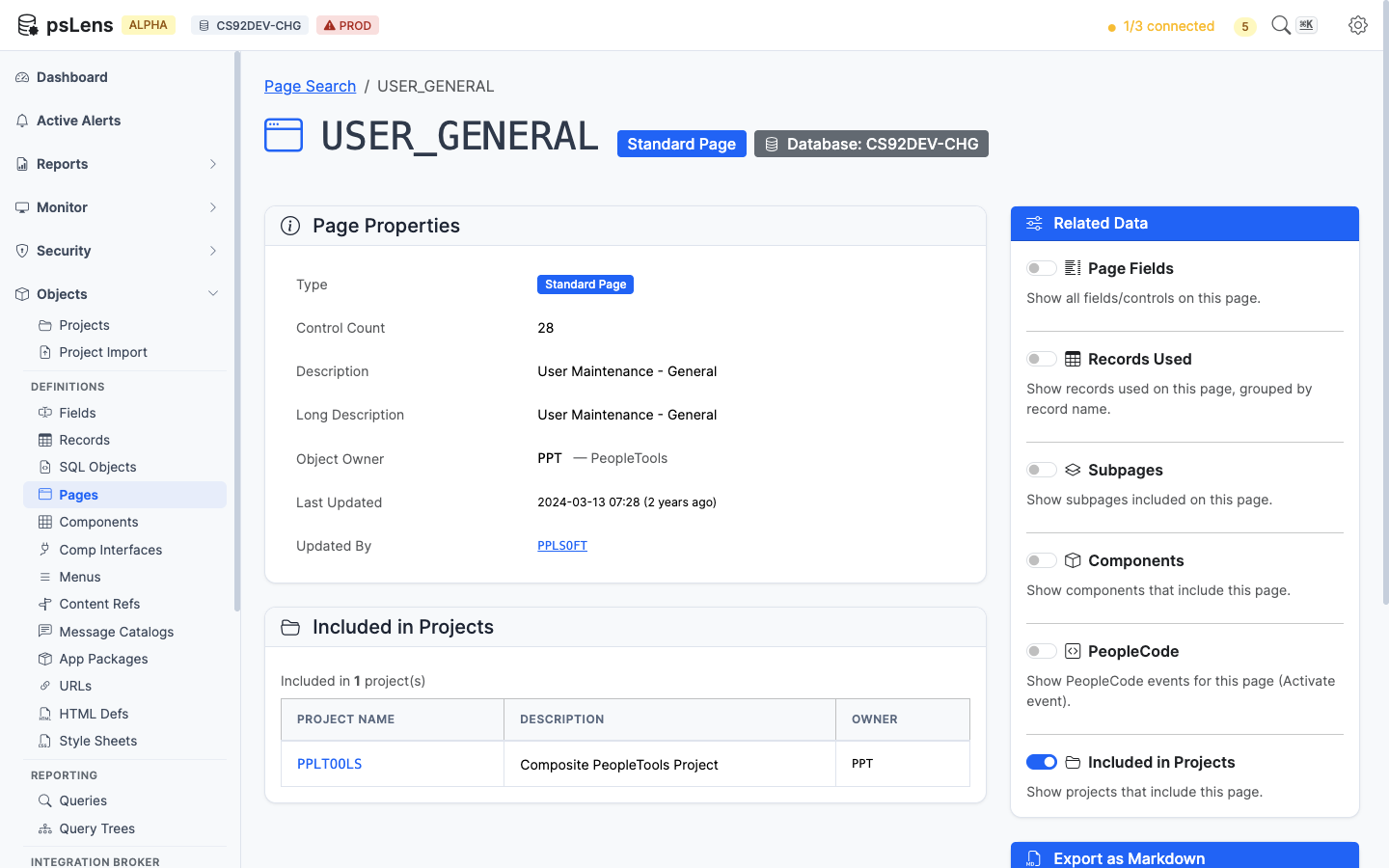
The main pane shows Page Properties (type, size, style, audit metadata) and the full Page Fields/Controls table with each control’s record/field binding, label, occurs level, and field type. The sidebar has 6 related-data toggles.
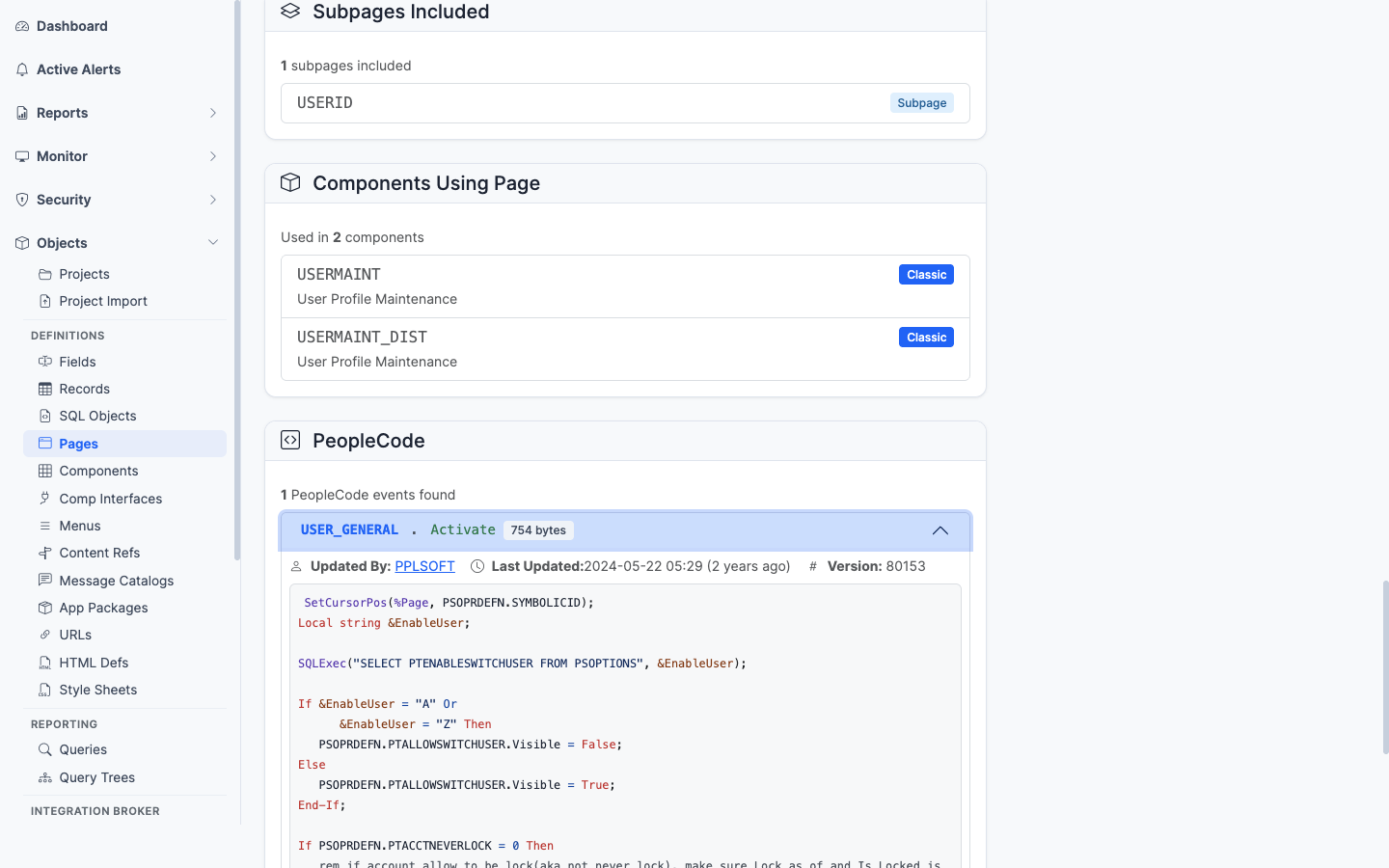
All panels expanded on a Secondary Page
Related Data Panels
Page Fields/Controls
Every control on the page with its field, record, and label
The control inventory: every field control on the page with its PSPNLFIELD row attributes. Each record/field reference deep-links into the matching psLens detail page.
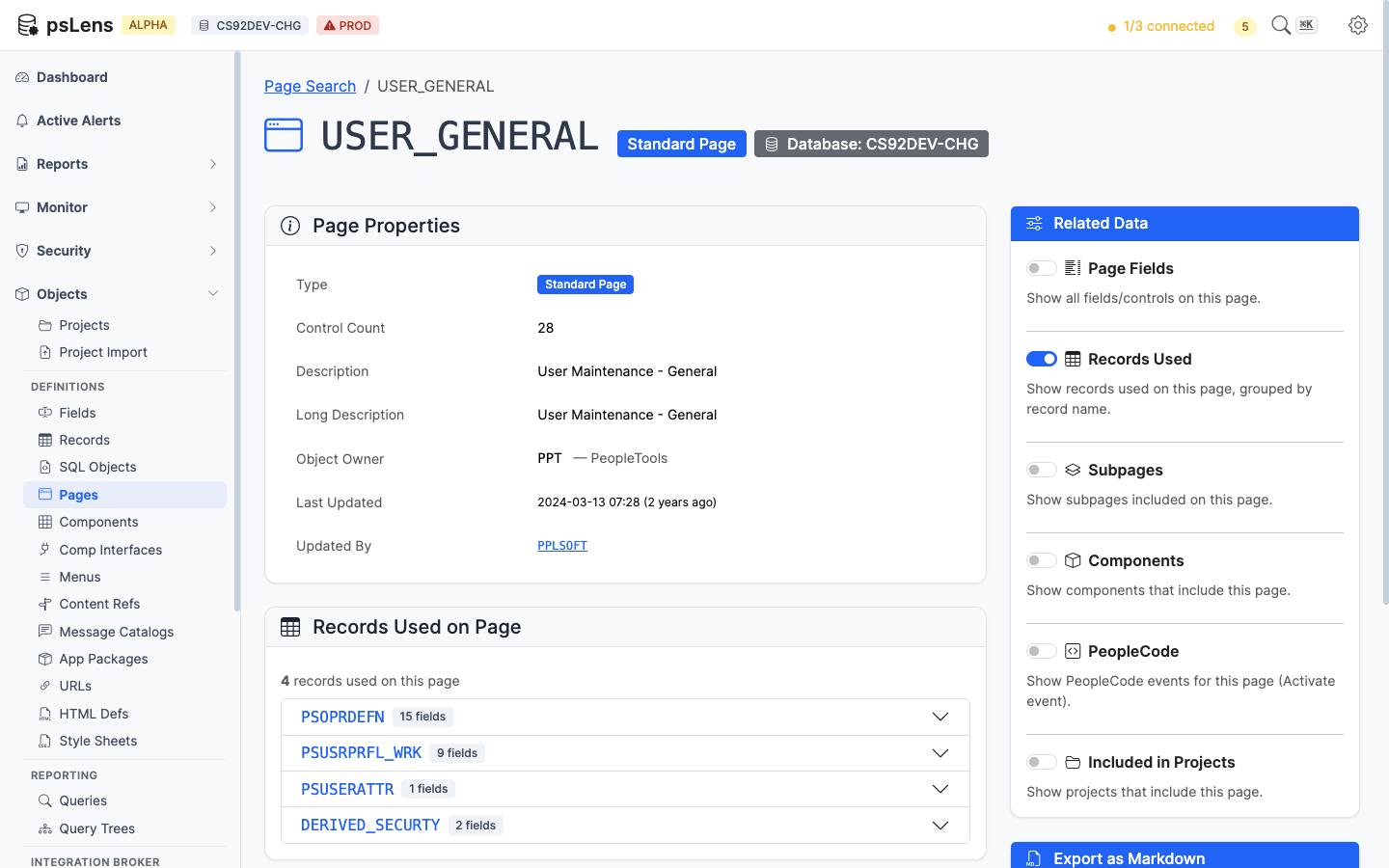
Records Used on Page
Distinct records referenced by any control on the page
The de-duplicated list of records this page reads from. Clicking a record opens its detail page so you can confirm the schema, sample data, or check what else uses it.
Subpages Included
Subpages embedded inside this page
Lists every subpage embedded inside this page. Useful when a control’s data seems to come from somewhere “magic” (it’s almost always a subpage doing the work).
Components Using Page
Components whose item list includes this page
Lists the components that include this page. Answers “which transactions show this screen to a user?”
PeopleCode
Page-level PeopleCode (Activate event) attached to this page
Page Activate PeopleCode. The only event type that lives directly on a page object.
Included in Projects
App Designer projects that include this page
App Designer projects containing this page as a project item.
4.6 - Components
Browse PeopleSoft component definitions with pages, menus, portal paths, CIs, records, and PeopleCode in one view.
Tailored Operational Context
Target Database:—
Context Type:—
Alert Severity:—
Triggered Time:—
Firing Context:—
Components (called panel groups in older PeopleTools versions) are the user-facing transactions of a PeopleSoft application: a search page plus an ordered set of detail pages that share a single save action. psLens reads PSPNLGROUP / PSPNLGRPDEFN and links the component up to its menus, portal navigation paths, exposing component interfaces, the underlying record hierarchy, and the full PeopleCode event tree.
Object Relationships
Components unite visual pages, database records, security grants, and navigation:
Groups Pages: Components (PSPNLGRPDEFN) assemble ordered lists of pages (PSPNLGROUP) into a unified transaction with shared state.
Driven by Search Records: Components rely on a primary search record (SEARCHRECNAME) to execute key lookups and search dialogs.
Linked to Menus: Components are assigned to menu items (PSMENUITEM) inside classic menus (PSMENUDEFN).
Targeted by CREFs & CIs: Portal Content References (PSPRSMDEFN) expose components to users, and Component Interfaces (PSBCDEFN) expose them to API code.
How psLens Improves Component Inspection
Tracing component metadata in Application Designer and PIA requires opening the component item list, walking page tabs to confirm record bindings, running Find In Menus for classic navigation links, navigating the Portal Registry browser for CREF breadcrumbs, searching for exposing Component Interfaces, and opening event PeopleCode across multiple tabs.
psLens combines component properties, page lists, classic menu links, portal registry paths, exposing Component Interfaces, scroll record hierarchies, component event PeopleCode, and project membership onto a single screen.
Search Page
URL: /components?db={database}
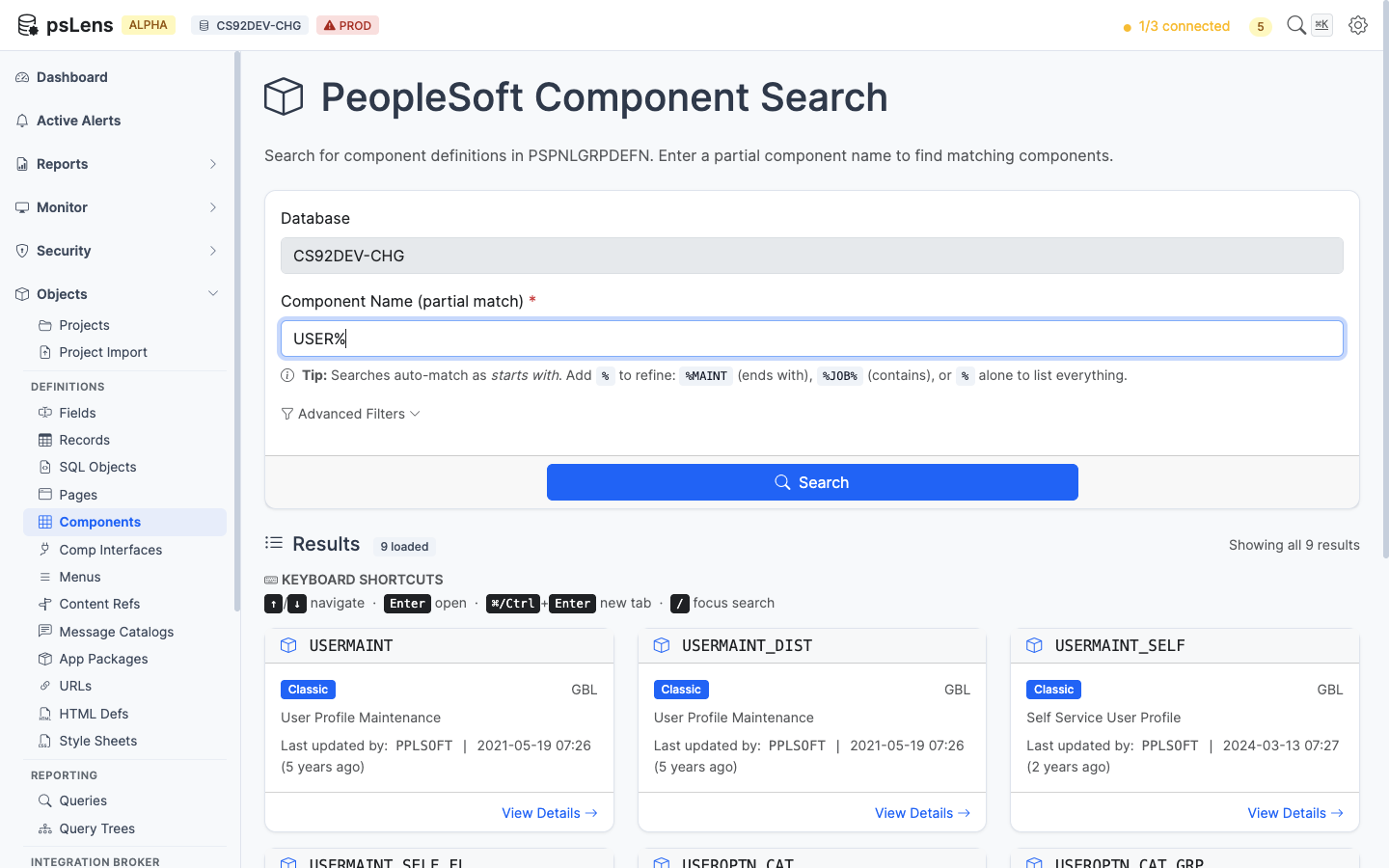
Component search results for USER%
Wildcard % search supported. Each result card shows the component market and use type (Classic, Fluid, Both). The Advanced Filters panel filters by market or component type.
Detail Page
URL: /components/{COMPONENT}?db={database}
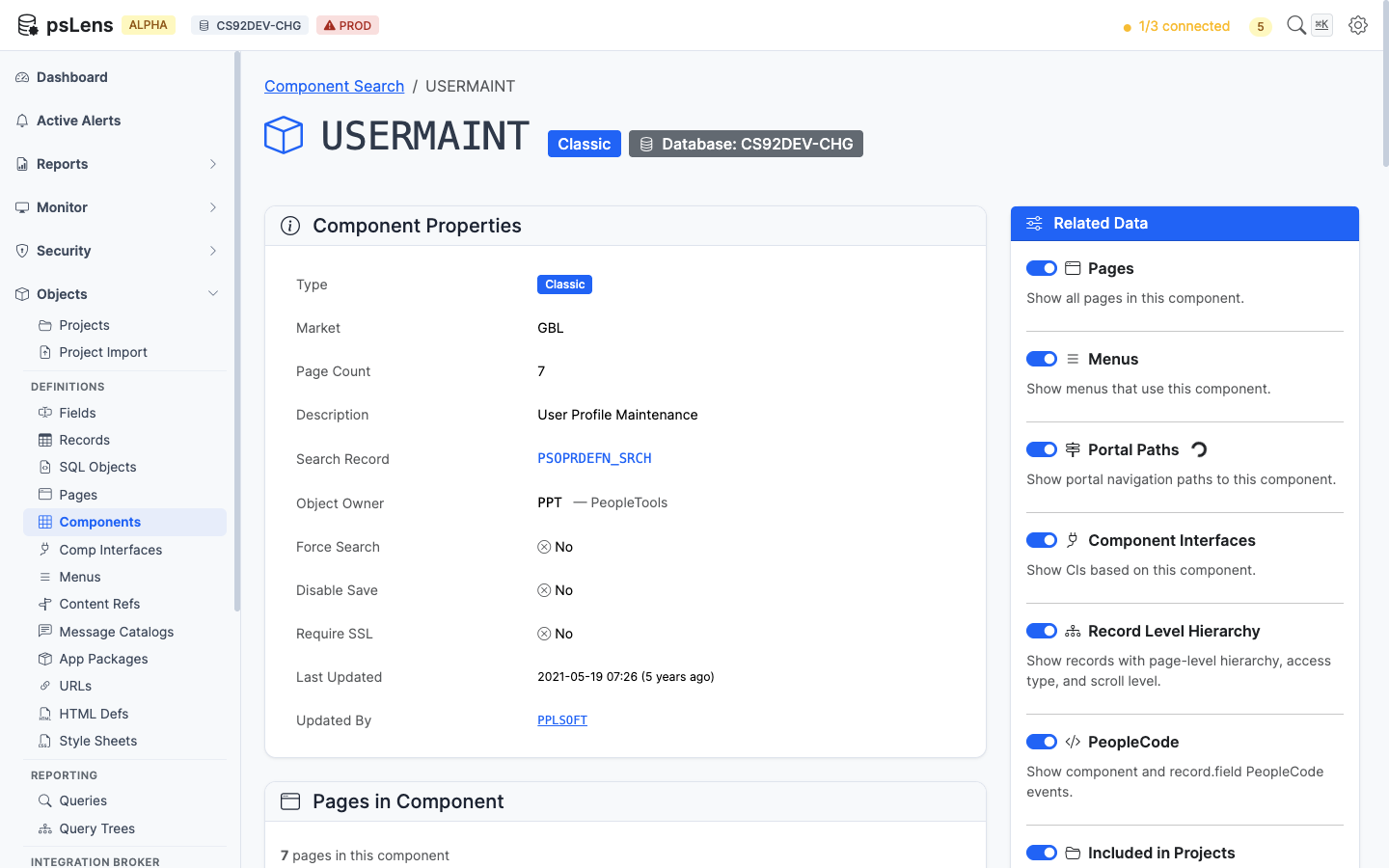
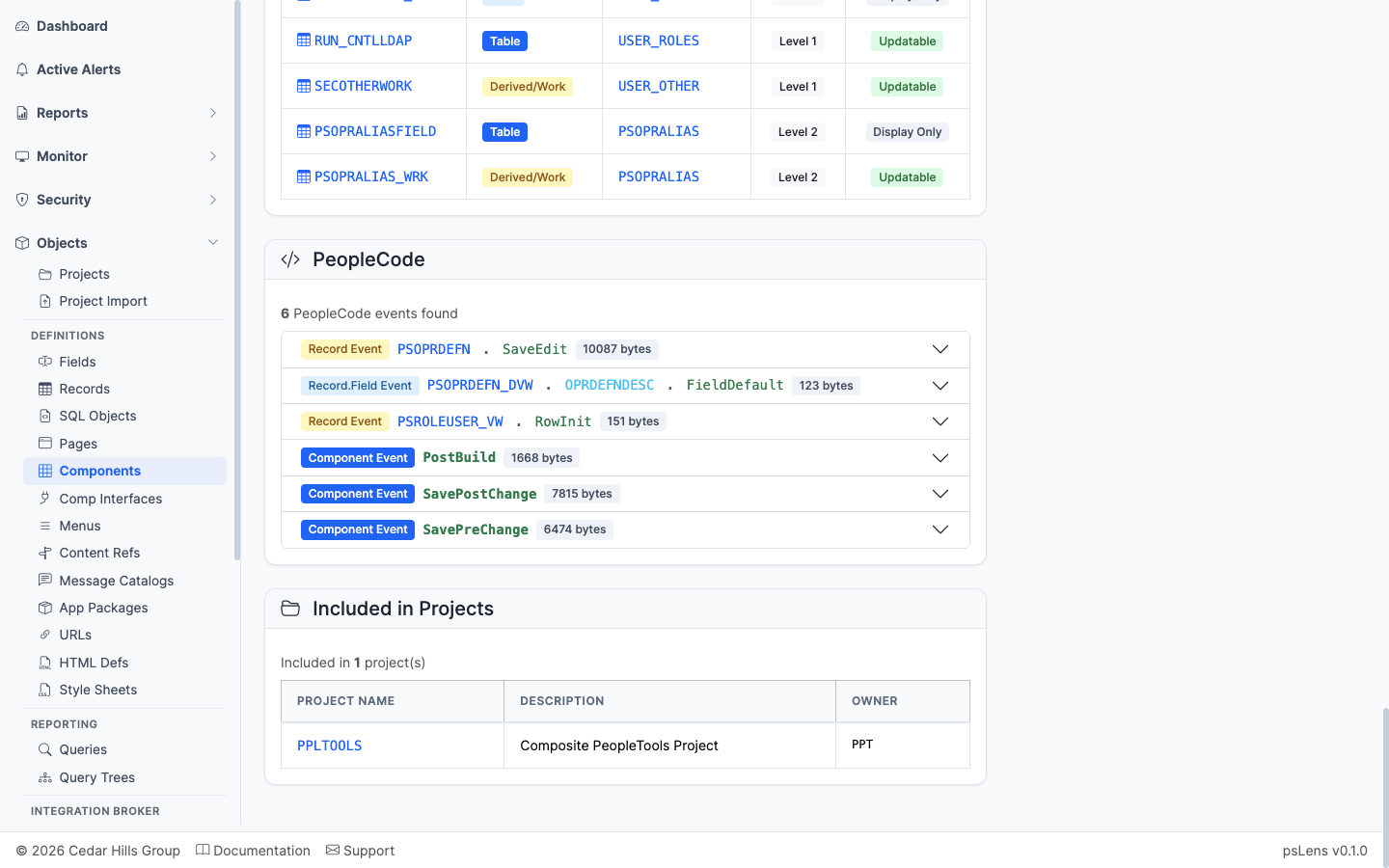
Component detail page for USERMAINT
The main pane shows Component Properties (market, search record, add search record, item description, add/update modes, search PeopleCode flags) and the Component Item List with every page in the component, its labeling, and the hide/display-only flags. The sidebar has 7 related-data toggles.
Related Data Panels
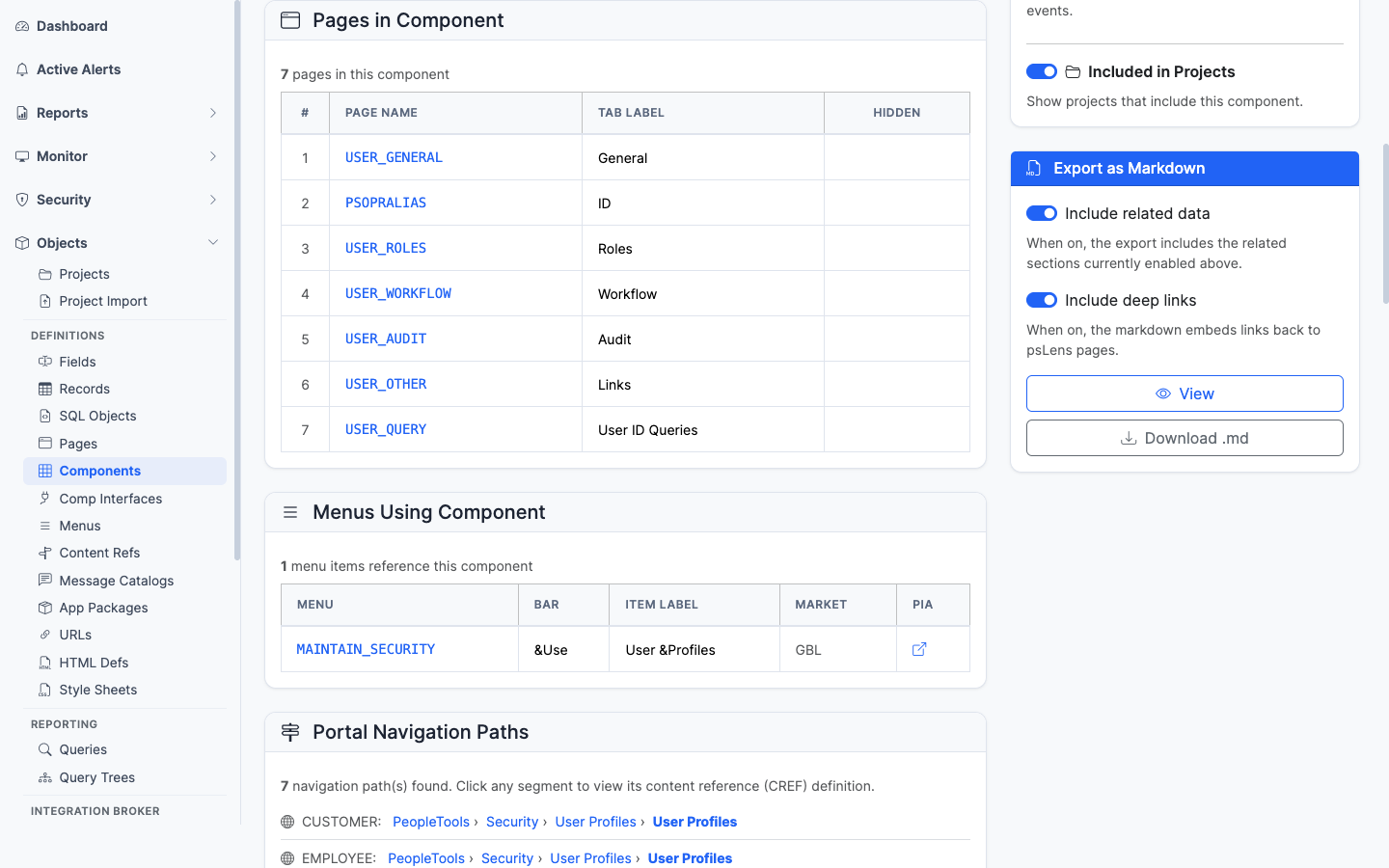
Pages in Component
The ordered list of pages that make up this component
The page list with each page deep-linked into its own detail page.
Menus Using Component
Classic menus that link to this component
Every classic menu (PSMENUITEM) that contains a navigation entry for this component. Important for security work since menu/component pairs drive Permission List authorizations.
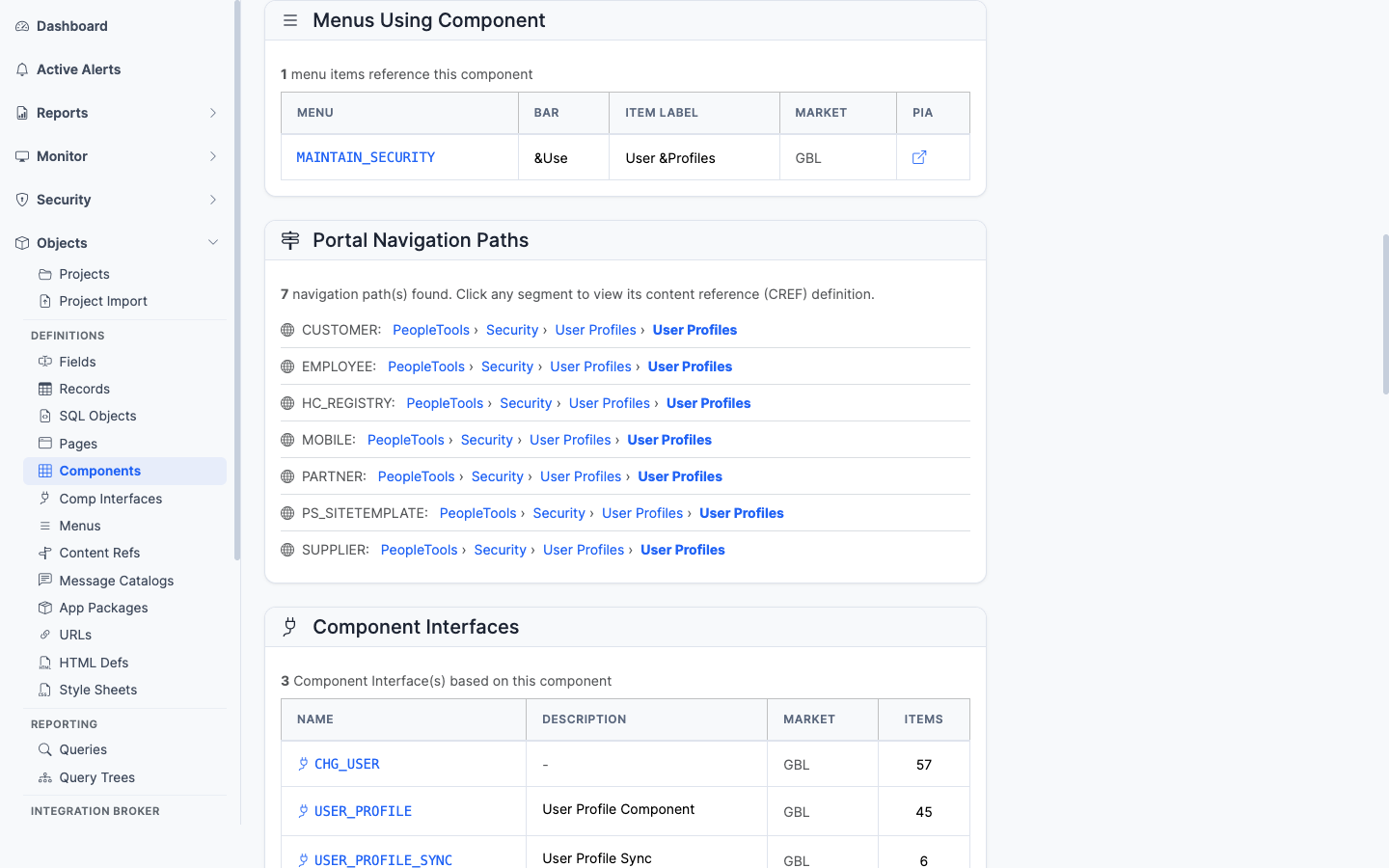
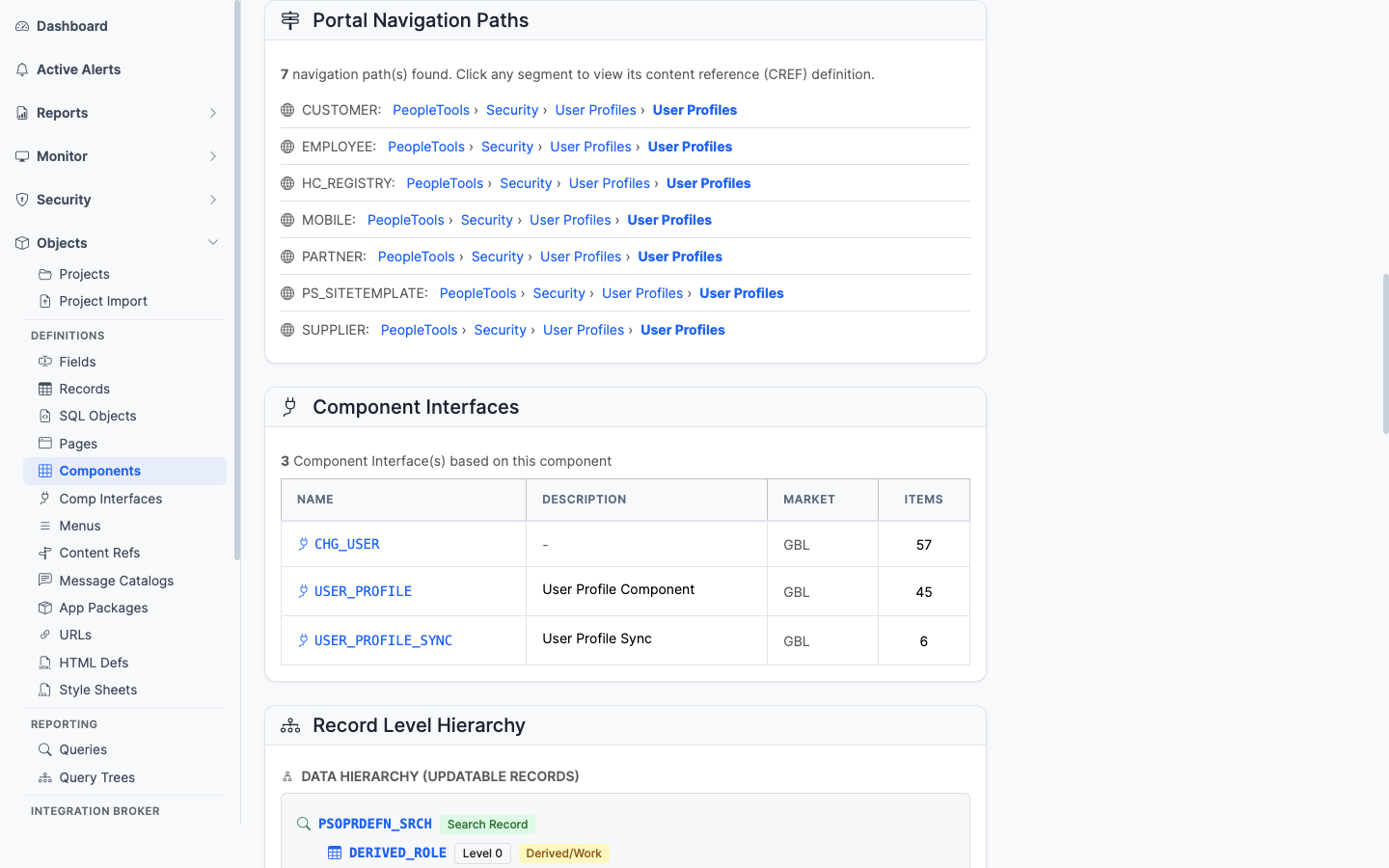
Portal Navigation Paths
Every breadcrumb path that leads a user to this component in the portal registry
The full set of portal registry paths (PSPRSMDEFN ancestor walk) that lead a user to this component. Useful for “where is this transaction in the menu?” questions.
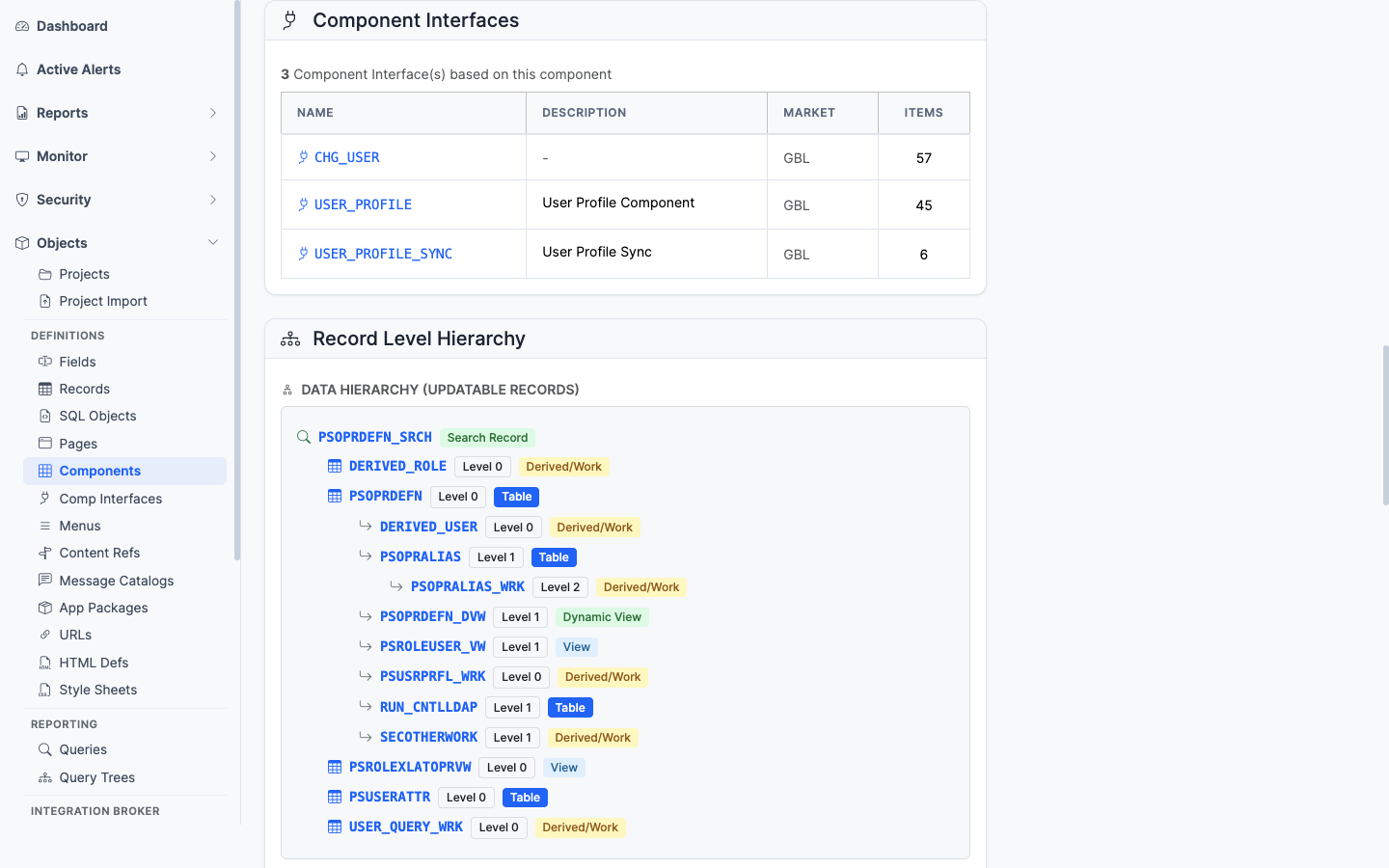
Component Interfaces
Component Interfaces that expose this component as an integration surface
The CIs (PSBCDEFN) that wrap this component as an integration surface. If you have CIs here, programmatic access exists.
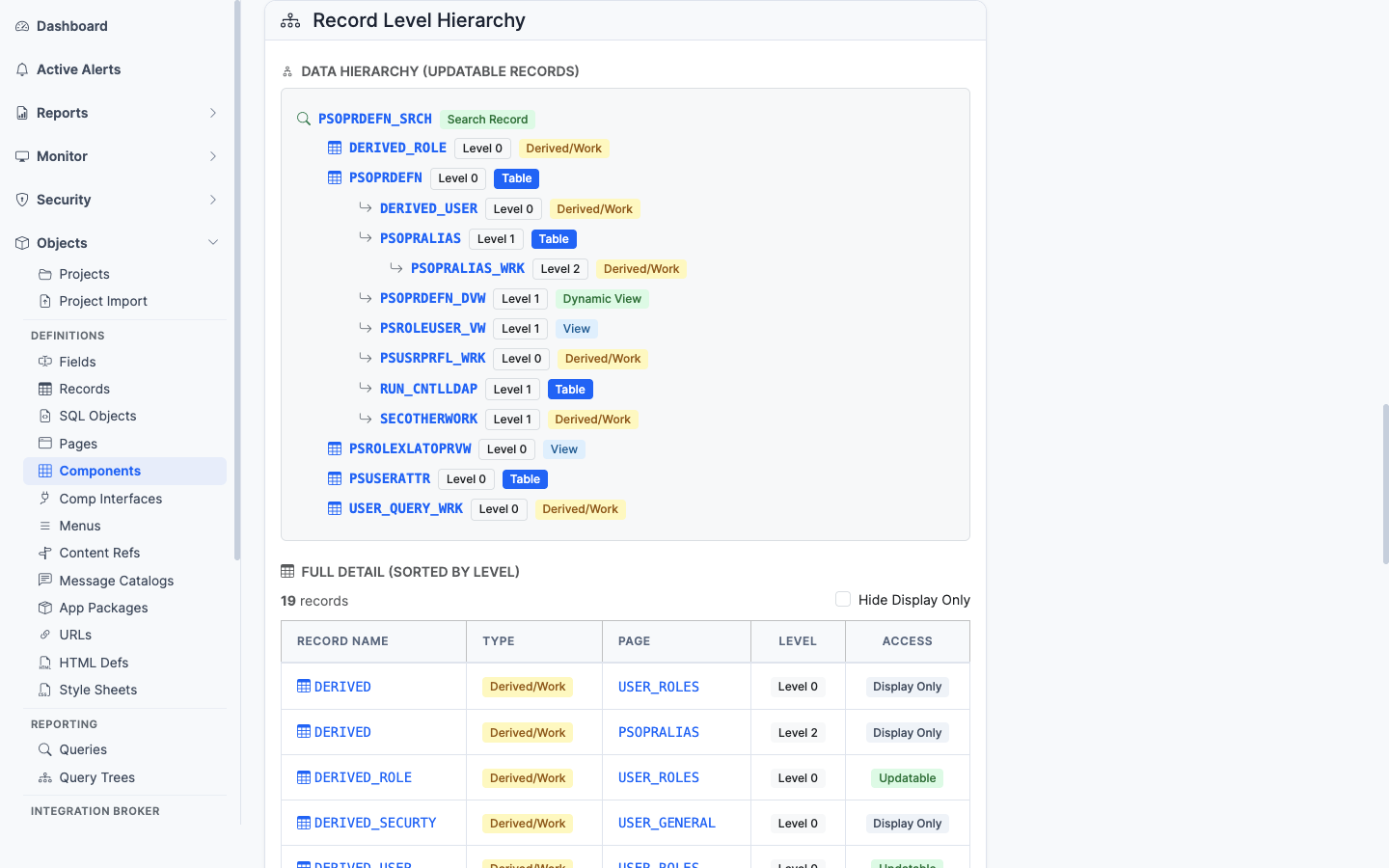
Record Level Hierarchy
The component’s scroll/record hierarchy across its pages
The scroll/record hierarchy across the pages. Shows the parent-child relationships of records as the component sees them at runtime.
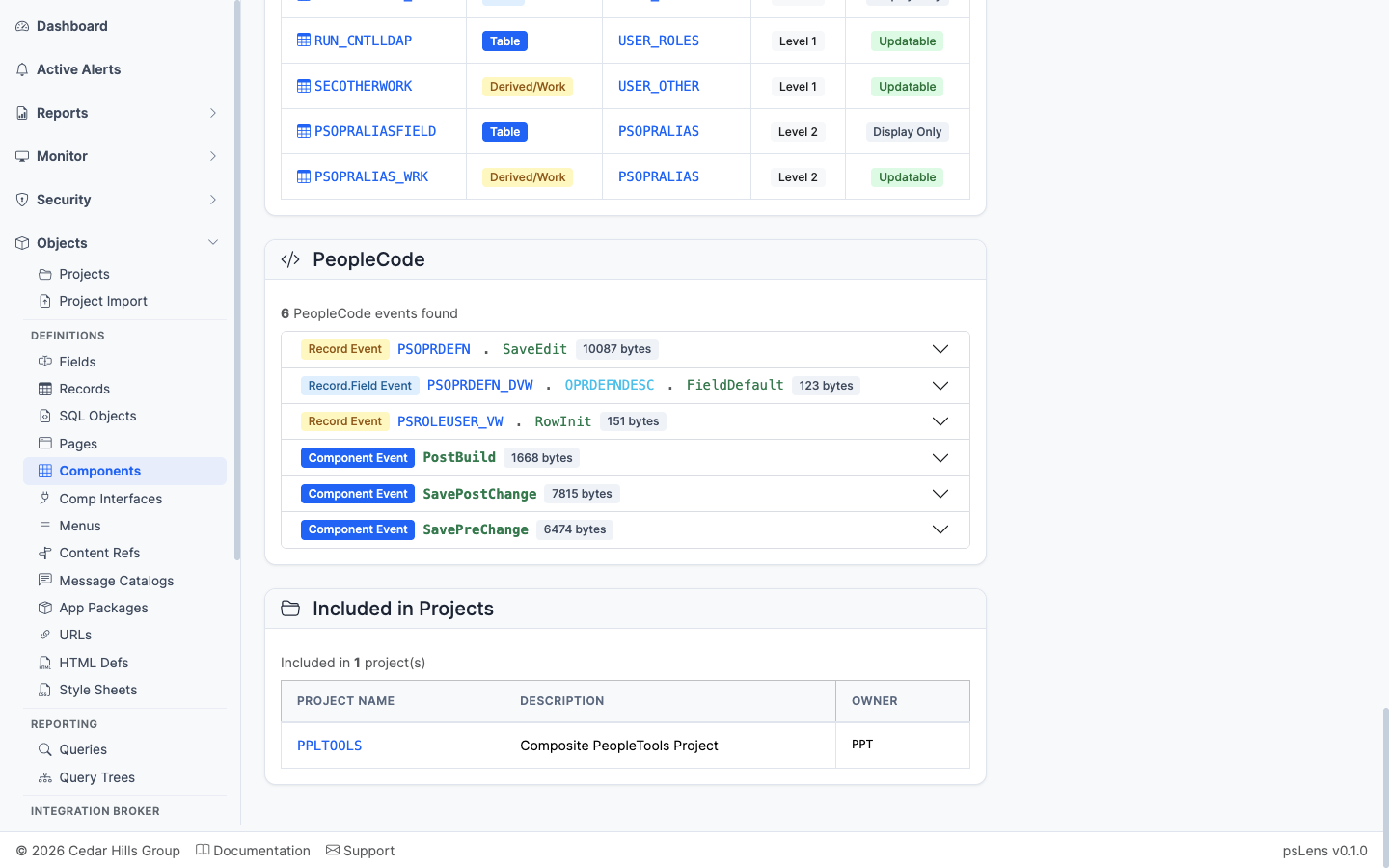
PeopleCode
Component-level PeopleCode events
Component-level PeopleCode events (SearchInit, SearchSave, PreBuild, PostBuild, SavePreChange, SavePostChange, Workflow, etc.) and Component Record/Component Record Field PeopleCode.
Included in Projects
App Designer projects that include this component
App Designer projects containing this component as a project item.
4.7 - Component Interfaces
Browse PeopleSoft Component Interface definitions with items, methods, PeopleCode, and consistency checks.
Tailored Operational Context
Target Database:—
Context Type:—
Alert Severity:—
Triggered Time:—
Firing Context:—
Component Interfaces (CIs) are PeopleSoft’s programmatic façade over a component. They expose component properties as get/set properties and component events as callable methods, so integration code can drive the same business logic the UI uses. psLens reads PSBCDEFN for the CI header, PSBCITEM for the property/key list, and PSBCMETHODS for the methods. It also runs two consistency checks against the underlying component to catch the most common breakage: properties that no longer map to a valid record field, and required fields the CI doesn’t expose.
Object Relationships
Component Interfaces expose interactive transaction components for programmatic API access:
Wraps Components: Component Interfaces (PSBCDEFN) target an underlying component (PNLGRPNAME, MARKET) to expose its validation logic.
Maps Properties to Record Fields: CI items (PSBCITEM) bind exposed API properties to specific record fields (PSRECFIELD) on the component.
Secured by Permission Lists: Permission lists (PSAUTHBUSCOMP) grant action-level permissions (Get, Create, Save) on Component Interfaces.
How psLens Improves Component Interface Inspection
Evaluating Component Interfaces in Application Designer requires opening the CI item tree, cross-referencing record fields on the underlying component, manually scanning for missing required fields, and running Find In PeopleCode for calling programs.
psLens automates consistency checks—flagging invalid property bindings and missing required component fields—while displaying methods, properties, referencing PeopleCode, and project membership in one place.
Search Page
URL: /componentinterfaces?db={database}
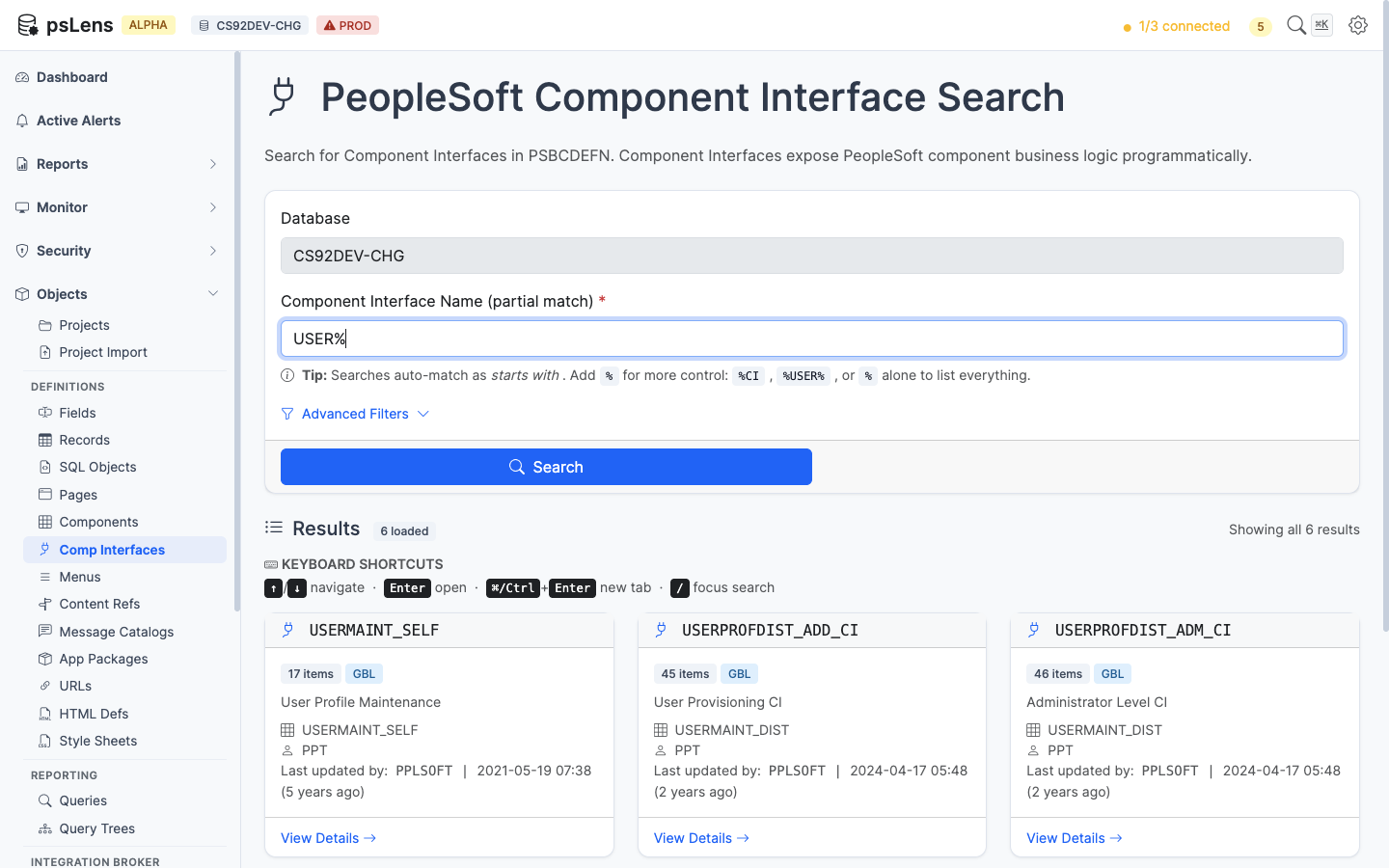
Component Interface search results for USER%
Wildcard % search supported. Each result card shows the underlying component and CI description.
Detail Page
URL: /componentinterfaces/{CINAME}?db={database}
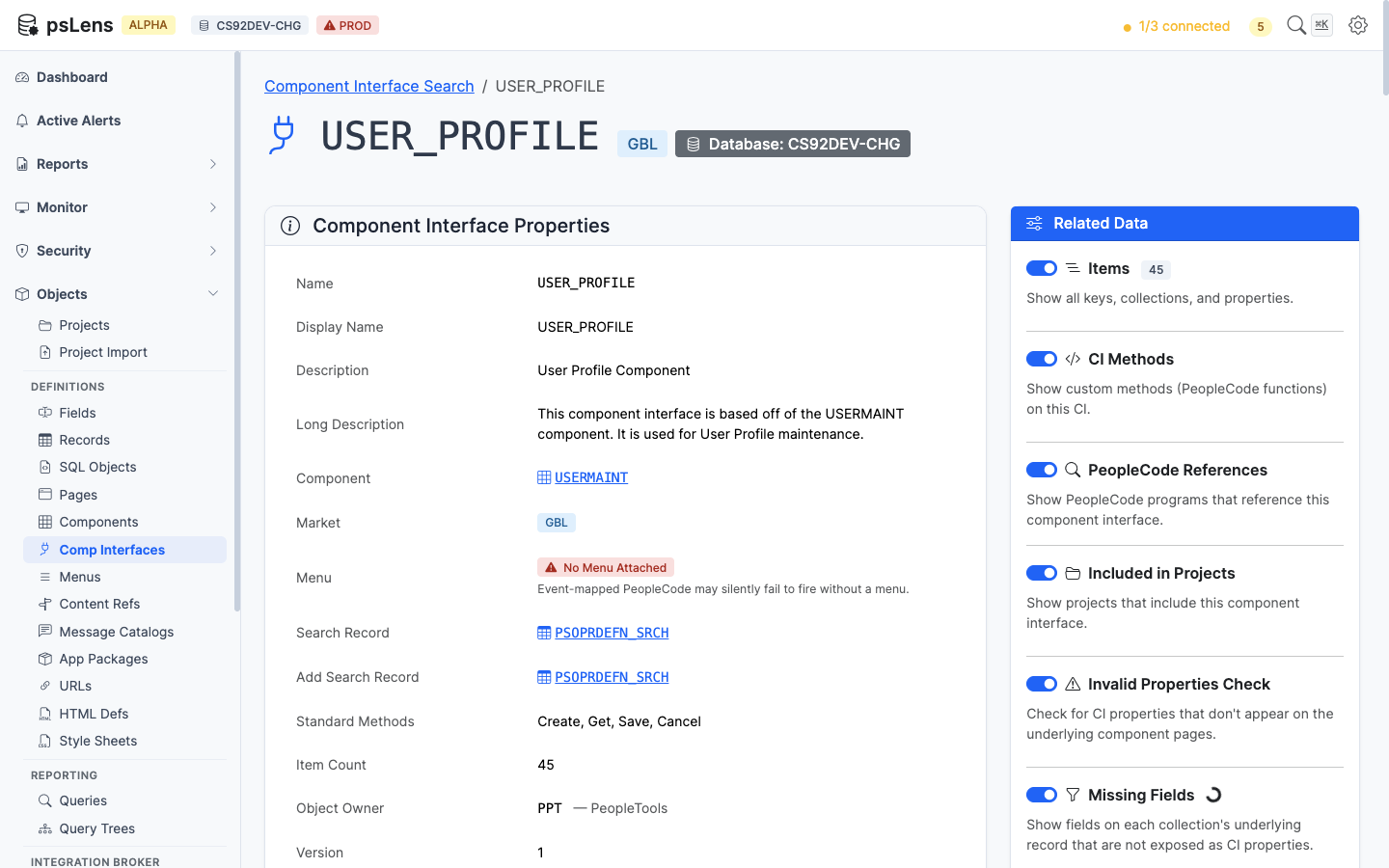
Component Interface detail page for USER_PROFILE
The main pane shows Component Interface Properties (underlying component, market, security access, owner) plus the items list. The sidebar has 6 related-data toggles, including two consistency-check panels unique to CIs.
Related Data Panels
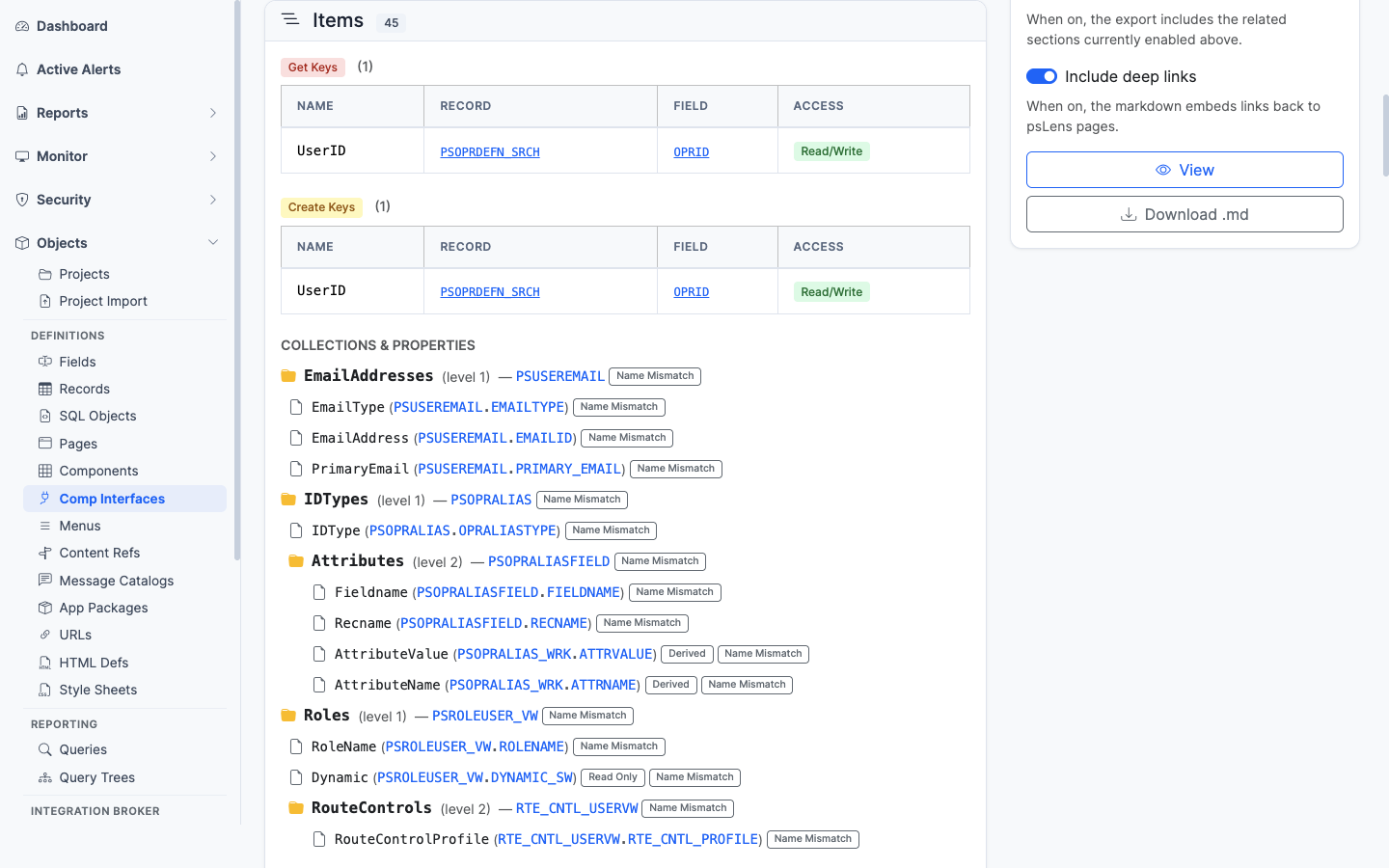
Items
Every CI property with key flag, record/field binding, and standard/custom indicator
Every CI property (PSBCITEM): its record/field binding, key indicator, and whether it’s a standard or custom-named property.
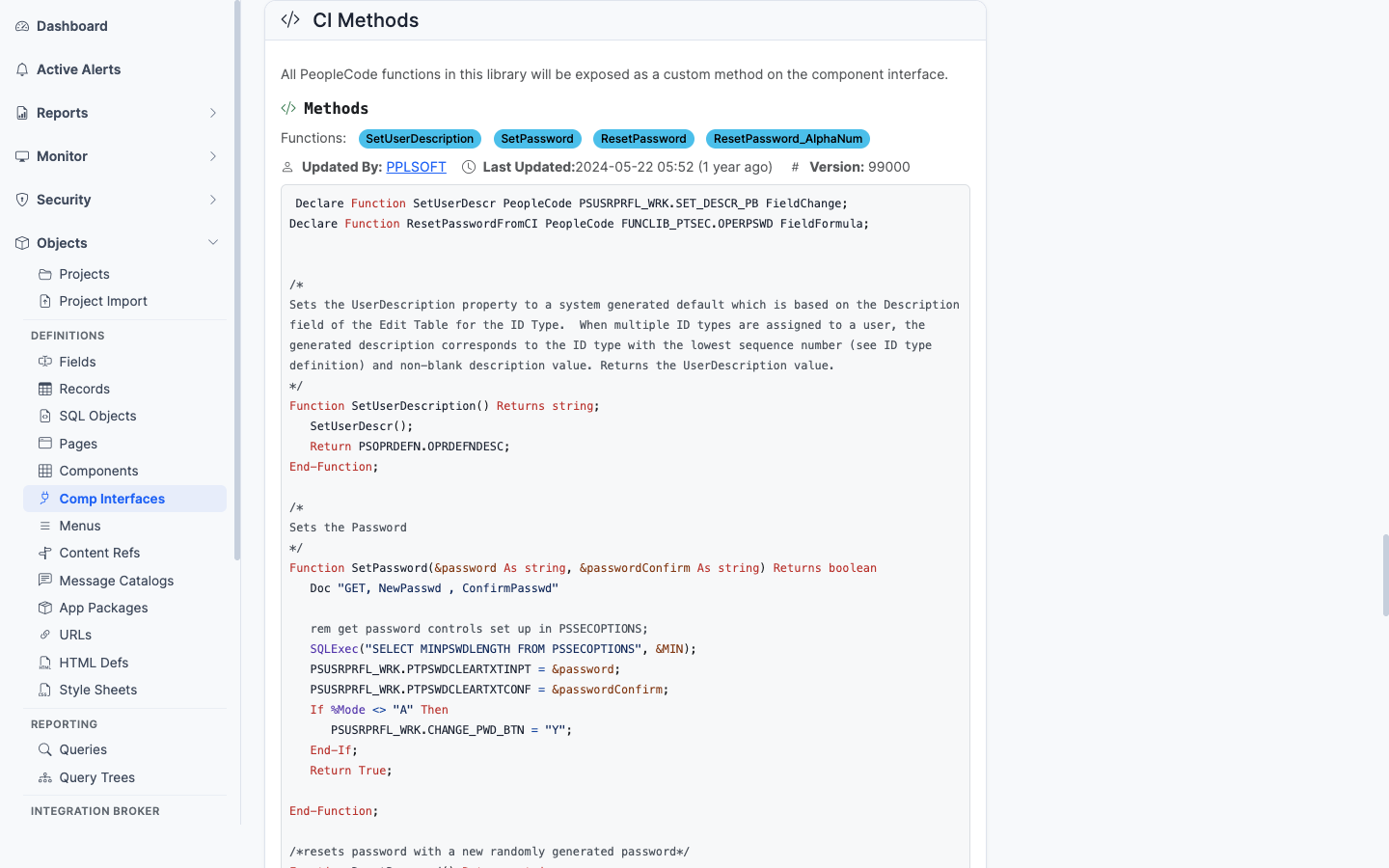
CI Methods
Standard and user-defined methods on the CI
Standard methods (Get, Find, Create, Save, Cancel) plus any user-defined methods. Each method links into the matching PeopleCode.
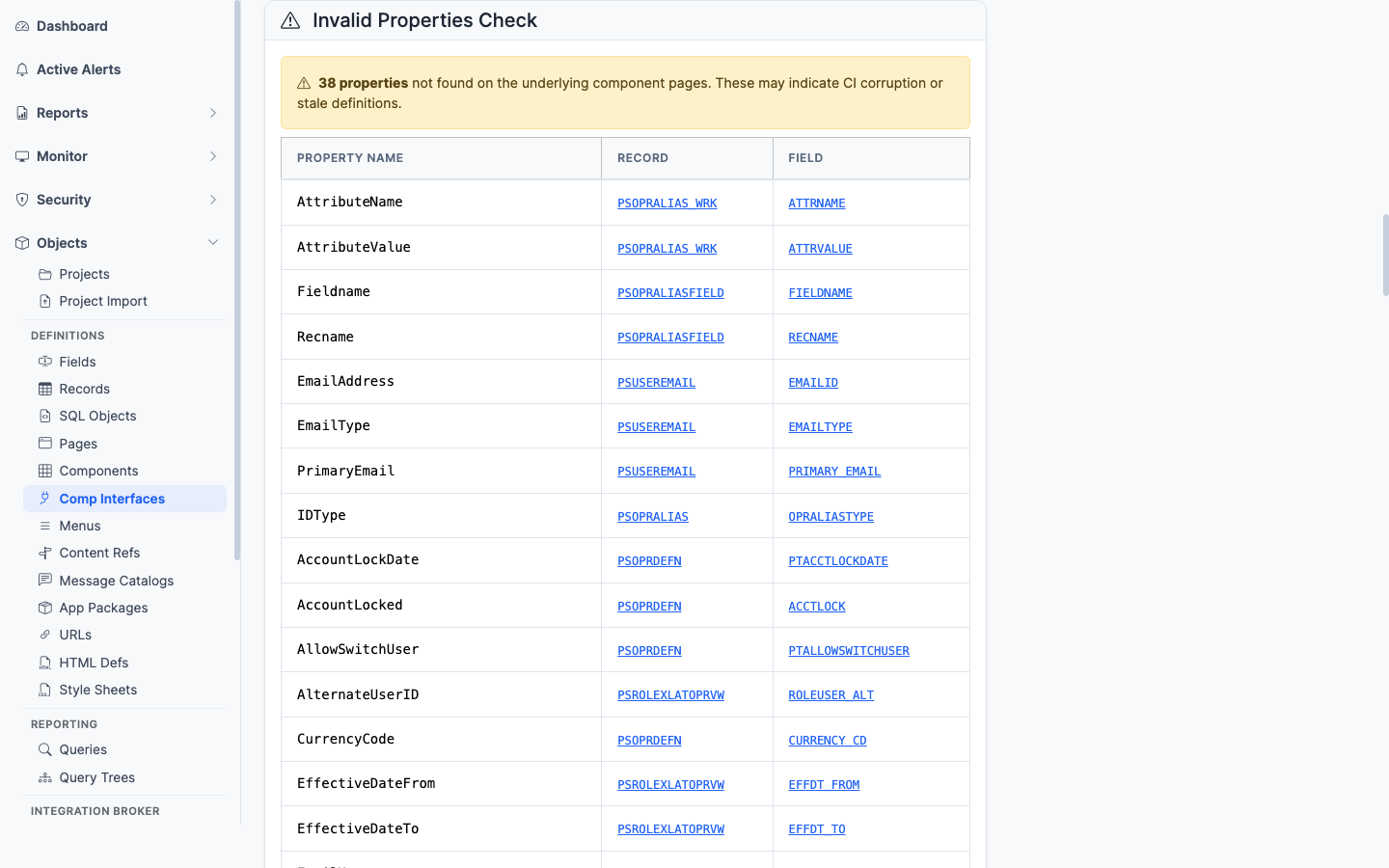
Invalid Properties Check
Items that no longer match a valid record field on the underlying component
A consistency check. Flags CI items that no longer match a valid record field on the underlying component — the most common failure mode after a record schema change.
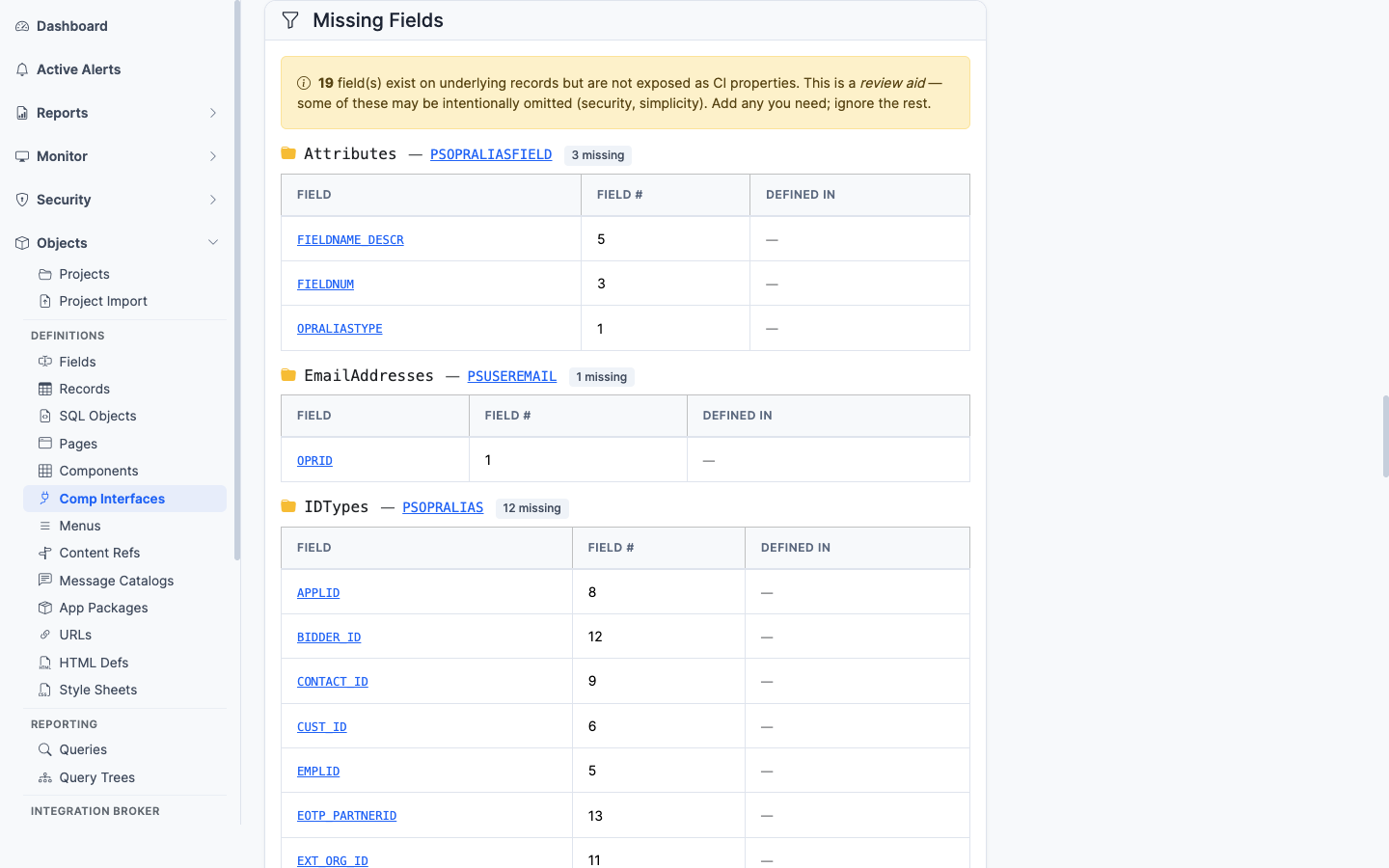
Missing Fields
Required fields on the underlying component that the CI does not expose
A consistency check. Flags fields on the underlying component that are required (key fields, search keys, required-input fields) but are not exposed as CI properties. Helps spot where a CI cannot drive a transaction to completion.
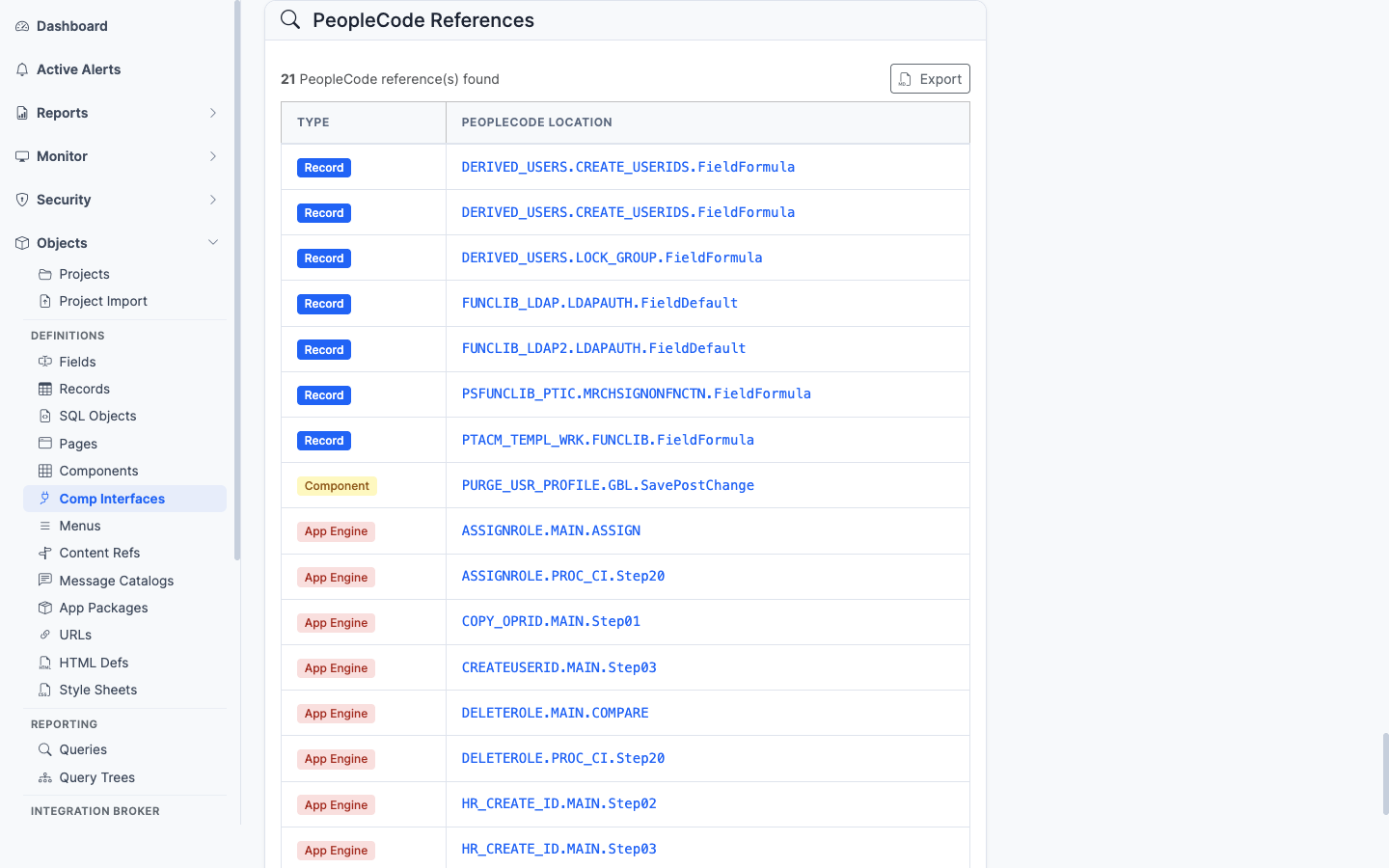
PeopleCode References
PeopleCode programs anywhere in the database that instantiate this CI
PeopleCode programs anywhere in the database that mention this CI by name. Useful for finding the App Engine, Service Operation handler, or other CI program that drives this interface.
Included in Projects
App Designer projects that include this CI
App Designer projects that include this CI.
4.8 - Menus
Browse PeopleSoft classic menu definitions with bars, items, and the components they navigate to.
Tailored Operational Context
Target Database:—
Context Type:—
Alert Severity:—
Triggered Time:—
Firing Context:—
Menus are PeopleSoft’s classic navigation containers. Each menu (PSMENUDEFN) holds a set of bars, each bar a set of items (PSMENUITEM), and each item points to a component the user can launch. Even in a Fluid-dominant world, classic menus matter for security: Permission List authorizations are granted on menu/component pairs, so understanding which menu owns a component is fundamental to access analysis.
Object Relationships
Menus organize business transactions into structured navigation and security access paths:
Points to Components: Menu items (PSMENUITEM) inside a menu (PSMENUDEFN) specify the target component (PNLGRPNAME) and market (MARKET).
Secured by Permission Lists: Permission lists (PSAUTHITEM) authorize user access to specific menu item and component combinations.
Referenced by Portal CREFs: Portal content references (PSPRSMDEFN) use menu and component URI segments to populate navigation trees.
How psLens Improves Menu Inspection
In Application Designer, inspecting classic menus requires opening the menu tree, double-clicking individual items to confirm target component and market properties, and right-clicking items to navigate to component definitions.
psLens displays the complete bar and item hierarchy on a single screen with direct links to target components, making it straightforward to audit security pairs and navigation structures.
Search Page
URL: /menus?db={database}
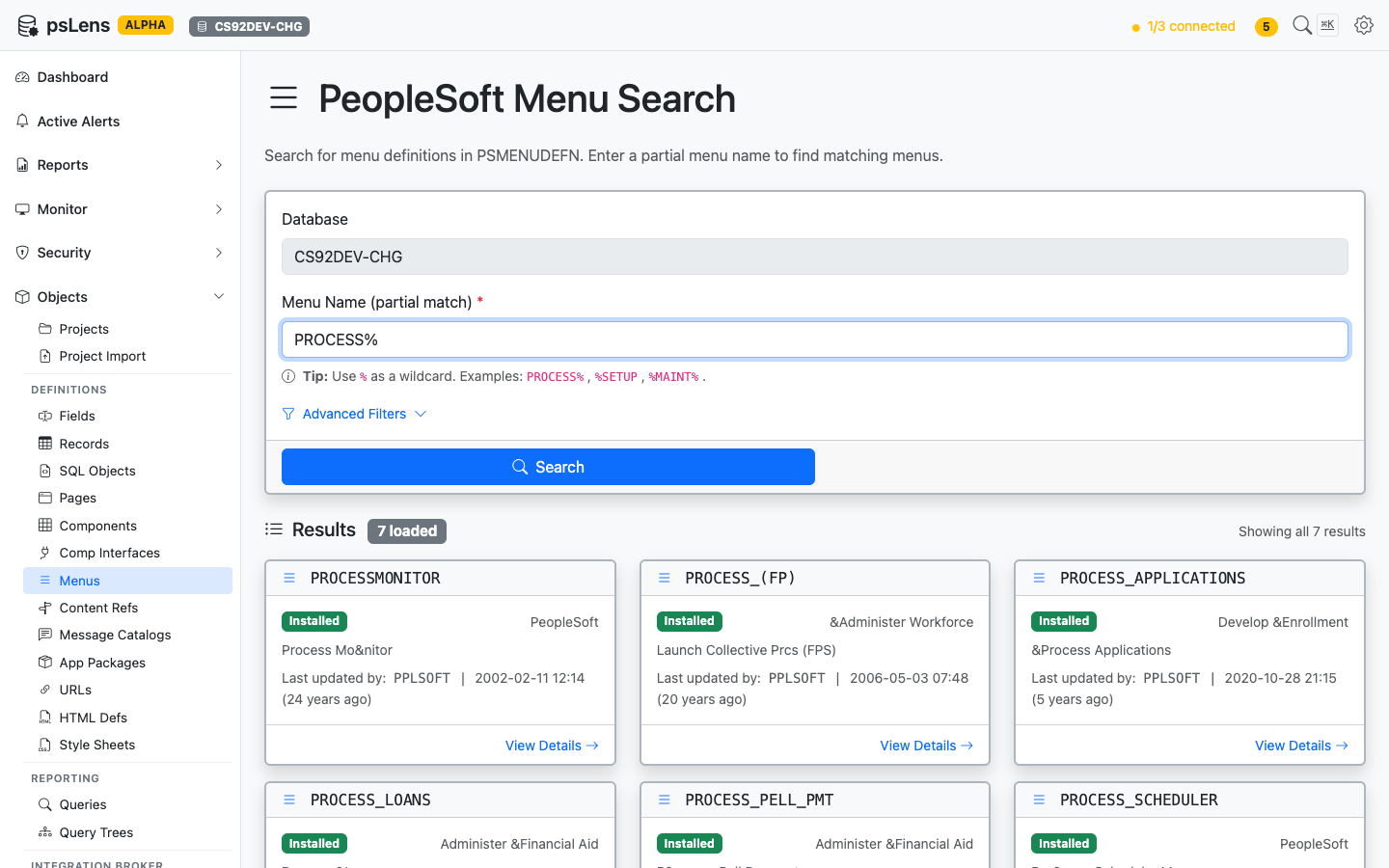
Menu search results for PROCESS%
Wildcard % search supported. Each card shows the menu type (Standard or Pop-up) and the descriptive long name.
Detail Page
URL: /menus/{MENUNAME}?db={database}
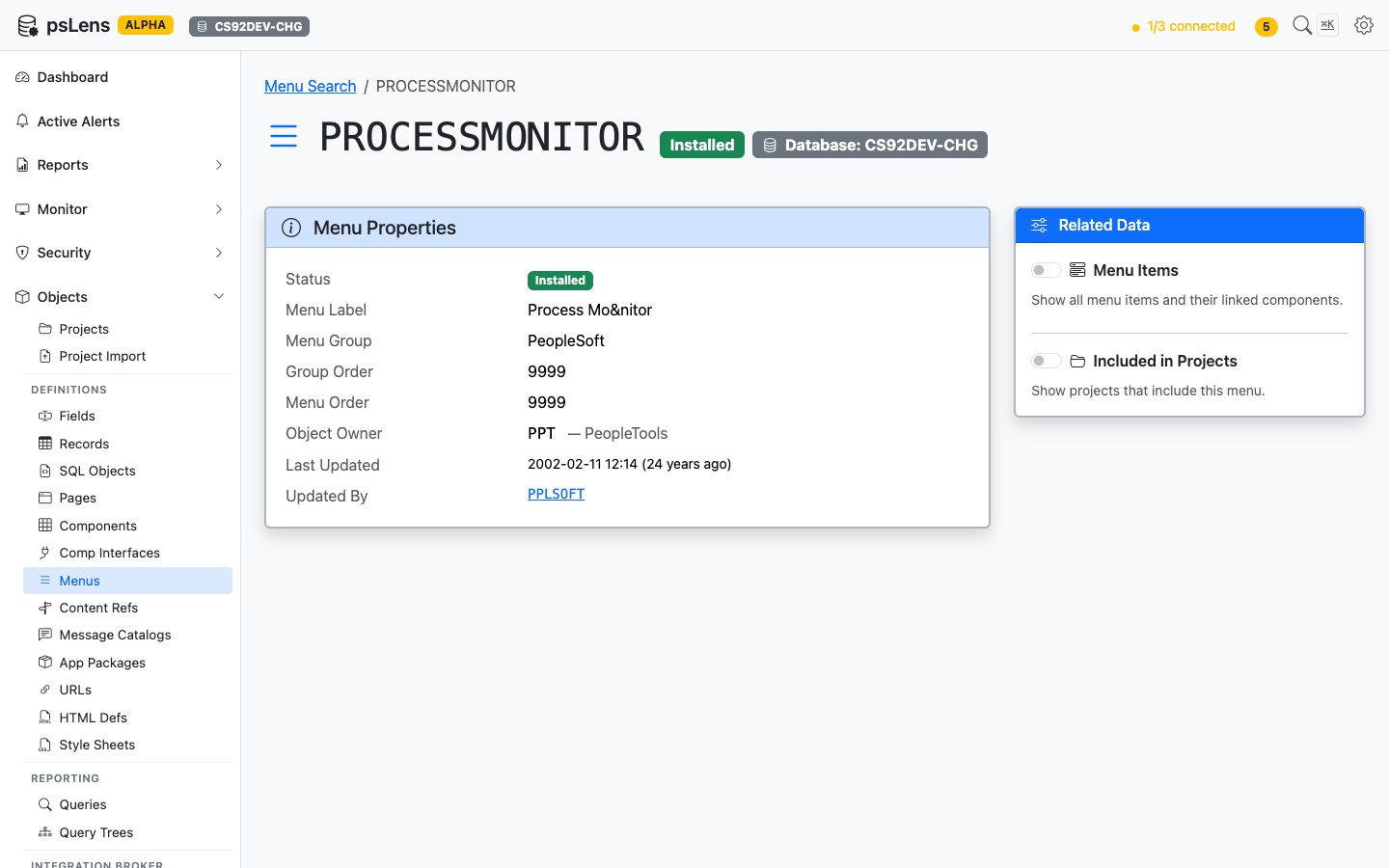
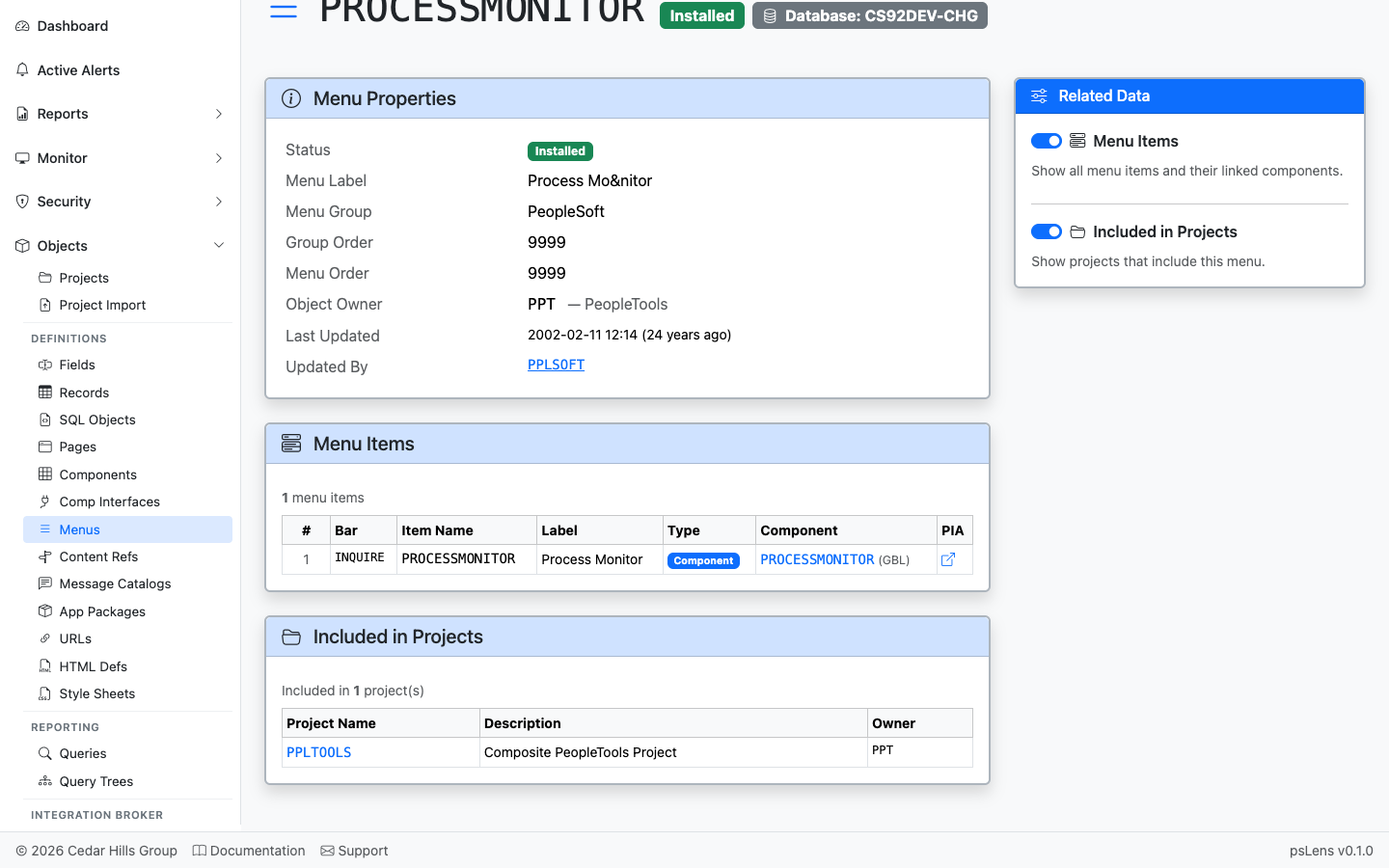
Menu detail page for PROCESSMONITOR
The main pane shows Menu Properties (type, owner, audit metadata). The sidebar has 2 related-data toggles.
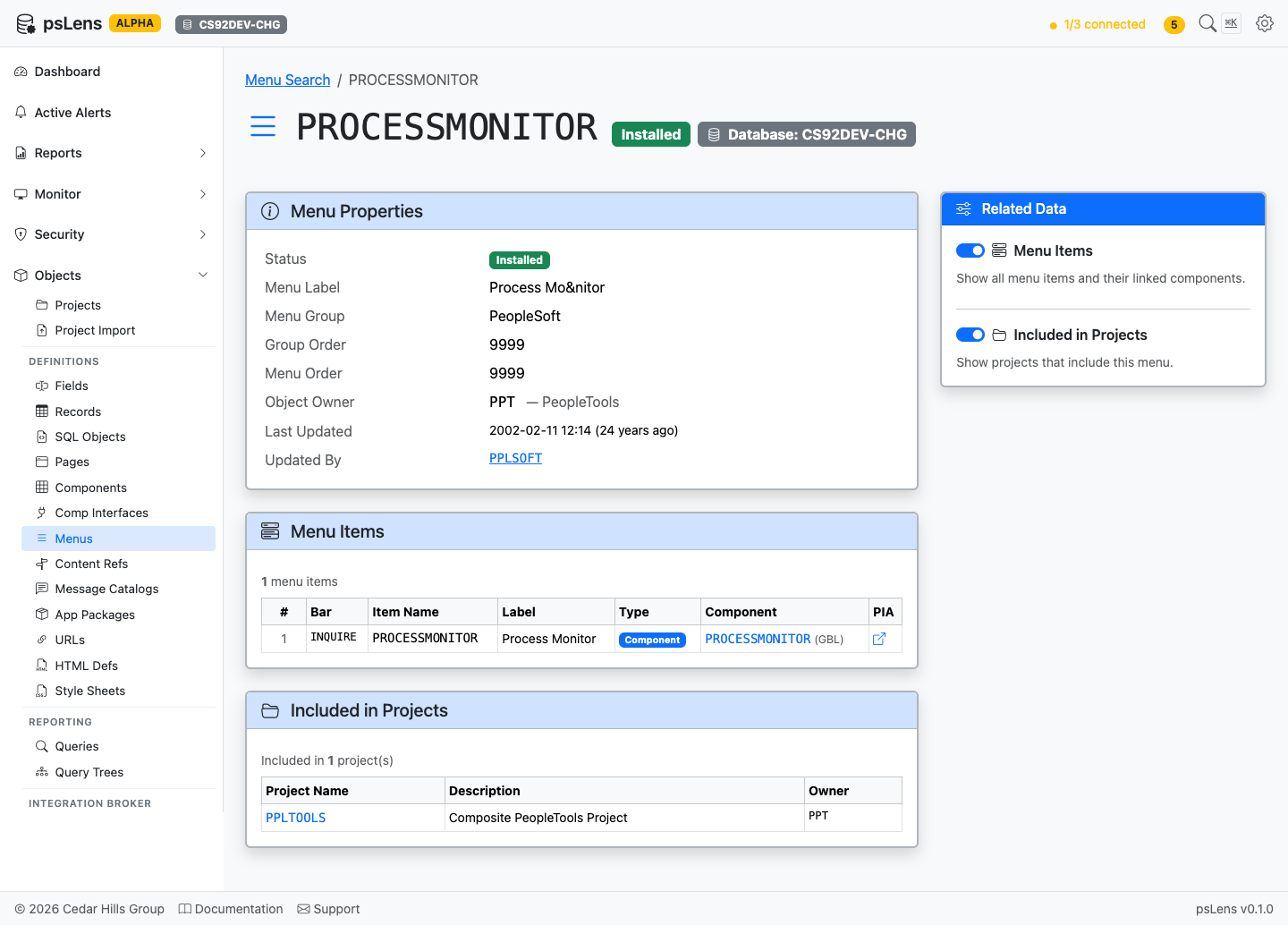
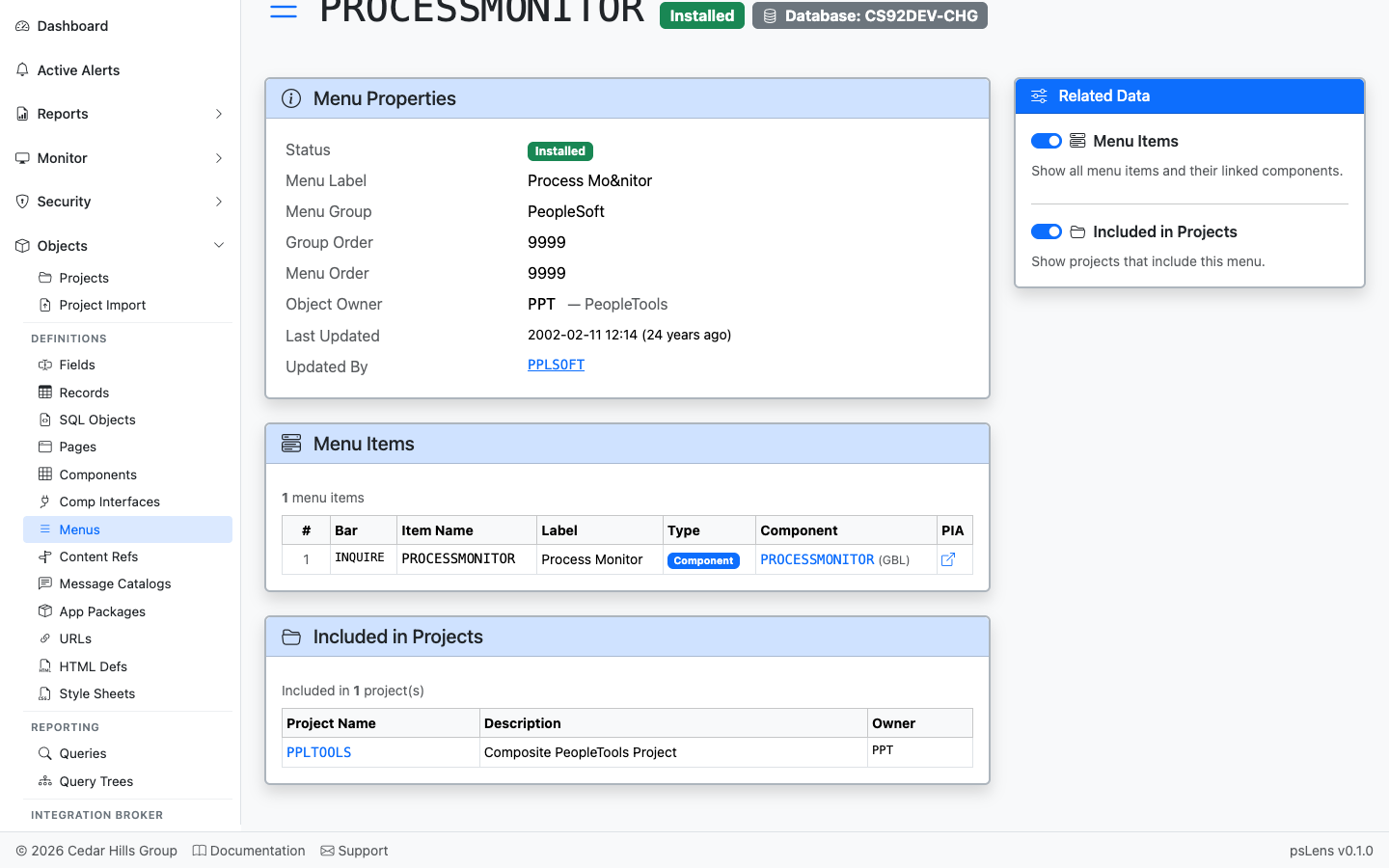
All panels expanded — short page since menus are simple structures
Related Data Panels
Menu Items
Every bar and item in the menu with the target component
Every bar and item in the menu, with the component (and market) each item launches. Each component is deep-linked into its own psLens detail page, letting you walk straight from a menu entry into the transaction it triggers.
Included in Projects
App Designer projects that include this menu
App Designer projects that include this menu.
4.9 - Content References
Browse PeopleSoft Portal Registry Content References (CREFs) with navigation paths, attributes, and permission lists.
Tailored Operational Context
Target Database:—
Context Type:—
Alert Severity:—
Triggered Time:—
Firing Context:—
Content References (CREFs) are entries in the PeopleSoft Portal Registry — the data structure that drives the menu tree, breadcrumbs, and navigation collections users see in PIA. Each CREF is identified by a portal/object name pair stored in PSPRSMDEFN and can be either a folder (a navigation container) or a content reference (a launchable target, usually a component, but also iScripts, external URLs, and homepage pagelets). psLens shows the CREF’s URI target, the full ancestor walk back to the portal root, every system and custom attribute, and the permission lists that have been granted access.
Object Relationships
Portal Content References link user navigation elements to target application objects:
Targets Components & External URLs: CREFs (PSPRSMDEFN) map portal links to components (PSPNLGRPDEFN), iScripts, or external web addresses.
Organized in Portal Folders: CREFs are arranged hierarchically inside parent folder nodes within the portal registry tree.
Secured by Permission Lists & Roles: Permission lists and roles (PSPRSMPERM) grant user authorization to view CREFs and portal folders.
How psLens Improves Content Reference Inspection
In PIA, analyzing a Portal Content Reference requires navigating down multi-level folder trees in Structure & Content, switching between administration and permission tabs, and repeatedly editing parent folders to trace breadcrumbs.
psLens displays the complete portal entry—destination URI, full ancestor breadcrumb path, custom/system attributes, and permission list grants—on a single screen.
Search Page
URL: /crefs?db={database}
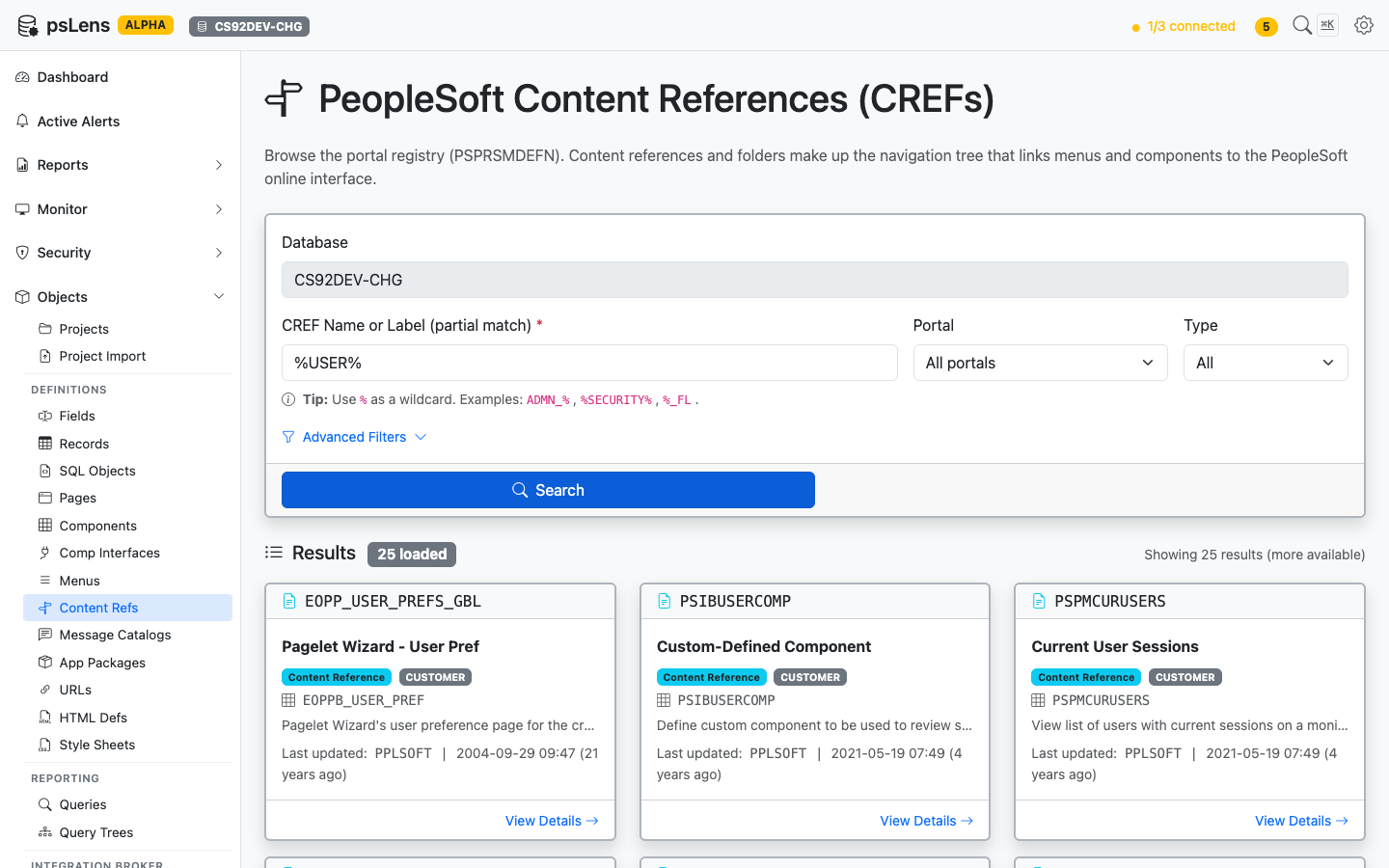
CREF search results for %USER%
Search by CREF name or label, with optional filters for portal (EMPLOYEE, CUSTOMER, MOBILE, etc.) and type (CREF vs Folder). Each result card shows the portal, the parent folder path, and the target object name.
Detail Page
URL: /crefs/{PORTAL}/{OBJECTNAME}?db={database}
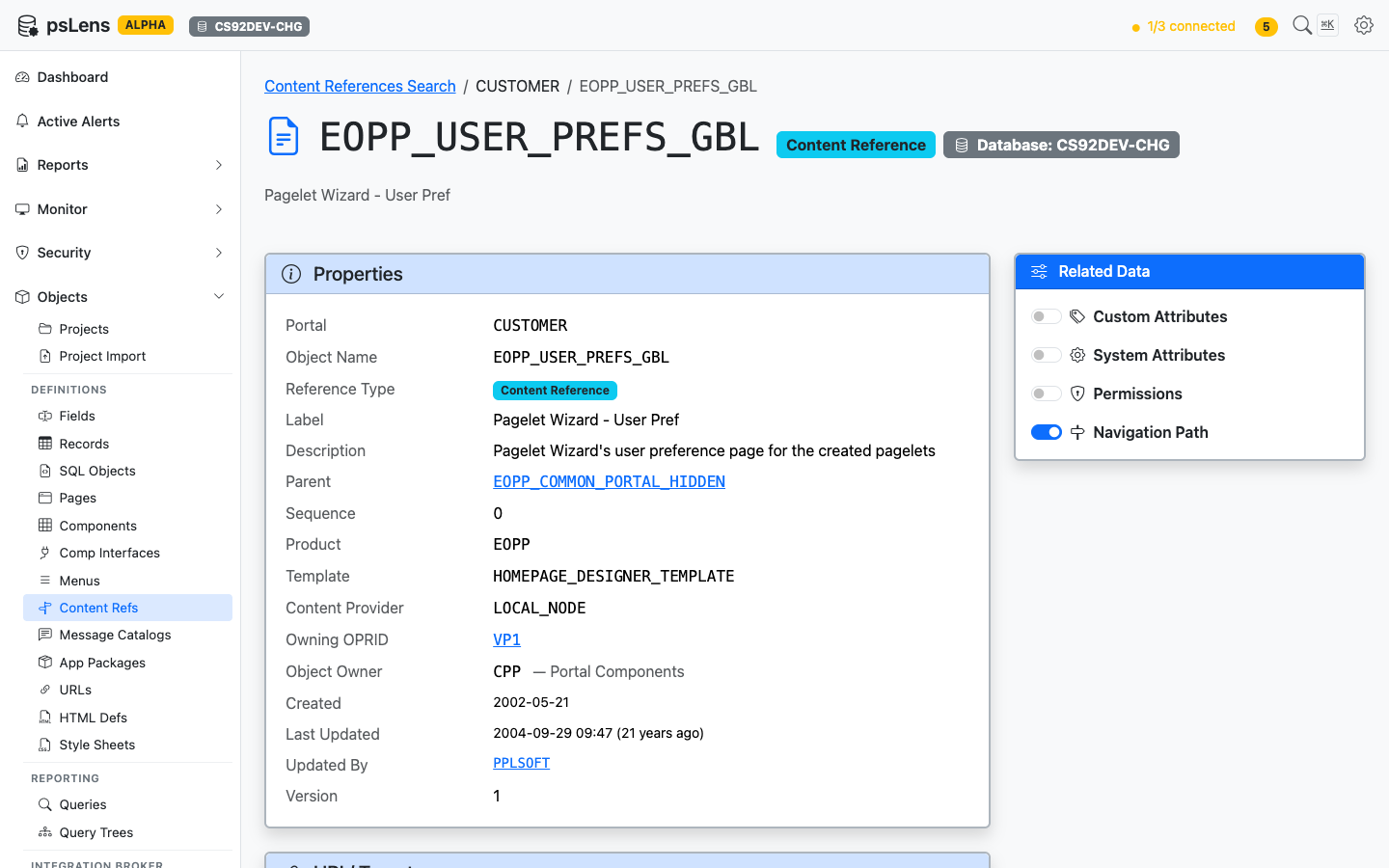
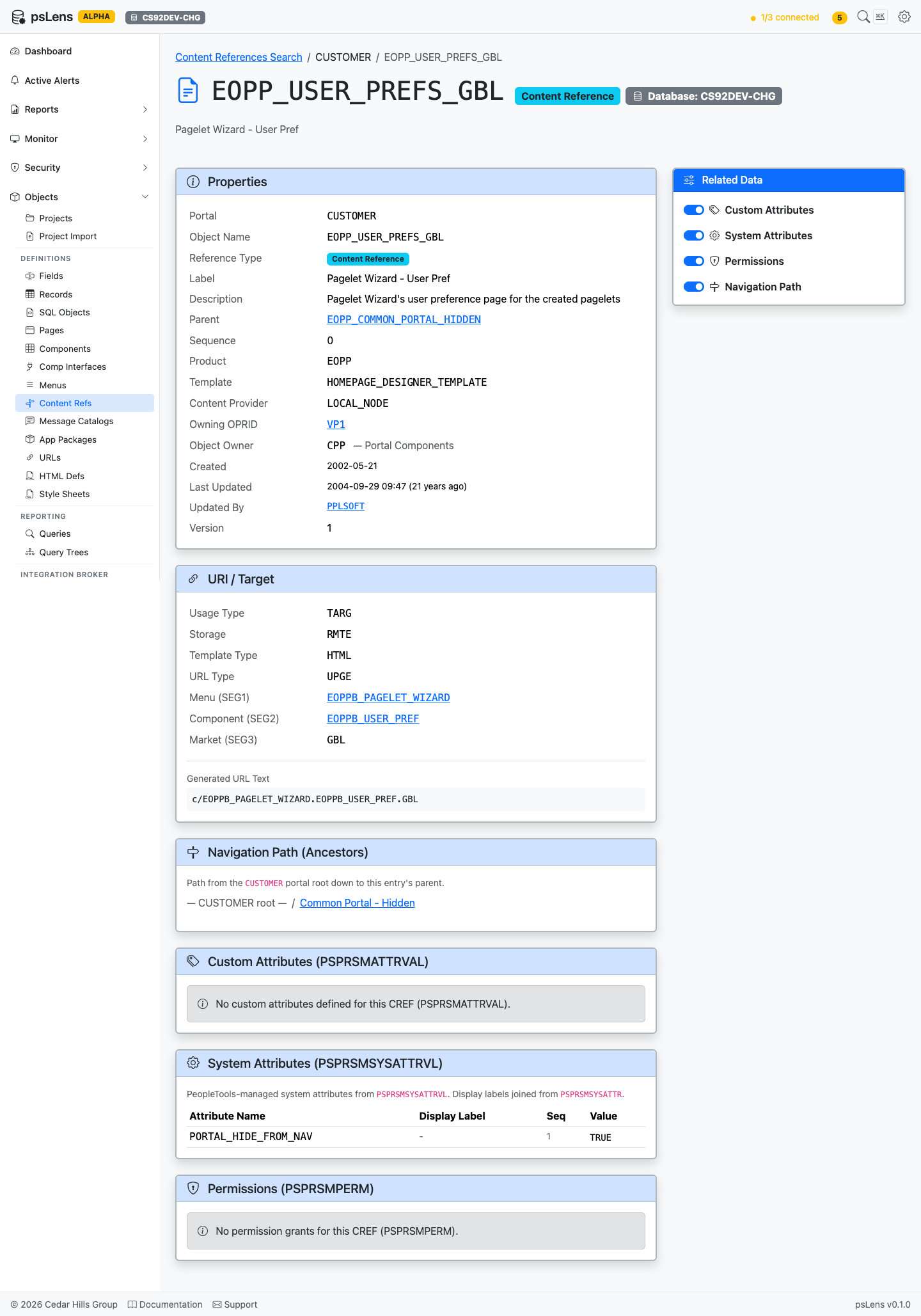
CREF detail page for EOPP_USER_PREFS_GBL
The main pane shows Properties (portal, parent folder, type, security author, label, description) and the URI / Target card with the destination URL. For component CREFs this is the menu/component path; for iScripts, the iScript URL; for external CREFs, the literal URL. The sidebar has 4 related-data toggles.
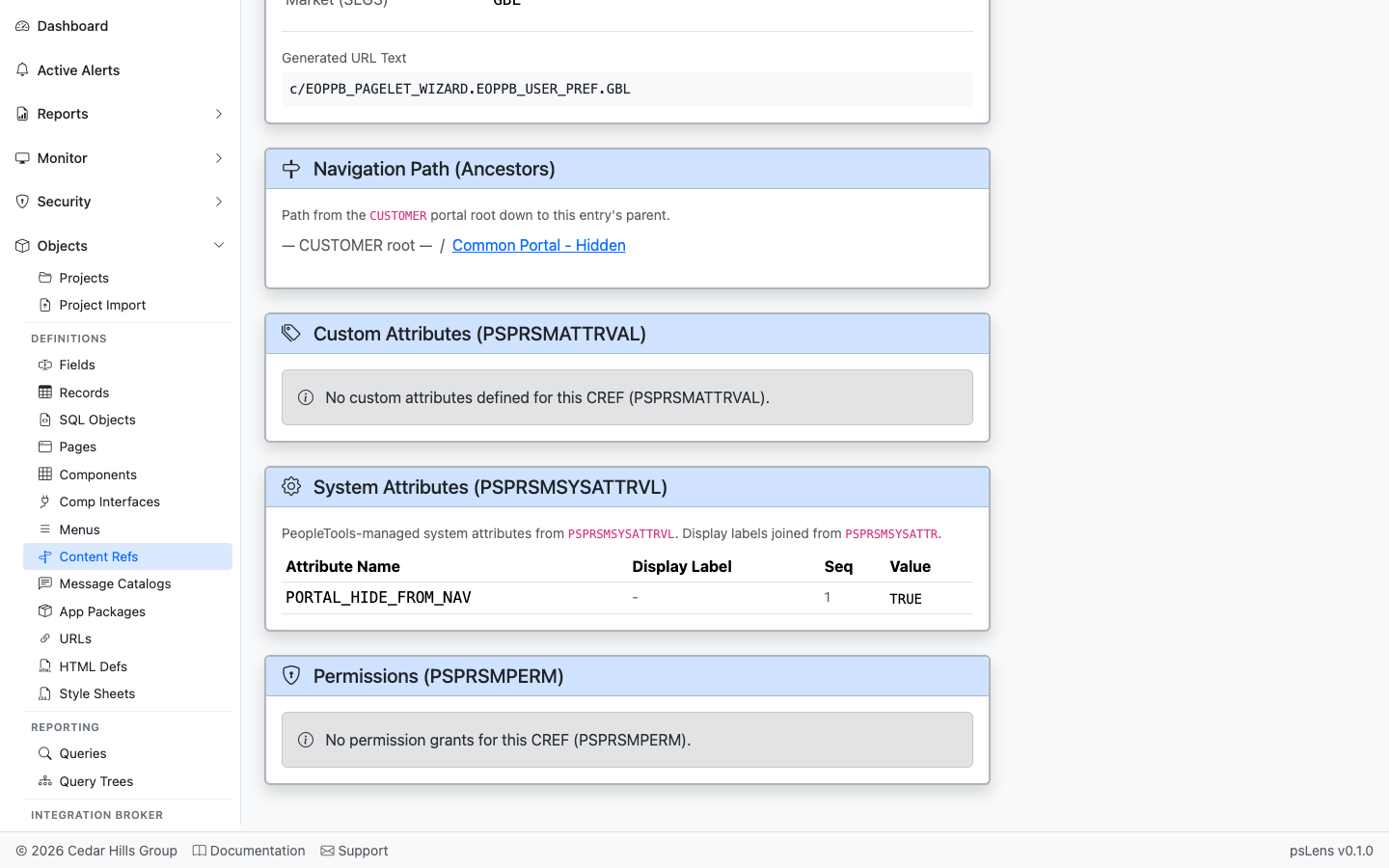
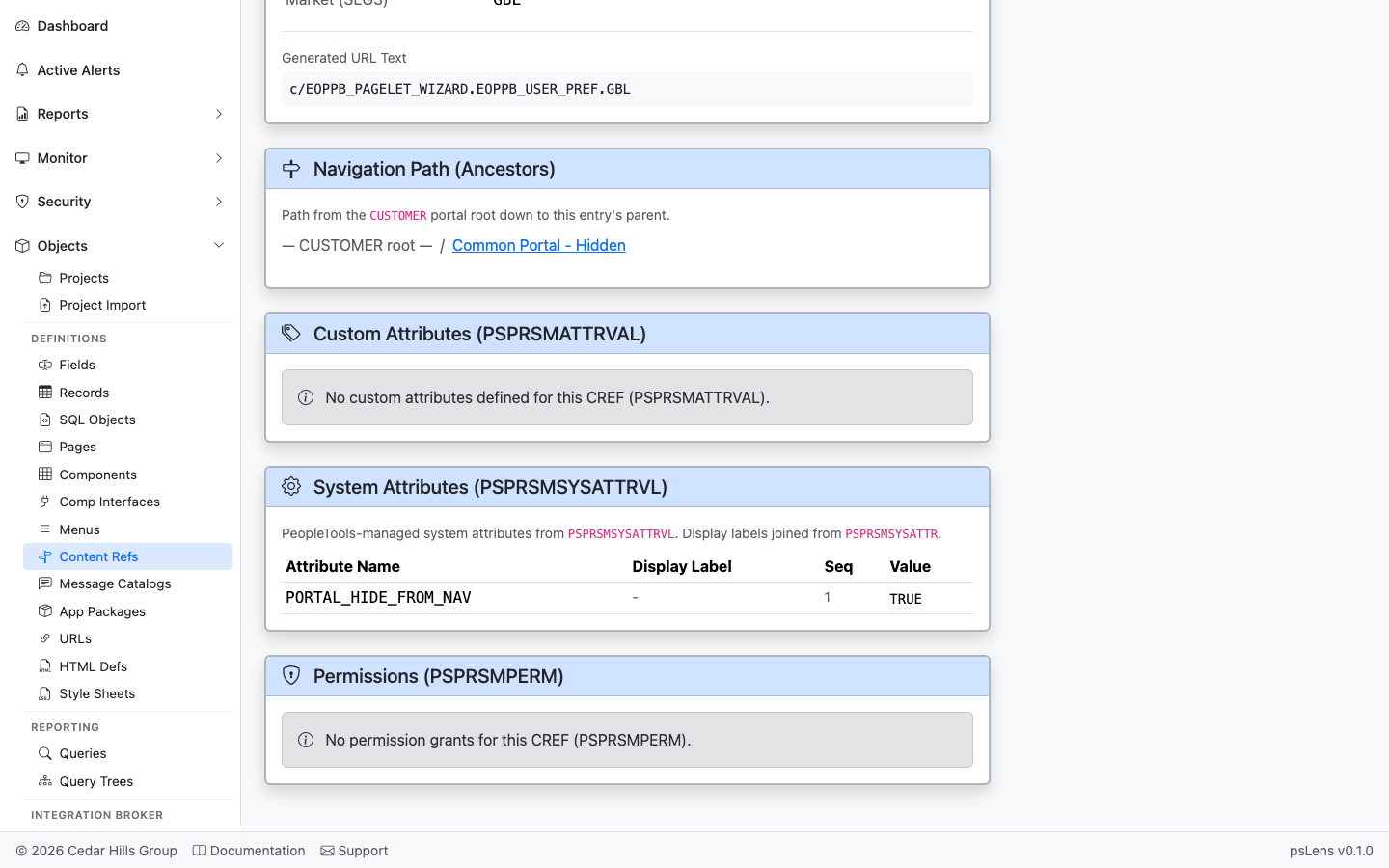
All panels expanded — under 2100px tall
Related Data Panels
Navigation Path
The breadcrumb walk from the portal root down to this CREF
The full ancestor chain from the portal root down to this CREF. Every folder in the navigation path is clickable so you can hop up the tree to a parent folder.
Custom Attributes
Per-CREF custom attribute name/value pairs from PSPRSMATTRVAL
Per-CREF custom attribute name/value pairs from PSPRSMATTRVAL. Used by Fluid navigation collections, search categories, badges, and other portal features.
System Attributes
System attributes from PSPRSMSYSATTRVL with friendly labels
System attributes from PSPRSMSYSATTRVL with friendly labels (e.g., PORTAL_LABEL, PORTAL_OBJTYPE_DESC, PTPP_* personalization keys). These configure how the CREF behaves at runtime.
Permissions
Permission lists with grant access to this CREF
Permission lists (PSPRSMPERM) that have been granted access to this CREF — the security side of “who can see this in the menu?”.
4.10 - Message Catalogs
Browse PeopleSoft Message Catalog entries — message set/number pairs with text, severity, and usage analysis.
Tailored Operational Context
Target Database:—
Context Type:—
Alert Severity:—
Triggered Time:—
Firing Context:—
The Message Catalog is PeopleSoft’s centralized store of user-facing text. Every MsgGet() call, error dialog, warning, and translated label resolves to a message set + message number pair stored in PSMSGCATDEFN. psLens lets you browse messages by set number, jump directly to a specific set/number, or search by message text. Each message gets a dedicated detail page with its severity, text, explanation, and a usage analysis that finds where it is referenced in PeopleCode and SQL.
Object Relationships
Message Catalogs standardize application message strings across components and scripts:
Referenced in PeopleCode & SQL: Message Catalog entries (PSMSGCATDEFN) are called by MsgGet() and MsgGetText() in PeopleCode to display formatted messages.
How psLens Improves Message Catalog Inspection
In PIA, searching Message Catalog entries requires navigating Utilities → Administration → Message Catalog, while tracking down where a message is invoked requires running separate Find In PeopleCode searches.
psLens allows instant jumping to Set/Number pairs, surfaces recently modified messages, and automatically performs global usage analysis across all PeopleCode and SQL statements.
Search Page
URL: /messagecatalogs?db={database}
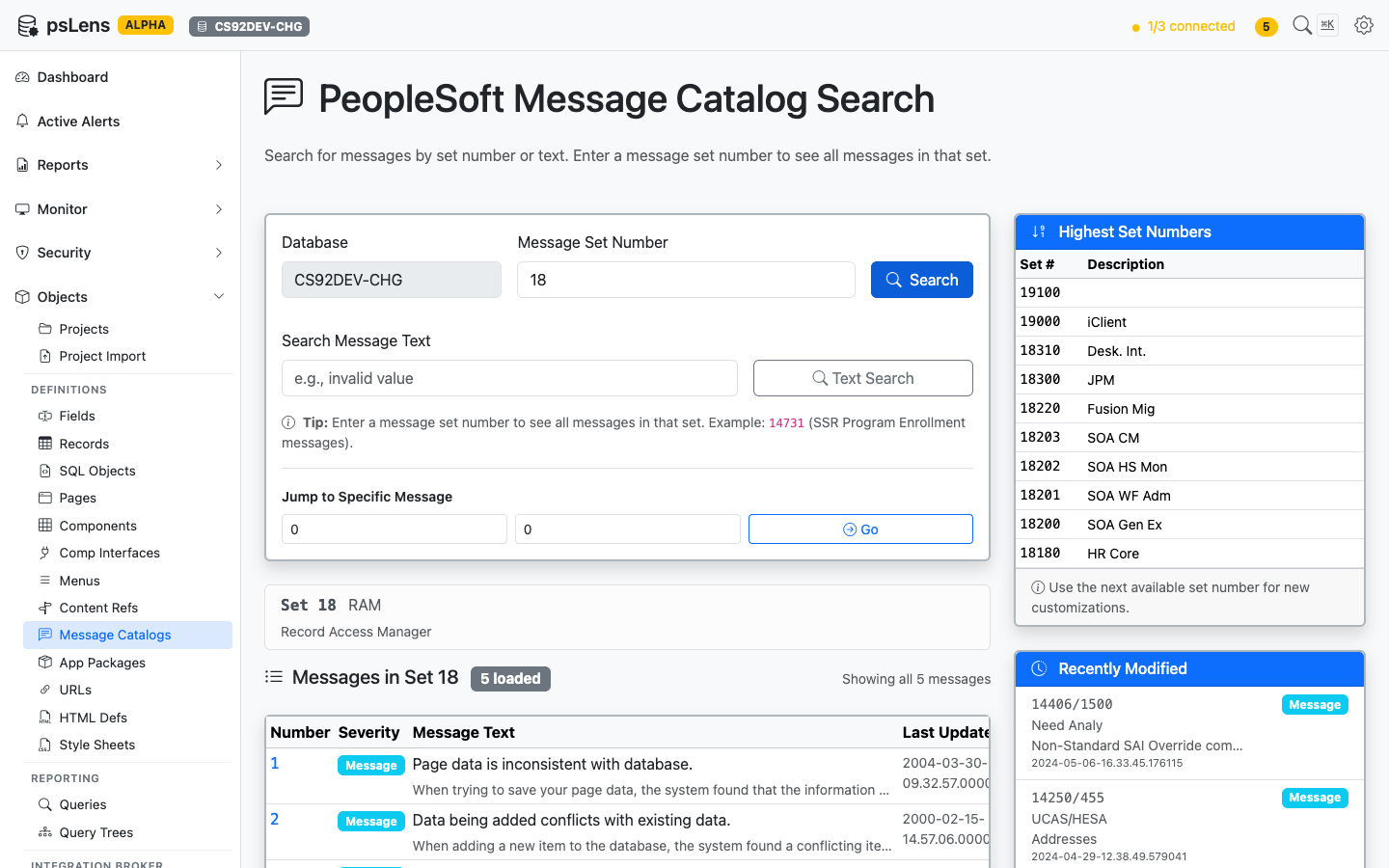
Browsing all messages in set 18
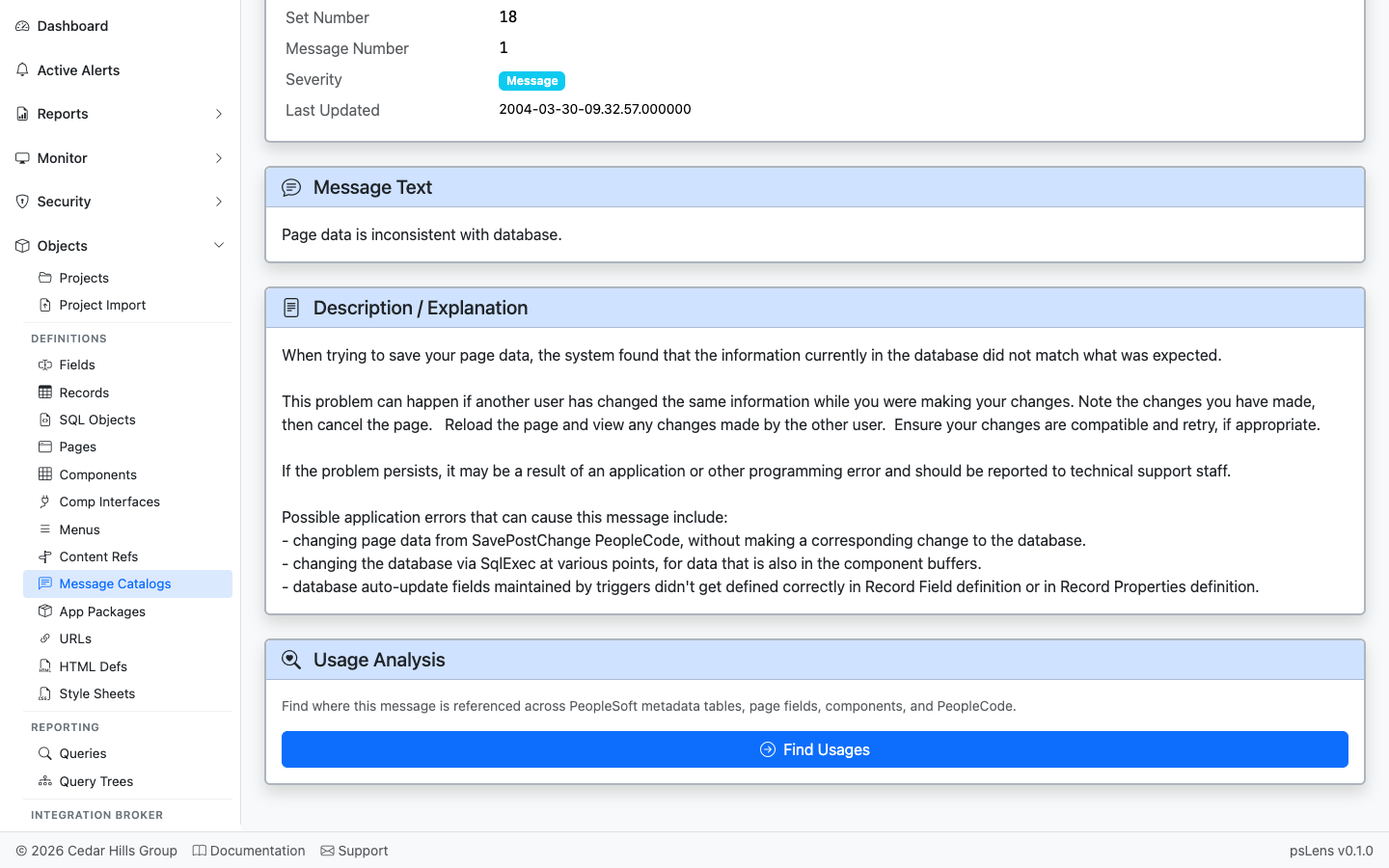
The search page has three entry points: enter a Set Number to see every message in the set, enter free text to Search Message Text, or punch in a specific Set/Number pair to jump straight to that message. The page also surfaces the highest set numbers in use (handy for picking the next free set when creating customizations) and the most recently modified messages.
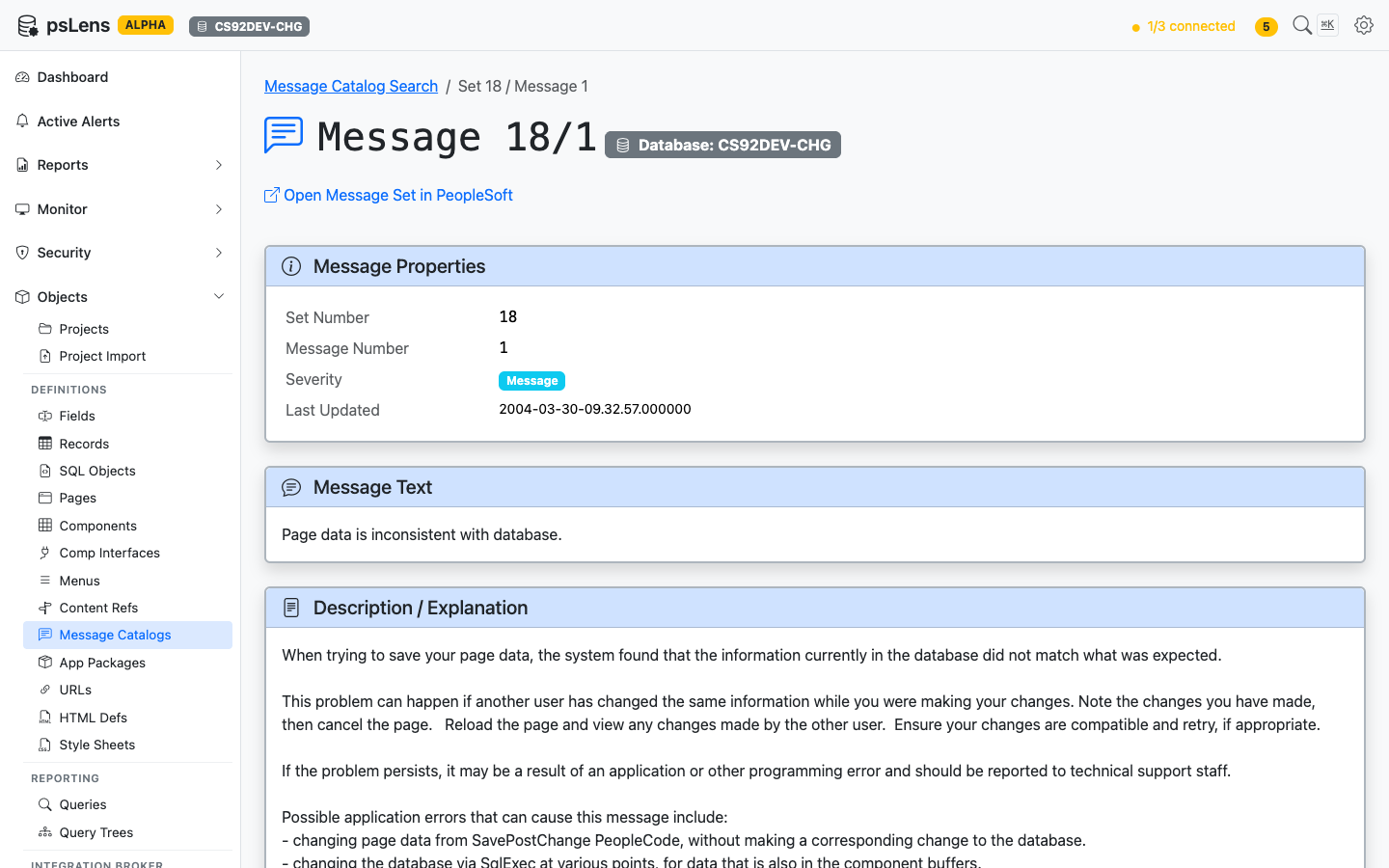
The detail page has no sidebar toggles; everything loads inline. The main pane shows Message Properties (set, number, severity, last-updated), the full Message Text (with %1, %2 substitution markers preserved), and the Description / Explanation body text developers see when investigating a message.
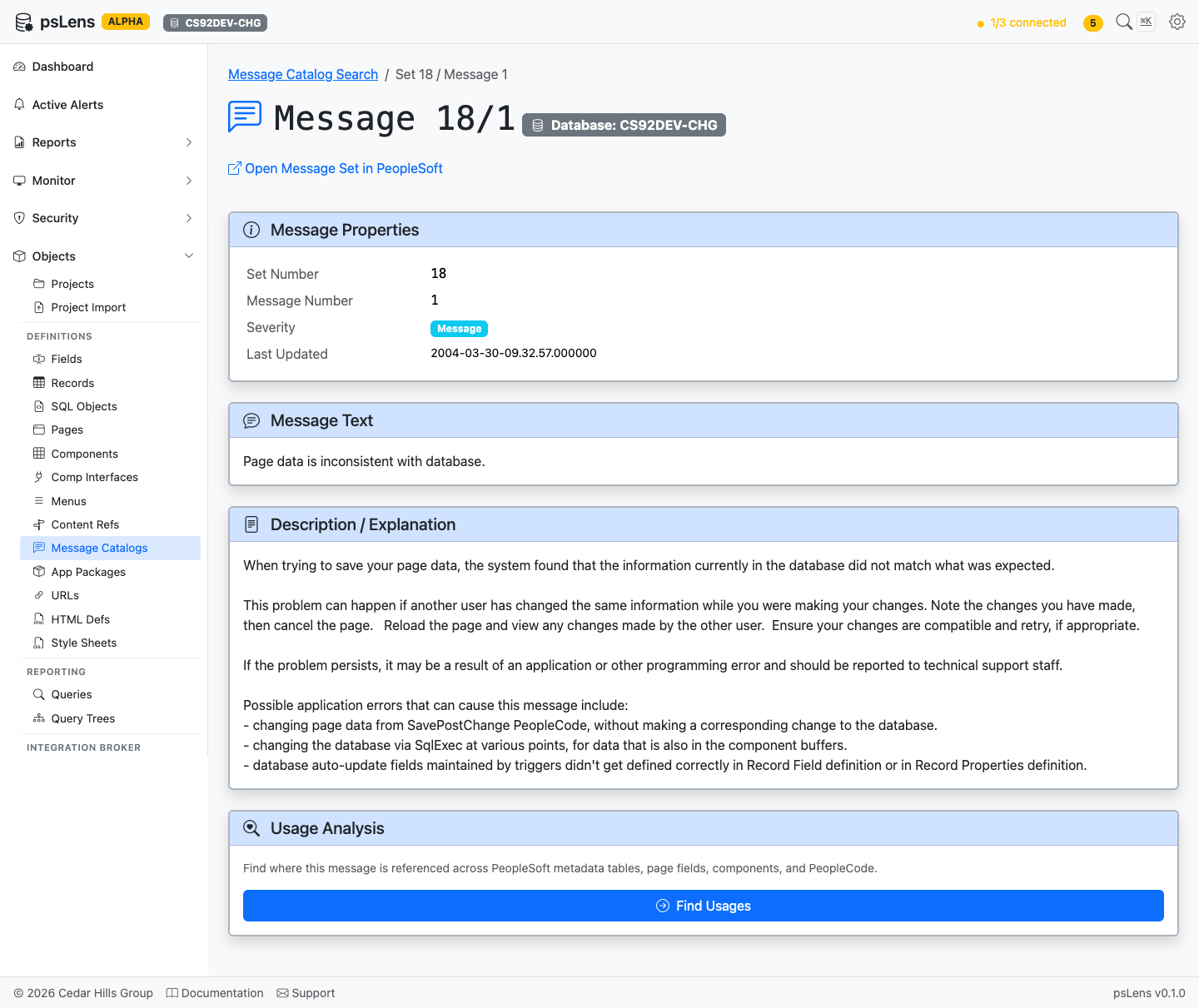
Full message page including usage analysis
Usage Analysis
Where this message is referenced in PeopleCode and SQL
The Usage Analysis card automatically scans every PeopleCode program and SQL object in the database for textual references to this set/number pair: MsgGet(18, 1, ...), MsgGetText(18, 1, ...), SQLExec("...18, 1..."), and so on. Each hit links to the parent object’s detail page. Lets you find every MsgGet / MsgGetText / SQLExec call site for the set/number pair before editing the text.
4.11 - Application Packages
Browse PeopleSoft Application Package class hierarchies with methods, properties, service operation usage, and PeopleCode references.
Tailored Operational Context
Target Database:—
Context Type:—
Alert Severity:—
Triggered Time:—
Firing Context:—
Application Packages are PeopleSoft’s object-oriented PeopleCode container — packages hold sub-packages and classes, classes hold methods and properties. They are the standard way to write reusable PeopleCode in PeopleSoft applications. psLens walks the package tree (PSPACKAGEDEFN, PSPACKAGEITEM, PSPCMPROG) and shows the full class hierarchy plus a reverse index of where the package is used: by service operation handlers, by other PeopleCode, and in which projects.
Object Relationships
Application Packages organize reusable application logic across PeopleSoft objects:
Executes via Handlers & PeopleCode: Classes define methods and properties called by Integration Broker operation handlers (PSOPRHDLR), App Engine steps, and event PeopleCode.
How psLens Improves Application Package Inspection
In Application Designer, inspecting application packages requires manually expanding sub-packages and class nodes, opening individual classes to view methods and properties, running Find In PeopleCode for import statements, and opening Integration Broker service operations one by one to find handler classes.
psLens exposes the fully expanded recursive package tree, caller call sites, IB service operation handlers, and project membership on a single screen.
Search Page
URL: /apppackages?db={database}
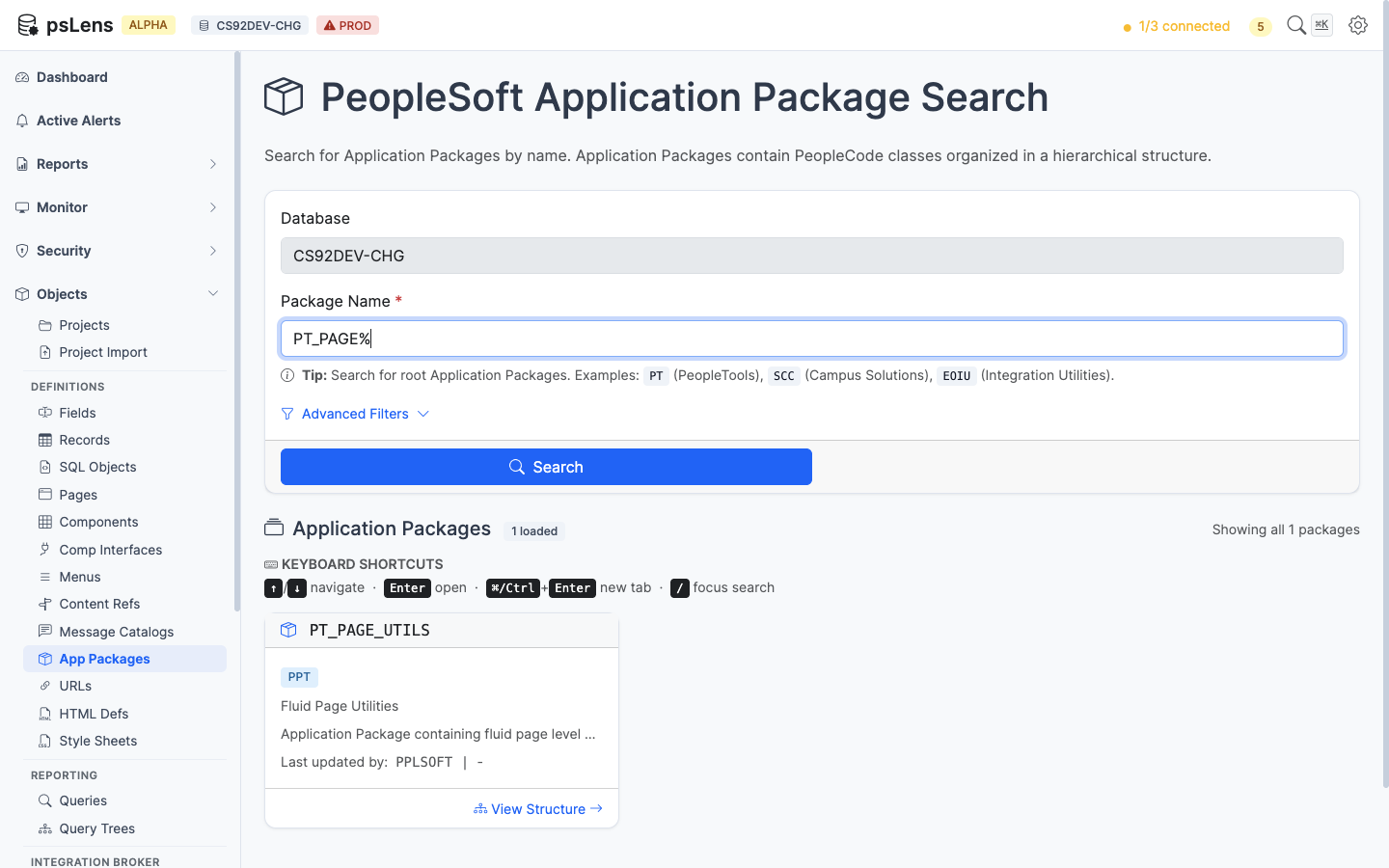
App Package search results for PT_PAGE%
Wildcard % search supported. Each result card shows the package name and the top-level class names inside it.
Detail Page
URL: /apppackages/{PACKAGENAME}?db={database}
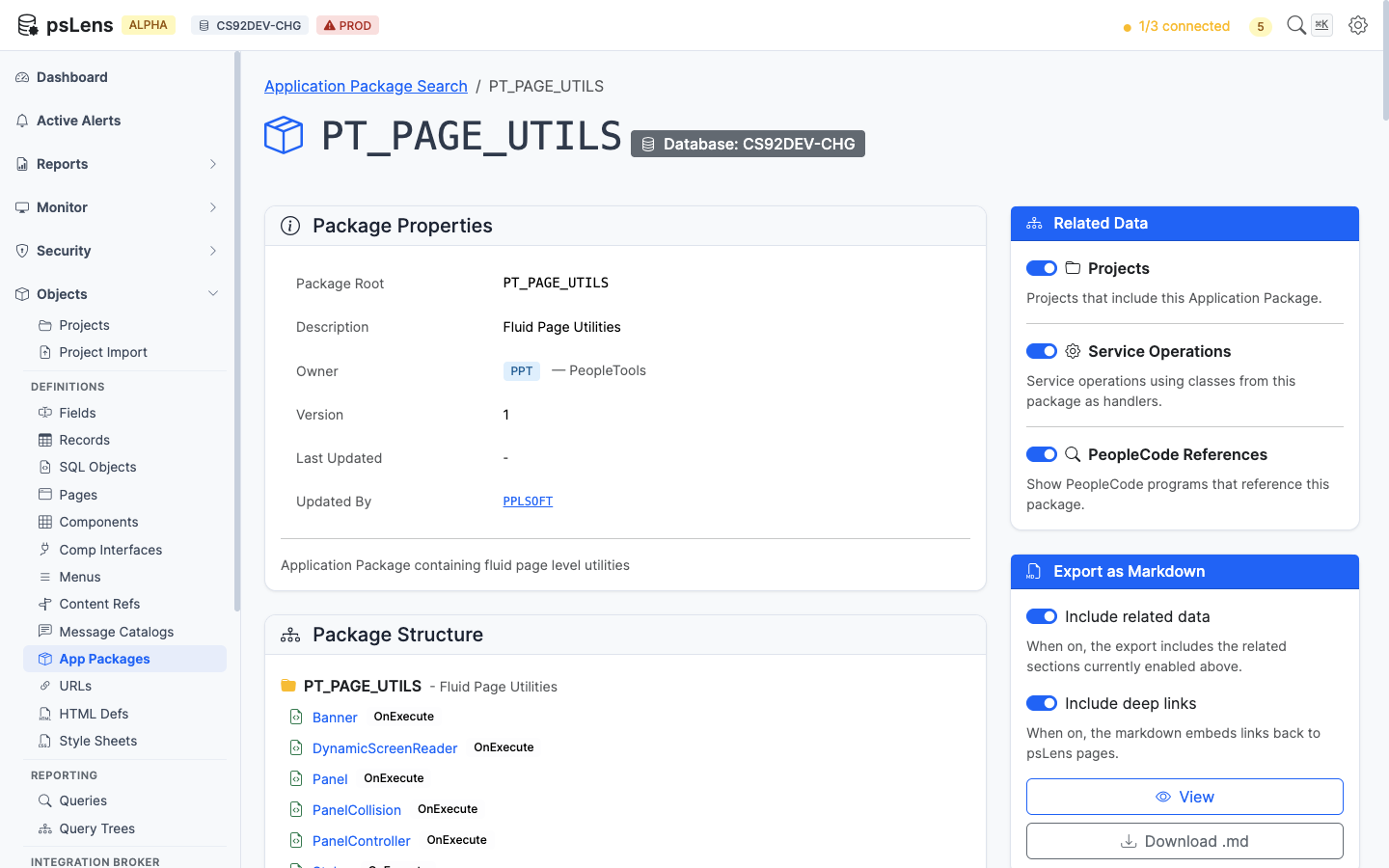
App Package detail page for PT_PAGE_UTILS
The main pane shows Package Properties (owner, last-updated, source path) and the full Package Structure, a recursive tree of sub-packages and classes with methods, properties, and visibility markers. The sidebar has 3 related-data toggles.
Related Data Panels
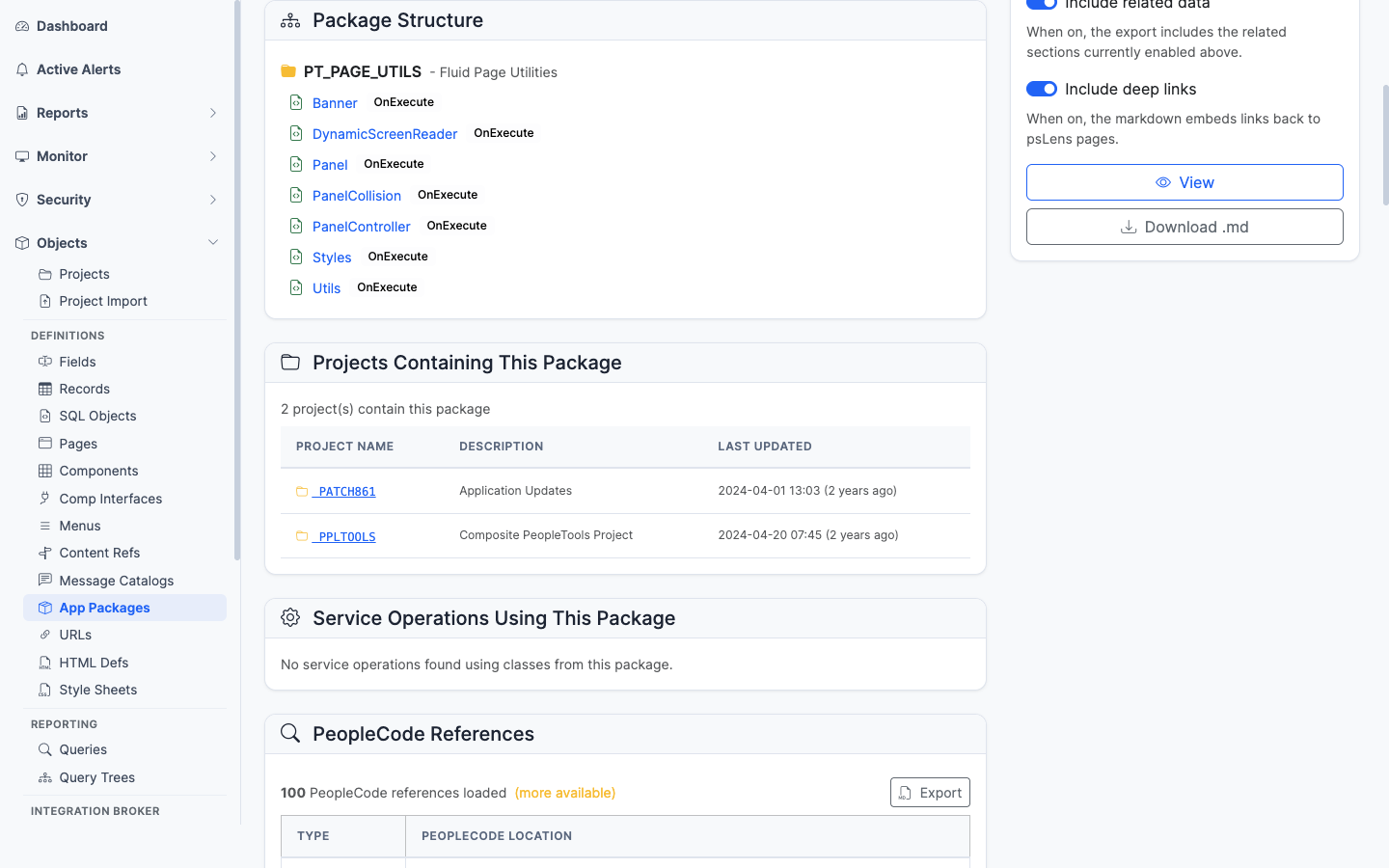
Package Structure
The recursive package/class/method tree
The recursive package tree showing every sub-package, class, method, and property. The equivalent of expanding every node in App Designer’s package browser at once. Methods link into their PeopleCode source.
Projects Containing This Package
App Designer projects that include this package
App Designer projects that include this package as a project item.
Service Operations Using This Package
Integration Broker service operation handlers using this package
Integration Broker service operations whose handler is implemented in this package. Lists the IB endpoints that route through this code.
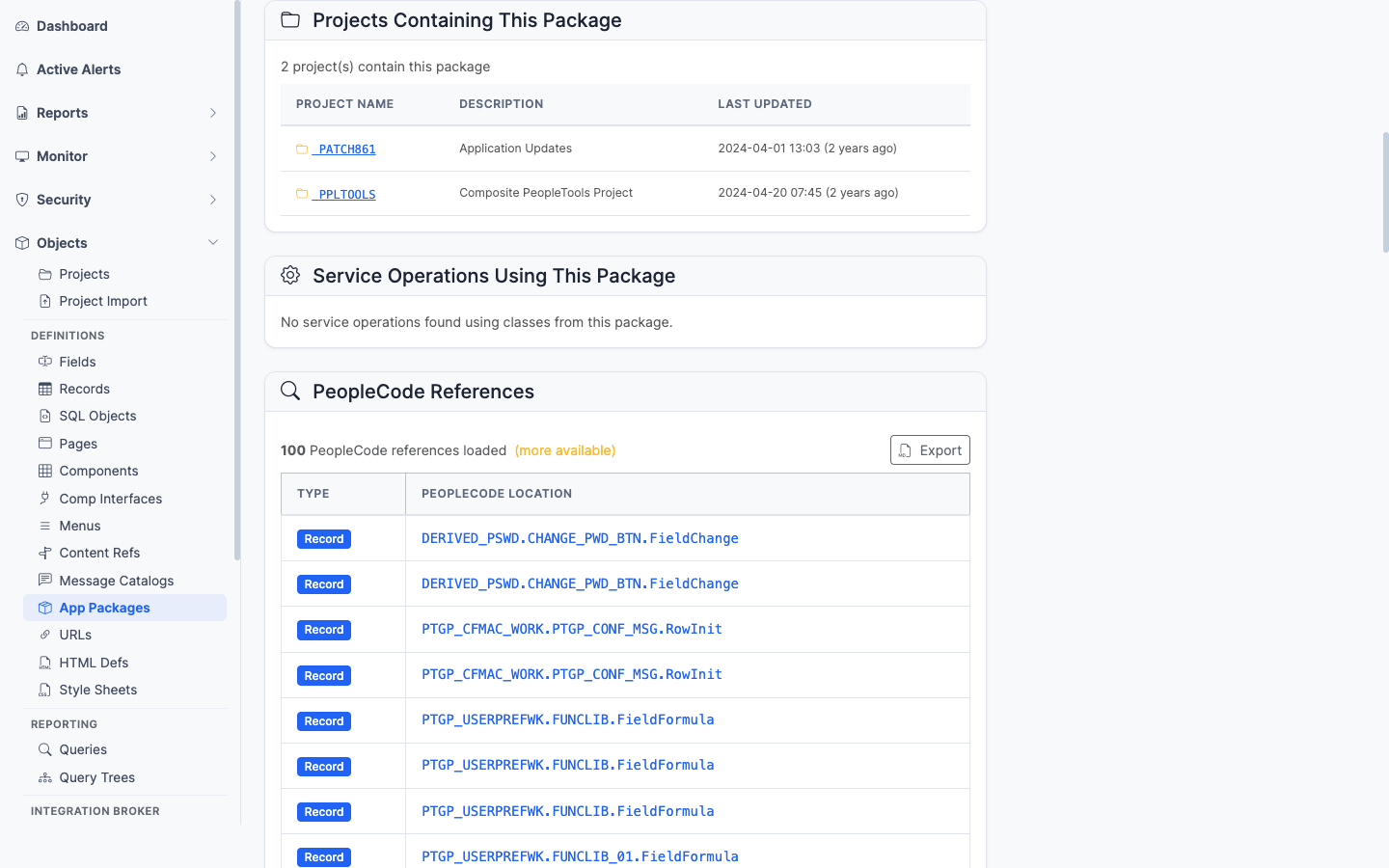
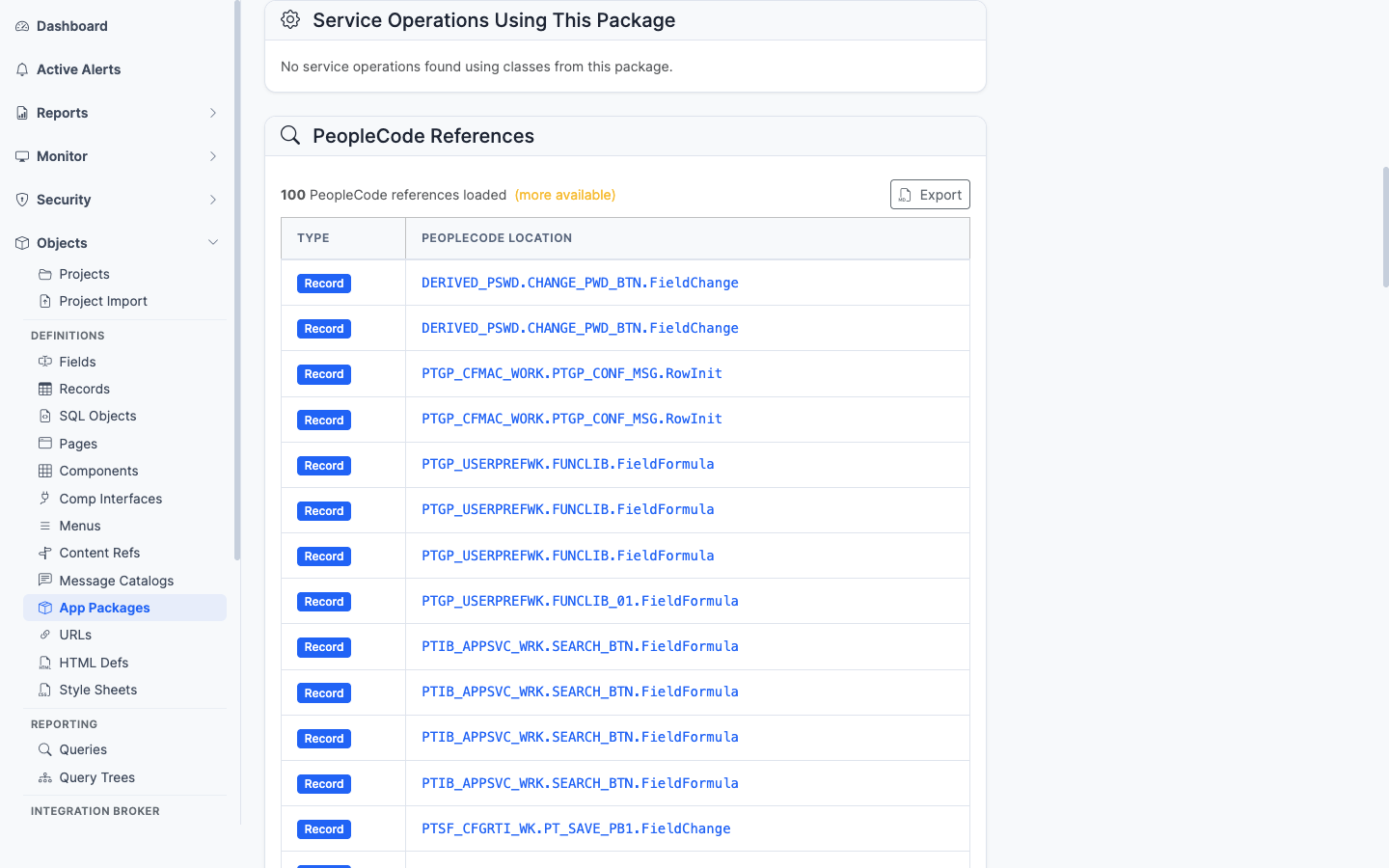
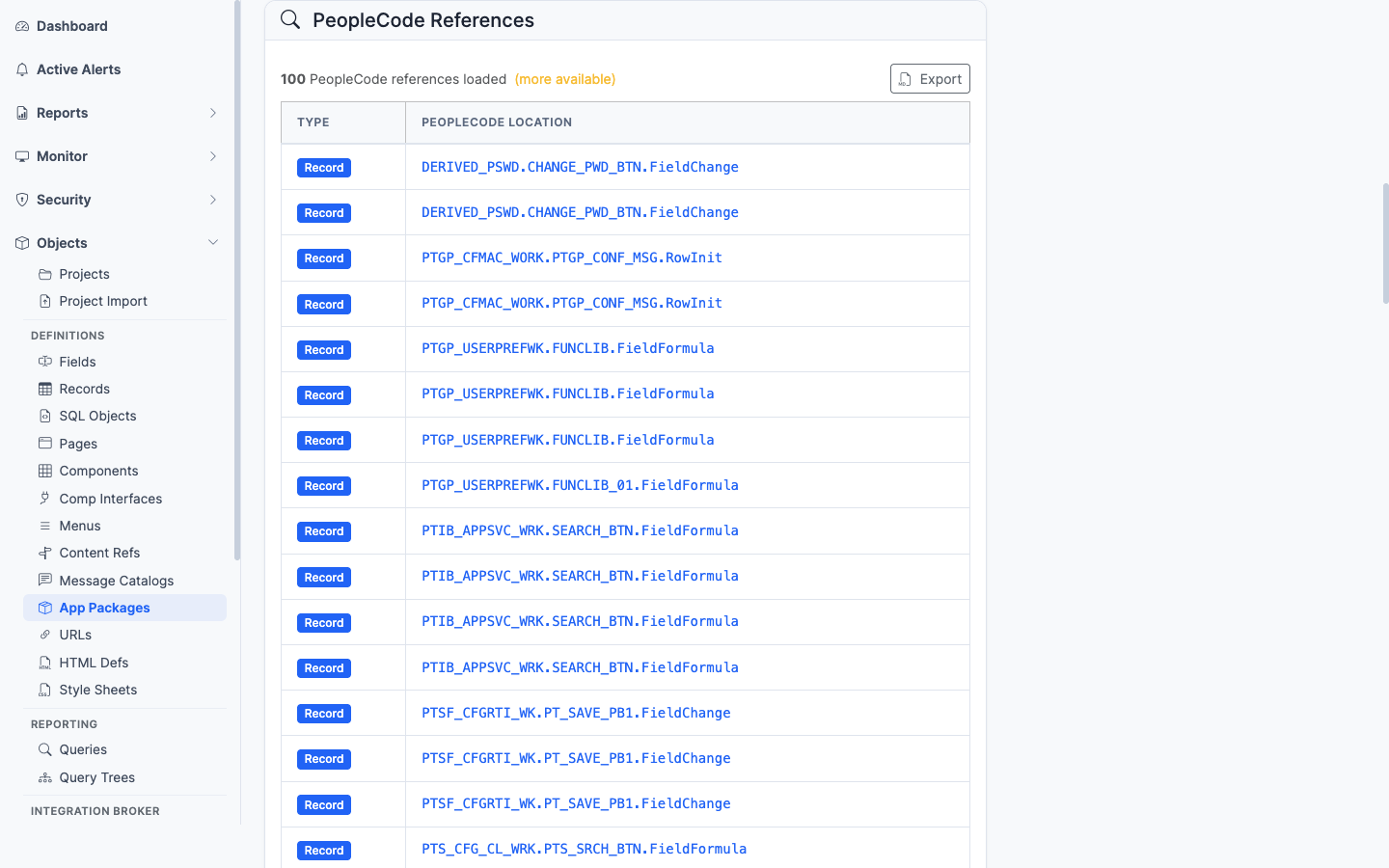
PeopleCode References
PeopleCode programs anywhere in the database that import or instantiate this package
PeopleCode programs anywhere in the database that import or instantiate classes from this package — the impact view before refactoring.
4.12 - URL Definitions
Browse PeopleSoft URL definitions — named URL strings used in PeopleCode, file attachments, and integrations.
Tailored Operational Context
Target Database:—
Context Type:—
Alert Severity:—
Triggered Time:—
Firing Context:—
URL definitions are PeopleSoft’s centralized store of named URL strings. Instead of hard-coding https://example.com/... inside PeopleCode, developers define a URL object (PSURLDEFN) and reference it by name with GetURL("MY_URL"). This keeps environment-specific endpoints (file servers, integration partners, image hosts) out of the code. psLens lets you browse the catalog so you can see every URL the application uses in one place.
Object Relationships
URL Definitions centralize external endpoint strings for application code:
Referenced in PeopleCode: URL definitions (PSURLDEFN) are resolved dynamically in PeopleCode via GetURL() calls for attachments, redirects, and integrations.
How psLens Improves URL Definition Inspection
In Application Designer, searching URL definitions requires opening File → Open → URL Definition and clicking into individual items to inspect values.
psLens makes the URL catalog searchable with resolved URL endpoint values and owning project membership displayed inline.
Search Page
URL: /urls?db={database}
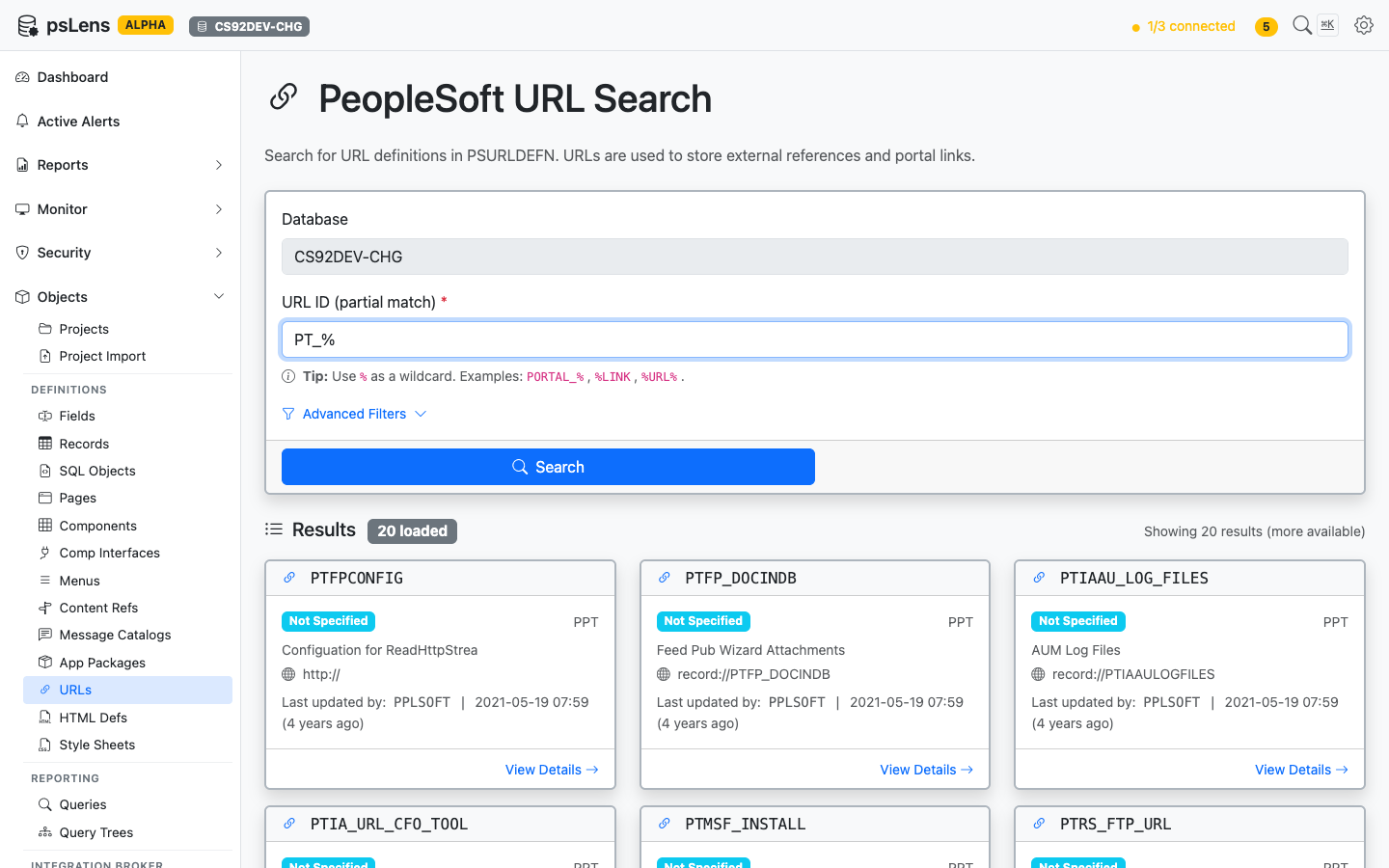
URL search results for PT_%
Wildcard % search supported. Each card shows the URL name plus the resolved URL value so you can scan the catalog at a glance.
Detail Page
URL: /urls/{URLNAME}?db={database}
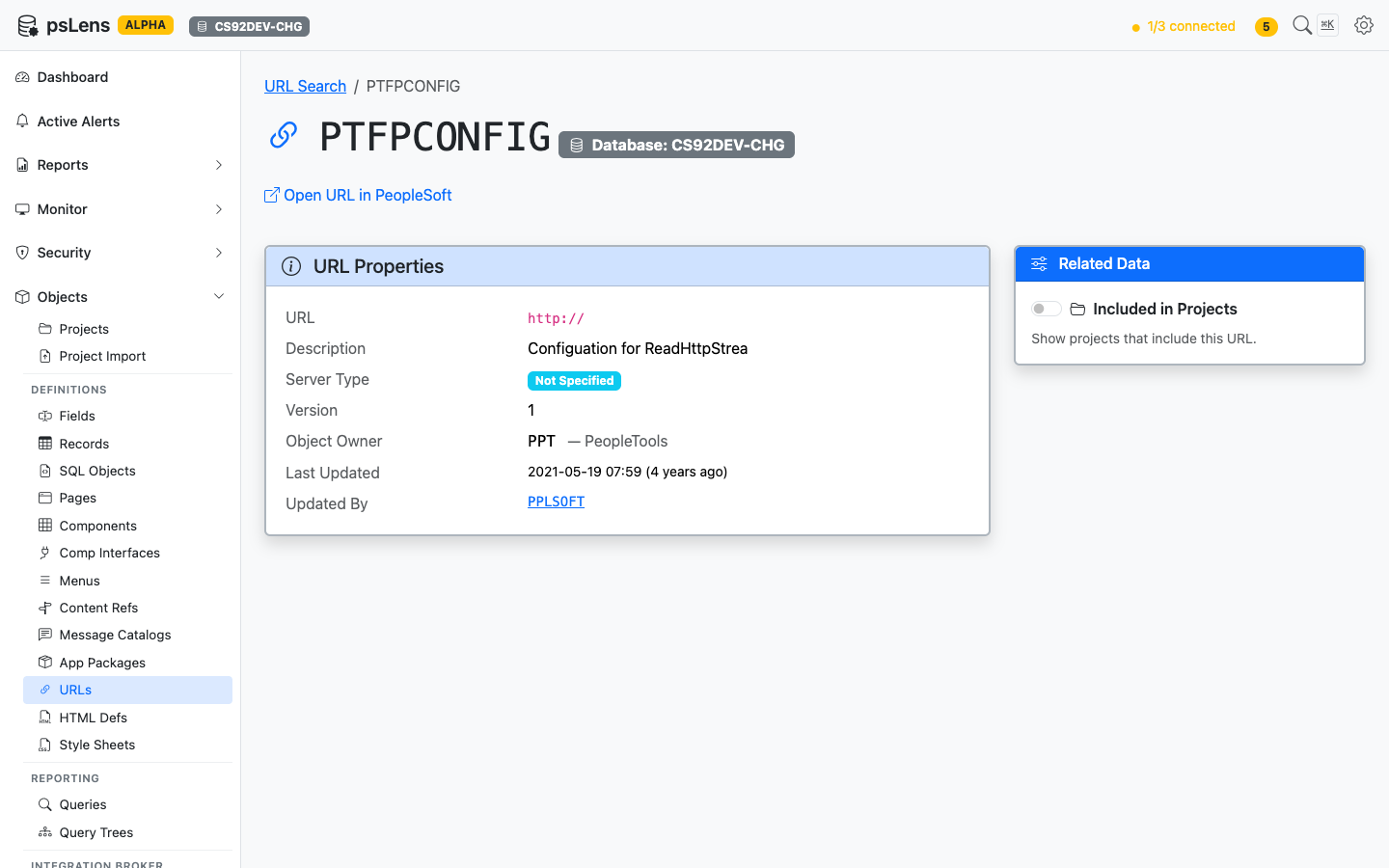
URL detail page for PTFPCONFIG
The main pane shows URL Properties (the URL itself, description, comments, audit metadata). The sidebar has one related-data toggle.
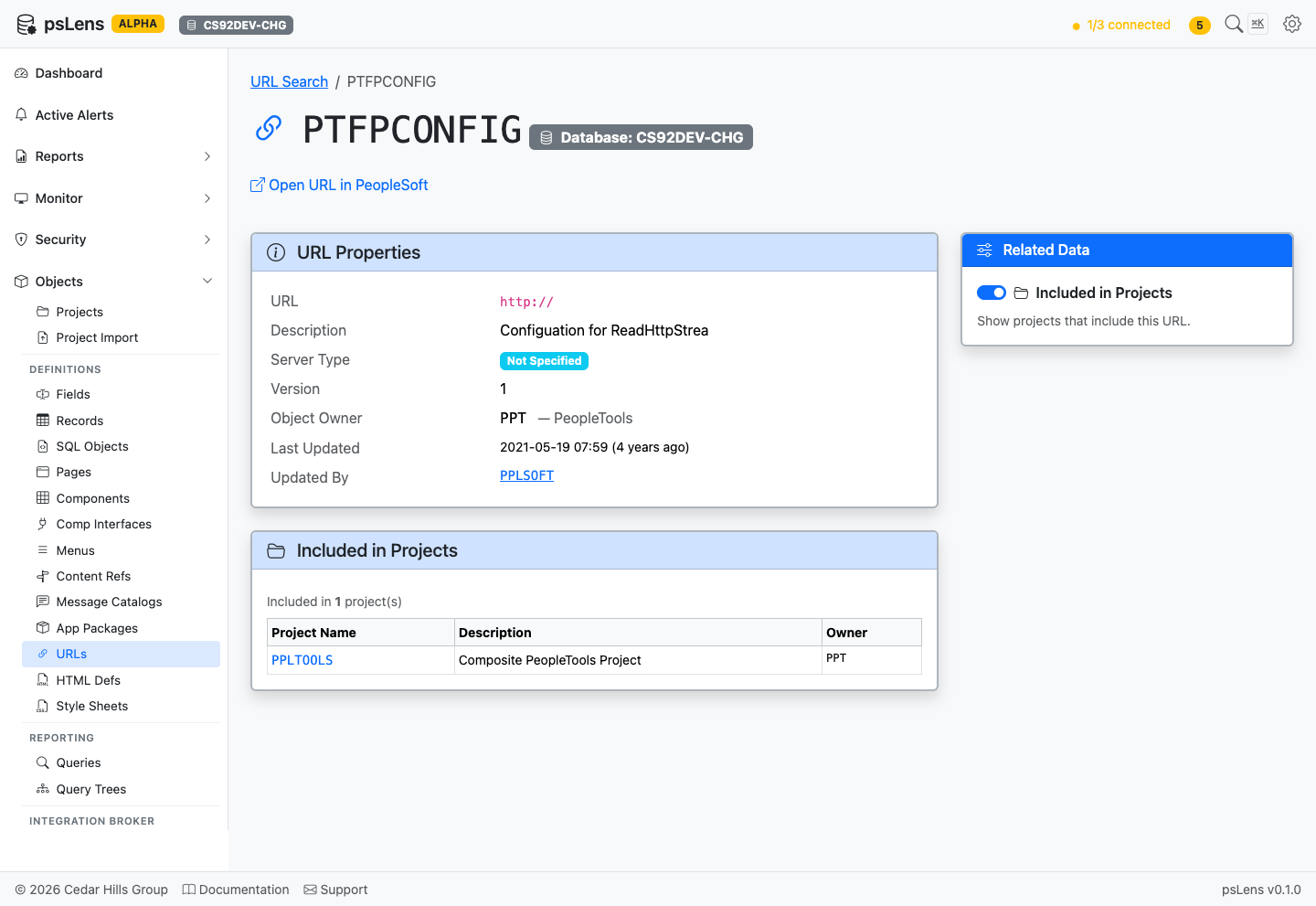
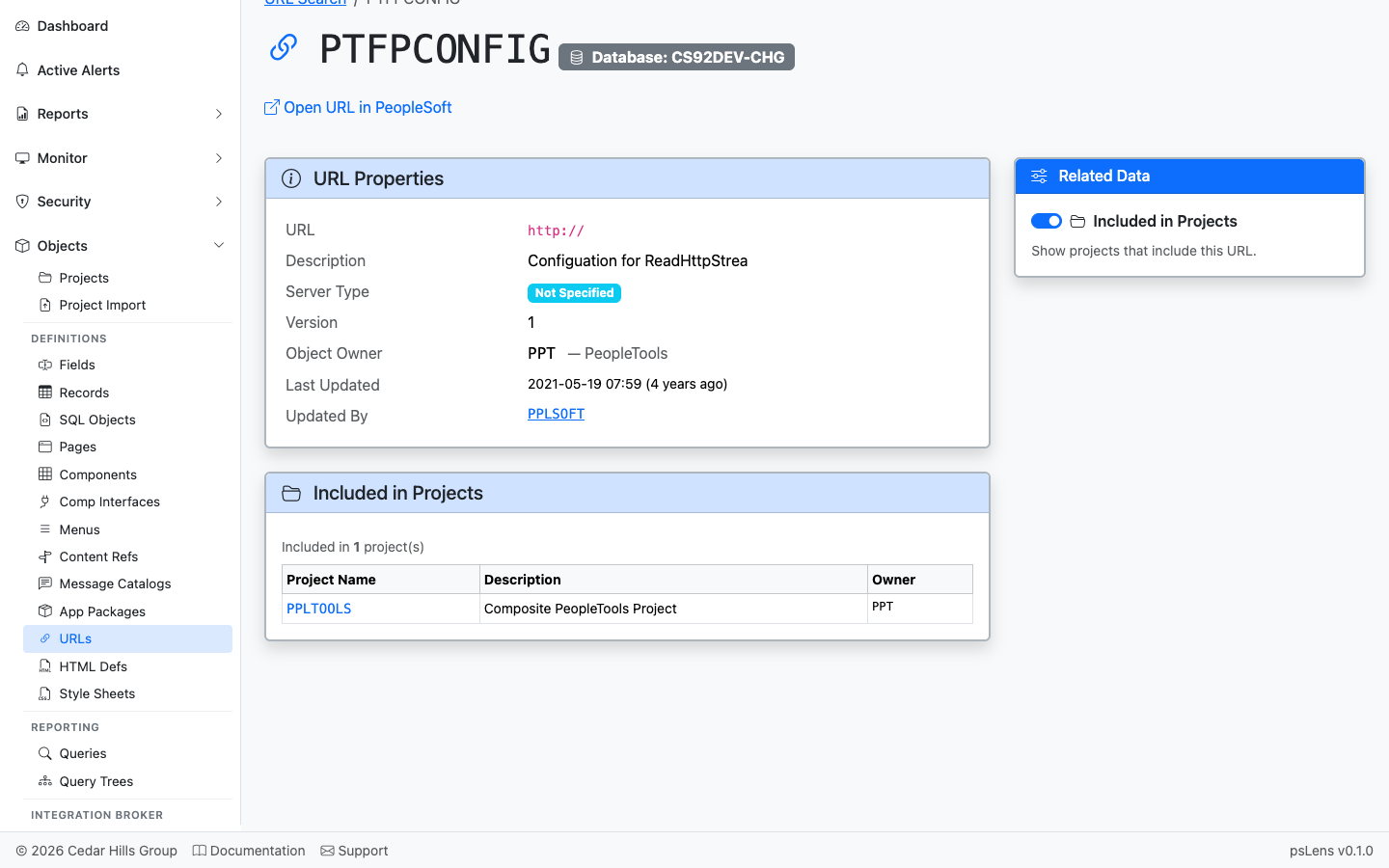
Full URL detail page with Projects panel expanded
Related Data Panels
Included in Projects
App Designer projects that include this URL definition
App Designer projects that include this URL. Useful for understanding which feature or customization introduced the URL.
4.13 - HTML Definitions
Browse PeopleSoft HTML definitions — HTML, JavaScript, and template fragments used in pages, emails, and reports.
Tailored Operational Context
Target Database:—
Context Type:—
Alert Severity:—
Triggered Time:—
Firing Context:—
HTML definitions are PeopleSoft’s catalog of HTML fragments, JavaScript snippets, and template bodies stored in PSCONTDEFN. Anything a page or report needs to embed — a JavaScript helper, an email body template, a custom Fluid grid layout — is normally stored as a named HTML object and pulled into PeopleCode with GetHTMLText(). psLens shows the full content of the definition so you can read what the application is actually injecting at runtime.
Object Relationships
HTML Definitions provide reusable markup and script templates:
Embedded in Pages: HTML definitions (PSCONTDEFN) store HTML/JS fragments bound to HTML area controls on page definitions.
Loaded via PeopleCode: Programs invoke GetHTMLText() to retrieve and interpolate dynamic values into HTML templates.
How psLens Improves HTML Definition Inspection
In Application Designer, inspecting HTML definitions requires opening individual objects through File → Open → HTML and loading each item into separate editor windows.
psLens makes the entire HTML definition catalog instantly searchable with syntax-highlighted content and project membership presented inline.
Search Page
URL: /htmldefs?db={database}
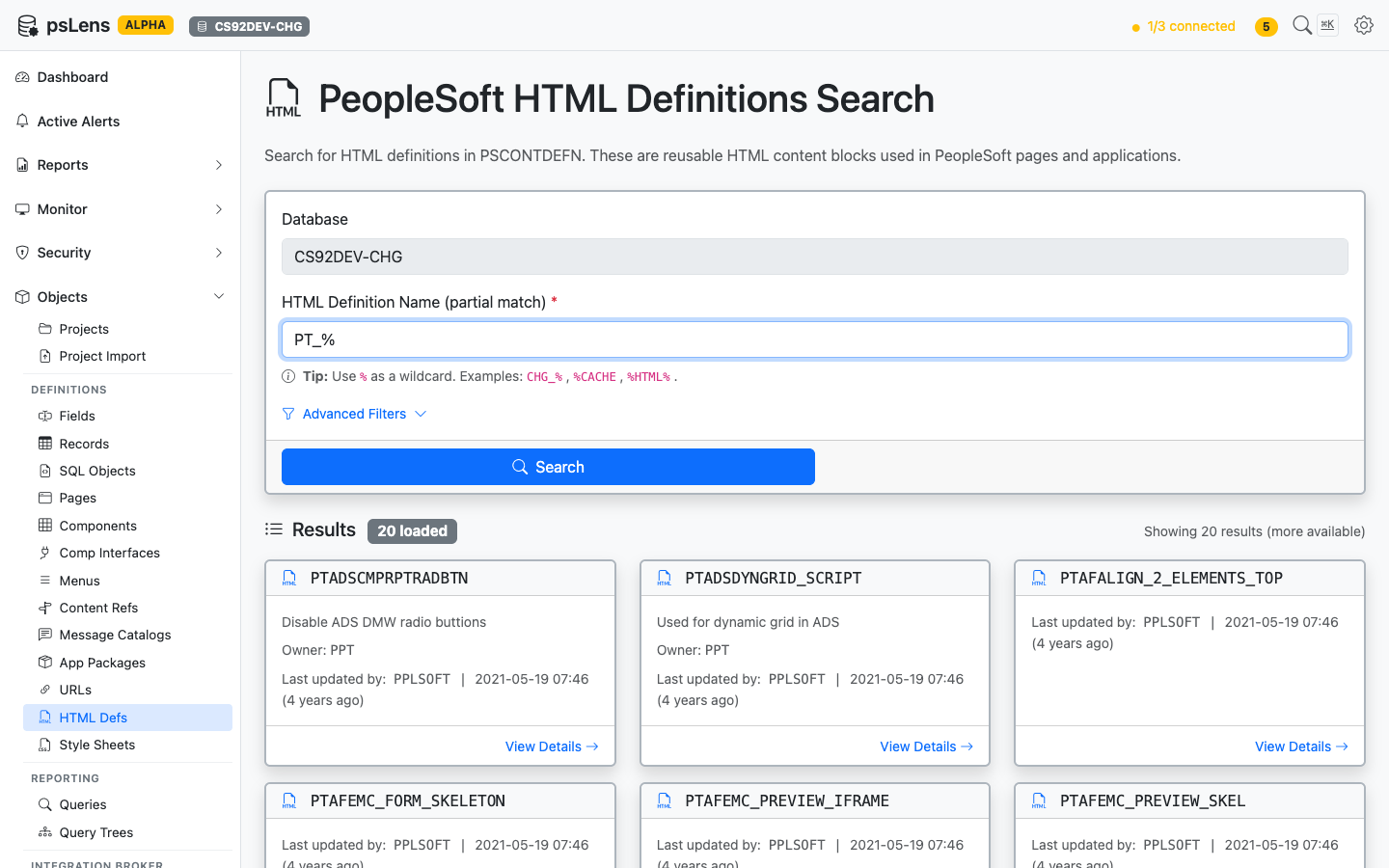
HTML Definition search results for PT_%
Wildcard % search supported. Each card shows the HTML object’s name and last-updated metadata.
Detail Page
URL: /htmldefs/{NAME}?db={database}
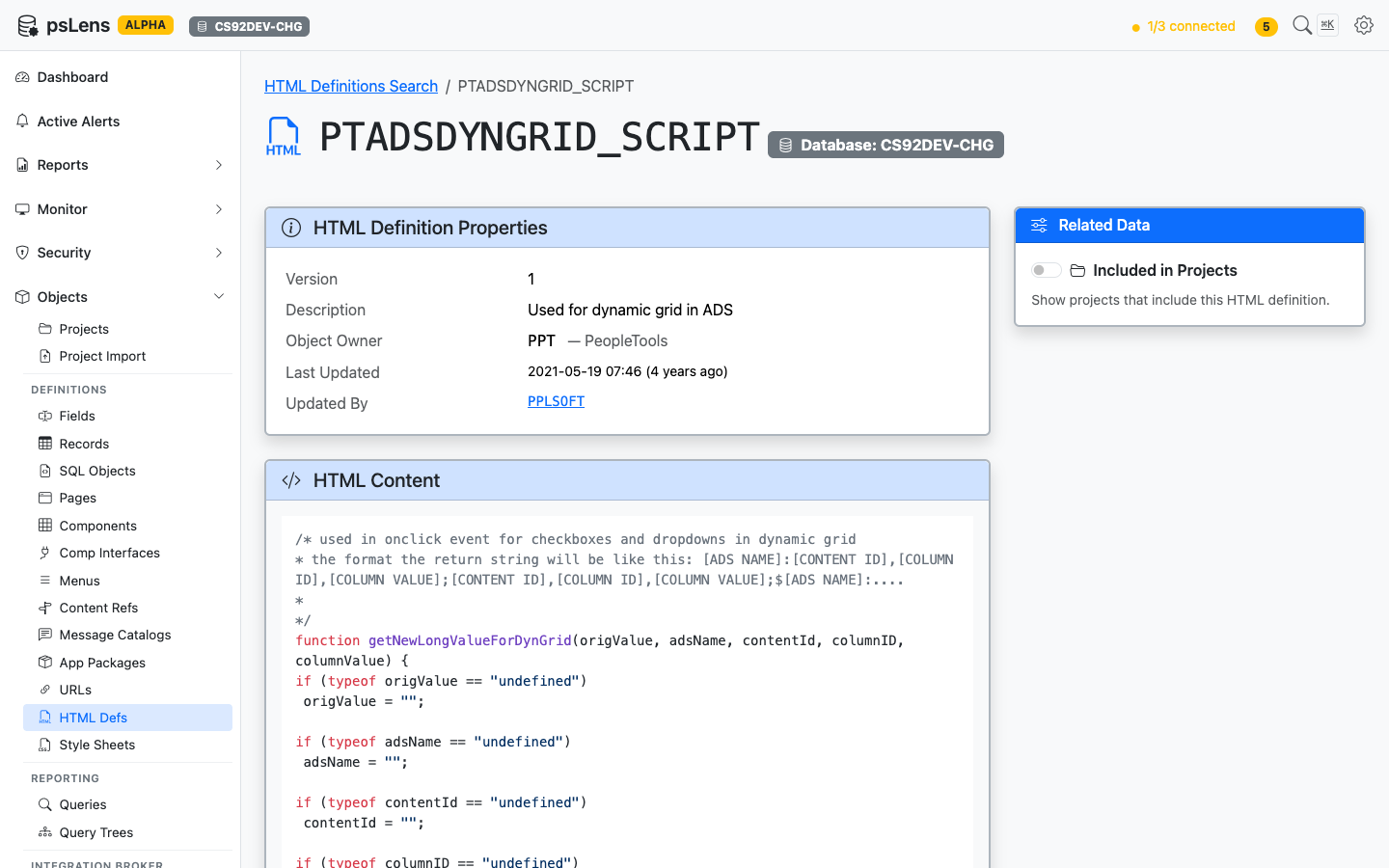
HTML Definition detail page for PTADSDYNGRID_SCRIPT
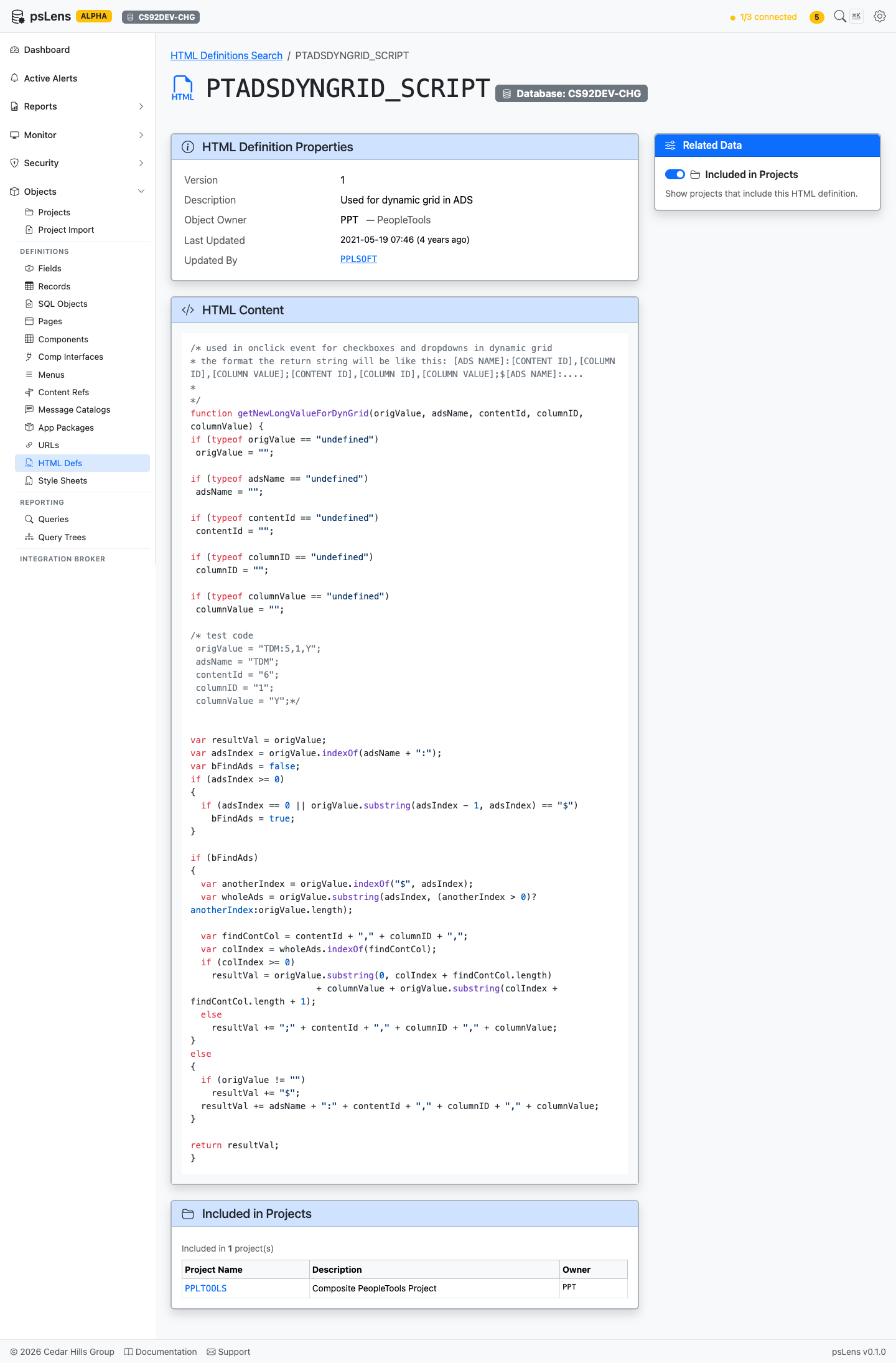
The main pane shows HTML Definition Properties (description, audit metadata) and the full HTML Content body, syntax-highlighted. The sidebar has one related-data toggle.
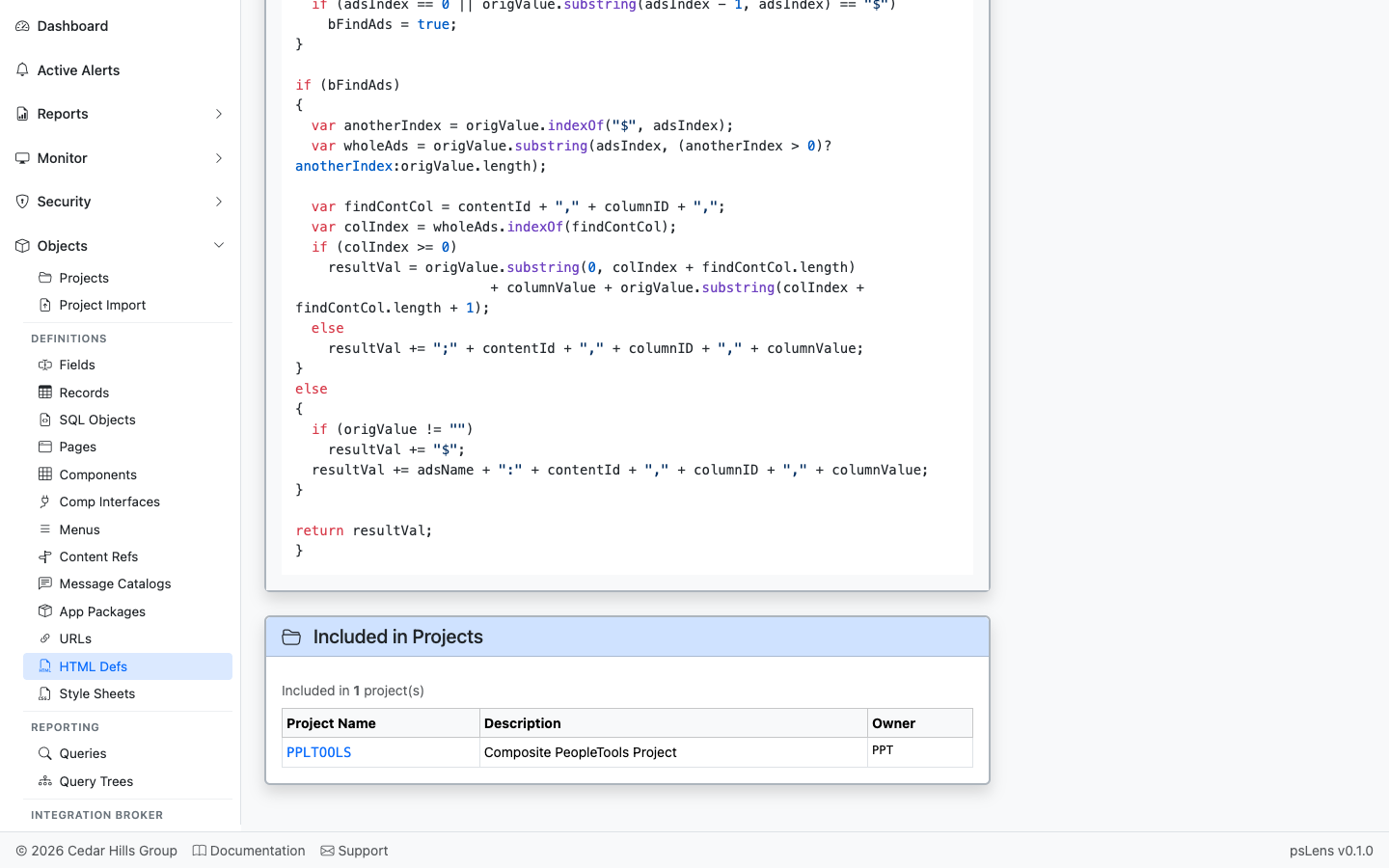
Full detail page with the Projects panel expanded
Related Data Panels
Included in Projects
App Designer projects that include this HTML definition
App Designer projects that include this HTML object.
4.14 - Style Sheets
Browse PeopleSoft style sheet (CSS) definitions with full inline source and project membership.
Tailored Operational Context
Target Database:—
Context Type:—
Alert Severity:—
Triggered Time:—
Firing Context:—
Style sheet definitions are PeopleSoft’s stored CSS objects (PSSTYLEDEFN) — the cascading style sheets that drive Classic and Fluid UI rendering. Tools, themes, branding overrides, and per-page substyle sheets all live here. psLens shows the full CSS body so you can read what rules a specific style sheet contributes without extracting it through App Designer or scraping rendered HTML.
Object Relationships
Style Sheets format user interface rendering across pages and themes:
Attached to Pages & Themes: Style Sheets (PSSTYLEDEFN) define CSS rules attached to page definitions, components, and portal branding themes.
How psLens Improves Style Sheet Inspection
In Application Designer, reviewing style sheets requires opening individual objects through File → Open → Style Sheet and examining CSS rules in separate tab windows.
psLens renders searchable, syntax-highlighted CSS source code directly in the browser alongside owning project membership.
Search Page
URL: /styledefs?db={database}
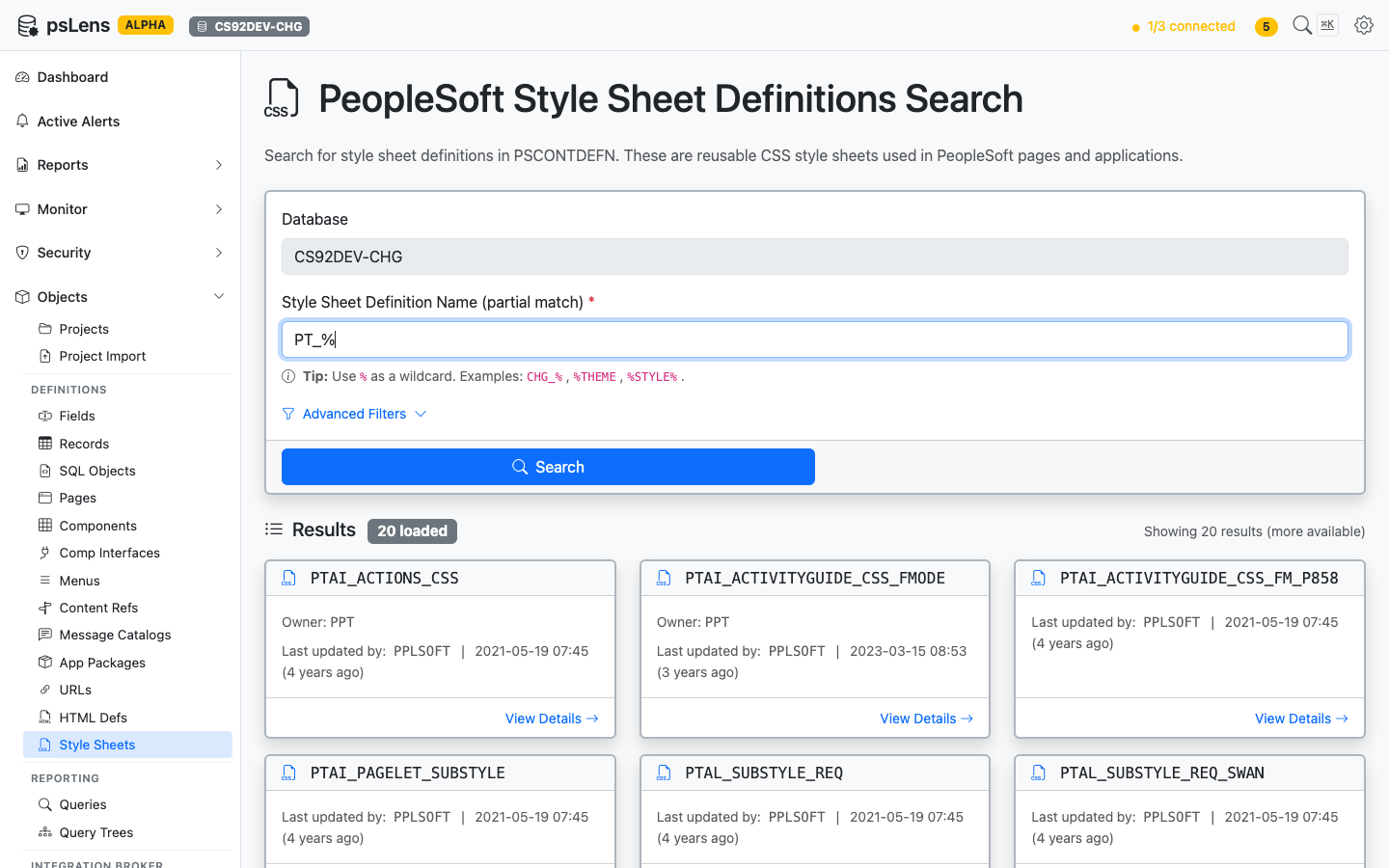
Style Sheet search results for PT_%
Wildcard % search supported. Each card shows the style sheet name and last-updated metadata.
Detail Page
URL: /styledefs/{NAME}?db={database}
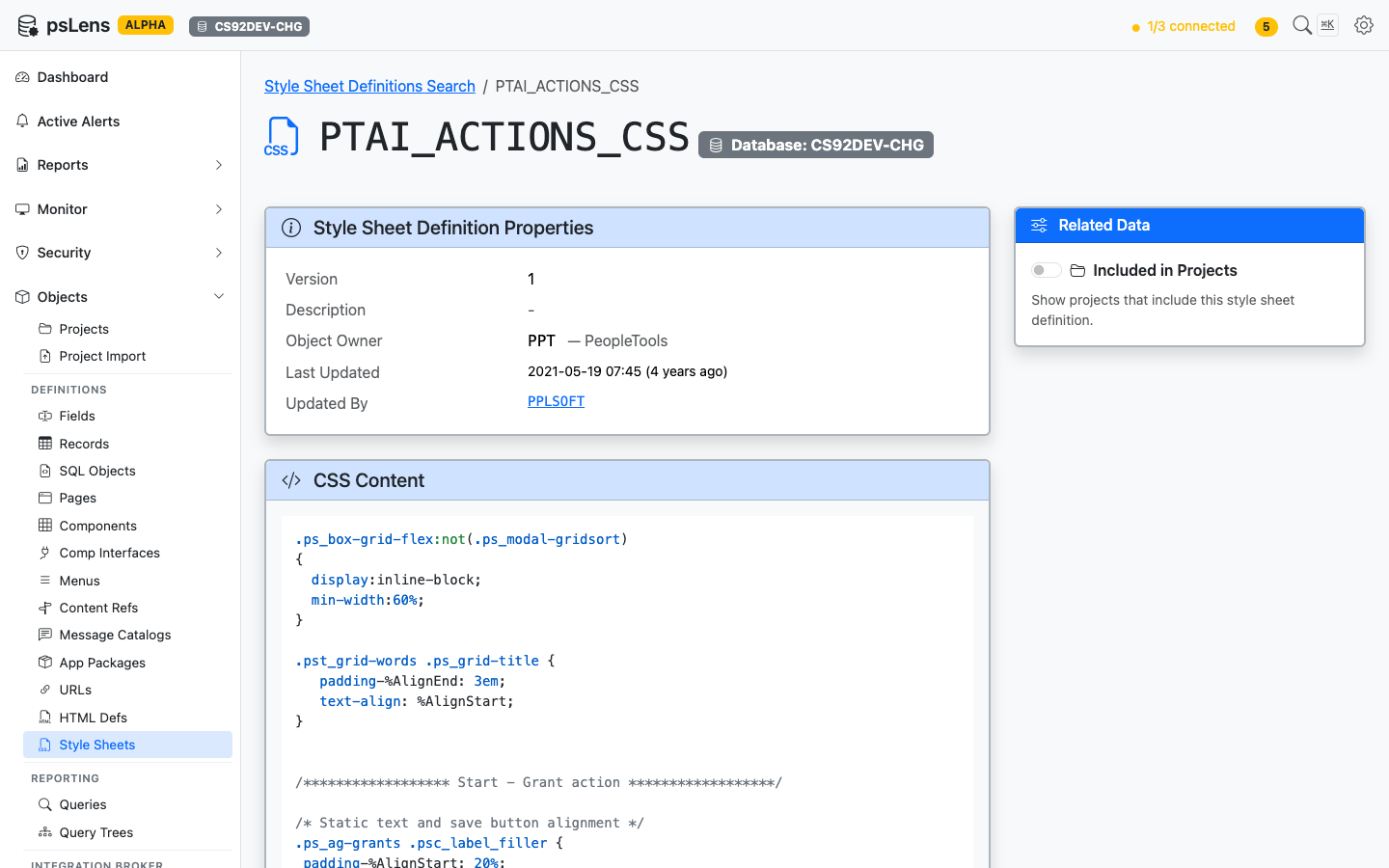
Style Sheet detail page for PTAI_ACTIONS_CSS
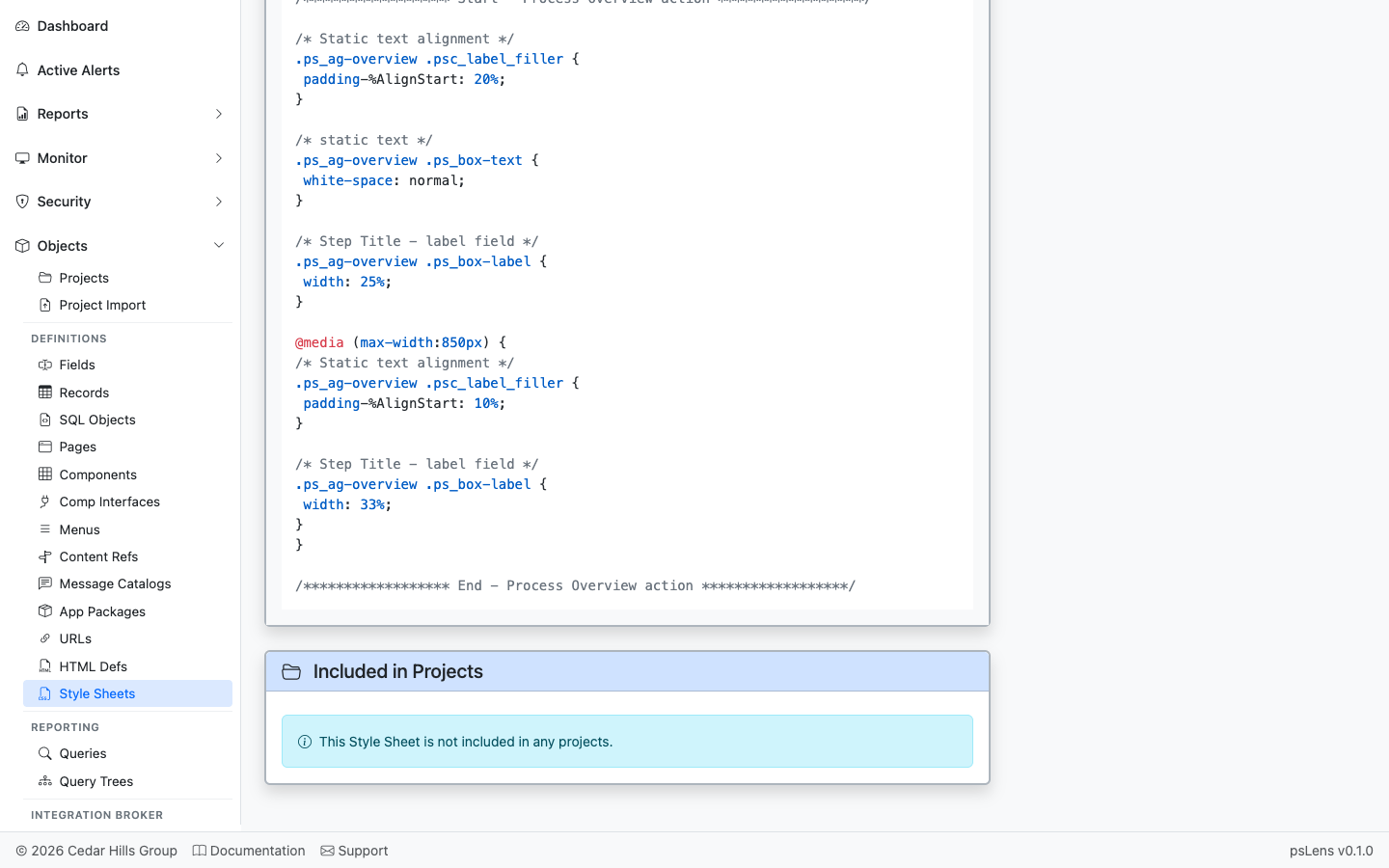
The main pane shows Style Sheet Definition Properties (description, audit metadata) and the full CSS Content body, syntax-highlighted. The sidebar has one related-data toggle.
Related Data Panels
Included in Projects
App Designer projects that include this style sheet
App Designer projects that include this style sheet.
4.15 - Change Control & Object Locks
Inspect PeopleTools Change Control configuration and active definition checkout locks across all PeopleSoft objects.
PeopleTools Change Control & Object Locks
In PeopleSoft development environments, PeopleTools Change Control prevents simultaneous modifications to application metadata objects by allowing developers to check out and lock definitions (e.g. Records, Pages, Components, PeopleCode, App Engines, Component Interfaces).
psLens automatically inspects system-wide Change Control configuration (PSCHGCTLDEF) and active checkout locks (PSCHGCTLLOCK) whenever you view definition metadata or related project associations.
How psLens Displays Object Lock Status
When inspecting any PeopleSoft definition in psLens (such as a Record, Page, Component, or Field), the Included in Projects panel surfaces Change Control state in real-time:
Locked Objects: If a developer has checked out the object in Application Designer, psLens displays a prominent lock banner showing:
Operator ID (OPRID): The developer holding the active lock.
Lock Timestamp: When the object was checked out.
Associated Project: Direct link to the project (PSPROJECTDEFN) under which the definition is locked.
Developer Comments: Any check-out justification comments provided.
Unlocked Objects: When Change Control is enabled in the database and no active lock exists, psLens displays a green status badge confirming the object is available for checkout.
Change Control Disabled: If Change Control is disabled system-wide in the environment, psLens cleanly renders project associations without lock overhead.
Supported Object Types
Change Control and lock tracking is supported across all major PeopleSoft metadata definitions:
Explore PeopleSoft query and reporting definitions: PSQuery and Query Trees.
Reporting Definitions
Browse and inspect PeopleSoft reporting objects, queries, and security query trees.
5.1 - Queries
Browse PeopleSoft Queries with record/field usage, query trees, security access, and ownership.
Tailored Operational Context
Target Database:—
Context Type:—
Alert Severity:—
Triggered Time:—
Firing Context:—
Queries are PeopleSoft’s end-user reporting tool — saved SQL queries that users run from the PSQUERY interface, with optional prompts, output formats, and scheduled distribution. Each query is stored in PSQRYDEFN and broken out across PSQRYRECORD, PSQRYFIELD, and other tables for the records and fields it touches. psLens consolidates the query header, the records used, the field list, project membership, and (via the related-data toggles) the query tree placement and security access.
Object Relationships
Queries assemble records and fields into end-user reporting SQL:
Selects Records & Fields: Queries (PSQRYDEFN) join record definitions (PSQRYRECORD) and select specific fields (PSQRYFIELD).
Governed by Query Access Trees: Authorization to query underlying records is controlled by Query Access Trees (PSTREENODE) granted to permission lists.
Feeds BI Publisher Reports: Queries act as data sources (PSXPDATASRC) for BI Publisher report definitions.
How psLens Improves Query Inspection
In Query Manager, inspecting a query requires clicking across Records, Fields, and Properties tabs, while query tree access must be checked via separate SQL queries.
psLens consolidates query properties, FROM clause records, SELECT/ORDER BY fields, query tree security placement, and project membership into a single view.
Search Page
URL: /queries?db={database}
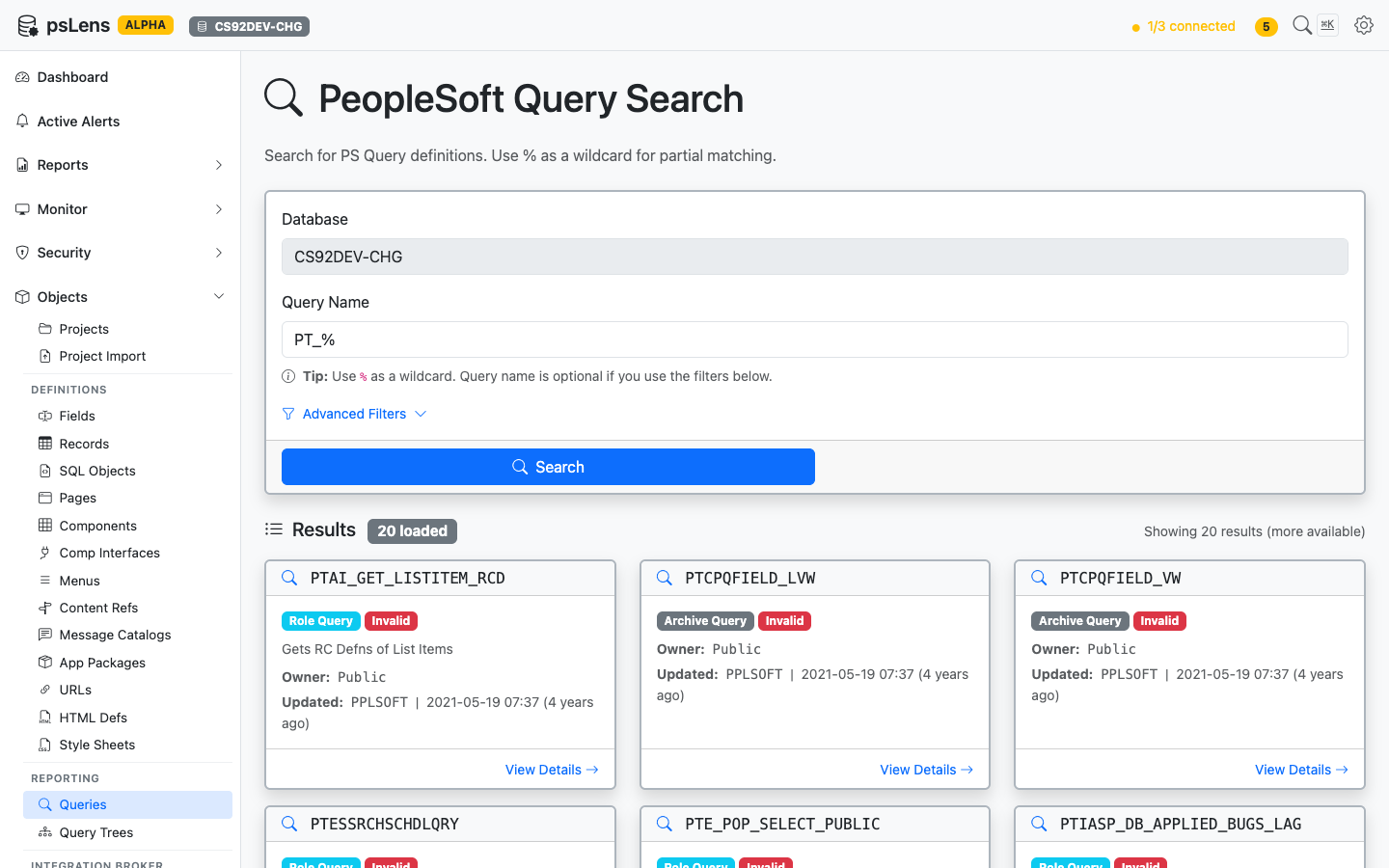
Query search results for PT_%
Search auto-matches as starts with. Typing PT_ finds every query whose name begins with PT_. Include % yourself for ends-with (%_VW) or contains (%AUDIT%) patterns, or use % alone to list every row. Each card shows the query type (Public, Private, Archive, User), owner, and last-updated metadata. The Advanced Filters panel lets you filter by query type or owner.
Detail Page
URL: /queries/{QRYNAME}?db={database}
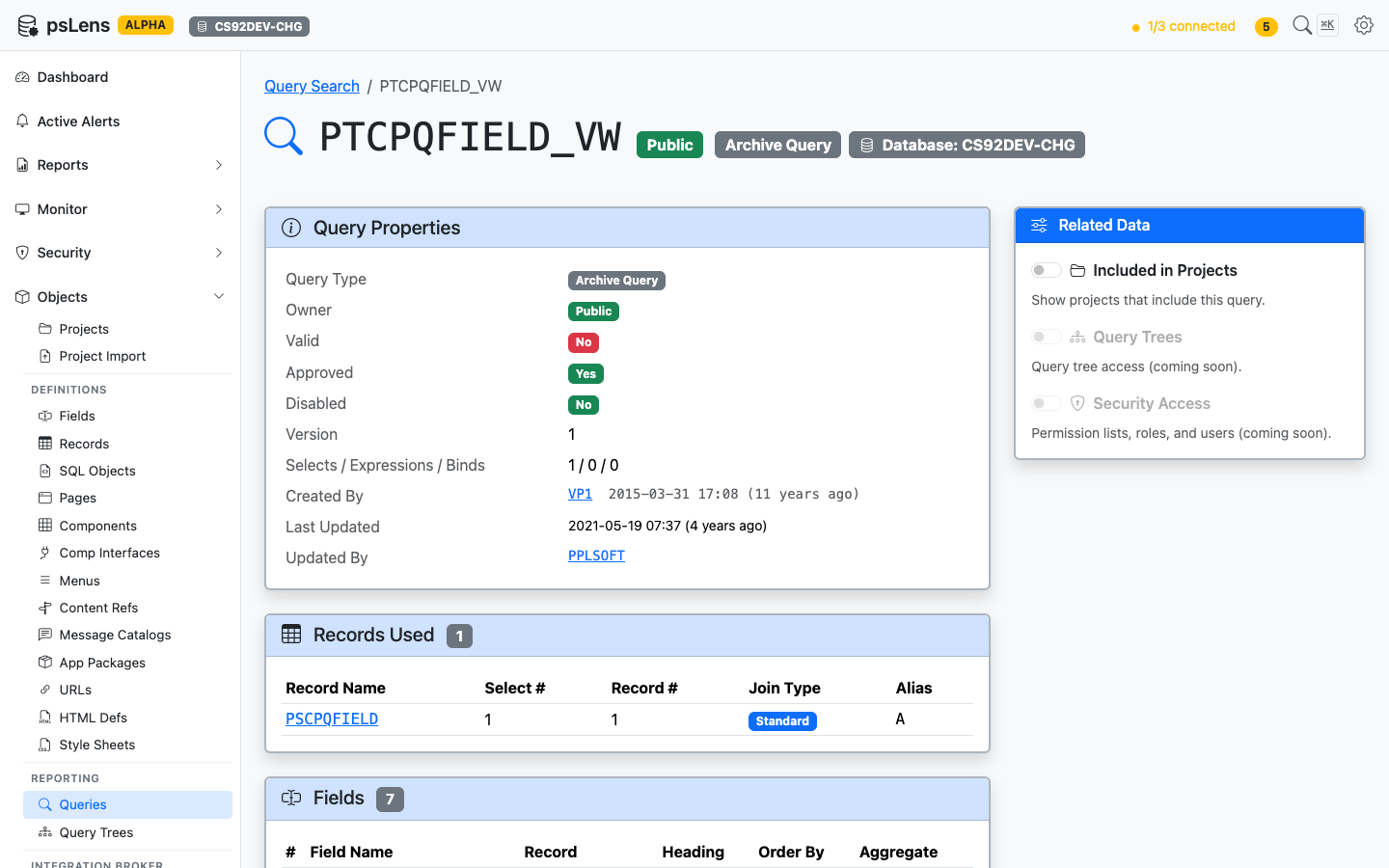
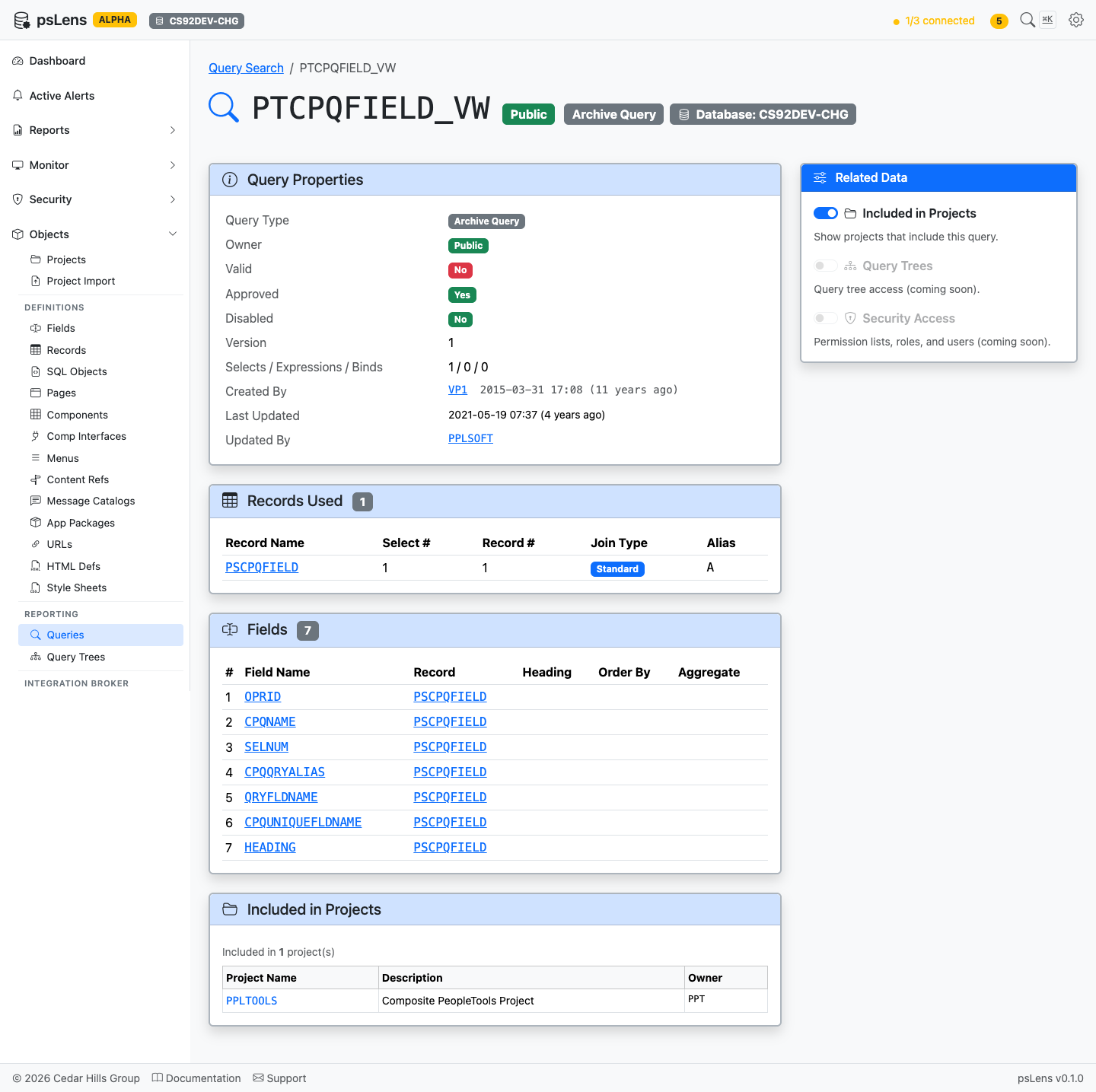
Query detail page for PTCPQFIELD_VW
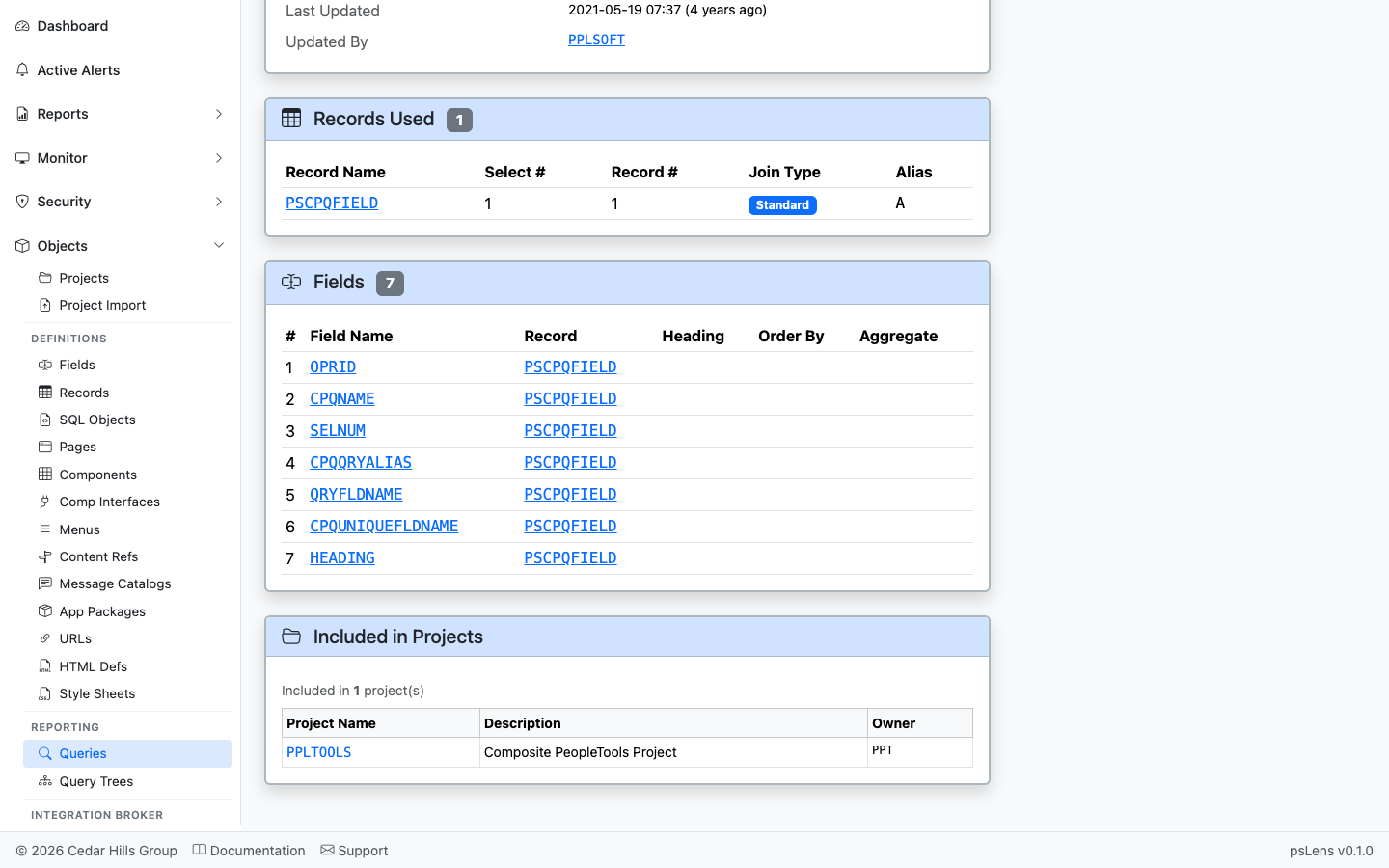
The main pane shows Query Properties (type, owner, description, last-run metadata, version), Records Used (every record in the FROM list), and Fields (the SELECT and ORDER BY columns). The sidebar has 3 related-data toggles.
Full query detail page with all panels
Related Data Panels
Records Used
Every record in the query’s FROM clause
The list of records used by the query (PSQRYRECORD). Each record name deep-links into its own detail page so you can audit what the query reads.
Fields
The fields the query SELECTs, with record context and order
The SELECT field list (PSQRYFIELD) with record and field references, each link-resolved.
Included in Projects
App Designer projects that include this query
App Designer projects containing this query as a project item.
5.2 - Query Trees
Browse PeopleSoft Query Access Trees with record hierarchies and the permission lists that grant access.
Tailored Operational Context
Target Database:—
Context Type:—
Alert Severity:—
Triggered Time:—
Firing Context:—
Query Access Trees are the security backbone of PeopleSoft Query — hierarchical groupings of records (PSTREEDEFN / PSTREENODE) that determine which records a Query author can build queries against. A permission list grants access to one or more access groups within a tree, and the Query Manager UI only lists records that fall under the granted nodes. psLens shows the tree’s full record hierarchy and the permission lists that authorize it, combining what you’d otherwise need to assemble from Tree Manager and Permission List security separately.
Object Relationships
Query Access Trees regulate reporting access to database records:
Groups Records Hierarchically: Query Trees (PSTREEDEFN) arrange record definitions into nested access group nodes (PSTREENODE).
Secured by Permission Lists: Permission lists are granted access to specific tree nodes to authorize users to query member records.
How psLens Improves Query Tree Inspection
Auditing Query Access Trees in PIA requires expanding tree nodes branch by branch in Tree Manager, while checking permission list profiles separately to determine authorized users.
psLens presents the complete record hierarchy alongside permission lists, assigned roles, and authorized active/locked users in a single view.
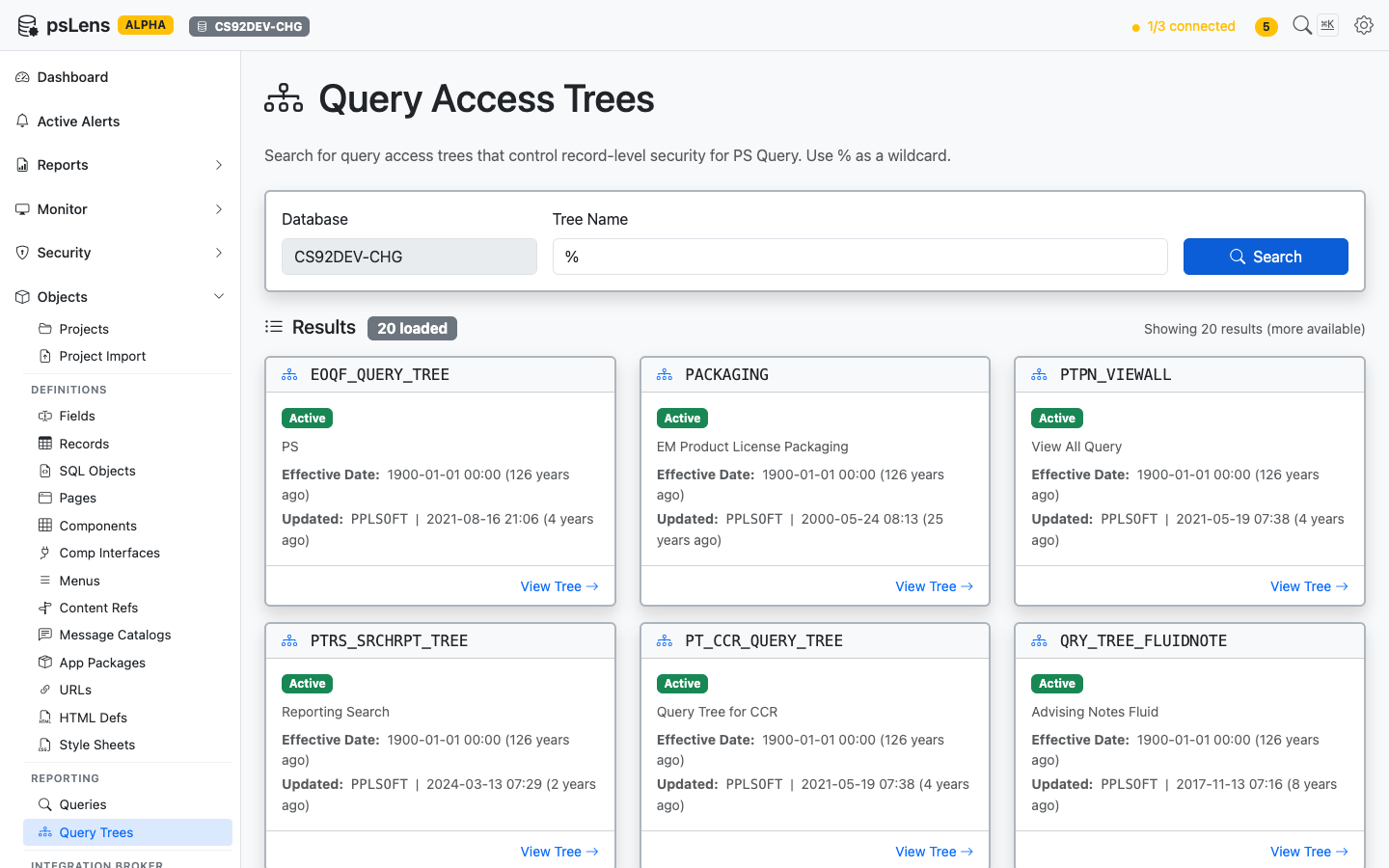
Search Page
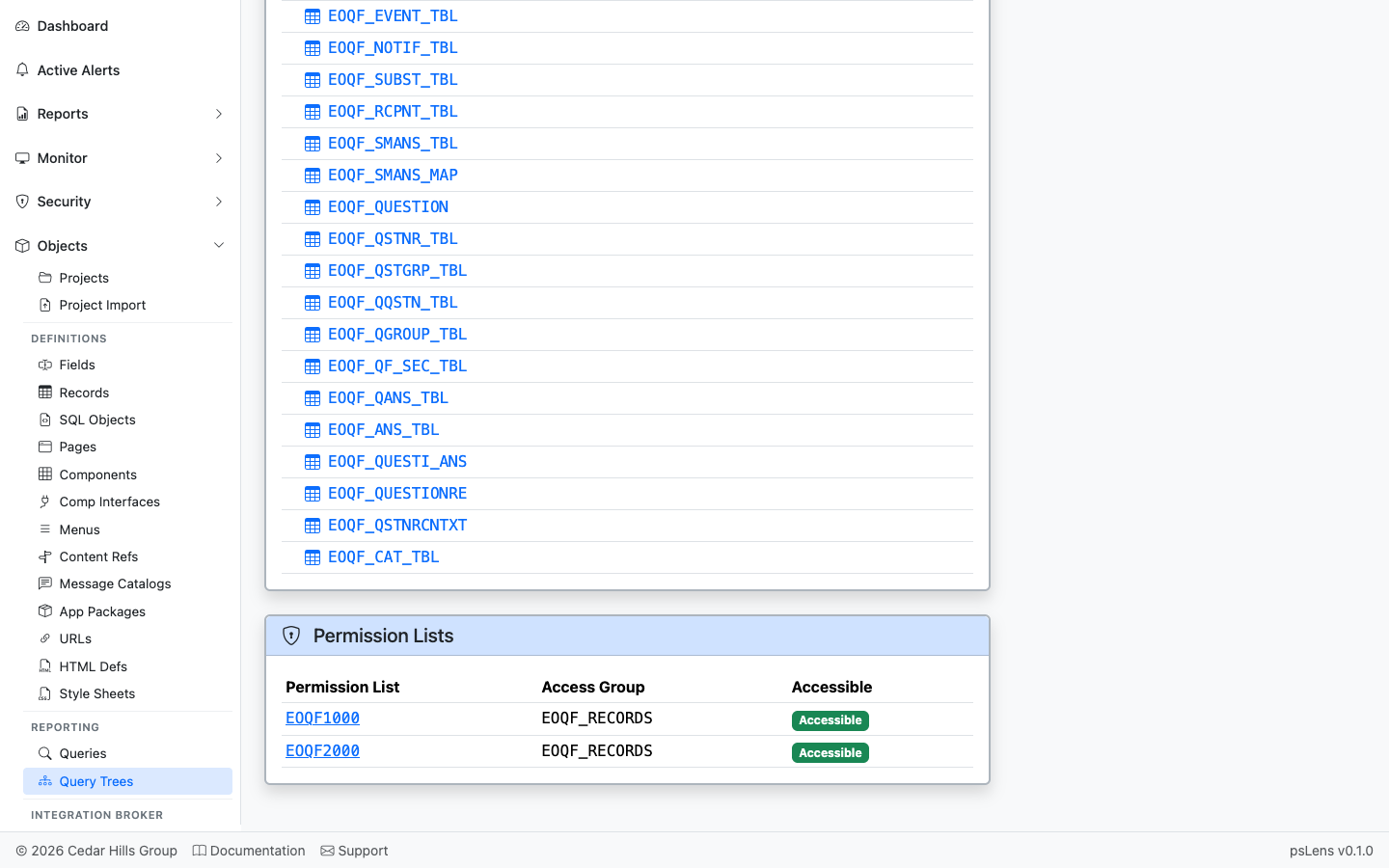
URL: /querytrees?db={database}
Query Tree search results
Search auto-matches as starts with. Typing EOQF finds every tree whose name begins with EOQF. Include % yourself for ends-with or contains patterns, or use % alone to list every query tree in the database.
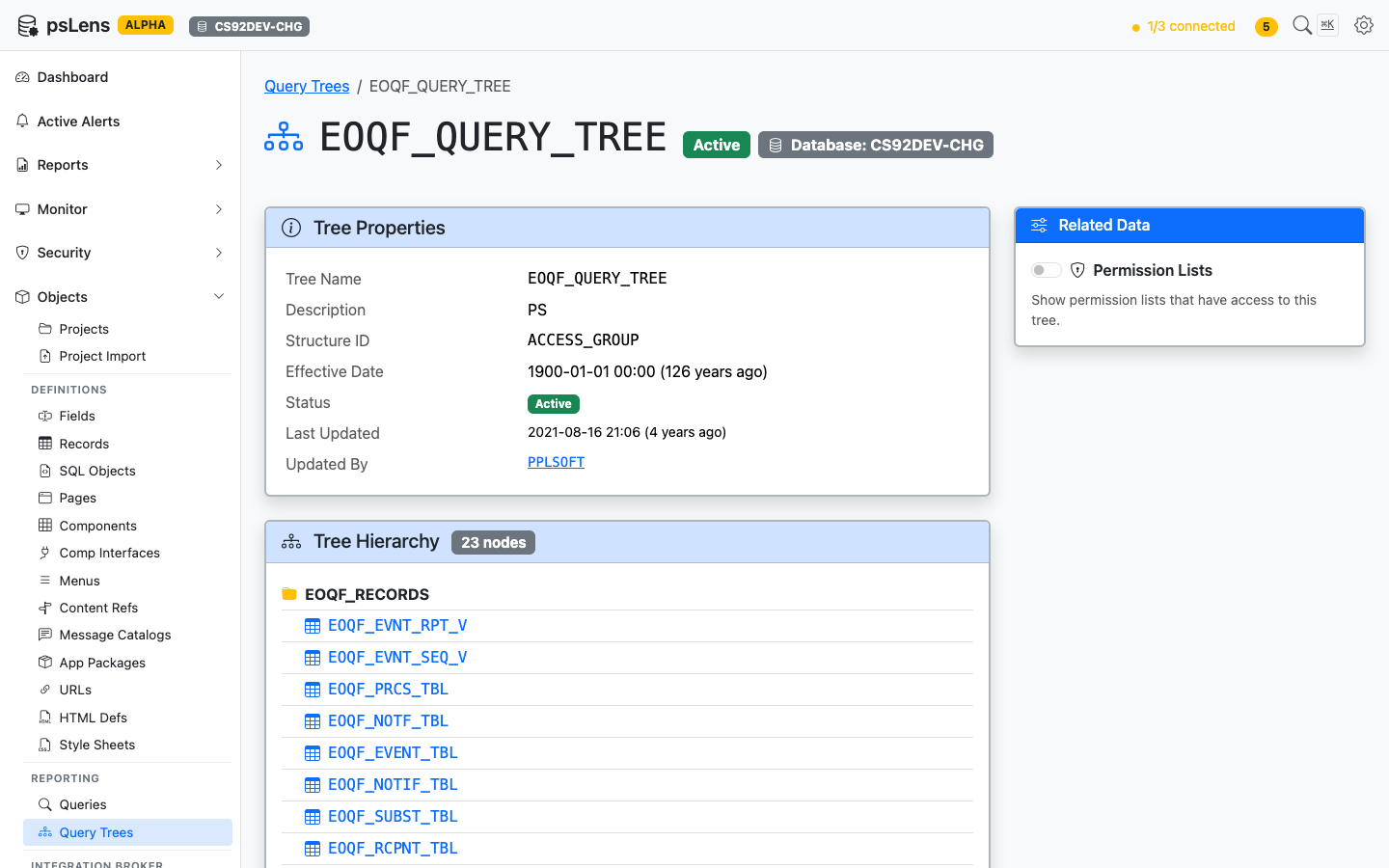
Detail Page
URL: /querytrees/{TREE_NAME}?db={database}
Query Tree detail page for EOQF_QUERY_TREE
The main pane shows Tree Properties (status, version, audit metadata) and the full Tree Hierarchy, a recursive view of every node in the tree with the record name it grants access to. The sidebar has one related-data toggle.
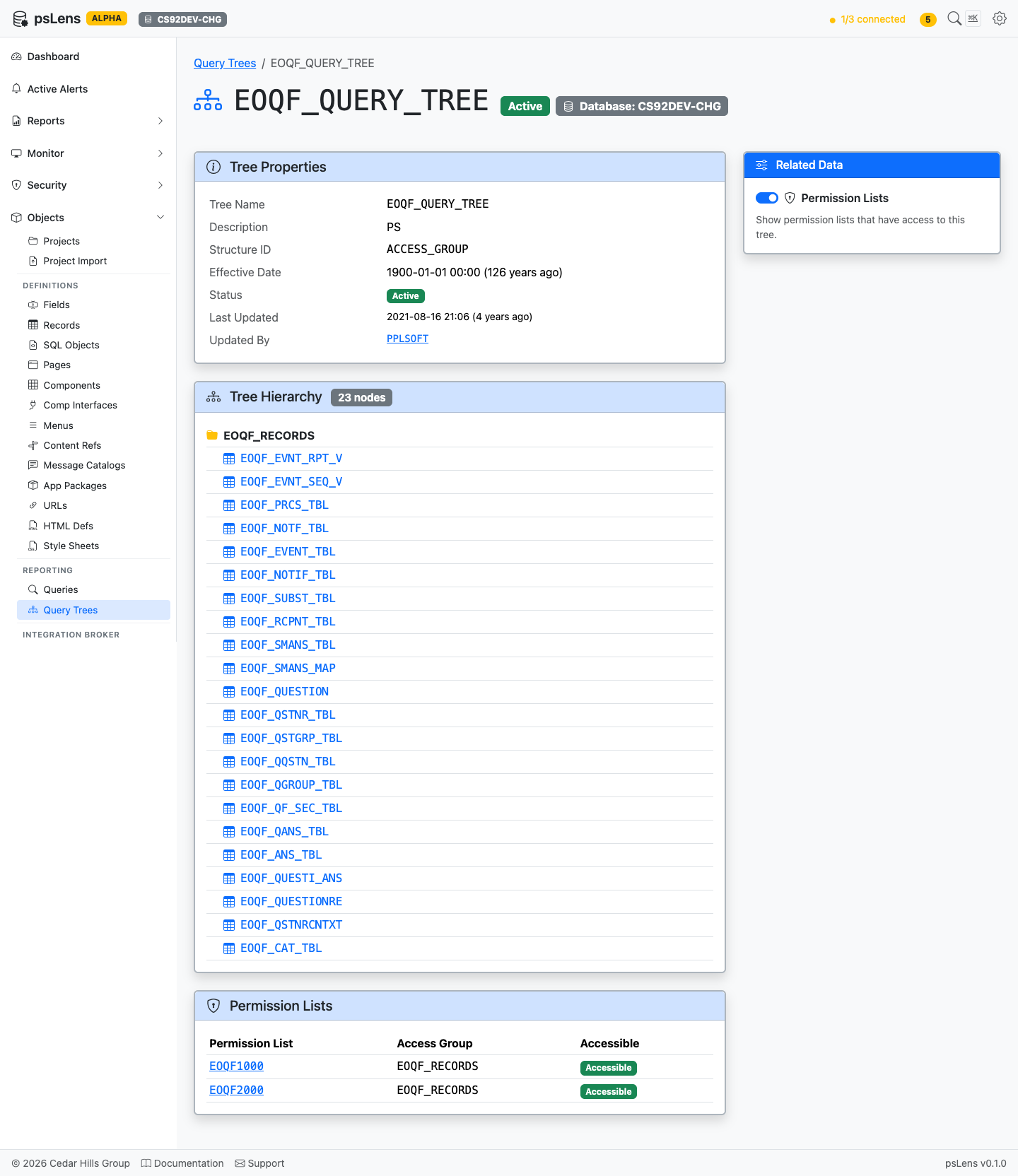
Full Query Tree page with the Permission Lists panel expanded
Related Data Panels
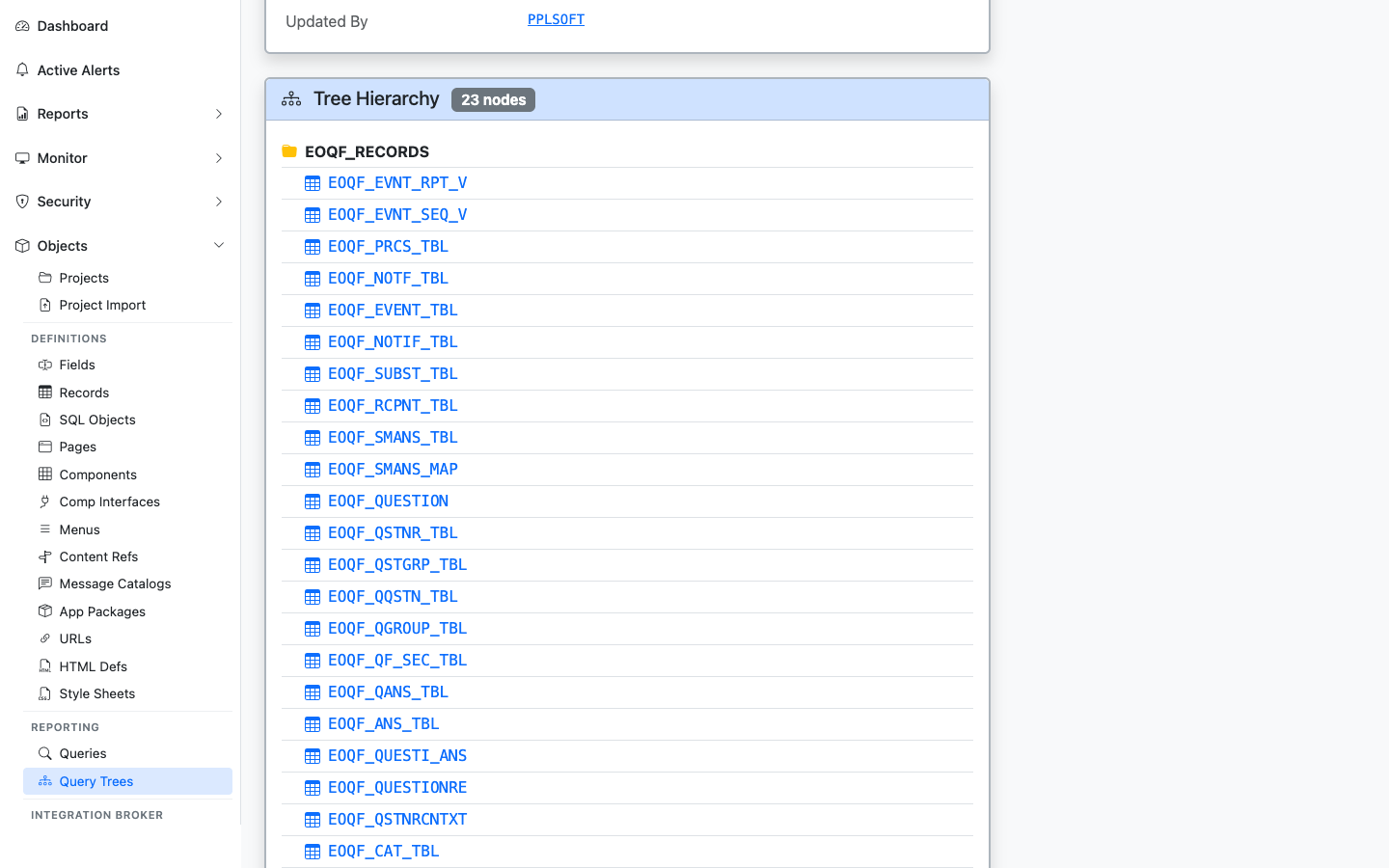
Tree Hierarchy
The full record hierarchy of the tree, with each record linked to its detail page
The recursive node-by-node breakdown of the tree. Each record link jumps into the record’s detail page so you can see what data the tree grants query access to.
Permission Lists
Permission lists with access to nodes in this tree
Permission lists that have been granted access to nodes in this tree.
Roles
Roles that grant access to nodes in the tree, derived from the permission lists associated with each role.
Users
Users who can access the query tree, detailing their status (Active or Locked), role, permission list, and access group grant level. Grants are annotated as Tree-level if they target the root node of the tree, and Node-level for sub-nodes.
6 - Integration Broker
Explore PeopleSoft Integration Broker definitions: nodes, services, service operations, messages, and queues.
Integration Broker Definitions
Browse and inspect PeopleSoft integration objects and routing topology.
6.1 - Nodes
Browse PeopleSoft Integration Broker nodes — external systems, partner databases, and internal services that exchange IB messages.
Tailored Operational Context
Target Database:—
Context Type:—
Alert Severity:—
Triggered Time:—
Firing Context:—
Nodes are the network endpoints of the PeopleSoft Integration Broker. Each external system, partner database, or other PeopleSoft environment that sends or receives messages is represented as a node (PSMSGNODEDEFN). The node carries connection settings (connector type, target URL, authentication mode) and is the unit referenced by every routing rule. psLens shows the node configuration, every routing that involves this node, the service operations granted to its default user, and an inventory of URI text configured against it.
Object Relationships
Nodes represent integration targets and security identities in Integration Broker:
Endpoints for Routings: Nodes (PSMSGNODEDEFN) are configured as senders or receivers in Routing definitions (PSIBRTNGDEFN).
Binds User Authorization: Nodes link to default user accounts (OPRID) that dictate execution rights for incoming service operation requests.
How psLens Improves Integration Node Inspection
Reviewing Integration Broker nodes in PIA requires stepping through Connectors, Portal, WS Security, and Routings tabs, while searching Service Operations permissions separately for default node users.
psLens surfaces node properties, password security flags, routing traffic, default user service operation permissions, and URI text in a unified view.
Search Page
URL: /nodes?db={database}
Node search results for PSFT%
Wildcard % search supported. Each card shows the node type (Local, External, Hub), the node’s active flag, the default user ID, and the descriptive name. Enough at a glance to spot inactive nodes or nodes pointing at unexpected user accounts.
Detail Page
URL: /nodes/{NODENAME}?db={database}
Node detail page for PSFT_CS
The main pane shows Node Properties: node type, connector ID, default user, authentication option, password-set indicator, contact, and audit metadata. The password-set indicator is the security view: a node with authentication required but no password set is a flag worth investigating (see the Nodes with No Password report). The sidebar has 4 related-data toggles.
Related Data Panels
Routings
Every routing rule that involves this node (sender or receiver)
Every routing rule (PSIBRTNGDEFN) where this node appears as sender or receiver, with the service operation, direction, and status. Lists the message traffic that flows through this node.
User’s Service Operations
Service operations the node’s default user has permission to invoke
The service operations the node’s default user has been granted permission to invoke. Important for security audits, since a node’s default user can be granted service operations that the human OPRID would never get.
URI Text
URI text entries configured against the node
The URI text entries configured against the node (PSIBNODEURITEXT). The per-node URL fragments used in REST-style integrations.
Included in Projects
App Designer projects that include this node
App Designer projects that include the node definition.
6.2 - Services
Browse PeopleSoft Integration Broker services — logical groupings of related service operations.
Tailored Operational Context
Target Database:—
Context Type:—
Alert Severity:—
Triggered Time:—
Firing Context:—
A Service is the high-level container in the Integration Broker hierarchy: a logical grouping of related Service Operations (PSSERVICEDEFN). For example, a STUDENT_ENROLLMENT service might contain GET_ENROLLMENT, ADD_ENROLLMENT, and DROP_ENROLLMENT operations. The service itself carries metadata (description, owner, WSDL namespace) and acts as the access point for browsing operations together.
Object Relationships
Services organize Integration Broker message contracts into logical domain groups:
Groups Service Operations: Services (PSSERVICE) act as parent containers grouping individual Service Operations (PSOPERATION).
How psLens Improves Service Inspection
In PIA, inspecting Integration Broker services requires navigating Integration Setup → Services and clicking through individual operation tabs to view member endpoints.
psLens displays service metadata alongside all contained service operations on a single screen with one-click drilldowns into detailed operation contracts.
Search Page
URL: /services?db={database}
Service search results for PT_%
Wildcard % search supported. Each card shows the service name, alias, and description.
Detail Page
URL: /services/{SERVICE}?db={database}
Service detail page for PTCS_SECURITY
The main pane shows Service Properties (name, alias, namespace, owner, description, audit metadata). The sidebar has one related-data toggle.
Full service page with Service Operations panel expanded
Related Data Panels
Service Operations
Every service operation belonging to the service
Every service operation belonging to the service, each link-resolved into its own detail page. The starting point for understanding what messages the service can exchange.
6.3 - Service Operations
Browse PeopleSoft Integration Broker service operations with versions, handlers, routings, security grants, and IB transaction history.
Tailored Operational Context
Target Database:—
Context Type:—
Alert Severity:—
Triggered Time:—
Firing Context:—
A Service Operation is the actual message-exchange contract — the unit that defines what message type is sent, in which direction (async or sync), through which routings, and handled by which PeopleCode. Each operation belongs to a service and is stored in PSOPERATION with related metadata in PSOPRDESC, PSOPRROUTING, PSOPRHANDLER, and the security tables. psLens consolidates the full operation — versions, routings, handlers, caller nodes, security access from three angles, and live IB transaction history — into one page.
Object Relationships
Service Operations form the central communication contracts in Integration Broker:
Belongs to Services: Operations (PSOPERATION) are grouped under parent Service definitions (PSSERVICE).
Carries Message Schemas: Operations define request and response payload structures using Message definitions (PSMSGDEFN).
Routed via Nodes: Operations use Routing definitions (PSIBRTNGDEFN) to direct messages between sender and receiver Nodes (PSMSGNODEDEFN).
Processed by Handlers: Operations invoke Application Class or App Engine handlers (PSOPRHDLR) upon message arrival or dispatch.
Secured by Permission Lists: Permission lists (PSAUTHWS) authorize execution of Service Operations.
How psLens Improves Service Operation Inspection
Auditing Integration Broker service operations in PIA requires opening operation definitions, switching between Handlers and Routings tabs, searching permission list Web Services security, cross-referencing role membership, and checking Asynchronous Monitor logs separately.
psLens consolidates operation versions, routings, handlers, three security access views (permission lists, roles, users), caller nodes, project membership, and live transaction history onto a single screen.
Search Page
URL: /serviceoperations?db={database}
Service Operation search results for PT_%
Wildcard % search supported. Each card shows the operation type (Async, Sync, One Way), default version, and active flag.
Detail Page
URL: /serviceoperations/{OPERATION}?db={database}
Service Operation detail page for PTBR_BRANDING_DEFINITIONS
The main pane shows Operation Properties plus four always-visible cards: Versions (every operation version with default flag and message type), Routings (every routing definition with sender/receiver nodes and direction), Handlers (handler PeopleCode and class implementations), and HTTP Request Template (the template body for HTTP-style transactions). The sidebar has 6 related-data toggles, including three security access lenses, project membership, and a live IB transaction history feed.
Related Data Panels
Permission Lists with Access
Permission lists that grant access to this operation
Permission lists with Full Access or Web Library Access to this operation. The security baseline for which permission lists let a user invoke this operation.
Roles with Access
Roles that contain a permission list granting access to this operation
The roles that contain any of the granting permission lists — saves you from having to walk Permission List → Role mapping manually.
Users with Access
Users whose roles ultimately grant access to this operation
The users whose role membership ultimately grants them access to call this operation, with an optional toggle to include or exclude locked accounts. The end-of-chain answer for who can call this endpoint.
Caller Nodes
Nodes whose default user has access to invoke this operation
Inverts the lens to the integration side: lists nodes whose default user has been granted access to invoke this operation — useful for confirming which external systems can call the endpoint.
Included in Projects
Application Designer projects containing this Service Operation (PSPROJECTITEM.OBJECTTYPE = 80). Shows project name, description, and object owner ID.
IB Transaction History
Recent runtime invocations of the service operation
Recent runtime invocations from PSIBLOGHDR — timestamps, status, transaction ID. The link from “what is configured” to “what is actually happening.” Lets you confirm an operation is being called (or spot that it never is).
6.4 - Application Services
Browse PeopleSoft Application Services Framework (ASF) definitions — REST APIs backed by application classes, with their operations, URI templates, parameters, result states, header properties, and security.
Tailored Operational Context
Target Database:—
Context Type:—
Alert Severity:—
Triggered Time:—
Firing Context:—
An Application Service is an Application Services Framework (ASF) definition, stored in PSIBAPPLDEFN. It exposes a REST API backed by application classes, without the hand-built service operations that classic Integration Broker requires. psLens consolidates the service’s operations, URI templates and REST methods, method parameters, result-state-to-HTTP-status mappings, header properties, and security grants onto one page.
Object Relationships
Application Services define REST API boundaries over Application Classes:
Exposes REST URIs & Operations: Application Services (PSIBAPPLDEFN) define REST operations (PSIBAPPLOPR) and URI templates (PSIBAPPURI) mapped to HTTP methods.
Secured by Permission Lists: Permission lists (PSAUTHAS) authorize access to specific Application Services.
How psLens Improves Application Service Inspection
In PIA, inspecting Application Services Framework (ASF) REST APIs requires switching across operation, URI, parameter, and result-state tabs, then checking Web Services security for each permission list separately.
psLens combines the complete REST API surface—operations, URI templates, HTTP methods, parameters, result state mappings, and security grants—on a single page.
Search Page
URL: /appservices?db={database}
Wildcard % search supported. Search runs against the ASF definitions in PSIBAPPLDEFN. Each result card links to the application service detail page.
Detail Page
URL: /appservices/{APPLNAME}?db={database}
The main pane shows the service properties and an always-visible Operations & REST Surface card: each operation’s handler application class, plus a table of its URI templates with the REST methods (GET, POST, PUT, DELETE) mapped to each. The sidebar has four related-data toggles.
Related Data Panels
Parameters
Method parameters for the service’s operations, read from PSIBPARAM and the related base/template parameter tables.
Result States
The mapping from operation result states to HTTP status codes (PSIBAPPLSTATES) — what status a caller receives for each outcome.
Header Properties
Header properties configured for the service (PSIBAPPLHDRPROP).
Security
Permission lists that grant access to the application service, read from PSAUTHAS. The answer to which permission lists let a user call this REST API.
Tables Used
PSIBAPPLDEFN — application service (ASF) definitions
PSIBAPPLSTATES — result-state to HTTP-status mappings
PSIBAPPLHDRPROP — header properties
PSAUTHAS — application service authorization per permission list
PSSERVICEOPR — service operations within the service
6.5 - Messages
Browse PeopleSoft Integration Broker message definitions — the payload schemas referenced by service operations.
Tailored Operational Context
Target Database:—
Context Type:—
Alert Severity:—
Triggered Time:—
Firing Context:—
A Message definition is the payload schema that a Service Operation carries. It defines the structure of the XML or JSON document exchanged between systems. Messages can be rowset-based (mapped to PeopleSoft records), nonrowset-based (free-form XML/JSON), container, or document. psLens reads PSMSGDEFN and the version-specific details from PSMSGSCHEMA, then surfaces the service operations that reference each message and the projects that own them.
Object Relationships
Messages define the data payload structures exchanged by Integration Broker endpoints:
Payload Schemas for Service Operations: Messages (PSMSGDEFN) act as request and response payload schemas for Service Operations (PSOPERATION).
Mapped to Records: Rowset-based messages map directly to underlying record definitions (PSRECDEFN).
How psLens Improves Integration Message Inspection
In PIA, inspecting Integration Broker messages requires opening message definitions, switching versions, and manually searching service operation registries to locate payload references.
psLens displays message version schemas, mapped record structures, referencing service operations, and project membership side by side.
Search Page
URL: /msgdefns?db={database}
Message search results for PT_%
Wildcard % search supported. Each card shows the message type and version.
Detail Page
URL: /msgdefns/{MESSAGE}?db={database}
Message detail page for PTCS_ACCESSIN
The main pane shows Message Properties (alias, owner, description, audit metadata) and a per-version card listing each message version with its type (Nonrowset-Based, Rowset-Based, Container, Document) and the schema details. The sidebar has 2 related-data toggles.
Full message detail page with both panels expanded
Related Data Panels
Service Operations Using This Message
Service operations that reference this message as request or response payload
Service operations that reference this message as a request or response payload.
Projects Containing This Message
App Designer projects that include this message
App Designer projects containing this message as a project item.
6.6 - Queues
Browse PeopleSoft Integration Broker queues — async ordering containers that group related service operations.
Tailored Operational Context
Target Database:—
Context Type:—
Alert Severity:—
Triggered Time:—
Firing Context:—
A Queue is an Integration Broker ordering construct. Async service operations attached to the same queue process serially in the order they arrived, while operations on different queues can run in parallel. Queues are also the unit where IB pauses (“Pause” status) when an administrator stops message processing for maintenance. Each queue is stored in PSQUEUEDEFN with a status (Run, Pause) and a partitioning configuration.
Object Relationships
Queues manage message processing order and concurrency for Integration Broker:
Orders Service Operations: Queues (PSQUEUEDEFN) group asynchronous Service Operations (PSOPERATION) to enforce sequential or parallel execution flow.
How psLens Improves Integration Queue Inspection
In PIA, queue configuration lives under PeopleTools → Integration Broker → Integration Setup → Queues, and locating dependent service operations requires walking each operation separately.
psLens shows queue run/pause status and all dependent service operations on a single page, helping administrators instantly spot paused queues and stalled integrations.
Search Page
URL: /queues?db={database}
Queue search results for PT_%
Wildcard % search supported. Each card shows the queue’s run/pause status, the fast way to spot a paused queue causing a stalled integration.
Detail Page
URL: /queues/{QUEUE}?db={database}
Queue detail page for PTAF_APPROVALS
The main pane shows Queue Properties (status, partitioning method, archive flag, owner, description) and a Service Operations Using This Queue card. Queues are simple objects — there are no sidebar toggles.
Full queue detail page
Service Operations Using This Queue
Service operations bound to this queue
The list of service operations bound to this queue. Together with the IB Monitor, this shows what stops processing when the queue is paused.
7 - Batch Processing
Explore Process Scheduler definitions: Application Engine programs, process definitions, jobs, recurrences, and servers.
Batch Processing Definitions
Browse and inspect PeopleSoft batch and Process Scheduler definitions.
7.1 - App Engines
Browse PeopleSoft Application Engine program structures, sections, steps, actions, and source code.
Tailored Operational Context
Target Database:—
Context Type:—
Alert Severity:—
Triggered Time:—
Firing Context:—
Application Engines (AE) are PeopleSoft’s batch processing framework. Unlike traditional COBOL or SQR programs, Application Engine programs are defined in PeopleSoft metadata tables (such as PSAEAPPLDEFN, PSAESECTDEFN, PSAESTEPDEFN, and PSAESTMTDEFN) and executed by the psae batch executable. They are commonly used for data processing, background calculations, integrations, and ETL processes.
psLens allows you to search and browse the structure of Application Engine programs, inspect their sections, steps, and actions, and view the associated SQL and PeopleCode source code without opening App Designer.
Object Relationships
Application Engines structure batch execution across database tables and code modules:
Scheduled via Process Definitions: App Engines are mapped to Process Definitions (PRCSDEFN) for scheduling and execution in Process Scheduler.
How psLens Improves Application Engine Inspection
In Application Designer, reviewing an Application Engine program requires opening individual section and step nodes, clicking into actions, and switching windows to inspect SQL statements or PeopleCode scripts.
psLens presents the full section/step/action hierarchy with inline, syntax-highlighted SQL and PeopleCode source code viewable without opening Application Designer.
Search Page
URL: /appengines?db={database}
Search: Search for Application Engines by program name (prefix match). Type PSAE to find all AEs starting with PSAE. Use % as a wildcard if needed (e.g., %PRCS% to find programs containing PRCS).
Metadata Card: Each search result card shows the program description, owner ID, and last modified operator/timestamp.
Detail Page
URL: /appengines/{APPLID}?db={database}
The Detail Page exposes the internal structure of the Application Engine program:
Program Properties: Shows description, owner ID, program type (Standard, Upgrade, Import, Daemon), active status, disable restart setting, and modification details.
Sections & Steps Tree: Lists all sections (e.g., MAIN) and steps defined in the program.
Actions View: For each step, psLens shows the actions it executes (SQL, PeopleCode, Call Section, Log Message, XSLT, Do Select, Do Until, Do While, Do When).
Source Code Viewer: Steps that run SQL or PeopleCode actions can be expanded to view the actual code inline.
Export as Markdown: Reconstructs the entire Application Engine structure, including all sections, steps, actions, and embedded code, into a single structured Markdown file.
7.2 - Process Definitions
Browse PeopleSoft Process Scheduler process definitions with configuration, output options, execution statistics, and schedule variance.
Tailored Operational Context
Target Database:—
Context Type:—
Alert Severity:—
Triggered Time:—
Firing Context:—
Process definitions (PRCSDEFN) specify the batch programs, reports, and scripts executable via PeopleSoft Process Scheduler. They map a logical process name to an underlying program type (SQR, Application Engine, COBOL, XML Publisher) and define command-line parameters, run control components, and default output options.
psLens pulls the process definition properties, execution statistics, recurrence schedule variance, run control record mappings, and project membership into a single browser view.
Object Relationships
Process Definitions configure batch program execution within Process Scheduler:
Executes Batch Programs: Process Definitions (PRCSDEFN) map to underlying executable objects such as App Engines (PSAEAPPLDEFN), SQRs, or COBOL programs.
Mapped to Run Control Components: Process Definitions link to run control components (PRCSDEFNPNL) that store parameters in header/detail records.
Bundled in Process Jobs: Process Definitions can be grouped together into Process Jobs (PSPRCSJOBDEFN).
How psLens Improves Process Definition Inspection
In Application Designer or Process Scheduler setup, reviewing a process definition requires navigating separate tabs for parameters, locations, and output destinations, while execution metrics require running custom SQL against PSPRCSRQST.
psLens combines definition properties, historical statistics, recurrence schedule variance, run control record mappings, and project membership into a single view.
Search Page
URL: /processdefinitions?db={database}
Process Definition search results for pt showing Application Engine processes
Search: Search by process name (prefix match) or wildcard % patterns (for example, %AUDIT% or %).
Filters: Filter process definitions by process type (e.g., Application Engine, SQR Report), component, or modification metadata.
The Detail Page displays process configuration, historical metrics, and schedule variance:
Configuration & Properties: Displays execution details including command-line parameters, target server name, API awareness, run control component, and priority.
Output Settings: Shows output type (Web, File, Printer) and output format (PDF, CSV, HTML).
Execution Statistics
Execution Statistics panel summarizing run history, success rates, top operators, and servers
psLens analyzes historical process request data (PSPRCSRQST) to present statistics on:
Total runs, average execution duration, and first/last run timestamps.
Run status breakdown (percentage of successful versus failed or queued runs).
Top operators and servers executing the process.
Recurrence History & Schedule Variance
Recurrence Run History & Schedule Variance panel highlighting schedule latency and instance run logs
For processes executed via recurrence schedules (RECURNAME <> ' '), psLens calculates schedule latency:
Start Delay Variance (BEGINDTTM - RUNDTTM): Compares target scheduled run times against actual execution start times.
Summary Metrics: Displays Total Recurring Runs, Average Start Delay, Maximum Start Delay (with instance ID), and On-Time Rate percentage.
Delay Breakdown & Historical Log: Categorizes runs into On Time (≤ 1m), Minor Delay (1-5m), and Significant Delay (> 5m) with instance-level status badges.
Related Data Panels
Run Control Records & Jobs
Run Control Records panel showing mapped component PRCSMULTI and header record PRCSSAMPLEREC
Run Control Records: Identifies the run control component (PRCSMULTI) and mapped header/detail tables (PRCSSAMPLEREC) used to store process parameters.
Jobs: Displays Process Job definitions (PSPRCSJOBDEFN) that include this process as a job item.
Included in Projects
Queries PSPROJECTITEM where OBJECTTYPE = 20 to display Application Designer projects containing this Process Definition.
7.3 - Process Jobs
Browse PeopleSoft Process Scheduler job definitions and inspect their sequence of execution.
Tailored Operational Context
Target Database:—
Context Type:—
Alert Severity:—
Triggered Time:—
Firing Context:—
Process Jobs (also called Job Definitions) are groups of one or more process definitions (or other jobs) bundled together to run as a single scheduled unit. A job executes its constituent processes in a defined sequence or in parallel, depending on the job definition.
psLens allows you to browse job definitions, inspect the list of items inside each job, and check their execution sequence.
Object Relationships
Process Jobs organize multiple batch tasks into structured execution pipelines:
Bundles Process Definitions: Process Jobs (PSPRCSJOBDEFN) group multiple Process Definitions (PRCSDEFN) or nested sub-jobs into a single run request.
Scheduled via Recurrences: Process Jobs can attach to Recurrences (RECURNAME) for automated repeating execution.
How psLens Improves Process Job Inspection
In Process Scheduler setup, reviewing job definitions requires clicking through nested job item tabs and manually checking process sequence numbers.
psLens displays job properties, nested process definitions, execution sequence numbers, and run modes in a clean, unified view.
Search Page
URL: /processjobs?db={database}
Search: Search for job definitions by job name (prefix match).
Metadata Card: Results display the job description, owner, and modification timestamps.
Detail Page
URL: /processjobs/{JOBNAME}?db={database}
The Detail Page displays:
Job Properties: Basic settings, such as description, run control validation, and server settings.
Job Items & Sequence: A table showing all processes and sub-jobs nested within this job, including:
Run order/sequence number.
Process Type and Process Name.
Description.
Run mode (e.g., Serial, Parallel).
Export as Markdown: Export the job definition and its sequence table to a markdown document.
7.4 - Recurrences
Browse PeopleSoft Process Scheduler recurrence schedules and check their next execution times.
Tailored Operational Context
Target Database:—
Context Type:—
Alert Severity:—
Triggered Time:—
Firing Context:—
Recurrences define repeating schedule patterns used by the PeopleSoft Process Scheduler. Whenever a process or job is scheduled to run on a repeating schedule (e.g., daily, weekly, hourly), it is linked to a recurrence definition.
psLens allows you to search and view recurrence patterns to understand when a scheduled task is slated to run next and how frequently it triggers.
Object Relationships
Recurrences drive automated scheduling for batch requests:
Schedules Processes & Jobs: Recurrence definitions (RECURNAME) attach to Process Definitions (PRCSDEFN) or Process Jobs (PSPRCSJOBDEFN) to automate recurring execution.
How psLens Improves Recurrence Schedule Inspection
In PIA, inspecting process recurrences requires opening schedule setup windows and calculating future execution times manually.
psLens displays recurrence frequency parameters, active run windows, and next-run predictions on a single screen.
Search Page
URL: /recurrences?db={database}
Search: Search recurrence definitions by name (prefix match).
Metadata Card: Shows the description, owner, and modification timestamps.
Detail Page
URL: /recurrences/{RECURNAME}?db={database}
The Detail Page displays:
Recurrence Pattern Details: Shows recurrence settings such as:
Frequency (Daily, Weekly, Monthly, Hourly).
Run times (e.g., Daily at 12:00 AM, or every 5 minutes).
Selection of specific days of the week or month.
Start and end dates/times.
Next Run Prediction: Displays when the recurrence is next due to execute.
Export as Markdown: Export the recurrence schedule parameters as a markdown file.
7.5 - Server Definitions
Browse PeopleSoft Process Scheduler Server Definitions, monitor live running tasks, and inspect daemon settings.
Tailored Operational Context
Target Database:—
Context Type:—
Alert Severity:—
Triggered Time:—
Firing Context:—
Server Definitions represent the Process Scheduler Servers that are defined inside PeopleSoft. These servers execute the batch processes (like Application Engines, SQRs, etc.) and manage scheduling recurrences and daemon processes.
psLens allows you to search and browse server definitions to see how a server is configured, check its live heartbeat status, see active running processes, review what process classes and categories it is authorized to run, check operational schedules, and view its notification routing.
Object Relationships
Server Definitions act as the execution engines for batch processing:
Executes Process Requests: Server Definitions (PSSERVERDEFN) execute Process Definitions (PRCSDEFN) and Process Jobs (PSPRCSJOBDEFN) assigned to their queues.
Monitors System Status: Server instances update live heartbeat and CPU metrics in PSSERVERSTAT.
How psLens Improves Server Definition Inspection
Monitoring Process Scheduler servers in PIA requires switching between Process Monitor server status pages, daemon configuration windows, and process category assignments.
psLens consolidates real-time server heartbeats, active running processes, CPU/memory metrics, daemon settings, authorized process categories, and status notification lists into a single view.
Search Page
URL: /servers?db={database}
Search: Search for server definitions by name (prefix match, e.g., PRCS%).
Metadata Card: Shows the description, operating system, daemon status, and modification timestamps.
Detail Page
URL: /servers/{SERVERNAME}?db={database}
The Detail Page displays:
Server Status: Shows real-time heartbeat and diagnostics from PSSERVERSTAT including:
Current status (Running, Down, Suspended, Overloaded, etc.) with relative “time ago” timestamps.
CPU and Memory utilization.
Free disk space and thresholds.
AE/OE Server counts.
Active Running Processes: Live grid of active processes (Initiated, Processing, Running) currently executing on the server from PSPRCSRQST.
Server Definition Properties: Displays configuration metrics like version, sleep time, heartbeat frequency, max concurrent API aware/unaware tasks, distribution node details, CPU/Memory threshold configs, and load balancing/redistribution option choices.
Server Daemon Details: Shows daemon configuration:
Enabled state, daemon group, sleep time, recycle counts.
Active daemon process instance (with direct link to its Process Monitor view).
Process Categories: Authorized process categories with priority and max concurrent execution counts.
Process Types: Specific process types the server is configured to run, categorized by operating system, priority, and concurrent limits.
Server Operation Times: Scheduled operation windows when the server is active (24/7 or day/time ranges).
Status Notifications: List of users and roles notified upon server status changes (e.g., when the server goes down or encounters an error), displaying active status flags as checkboxes.
Export as Markdown: Export the entire server definition structure and live status/child tables as a markdown file.