psLens browses PeopleSoft security read-only: permission lists, roles, and users. Use it to audit access without writing SQL against PSOPRDEFN, PSROLEUSER, and PSAUTHITEM. Changes still have to be made in PeopleSoft.
Permission Lists — The granular access settings that define menu, component, and page authorizations.
Roles — Collections of permission lists assigned to users.
Users — User/operator accounts and their associated roles.
User → Roles → Permission Lists → Menus/Components/Functions
When investigating access, work from the bottom up:
Start with the permission list that grants the specific access you’re concerned about.
Find which roles include that permission list.
Find which users have those roles.
Or work from the top down:
Find the user whose access you want to understand.
Look at their roles.
Drill into each role to see its permission lists.
User detail pages link out to each role. Role pages link to permission lists and back to assigned users. You can follow an access chain in three clicks without writing a join.
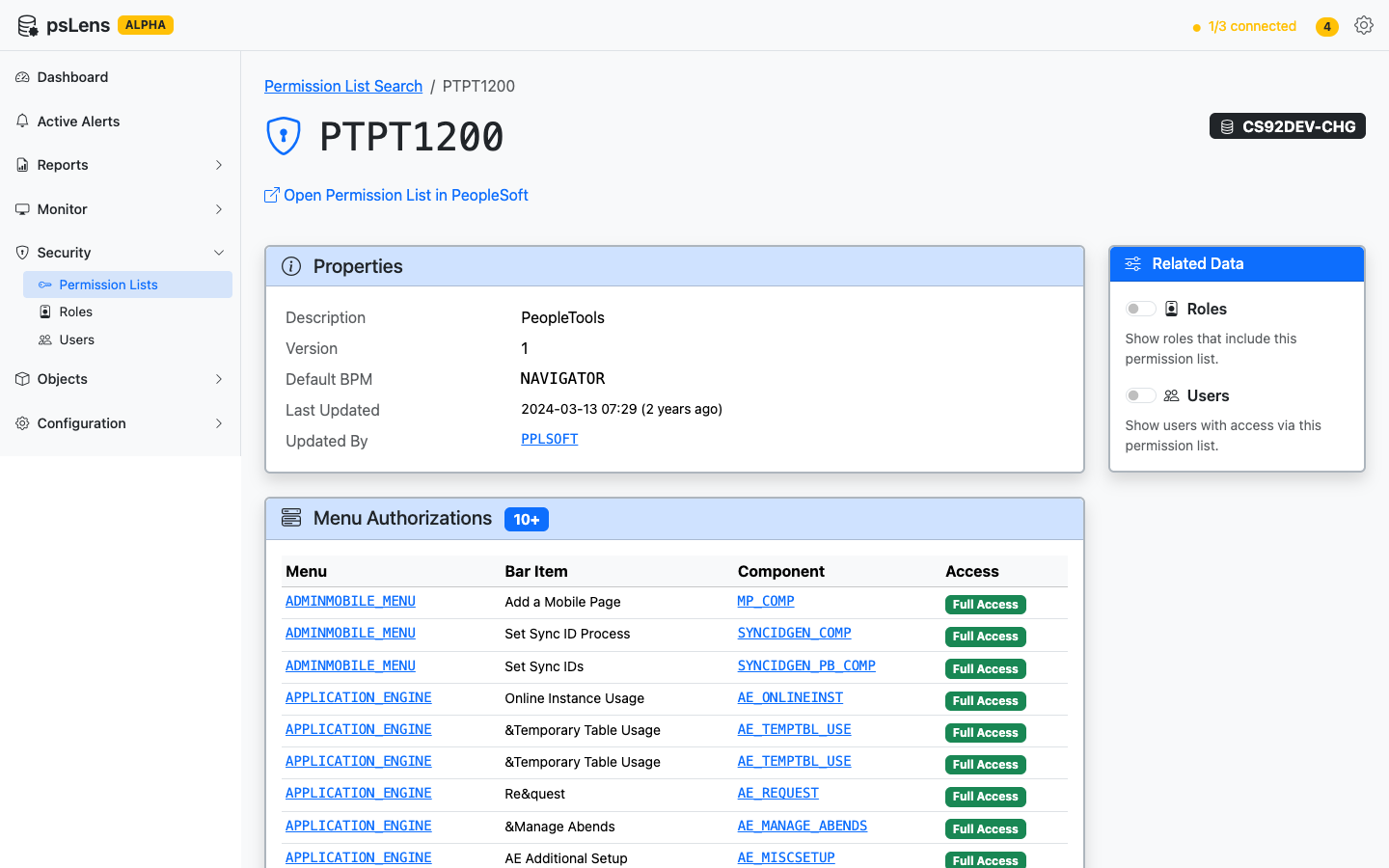
Permission List detail view with properties, menu authorizations, and related data options
1 - Permission Lists
Permission lists (PSCLASSDEFN, sometimes called classes) are the lowest-level grantable security object.
Permission Lists
URL:/permissionlists
Permission lists (PSCLASSDEFN, sometimes called classes) are the lowest-level grantable security object. Every menu, component, page, and function authorization attaches to one.
Walkthrough: Exploring Permission Lists in psLens
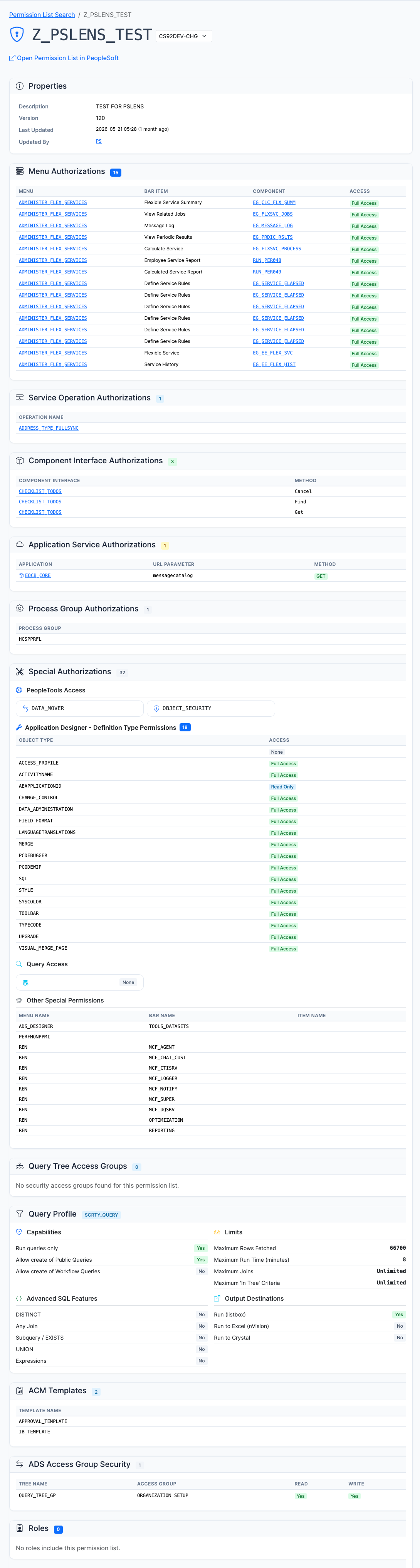
Permission list detail page with the core definition and the access relationships needed for audit work
What You Can Do
View Full Definitions: See description, last modified information, and general settings.
View Authorizations: See which menus and components the permission list authorizes.
Compare Permission Lists (Security Diff Tool): Compare two permission lists across environments (e.g. DEV vs PROD) or within the same database at /permissionlists/compare (accessible from the Security > Compare Permission Lists sidebar menu or search header), analyzing deltas across signon windows, components, action masks, web libraries, service operations, CIs, process groups, and query access groups in a continuous-scroll layout with sticky navigation.
View Assigned Roles: See which roles include this permission list.
Sign-on Settings: View allowed sign-on times and other access constraints.
When It’s Useful
Auditing what access a particular permission list grants before assigning it.
Comparing security configurations between environments to identify permission drift.
Incident response: what could a compromised permission list have touched.
Roles (PSROLEDEFN) are named bundles of permission lists. Users get roles, not permission lists directly.
Roles
URL:/roles
Roles (PSROLEDEFN) are named bundles of permission lists. Users get roles, not permission lists directly.
Walkthrough: Exploring Roles in psLens
Role detail page with the permission lists, users, and aggregate access needed to understand what the role actually grants
What You Can Do
View Included Permission Lists: See the list of permission lists assigned to the role.
View Assigned Users: See which users are assigned this role.
Compare Roles (Cross-Database Diff Tool): Compare two role definitions across databases (or within the same environment) at /roles/compare (accessible from the Security > Compare Roles sidebar menu or search header). Diffs assigned permission lists, assigned users (with dynamic assignment flags), effective aggregate page/menu, web library, service operation, CI, process group, and query access groups, plus process notifications/distributions. Features continuous-scroll layout with sticky navigation, summary metrics, and Markdown export.
View Authorizations: See the aggregated Tools Access, Service Operations, Component Interfaces, Component & Page Access, Query Tree Tables, and Web Libraries granted by the permission lists assigned to the role.
Metadata Inspection: See the role’s description and last modified information.
When It’s Useful
Understanding what an unfamiliar role grants.
Checking whether a role contains permission lists that are unexpectedly broad.
Finding all users who have a particular role.
3 - Users
Users (PSOPRDEFN, historically called operators) are login accounts.
Users
URL:/users
Users (PSOPRDEFN, historically called operators) are login accounts. Each carries a set of roles, a primary permission list, a row-security permission list, and a process profile. Search supports both OPRID and name.
User detail page with the roles, permission lists, account metadata, and recurring jobs needed to review a user’s effective access
What You Can Do
View Assigned Roles: See the roles assigned to a user.
Compare User Profiles (Cross-Database Diff Tool): Compare two user accounts across databases (e.g. DEV vs PROD) or within the same database at /users/compare (accessible from the Security > Compare Users sidebar menu or search header). Analyzes field-by-field profile attributes, user ID aliases (PSOPRALIAS), directly assigned roles, effective permission lists, effective components & pages, web libraries, CIs, service operations, process groups, query access groups, email accounts, portal favorites, and system special-use bindings in a continuous-scroll layout with sticky navigation and Markdown export.
Core Security Attributes: See primary permission list, row security permission list, and process profile.
Account Metadata: View account status (active/inactive), last login, and email address.
Password Settings: See password-related settings (whether a password is set, when it expires).
Recurring Jobs: Check which unique batch processes the user has run on a recurrence schedule.
When It’s Useful
Checking what access a specific user has.
Reviewing user accounts during security audits.
Finding accounts that are inactive but still have broad role assignments.
Investigating who has access to a sensitive area of the system.
4 - Campus Solutions Security
Audit Campus Solutions row-level security grants across user defaults, academic structure, 3C groups, and administrative domain tables.
Campus Solutions Security
Campus Solutions row-level security governs application-level data access for academic institutions, careers, programs, plans, and student administrative domains. Unlike PeopleTools row-security permission lists (PSCLASSDEFN assigned via ROWSECCLASS), Campus Solutions security grants granular row-level data authorizations per user ID (OPRID) across 19 application tables.
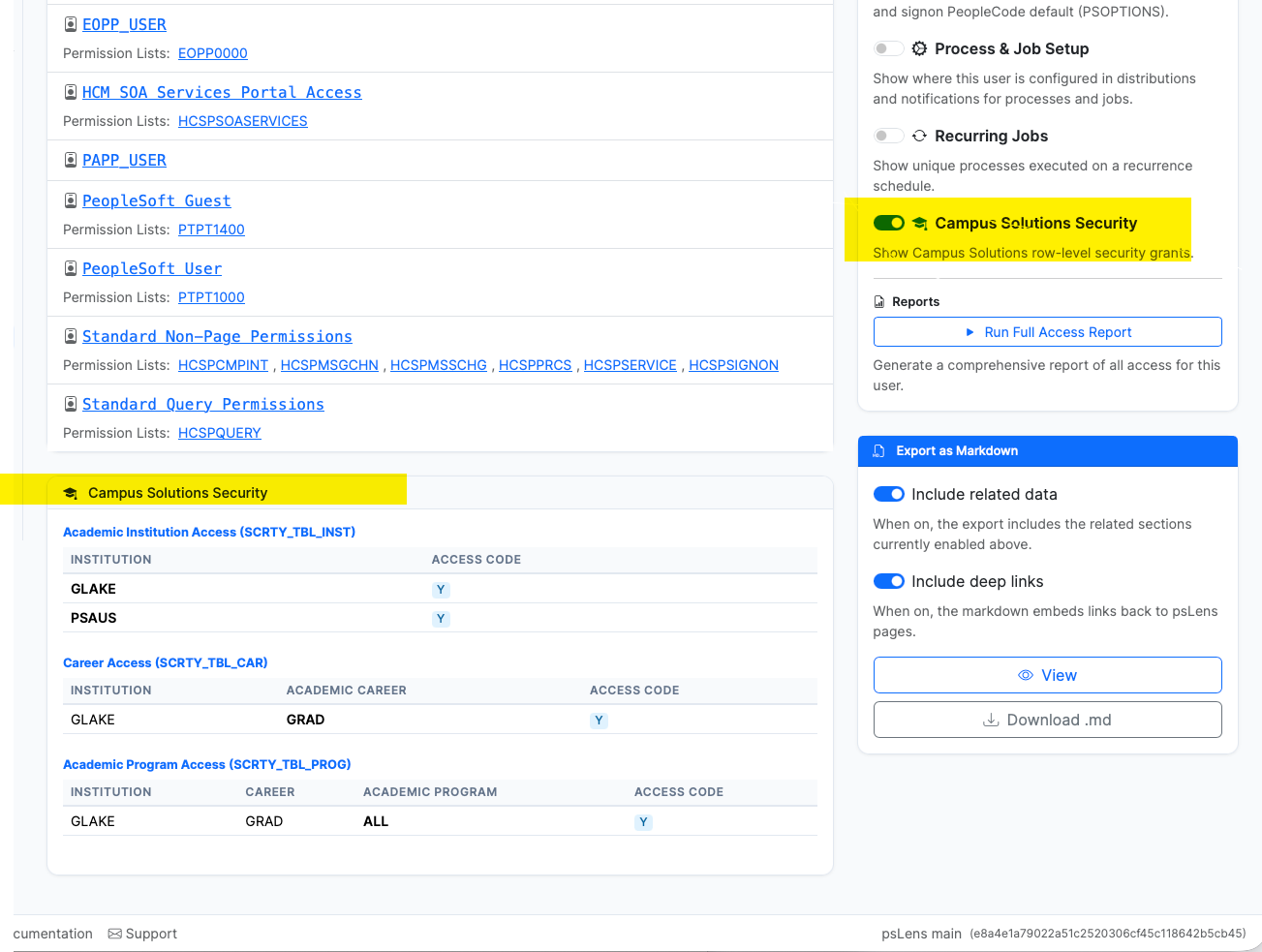
Campus Solutions Security panel on the User detail page with the sidebar toggle enabled
What It Inspects
psLens queries the underlying Campus Solutions security tables to display effective user authorizations inline on the User detail page (/users/{oprid}):
User Defaults (OPR_DEF_TBL_CS, OPR_DEFAULT_TBL): User-level default parameters for Academic Institution, Academic Career, Academic Program, Academic Plan, Term, Aid Year, Business Unit, SetID, Campus, Admission Application Center, and Recruiter Center.
3C Group Security (OPR_GRP_3C_TBL): Administrative access for Checklists, Comments, and Communications 3C security groups.
Student & Administrative Domain Security: Authorizations for Student Groups (SCRTY_TBL_STGP), Service Indicators (SCRTY_TBL_SRVC), Milestones (SCRTY_TBL_MLSTN), Campus (SCC_STY_TBL_CMP), Admissions Actions (SCRTY_ADM_ACTN), Program Actions (SCRTY_PROG_ACTN), Application Centers (SCRTY_APPL_CTR), Recruiting Centers (SCRTY_RECR_CTR), Test Loads (SAD_TEST_SCTY), Transcripts (SCRTY_TSCRPT, SSR_SCRTY_TSRPT), and Advisement Reports (SAA_SCRTY_AARPT).
Access & Export Paths
User Detail Page Toggle: Turn on the Campus Solutions Security switch under Related Data on any user detail page (/users/{oprid}) to fetch and render CS security grants inline.
Full User Access Report: Includes Campus Solutions row-level security tables when generating on-demand or scheduled user access reports.
Markdown Export: Incorporates all active Campus Solutions user defaults and security table grants into the user definition Markdown export (/users/{oprid}/export).
When It’s Useful
Auditing what student data, academic structures, or administrative centers an advisor, registrar staff member, or admissions officer can access.
Verifying user default values (OPR_DEF_TBL_CS) when troubleshooting transaction failures or missing prompt list entries in PIA.
Reviewing effective user access during security audits without querying 19 separate security tables in SQL.