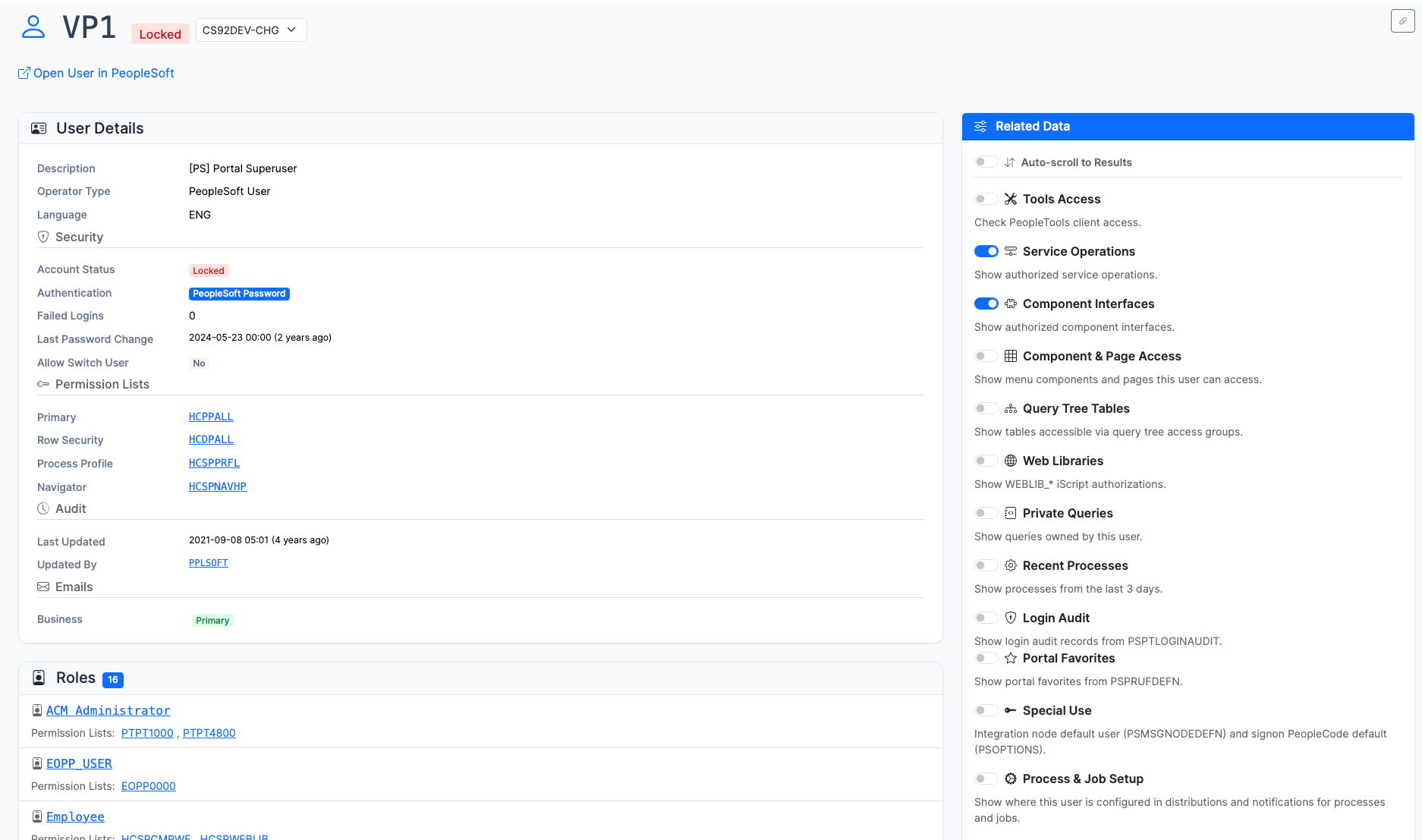
Reports surface permission lists granting access to hundreds of components, nodes without passwords, and web service endpoints anyone with PTPT1000 can call. Trace access from users through roles to permission lists in one screen.
Understand PeopleSoft configuration without needing App Designer or database access. Research components, security setup, and page structure independently.
Stop granting developer tools for research tasks. psLens gives your team read-only access to PeopleSoft object definitions without the security risk of App Designer.
Export PeopleSoft objects to Markdown and feed them to ChatGPT, Claude, or Copilot for code review, documentation, impact analysis, and knowledge transfer.
How PeopleSoft developers use psLens to trace impact before changes, understand unfamiliar customizations, and answer lookups without App Designer.
The Daily Grind
You are working on a customization. You need to check the structure of PSOPRDEFN, find which pages reference a specific record, or look up a Message Catalog entry. So you open a remote desktop session to the App Designer VM, wait for it to connect, launch App Designer, wait for it to load against the database, navigate through menus, and eventually find what you need. Then you do it again. And again.
The lookups are the annoyance. The bigger risk is what you don’t look up: the fourth page that references the record you are about to change, or the self-service role that exposes the component you assumed was internal. In a system customized over fifteen or twenty years, nobody holds the full picture in their head.
Walkthrough: How developers use psLens to speed up daily lookups
How psLens Changes This
What Breaks If I Change This Record?
Before you modify a record, you want the full list of what touches it. In App Designer that is a Find Definition References run: one object at a time, inside a tool session. In psLens, every object page links to its relationships, so the same question is a click:
Records: every field, the key structure, and the pages and components that reference the record
Fields: every record that uses the field, plus translate values
Pages: the components that contain the page and the menu path to reach it
Components: the pages inside, the permission lists that grant access, and the menu navigation
Application Packages: the full class hierarchy
Impact analysis stops being a separate research task and becomes part of reading the object.
Who Can Actually Reach This Component?
The change that hurts is rarely the one that fails in testing. It is the one that works and turns out to be reachable by a role you did not know about. From any component page, psLens shows the permission lists that grant access, the roles that carry them, and the users those roles reach. Check exposure before you ship the change, and confirm it again after the migration.
What Does This Customization Even Do?
Every object page exports to structured Markdown, including PeopleCode. That makes AI tools useful on legacy work:
Export an application package or project and ask Claude or ChatGPT to explain it in plain language
Hand a project’s PeopleCode to an LLM for a code review before the release
Generate a technical spec or onboarding doc from the real definition instead of a stale wiki
psLens does the exporting; the LLM does the reading. Neither step needs App Designer.
Skip the Launch Sequence for Lookups
Type a record name, field name, or any object identifier and results render as you type. Filter to a single object type or search across all of them at once. The minutes you used to spend reaching App Designer become the time it takes to type the name.
Answer a Teammate With a Link
Every object in psLens has a permanent URL. Instead of telling a colleague “look at the DERIVED_HR record in App Designer,” send a link. It works in Jira tickets, code review comments, Slack threads, wiki runbooks, and onboarding materials — and the person on the other end needs a browser, not a VM.
Keep App Designer Access Tight
App Designer is a full development environment. It connects directly to your PeopleSoft database (two-tier), can modify any object, view all PeopleCode, and run arbitrary SQL. That level of access is appropriate for developers who are actively building, not for lookups.
Because App Designer is a Windows-only desktop client that requires specialized network access, most organizations provision dedicated VMs or terminal servers just to run it. That infrastructure needs to be maintained, patched, and secured.
When developers use psLens for day-to-day research, they spend less time in App Designer. That means fewer VM sessions, less infrastructure to maintain, and App Designer access stays scoped to the people who actually need it.
How PeopleSoft security administrators use psLens to audit access, run security reports, and manage permission lists, roles, and users.
The Challenge
PeopleSoft security is complex. Users are assigned to roles. Roles contain permission lists. Permission lists grant access to components, pages, and web services. Understanding who has access to what means tracing through multiple layers, often across dozens of screens or with custom SQL queries.
An overly-broad permission list can expose sensitive data; a forgotten role assignment can give someone access they should not have. Manual review misses both because there is too much to check.
Walkthrough: How security administrators audit access and trace permissions in psLens
How psLens Changes This
Automated Security Reports
psLens includes built-in security audit reports that analyze your configuration and surface findings automatically:
Full Access Report: Identifies permission lists with unusually broad access across components
Nodes Without Passwords: Flags integration nodes configured without authentication
Web Service Access Report: Shows which permission lists can invoke web services and REST endpoints
Reports run in the background and store results for review, download, and sharing. Run them on demand or schedule them as part of your regular audit cycle.
Permission List Deep Dives
Search for any permission list and instantly see:
Component access grants
Page-level permissions within each component
Which roles include this permission list
Which users are ultimately affected
You skip the SQL and the page-by-page click-through.
Role and User Tracing
Start from any direction:
From a user: See all assigned roles and the permission lists they carry
From a role: See which users have it and what permission lists it contains
From a permission list: See which roles use it and which users are affected
Security Chain Visualization
Understanding the full security chain (User > Roles > Permission Lists > Component Access) usually means opening multiple windows and cross-referencing. psLens links everything together — click through the chain from any starting point.
A security review starts from any point in the chain and stays in one linked workflow instead of jumping between tools and SQL
Reduce App Designer Access
One of the simplest ways to improve your security posture is to remove App Designer access from people who only use it for research. Business analysts, functional consultants, auditors, and support staff often have App Designer access because there is no other way to look up PeopleSoft metadata. psLens gives them that capability without the ability to modify objects, run SQL, or connect directly to the database. See Reducing App Designer Access for details.
How PeopleSoft system administrators use psLens to monitor processes, Integration Broker, and get real-time alerts on problems.
The Problem
You find out about problems when users call. A batch process failed overnight. Integration Broker messages have been stuck for hours. A long-running process is blocking the queue. By the time someone notices, the impact has already spread.
Checking manually means logging into PeopleSoft, navigating to Process Monitor or IB Monitor, setting filters, and scanning for issues. Multiply that by the number of environments you manage.
How psLens Changes This
Real-Time Alerts
psLens runs background checks every few minutes and surfaces problems on the dashboard as they happen.
9 built-in alert types:
Long-Running Processes: Jobs running longer than expected thresholds
How business analysts use psLens to understand PeopleSoft configuration, research components, and make informed decisions without developer tools.
The Gap
You need to understand how something works in PeopleSoft. Maybe you are writing requirements for a customization. Maybe you are trying to understand why a process behaves a certain way. Maybe you need to know what data a page collects and where it goes.
But the tools for answering these questions — App Designer, SQL Developer, PeopleSoft’s technical pages — are built for developers. They require licenses, training, and technical knowledge that is outside your role. They are also fragmented: object definitions in App Designer, security in one set of PIA pages, process schedules in another, integrations in a third, each with its own access grant. Nobody hands an analyst all of that just to answer a question. So you ask a developer. They look it up and get back to you later. Or you wait.
Walkthrough: Using psLens to speed up daily lookups
How psLens Changes This
Self-Service Research
psLens gives you a web browser interface to explore PeopleSoft configuration without needing developer tools or database access. Search for any object by name and see its definition, structure, and relationships.
You don’t need an App Designer license, SQL skills, or a developer’s time.
This also means you do not need App Designer access just to research metadata. App Designer is a full development tool: it can modify objects, run SQL, and connect directly to the database. Granting it for research gives people far more access than they need. psLens provides the research capabilities without that risk. See Reducing App Designer Access for the full picture.
See the Parts App Designer Never Showed
Analyst questions usually cross tool boundaries: what data does this page collect, who can see it, and where does it go? Even a developer with full App Designer access cannot answer all three from one tool, because security, scheduling, and integration configuration live in separate PIA administration pages. psLens puts them in one place:
Security: trace User > Role > Permission List > Component without access to any PIA security pages
Schedules: see process definitions, recurrences, and run history to answer “when does this run, and did it?”
Integrations: follow nodes, service operations, and routings to answer “where does this data go?”
Queries: read a query’s SQL without Query Manager access, which would also let you run queries against live data
Understand Page and Component Structure
Need to know what fields are on a page? What record drives a component? Which menu path leads to it? Search for the component or page name in psLens and see:
The pages within a component
The records and fields on each page
The menu navigation path
The security (permission lists and roles) that control access
Research Security Configuration
When you need to understand who can access what:
Search for a user and see their roles
Search for a role and see its permission lists
Search for a permission list and see what it grants access to
Trace the full chain without asking anyone for help
Share What You Find
psLens deep links let you share a direct URL to any PeopleSoft object. Include links in your requirements documents, Jira tickets, or emails. When someone clicks the link, they see exactly what you are referencing, no instructions needed.
Export to Markdown for inclusion in documentation, presentations, or analysis.
Bridge the Communication Gap
One of the hardest parts of working with PeopleSoft is the gap between business needs and technical implementation. psLens helps bridge that gap by giving non-technical team members visibility into the technical side:
Understand what fields exist on a record before writing requirements
See how components are structured before requesting changes
Review security configuration before requesting access changes
Cite “PS_PERSONAL_DATA, field BIRTHDATE” in a Jira ticket and paste the psLens deep link, so the developer does not have to guess which page you meant
Common BA Tasks in psLens
Task
What You See
Research a component
Pages, records, fields, menu path, security
Understand a record
All fields with types, keys, descriptions, and labels
Check who has access
User > Role > Permission List > Component chain
Understand an integration
Nodes, service operations, routings, and queues
See when a process runs
Process definitions, schedules, and run history
Document a process
Export object definitions to Markdown
Write requirements
Reference exact field names, record structures, and component layouts
Why granting App Designer access for metadata research creates unnecessary risk, and how psLens provides a safer alternative with read-only browsing.
The Problem
Someone on the team needs to look something up in PeopleSoft. Maybe a business analyst is writing requirements and needs to see what fields are on a record. Maybe an auditor needs to understand how security is configured. Maybe a functional consultant needs to trace a component’s menu path.
The default answer is: give them App Designer.
This happens because App Designer is the only tool that lets you browse PeopleSoft object definitions. There is no read-only alternative built into PeopleSoft. So people who only need to look things up end up with the same tool that developers use to build and modify the application.
Walkthrough: Replacing App Designer with psLens for read-only metadata lookups
What App Designer Access Actually Grants
App Designer is a full development environment. When you give someone App Designer access, you are giving them the ability to:
Open and modify any object definition: records, pages, components, Application Engine programs, PeopleCode, and more
View all PeopleCode source across the entire application
Use SQL Editor to run arbitrary queries directly against the database
Create and migrate projects between environments
Connect directly to the database. App Designer requires a two-tier connection, which means the user’s workstation has network-level access to the database server.
Require specialized infrastructure. Because of the two-tier connectivity requirement, organizations often provision dedicated virtual machines or terminal servers just so users can run App Designer. That is additional infrastructure to maintain, patch, and secure, all so someone can look something up.
And critically: App Designer activity is difficult to audit. There is no built-in log of which objects a user opened, viewed, or modified through the tool. You are trusting that users will only do what they are supposed to do, with no way to verify.
App Designer Was Never the Whole Picture
App Designer covers development objects: records, pages, components, PeopleCode. A large part of what research users actually ask about was never in App Designer at all. Security configuration (user profiles, roles, permission lists), Integration Broker nodes and service operations, Process Scheduler definitions and run history, queries, and portal content references all live in PIA administration pages.
That creates a second access problem. The PIA components that display this configuration are, for the most part, the same components that edit it. Granting “just read” access means configuring and maintaining display-only settings across dozens of components, and some of those pages are risky on their own: Query Manager access to read a query’s SQL also grants the ability to run queries against application data.
psLens covers both halves in one read-only interface. An analyst can read a record definition, trace the security chain that guards it, see which process populates it, and read the SQL of the query that reports on it, without holding App Designer, PIA admin pages, or Query Manager.
The Principle of Least Privilege
Least privilege is straightforward: give people the minimum access they need to do their job. If someone needs to look up a record definition, they should not need a tool that can also modify that record, run SQL against the database, and view every line of PeopleCode in the system.
This is not a theoretical concern. Internal and external auditors (SOX, SOC 2, and others) increasingly ask about developer tool access:
Who has App Designer access?
Why do they have it?
What controls exist to prevent misuse?
When the answer is “they have it because they need to look things up and there is no other way,” that is a gap psLens removes by giving the same researchers a read-only browser UI with no SQL, no PeopleCode write access, and no database connection.
How psLens Compares
Capability
App Designer
psLens
View object definitions
Yes (plus can modify)
Yes (read-only)
View PeopleCode source
Yes
Yes (read-only)
View users, roles, and permission lists
No, separate PIA admin pages
Yes (read-only)
View Process Scheduler and IB configuration and runtime
No, separate PIA pages
Yes (read-only)
Modify PeopleSoft objects
Yes
No, by design
Run SQL queries
Yes (SQL Editor)
No
Database connectivity
Direct two-tier connection
None, uses web services API
Infrastructure
Desktop client, often a dedicated VM or terminal server
License savings. PeopleTools client licenses are not free. Every user who moves from App Designer to psLens is a license you do not need to maintain.
No desktop installation or VM access. App Designer requires installation on a workstation or access to a dedicated virtual machine or terminal server. psLens runs in any browser, no specialized infrastructure needed.
Immediate productivity. New team members can start researching PeopleSoft configuration on their first day. No App Designer training, no connectivity setup, no waiting for access provisioning.
Access from anywhere. psLens is a web application. No VPN or direct database connectivity required (depending on your network configuration).
Who This Applies To
Any role that uses App Designer primarily for research rather than development:
Business Analysts: researching components, records, and page structures for requirements
Functional Consultants: understanding configuration and tracing security chains
Auditors: reviewing security setup, permission lists, and access grants
Support Analysts: looking up object definitions during incident investigation
Project Managers: understanding scope and impact of proposed changes
New Team Members: learning the system during onboarding
If they are not writing PeopleCode or building projects, they probably do not need App Designer.
How psLens exports PeopleSoft metadata as Markdown so AI and LLM tools like ChatGPT and Claude can read objects, code, and projects.
The Problem: PeopleSoft Is a Black Box to AI
PeopleSoft hides its source code from the filesystem. Object definitions live in a relational database, not in files. PeopleCode is embedded in the runtime, not on a filesystem where tools can read it. There are no Git repositories, no IDEs with language server support, no standard ways to extract metadata programmatically.
This means AI tools like ChatGPT, Claude, and Copilot cannot see your PeopleSoft system. They have general knowledge of PeopleTools concepts, but they have no way to read your specific records, your PeopleCode, your component structure, or your security configuration. You cannot point an LLM at your PeopleSoft environment and ask it to help.
Unless you can get the data out first.
How psLens Exports PeopleSoft for AI
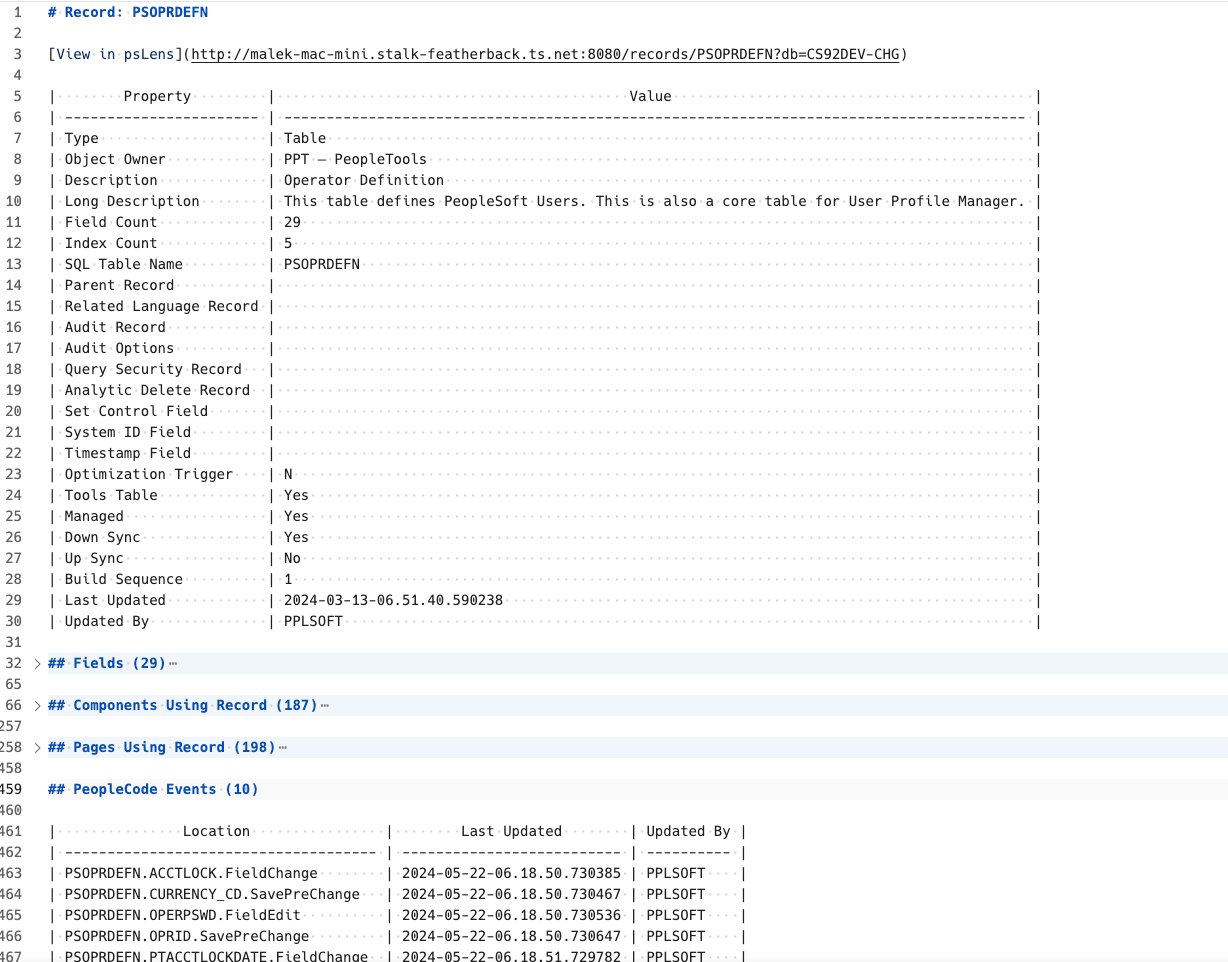
psLens exports PeopleSoft object definitions to structured Markdown. Every object type has a one-click export, and the output works in two places:
Web chat boxes like ChatGPT and Claude. Paste the Markdown into the conversation and the model reads the full object definition with structure preserved.
Local AI coding agents like Claude Code, Cursor, and Aider. Save the export as a file in your project and the agent reads it as context the same way it reads any other source file.
Both paths use the same Markdown artifact. Pick whichever your team already works in.
See the Artifact Before You Install
If you want to inspect the kind of plain-text output psLens produces before deploying anything, start with Sample Report Output. Those files are real exported Markdown documents from a development environment, with only hostnames and service-account names changed.
The export is structured Markdown, not a flat text dump, so AI tools keep the hierarchy, tables, and code context intact
What You Can Export
Object Type
What the Export Contains
Records
Field definitions, types, keys, lengths, descriptions, labels, sub-records, SQL definitions, related pages, PeopleCode events, project membership
Fields
Field metadata, translate values, labels, records using the field, PeopleCode references
Pages
Controls and fields, records used, subpages, parent pages, components using the page, PeopleCode events
Components
Pages, menu paths, portal navigation, search records, component interfaces, PeopleCode events, related records
Projects
All project items with counts, PeopleCode source inline, SQL definitions, stylesheets, HTML objects — everything in one document
Application Packages
Package hierarchy, all PeopleCode by class, service operations, references
PeopleCode
Full source code for any PeopleCode program, organized by event or method
Exports include links between related objects so the AI can understand how things connect, not just what a single object looks like in isolation.
Recursive Reference Resolution
For objects containing PeopleCode (such as records, components, application packages, or app engines), enabling Recursively resolve imports in the export card instructs psLens to scan the source code for:
Application Class imports (e.g. import PACKAGE:SubPackage:Class;)
External function declarations (e.g. Declare Function Name PeopleCode RECORD.FIELD Event;)
The exporter fetches the source code for each referenced package class and declared function from the database. It appends the resolved code to a ## Resolved PeopleCode References section at the end of the document. This generates a self-contained snapshot containing both the primary object and all its dependencies, providing the complete context required by AI models without manual retrieval.
What You Can Do With It
Code Review and Analysis
Export a project or application package and ask an LLM to:
Review PeopleCode for bugs, performance issues, or security concerns
Explain what a complex Application Engine does step by step
Identify unused variables, dead code paths, or redundant logic
Compare coding patterns across different programs
Flag SQL injection risks or other vulnerabilities in PeopleCode
PeopleSoft developers have always done code review by reading PeopleCode in App Designer one program at a time. With psLens exports, you can hand an entire project’s worth of code to an AI and get a full review in minutes.
Technical Documentation
Export objects and ask an LLM to generate:
Technical specification documents for existing customizations
Data dictionary entries from record and field exports
Component documentation including page flow, security, and data relationships
Migration guides based on project contents
Onboarding documentation for new team members unfamiliar with a module
This is especially valuable for undocumented customizations — the ones everyone is afraid to touch because nobody remembers what they do or why they exist.
Impact Analysis
Before making a change, export the relevant objects and ask an LLM:
“What would break if I added a field to this record?”
“Which components and pages use this record?”
“What PeopleCode references this field?”
“If I change this Application Engine step, what downstream effects should I test?”
psLens exports include the relationship data that makes this possible: which pages use a record, which components include a page, which projects contain an object, and where PeopleCode references exist.
Knowledge Transfer
PeopleSoft environments accumulate decades of customizations. The people who built them leave. Documentation is incomplete or nonexistent. New team members struggle to understand what exists and why.
Export key objects and projects to Markdown and use an LLM to:
Generate summaries of what a customization does and why it might exist
Create Q&A-style knowledge base articles from raw object definitions
Translate technical PeopleSoft structures into plain language for non-technical stakeholders
Build training materials from actual system configuration
Upgrade and Migration Planning
When preparing for a PeopleTools upgrade or a move to PeopleSoft Cloud:
Export projects containing customizations and ask an LLM to assess upgrade risk
Identify PeopleCode patterns that may be deprecated in newer PeopleTools versions
Generate a catalog of all custom objects with descriptions and dependencies
Compare pre- and post-migration exports to verify nothing was lost
Security Analysis
Export permission lists, roles, and security configuration and ask an LLM to:
Identify permission lists with unusually broad access
Find roles that combine conflicting duties (separation of concerns)
Generate audit-ready documentation of who has access to what
Recommend security consolidation opportunities
Using Exports With Local AI Coding Agents
The same Markdown export that works in a chat box works as a context file for a local agent. The usage pattern is:
Open the object detail page in psLens and click Export as Markdown. The file lands in your downloads folder.
Move it into the workspace your agent has access to. For Claude Code or Cursor, that is typically the repo you have open. A context/peoplesoft/ folder is a useful convention.
Reference the file in your prompt. For example, in Claude Code: Review @context/peoplesoft/PROJECT_HCM_CUST.md and flag any PeopleCode that does unbounded SQL. The agent reads the file as part of the conversation context.
This pattern works for any agent that reads files: Claude Code, Cursor, Aider, Continue, the local-MCP-host model in your IDE. The agent gets the same structured definition a chat user would paste, with the same one-click export workflow on the psLens side.
For repeated work against the same set of objects (a customization you maintain, an Application Engine you keep reviewing), keep the exported file in version control alongside the agent’s other context.
Why Markdown Matters
LLMs work best with structured text. Markdown gives them:
Clear hierarchy: headings, sections, and subsections that establish context
Tabular data: field definitions, metadata, and relationships in a format LLMs parse well
Inline code: PeopleCode and SQL in fenced code blocks that LLMs recognize as code
Links and references: relationships between objects that provide the context an LLM needs to give useful answers
Other export formats (CSV, PDF, screenshots) lose structure, context, or both. Markdown preserves everything.
The PeopleSoft AI Gap
Most enterprise platforms have moved toward open formats, APIs, and file-based source code that AI tools can access natively. PeopleSoft has not. Its metadata is locked in database tables, its source code is embedded in the runtime, and its object definitions require App Designer or direct SQL to access.
psLens bridges that gap. It reads PeopleSoft metadata through web services and exports it in the format that AI tools consume best. Your team does not need database access, App Designer, or custom SQL to feed PeopleSoft data to an LLM. They just click export.
Live AI Access: Embedded MCP Server
The export-and-paste workflow above works with any chat interface or file-based tool. To enable direct, autonomous agent workflows, psLens includes an embedded Model Context Protocol server.
The MCP server runs natively inside psLens over Streamable HTTP and HTTP+SSE. It exposes 20+ specialized tools across metadata exploration (search_objects, get_object_definition, get_peoplecode), security graphs (user_access_summary, who_has_access), and operational incident triage (get_system_health, triage_process_scheduler, triage_integration_broker). See the MCP Server Guide for configuration instructions and tool catalogs.