Announcing the psLens Chrome Extension: Live PeopleSoft Metadata and Security Inside PIA
Categories:
If you develop or support PeopleSoft applications, you switch between two completely different worlds dozens of times a day: Application Designer (or SQL query tools) on your workstation, and PIA in your browser.
You see a field or an access question on a live page and need answers fast:
- What record and field backs this input?
- What is its prompt or edit table?
- Which permission lists grant access to this component?
- Who has Display Only versus Full Access?
Usually that means firing up App Designer over a 2-tier connection, opening the page or component definition, or running manual queries against PSAUTHITEM and PSROLECLASS.
Today, the psLens Chrome Extension is available on the Chrome Web Store. It brings live PeopleSoft metadata, component security audits, and field inspection into Chrome’s side panel right beside your active PIA tab.
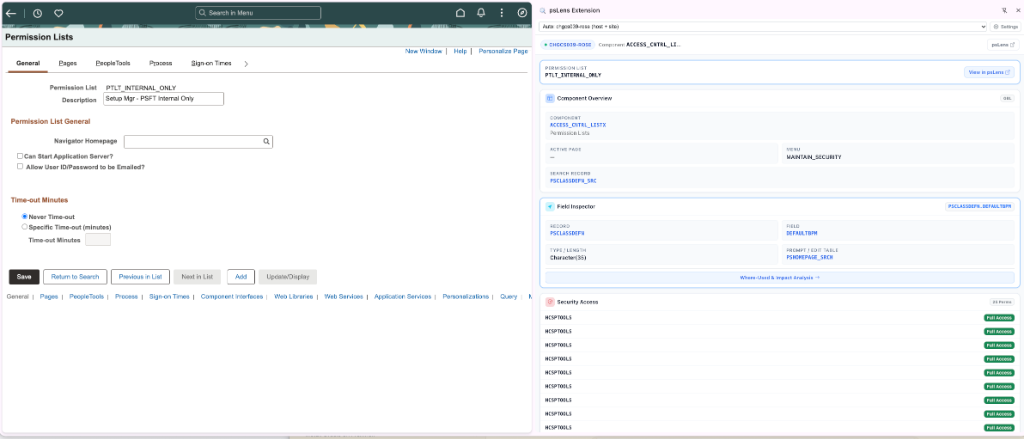
The psLens Chrome Extension running in Chrome’s side panel alongside the PeopleSoft Permission Lists component.
What It Does
The extension is a lightweight Manifest V3 client that pairs with your self-hosted psLens instance. Open a PeopleSoft component in Chrome and the side panel gives you immediate context without leaving the page.
Instant Component Security & Overview
Opening the side panel on any PeopleSoft component shows:
- Component Overview: Component name, description, active page, menu, market, and search record, with direct links into psLens.
- Direct Object Shortcuts: On PeopleTools security and Integration Broker setup pages (
USERMAINT,ROLEMAINT,ACCESS_CNTRL_LISTX,IB_SERVICE,IB_NODE), a View in psLens card jumps straight to that object’s detail page. - Security Access: Permission lists granting access to the component, clearly labeled Full Access vs. Display Only, plus a one-click jump to the full security and user audit in psLens.
- Component Pages: Every page in the component (including hidden pages) linked directly to its page definition.
In-Page Field Inspector (Option-Click)
Need the record and field behind an on-screen control?
- Hold Option (⌥) on macOS (or Alt on Windows/Linux) and hover over any input, dropdown, checkbox, or field label in PIA.
- A blue highlight and floating badge immediately show the underlying PeopleTools name (for example,
PSCLASSDEFN.DEFAULTBPMorSTDNT_ENRL.ENRL_STATUS_REAS [row 0]). - Click while holding Option/Alt: The side panel pins that field, showing its record, field name, data type and length, prompt/edit table, and field label.
- Click Where-Used & Impact Analysis to open the full blast radius in psLens across PSQueries, Application Engines, PeopleCode events, and COBOL SQL.
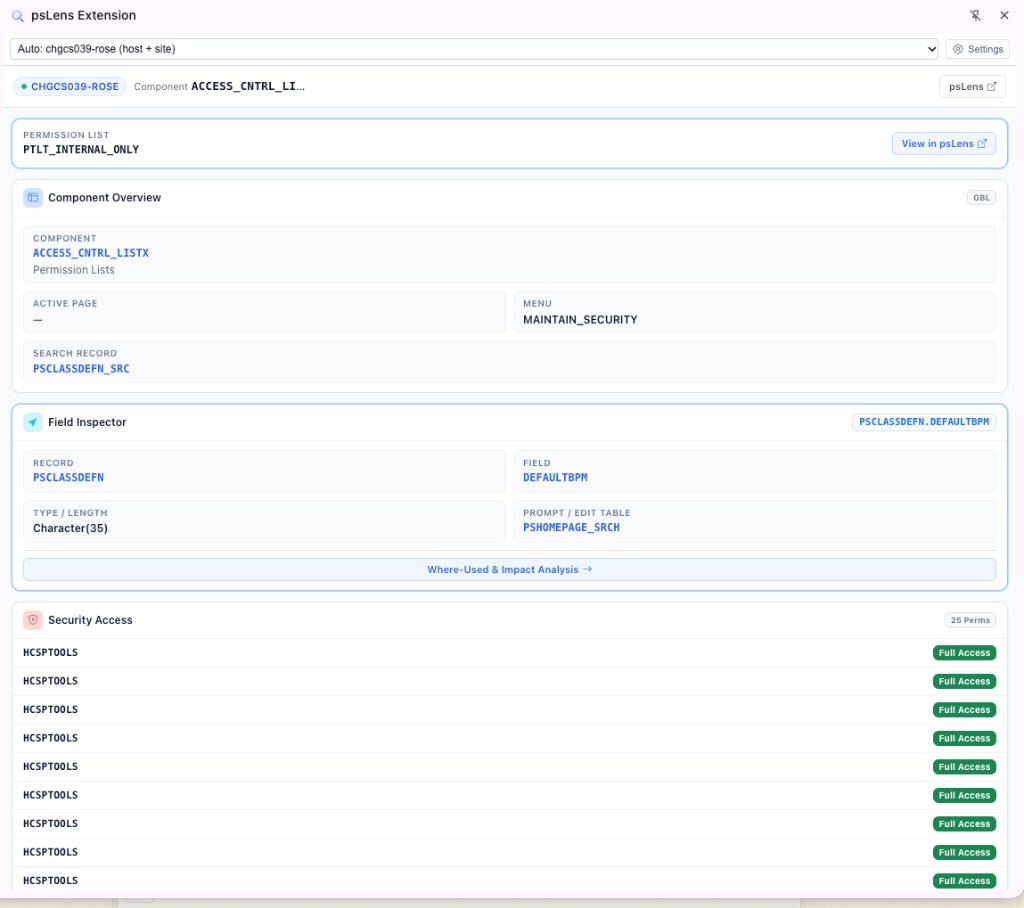
Close-up of the psLens side panel showing auto-matched database context, component overview, pinned PSCLASSDEFN.DEFAULTBPM field definition, prompt table, and Security Access list.
Multi-Database Auto-Matching
Most PeopleSoft teams juggle multiple instances (DEV, TEST, QA, PROD). The extension reads your configured environments and local PIA node URIs (PSMSGNODEDEFN) from psLens and automatically matches each browser tab to the right database. Need to compare a DEV page against PROD metadata? Switch the target database from the selector at the top of the side panel at any time.
Enterprise Privacy & Security Boundary
Browser extensions in enterprise ERP environments require clear, auditable boundaries:
- Zero Transactional Data Ingestion: The extension never reads, stores, or transmits form inputs, student records, employee data, or FERPA/HIPAA data.
- DOM ID Only for Field Inspection: The field inspector reads only the HTML element
idattribute (such asPSCLASSDEFN_DEFAULTBPM) to resolve PeopleTools record and field names. - Explicit 5-Key Metadata Allowlist: To power the View in psLens card on PeopleTools setup pages, the content script reads text only from five exact display-only metadata IDs (
PSOPRDEFN_OPRID,PSROLEDEFN_ROLENAME,PSCLASSDEFN_CLASSID,PSOPERATION_IB_OPERATIONNAME,PSMSGNODEDEFN_MSGNODENAME). No other page text is ever read. - Private Traffic Only: All communication happens exclusively between your browser and your own psLens deployment using your authenticated session. No third-party servers or telemetry exist.
Getting Started
- Install the Extension: Add it from the Chrome Web Store (air-gapped teams can also download the
.zipfrom Tools > Chrome Extension in psLens). - Connect to Your Server: In the Extension Options page, sign in to psLens in the same Chrome profile, enter your psLens URL, and click Save & Connect.
- Inspect PIA: Open any PeopleSoft component in Chrome, click the psLens toolbar icon to open the side panel, and hold Option/Alt to inspect fields.
For complete setup instructions, see the Chrome Extension Documentation.