# Announcing the psLens Chrome Extension: Live PeopleSoft Metadata and Security Inside PIA

> Inspect component security, verify which permission lists grant access, and Option-click any field to see its definition and impact analysis right beside your live PeopleSoft page.

---

Site [llms.txt](/llms.txt)

---

If you develop or support PeopleSoft applications, you switch between two completely different worlds dozens of times a day: **Application Designer** (or SQL query tools) on your workstation, and **PIA** in your browser.

You see a field or an access question on a live page and need answers fast:
- *What record and field backs this input?*
- *What is its prompt or edit table?*
- *Which permission lists grant access to this component?*
- *Who has Display Only versus Full Access?*

Usually that means firing up App Designer over a 2-tier connection, opening the page or component definition, or running manual queries against `PSAUTHITEM` and `PSROLECLASS`.

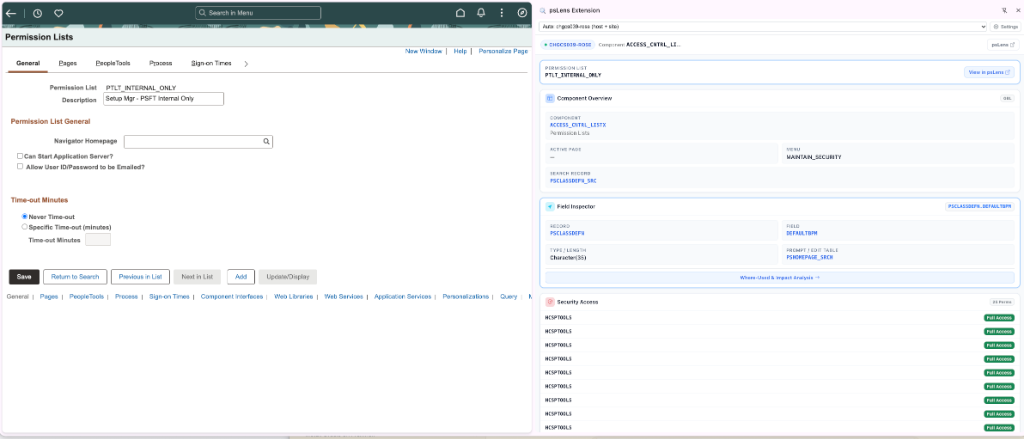
Today, the **psLens Chrome Extension** is available on the [Chrome Web Store](https://chromewebstore.google.com/detail/pslens-extension/emodjpdjnhhcbgjlbjfhjpebbmpjaglh). It brings live PeopleSoft metadata, component security audits, and field inspection into Chrome's side panel right beside your active PIA tab.

<figure><img src="/images/screenshots/extension/pia-side-panel-overview.png"
			alt="psLens Chrome Extension running alongside PeopleSoft PIA"><figcaption>
			<p>The psLens Chrome Extension running in Chrome&rsquo;s side panel alongside the PeopleSoft Permission Lists component.</p>
		</figcaption>
</figure>


## What It Does

The extension is a lightweight Manifest V3 client that pairs with your self-hosted psLens instance. Open a PeopleSoft component in Chrome and the side panel gives you immediate context without leaving the page.

### Instant Component Security & Overview

Opening the side panel on any PeopleSoft component shows:
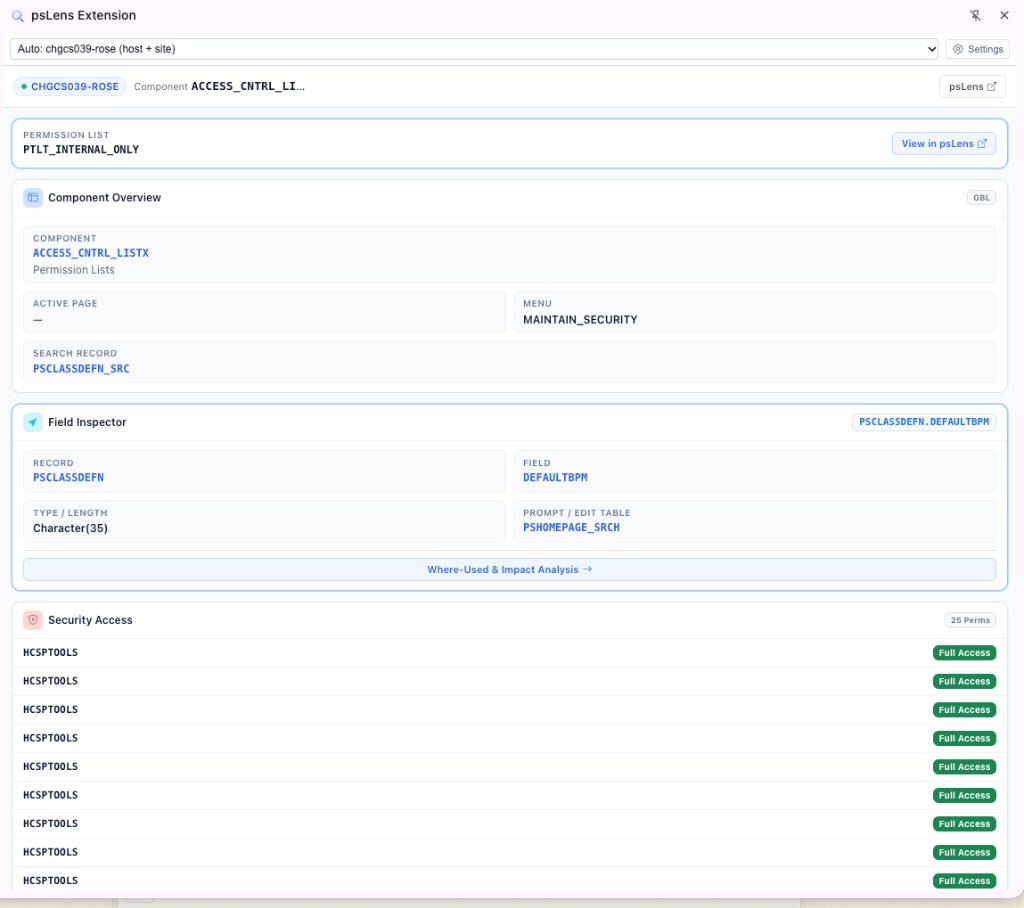
- **Component Overview:** Component name, description, active page, menu, market, and search record, with direct links into psLens.
- **Direct Object Shortcuts:** On PeopleTools security and Integration Broker setup pages (`USERMAINT`, `ROLEMAINT`, `ACCESS_CNTRL_LISTX`, `IB_SERVICE`, `IB_NODE`), a **View in psLens** card jumps straight to that object's detail page.
- **Security Access:** Permission lists granting access to the component, clearly labeled **Full Access** vs. **Display Only**, plus a one-click jump to the full security and user audit in psLens.
- **Component Pages:** Every page in the component (including hidden pages) linked directly to its page definition.

### In-Page Field Inspector (Option-Click)

Need the record and field behind an on-screen control?

1. Hold **Option (⌥)** on macOS (or **Alt** on Windows/Linux) and hover over any input, dropdown, checkbox, or field label in PIA.
2. A blue highlight and floating badge immediately show the underlying PeopleTools name (for example, `PSCLASSDEFN.DEFAULTBPM` or `STDNT_ENRL.ENRL_STATUS_REAS [row 0]`).
3. **Click while holding Option/Alt:** The side panel pins that field, showing its record, field name, data type and length, prompt/edit table, and field label.
4. Click **Where-Used & Impact Analysis** to open the full blast radius in psLens across PSQueries, Application Engines, PeopleCode events, and COBOL SQL.

<figure><img src="/images/screenshots/extension/side-panel-details.jpg"
			alt="psLens Chrome Extension side panel close-up"><figcaption>
			<p>Close-up of the psLens side panel showing auto-matched database context, component overview, pinned PSCLASSDEFN.DEFAULTBPM field definition, prompt table, and Security Access list.</p>
		</figcaption>
</figure>


### Multi-Database Auto-Matching

Most PeopleSoft teams juggle multiple instances (`DEV`, `TEST`, `QA`, `PROD`). The extension reads your configured environments and local PIA node URIs (`PSMSGNODEDEFN`) from psLens and automatically matches each browser tab to the right database. Need to compare a `DEV` page against `PROD` metadata? Switch the target database from the selector at the top of the side panel at any time.

## Enterprise Privacy & Security Boundary

Browser extensions in enterprise ERP environments require clear, auditable boundaries:

- **Zero Transactional Data Ingestion:** The extension never reads, stores, or transmits form inputs, student records, employee data, or FERPA/HIPAA data.
- **DOM ID Only for Field Inspection:** The field inspector reads only the HTML element `id` attribute (such as `PSCLASSDEFN_DEFAULTBPM`) to resolve PeopleTools record and field names.
- **Explicit 5-Key Metadata Allowlist:** To power the **View in psLens** card on PeopleTools setup pages, the content script reads text only from five exact display-only metadata IDs (`PSOPRDEFN_OPRID`, `PSROLEDEFN_ROLENAME`, `PSCLASSDEFN_CLASSID`, `PSOPERATION_IB_OPERATIONNAME`, `PSMSGNODEDEFN_MSGNODENAME`). No other page text is ever read.
- **Private Traffic Only:** All communication happens exclusively between your browser and your own psLens deployment using your authenticated session. No third-party servers or telemetry exist.

## Getting Started

1. **Install the Extension:** Add it from the [Chrome Web Store](https://chromewebstore.google.com/detail/pslens-extension/emodjpdjnhhcbgjlbjfhjpebbmpjaglh) (air-gapped teams can also download the `.zip` from **Tools > Chrome Extension** in psLens).
2. **Connect to Your Server:** In the Extension Options page, sign in to psLens in the same Chrome profile, enter your psLens URL, and click **Save & Connect**.
3. **Inspect PIA:** Open any PeopleSoft component in Chrome, click the psLens toolbar icon to open the side panel, and hold Option/Alt to inspect fields.

For complete setup instructions, see the [Chrome Extension Documentation](/docs/tools/chrome-extension/).