Installation
Categories:
The psLens web application connects to your PeopleSoft environments with a limited version of our SWS framework.
You will install a PeopleSoft Application Designer project (CHG_PSLENS) with two web services that expose a REST API for reading data from PeopleSoft tables. psLens calls the web services instead of talking to the database directly. Most of the work is performed by the CHG_PSLENS_SWSPQL service operation. There is a secondary service operation, CHG_PSLENS_METADATA_GET, that returns miscellaneous metadata about the PeopleSoft environment that cannot be read from the database tables and relies on proprietary PeopleCode functions.
We do NOT deliver the full SWS framework to customers for psLens. The full SWS framework is a commercial product that includes a query language, a web service framework, and a set of tools for building and managing REST APIs on top of PeopleSoft. psLens uses a small subset of the SWS framework to read data from PeopleSoft tables.
This installation guide assumes that Cedar Hills Group, Inc. is hosting the psLens web application. If you are hosting psLens yourself, please see Deployment Options for instructions on how to install and configure psLens in your own environment. The option where we host psLens is the simplest and fastest way to get started, and is the recommended option for most customers.
%%{init: {"flowchart": {"htmlLabels": true, "padding": 16, "nodeSpacing": 60, "rankSpacing": 80, "subGraphTitleMargin": {"top": 10, "bottom": 14}}}}%%

flowchart LR

  subgraph EXT["Cedar Hills Group hosted <br/>or your own infrastructure"]
    psLens[psLens Web Application]
  end
  subgraph PS["Your PeopleSoft Infrastructure"]
    IB.DEV["DEV Integration Broker"]
    DB.DEV[("DEV PeopleSoft DB<br/>read-only<br/>whitelisted tables")]
    IB.DEV --> DB.DEV
    IB.TST["TST Integration Broker"]
    DB.TST[("TST PeopleSoft DB<br/>read-only<br/>whitelisted tables")]
    IB.TST --> DB.TST
    IB.PROD["PROD Integration Broker"]
    DB.PROD[("PROD PeopleSoft DB<br/>read-only<br/>whitelisted tables")]
    IB.PROD --> DB.PROD
end

  psLens -->|SWS https| IB.DEV
  psLens -->|SWS https| IB.TST
  psLens -->|SWS https| IB.PROD
The high-level installation steps are:
- You will be given a zip file containing the
CHG_PSLENSApplication Designer project. - Import the project into your PeopleSoft DEV environment. Detailed instructions are included below.
- Run the “whitelist” inserts to allow psLens to read the tables it needs. Detailed instructions are included below.
- Configure the required service account for psLens API access and grant it the required permissions to read the tables psLens uses. Detailed instructions are included below.
- Ensure that your instance of psLens can reach the PeopleSoft Integration Gateway. This often requires a firewall rule to allow the psLens server to reach the PeopleSoft Integration Gateway on port 443 (or your configured port).
- Work with Cedar Hills Group to configure the psLens web application to connect to your PeopleSoft environments.
PeopleSoft Project Installation
You will repeat these steps for each PeopleSoft environment you want to connect to psLens (DEV, TST, PROD). We recommend starting with DEV first, then TST, then PROD. The steps are the same for each environment. You can follow your standard change management process for importing the project into TST and PROD.
- You will be given a zip file containing the
CHG_PSLENSApplication Designer project. - Using Application Designer, import the project into your PeopleSoft environment.
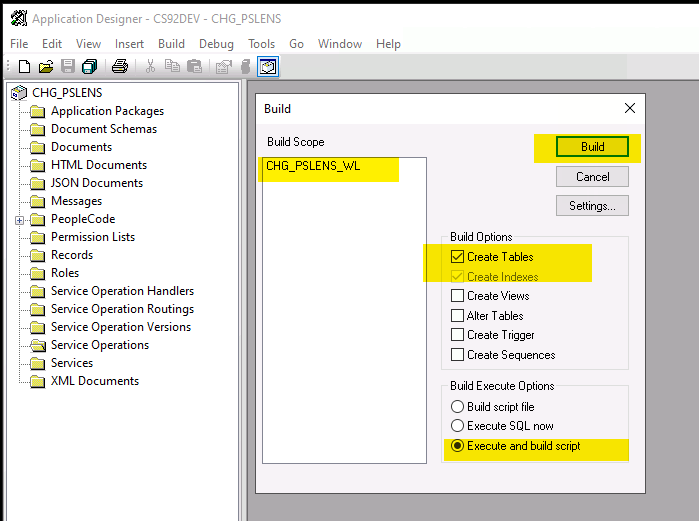
- After importing the project, you need to build the CHG_PSLENS_WL table.
- This holds the list of whitelisted tables that psLens can read. You will run the whitelist inserts to populate this table.
Build
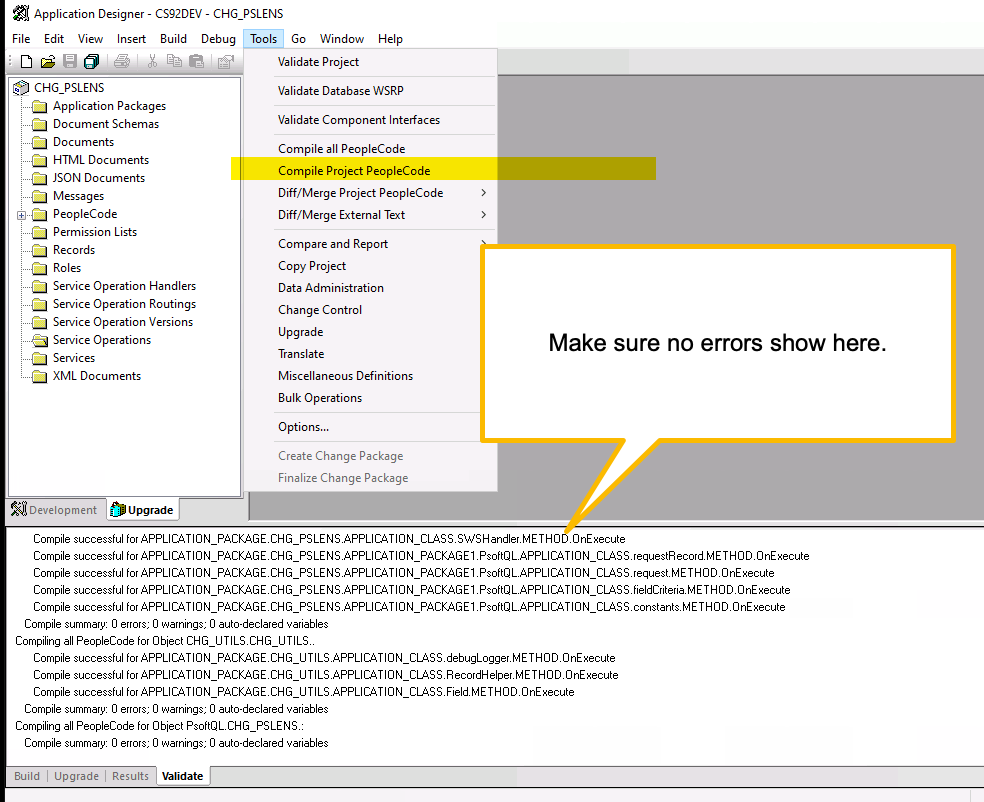
- Compile all the project PeopleCode to ensure that the project was fully imported. There should be no errors. If there are errors, please contact Cedar Hills Group for assistance or try to re-import the project.
Compile
Whitelist Inserts
You will need to run the whitelist inserts to allow psLens to read the tables it needs. Please see the Whitelist Tables page for the full list of inserts. You will need to run these inserts in each PeopleSoft environment you want to connect to psLens (DEV, TST, PROD).
PeopleSoft Service Account
psLens uses a dedicated PeopleSoft operator ID (OPRID) for API access. This is the account that psLens uses to authenticate to the SWS framework.
The naming convention for the account is CHG_PSLENS_API_USER. You can use a different name if you prefer, but you will need to update the psLens configuration to match.
- Create OPRID: CHG_PSLENS_API_USER
- Add a complex password that meets your security requirements. This password will be used in the psLens configuration. Use a password manager to generate a strong password.
- Grant the following permissions to the account:
- ID Type: NONE
- Role: CHG_PSLENS_API_USER
- Permission List: CHG_PSLENS_API_USER
The account should NOT have any other permissions or roles. It should only have the permissions required to read the whitelisted tables. If you have any sort of dynamic security roles, make sure that they do not grant any additional permissions to this account. The account should be as limited as possible. The permission list that we deliver in the project is the entire set of permissions that psLens needs to read the whitelisted tables. If you have any questions about the permissions, please contact Cedar Hills Group.
psLens to PeopleSoft Connectivity
We will cover the most common configuration where Cedar Hills Group, Inc. hosts the psLens web application and you have a network team that can allow the psLens server to reach the PeopleSoft Integration Gateway.
The default configuration for psLens is to connect to the PeopleSoft Integration Gateway over HTTPS from the internet. The psLens server must be able to reach the PeopleSoft Integration Gateway on port 443 (or your configured port). This often requires a firewall rule to allow the psLens server to reach the PeopleSoft Integration Gateway. The hostname of your PeopleSoft Integration Gateway must be resolvable from the psLens server. This is often an entry in your public DNS. Most organizations do NOT expose the PeopleSoft Integration Gateway to the public internet.
If your organization exposes the PeopleSoft Integration Gateway to the public internet, you likely will not need to make any changes to your firewall.
The psLens server will be identified by a custom egress IP address that Cedar Hills Group, Inc. will configure for your instance of psLens. You will need to work with your network team to allow this IP address to reach the PeopleSoft Integration Gateway on port 443 (or your configured port). If you have any questions about the connectivity, please contact Cedar Hills Group.
%%{init: {"flowchart": {"htmlLabels": true, "padding": 16, "nodeSpacing": 60, "rankSpacing": 80, "subGraphTitleMargin": {"top": 10, "bottom": 14}}}}%%

flowchart LR
  psLens[psLens Web Application]
  subgraph PS["Your Infrastructure"]
    DNS["External DNS"]
    FW["Firewall / Network Team"]

    IB.DEV["DEV Integration Broker"]
    DB.DEV[("DEV PeopleSoft DB<br/>read-only<br/>whitelisted tables")]
    IB.DEV --> DB.DEV
    FW --> IB.DEV
  end

  psLens -->|SWS https| FW
  psLens -->|DNS lookup| DNS
Curl Testing
PeopleSoft administrators often want to smoke test the connectivity between psLens and the PeopleSoft Integration Gateway before we configure the psLens web application. The following curl command can be used to test the connectivity. You will need to replace the placeholders with your actual values.
PS_LENS_API_USER- The PeopleSoft operator ID that psLens uses to authenticate to the SWS framework. This is the account that you created in the previous step. The default value isCHG_PSLENS_API_USER.PS_LENS_API_PASSWORD- The password for the PeopleSoft operator ID that psLens uses to authenticate to the SWS framework. This is the password that you set when you created the account.PS_HOST- The hostname of your PeopleSoft Integration Gateway. This is the hostname that psLens will use to connect to the PeopleSoft Integration Gateway. This must be resolvable from the psLens server.PS_PORT- The port your Integration Gateway listens on.8000is the PeopleSoft default for HTTP; HTTPS is frequently on8443.PS_NODE- The name of the PeopleSoft node that fronts the REST listening connector. The default value isPSFT_CS; use the node that matches your environment.
PS_LENS_API_USER='CHG_PSLENS_API_USER'
PS_LENS_API_PASSWORD='your-password-here'
PS_HOST='psft.example.com'
PS_PORT='8000'
PS_NODE='PSFT_CS'

curl --request POST \
  --url "https://${PS_HOST}:${PS_PORT}/PSIGW/RESTListeningConnector/${PS_NODE}/CHG_PSLENS_SWSPQL/" \
  -u "${PS_LENS_API_USER}:${PS_LENS_API_PASSWORD}" \
  --header 'Content-Type: application/json' \
  --data '{
  "isDebugMode": false,
  "includeFieldTypes": true,
  "includeAllDescriptions": true,
  "includeKeyFieldIndicators": true,
  "includeAllFieldLabels": true,
  "records": [
    {
      "recordName": "CHG_PSLENS_WL",
      "includeDescriptionsFor": [],
      "excludeFields": []
    }
  ]
}'
Keep the single quotes on the variable assignments. PeopleSoft passwords often contain !, $, or a space, and an unquoted value gets mangled by the shell before curl ever sees it. In bash and zsh, an unquoted ! triggers history expansion, the assignment fails with event not found, and curl then authenticates with an empty password.
A successful call returns HTTP 200 with a data.CHG_PSLENS_WL.fields array listing the whitelisted RECNAME values. Two common failures:
- 401 - the operator ID or password is wrong, or the account is locked.
- 404 - the node name or service operation path is wrong. Check
PS_NODEagainst the node you created and confirm theCHG_PSLENS_SWSPQLservice operation is active.