Content References
Categories:
- Target Database: —
- Context Type: —
- Alert Severity: —
- Triggered Time: —
- Firing Context:
—
Content References (CREFs) are entries in the PeopleSoft Portal Registry — the data structure that drives the menu tree, breadcrumbs, and navigation collections users see in PIA. Each CREF is identified by a portal/object name pair stored in PSPRSMDEFN and can be either a folder (a navigation container) or a content reference (a launchable target, usually a component, but also iScripts, external URLs, and homepage pagelets). psLens shows the CREF’s URI target, the full ancestor walk back to the portal root, every system and custom attribute, and the permission lists that have been granted access.
Object Relationships
Portal Content References link user navigation elements to target application objects:
- Targets Components & External URLs: CREFs (
PSPRSMDEFN) map portal links to components (PSPNLGRPDEFN), iScripts, or external web addresses. - Organized in Portal Folders: CREFs are arranged hierarchically inside parent folder nodes within the portal registry tree.
- Secured by Permission Lists & Roles: Permission lists and roles (
PSPRSMPERM) grant user authorization to view CREFs and portal folders.
How psLens Improves Content Reference Inspection
In PIA, analyzing a Portal Content Reference requires navigating down multi-level folder trees in Structure & Content, switching between administration and permission tabs, and repeatedly editing parent folders to trace breadcrumbs.
psLens displays the complete portal entry—destination URI, full ancestor breadcrumb path, custom/system attributes, and permission list grants—on a single screen.
Search Page
URL: /crefs?db={database}
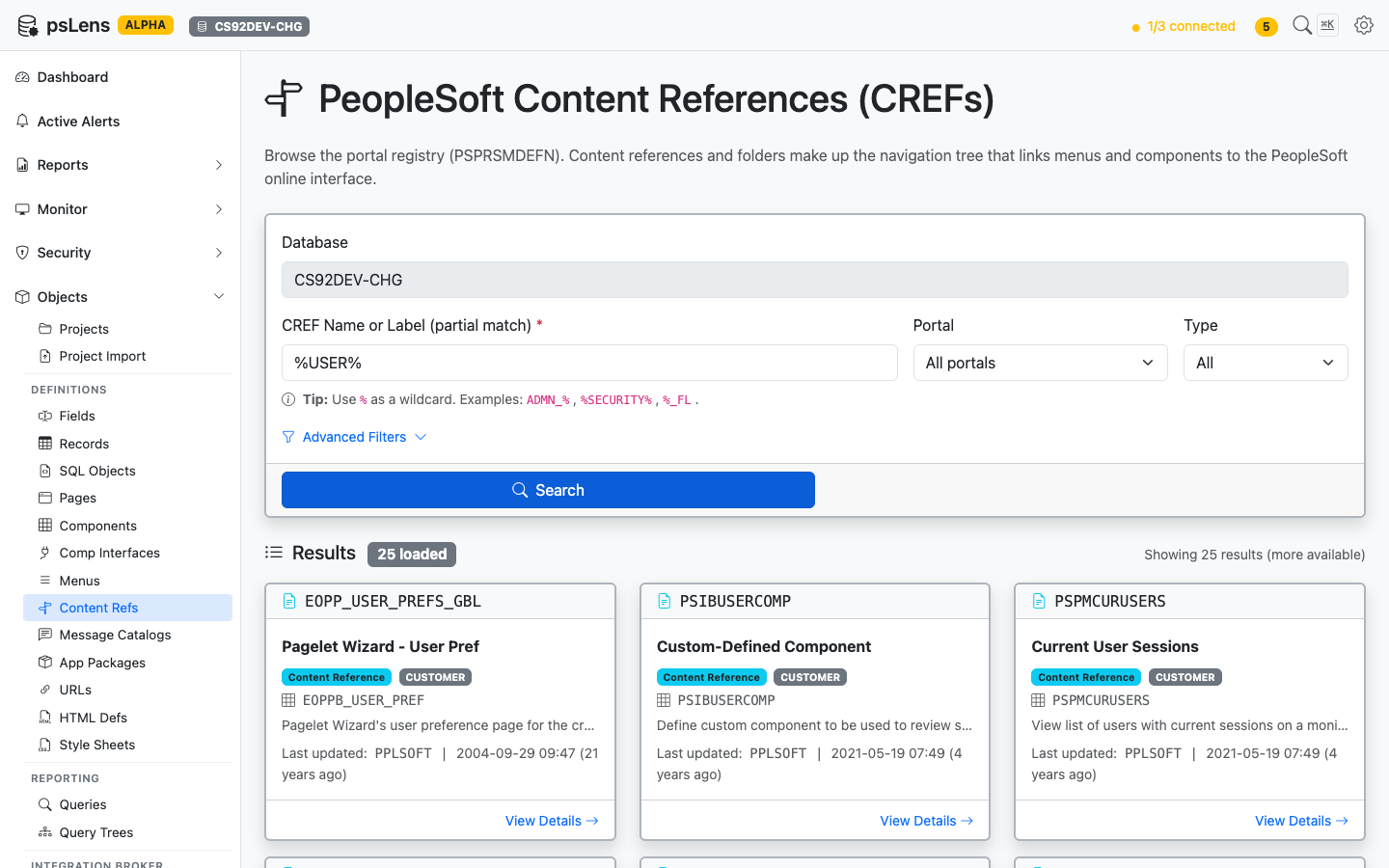
CREF search results for %USER%
Search by CREF name or label, with optional filters for portal (EMPLOYEE, CUSTOMER, MOBILE, etc.) and type (CREF vs Folder). Each result card shows the portal, the parent folder path, and the target object name.
Detail Page
URL: /crefs/{PORTAL}/{OBJECTNAME}?db={database}
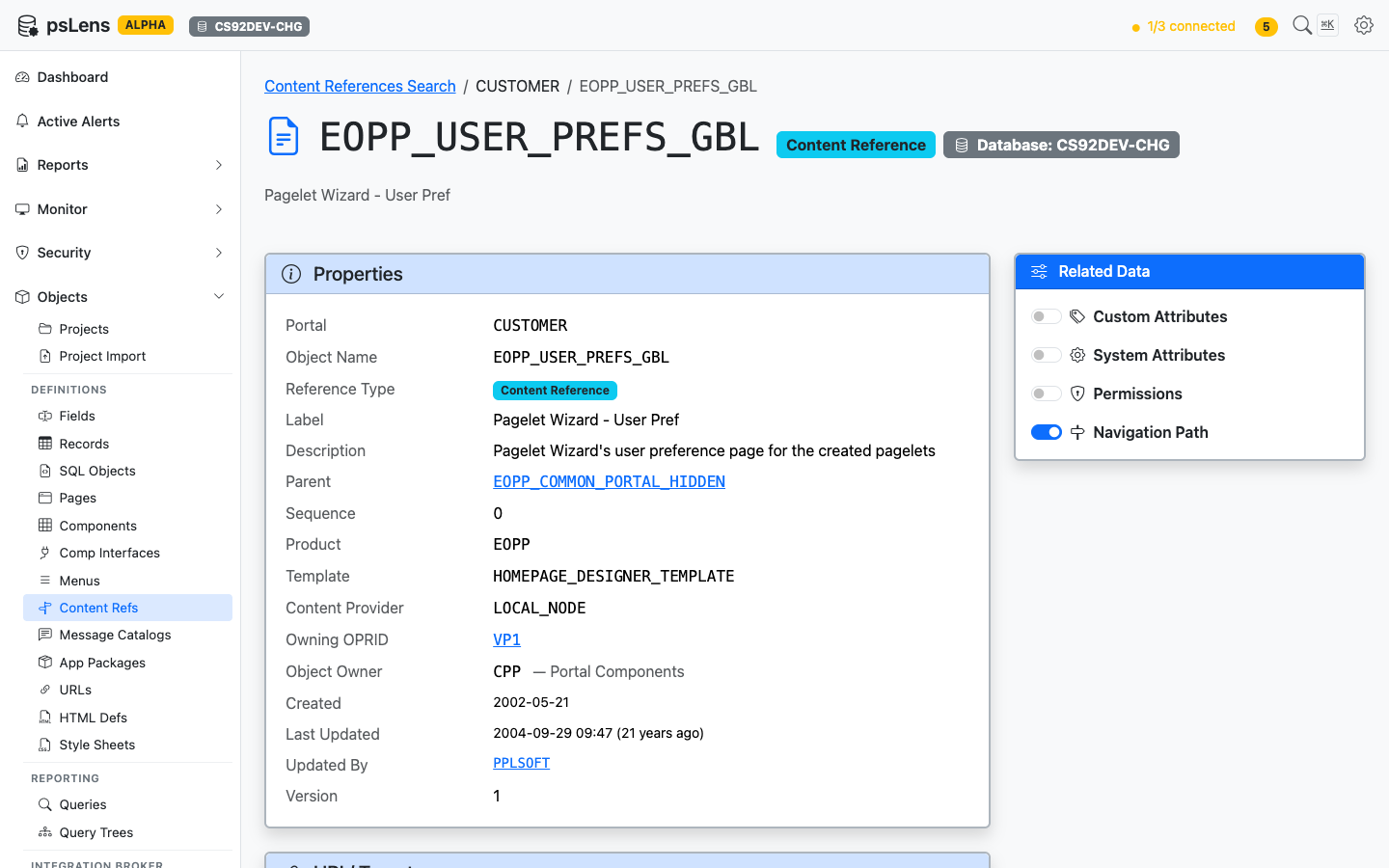
CREF detail page for EOPP_USER_PREFS_GBL
The main pane shows Properties (portal, parent folder, type, security author, label, description) and the URI / Target card with the destination URL. For component CREFs this is the menu/component path; for iScripts, the iScript URL; for external CREFs, the literal URL. The sidebar has 4 related-data toggles.
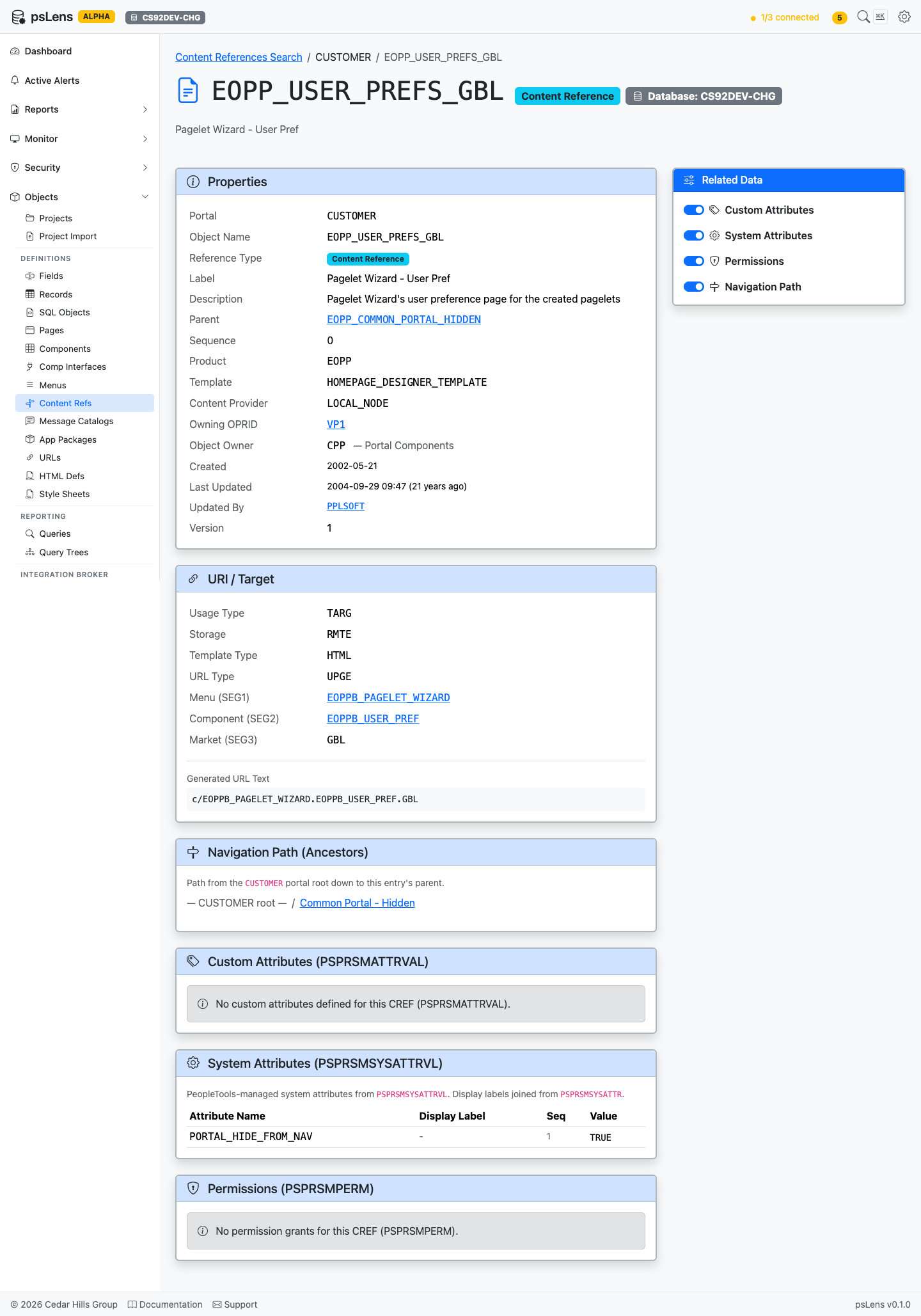
All panels expanded — under 2100px tall
Related Data Panels
Navigation Path
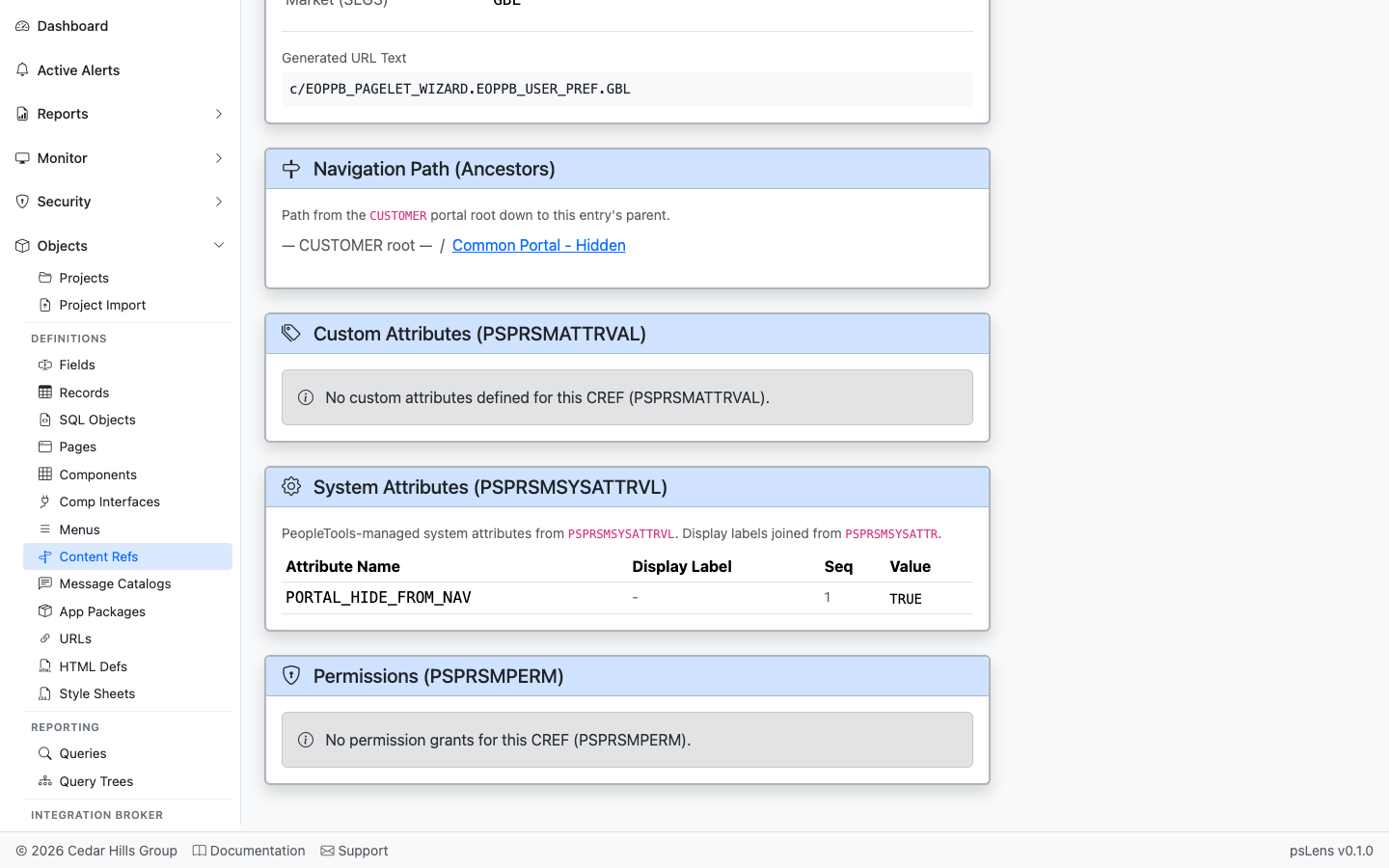
The breadcrumb walk from the portal root down to this CREF
The full ancestor chain from the portal root down to this CREF. Every folder in the navigation path is clickable so you can hop up the tree to a parent folder.
Custom Attributes
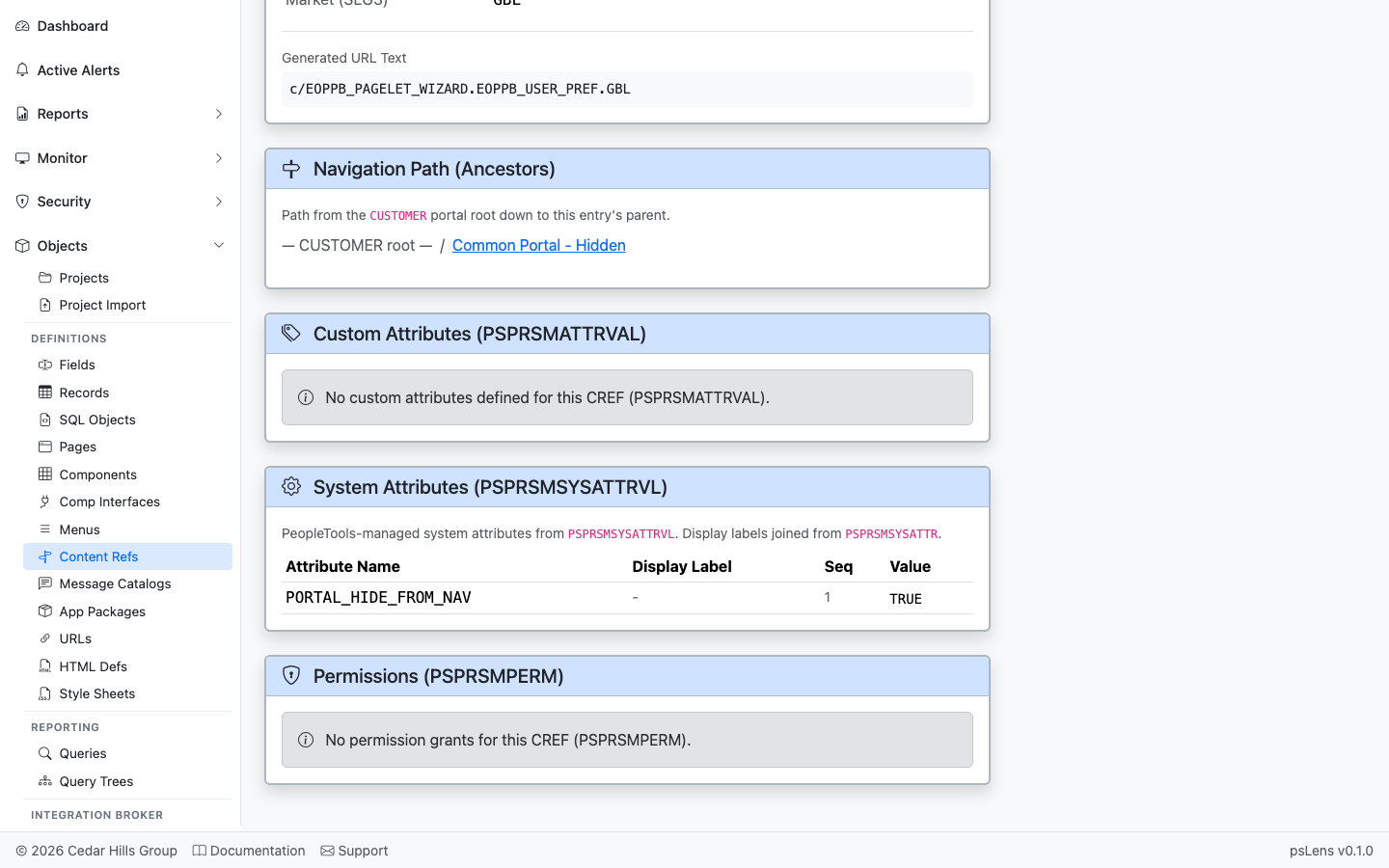
Per-CREF custom attribute name/value pairs from PSPRSMATTRVAL
Per-CREF custom attribute name/value pairs from PSPRSMATTRVAL. Used by Fluid navigation collections, search categories, badges, and other portal features.
System Attributes
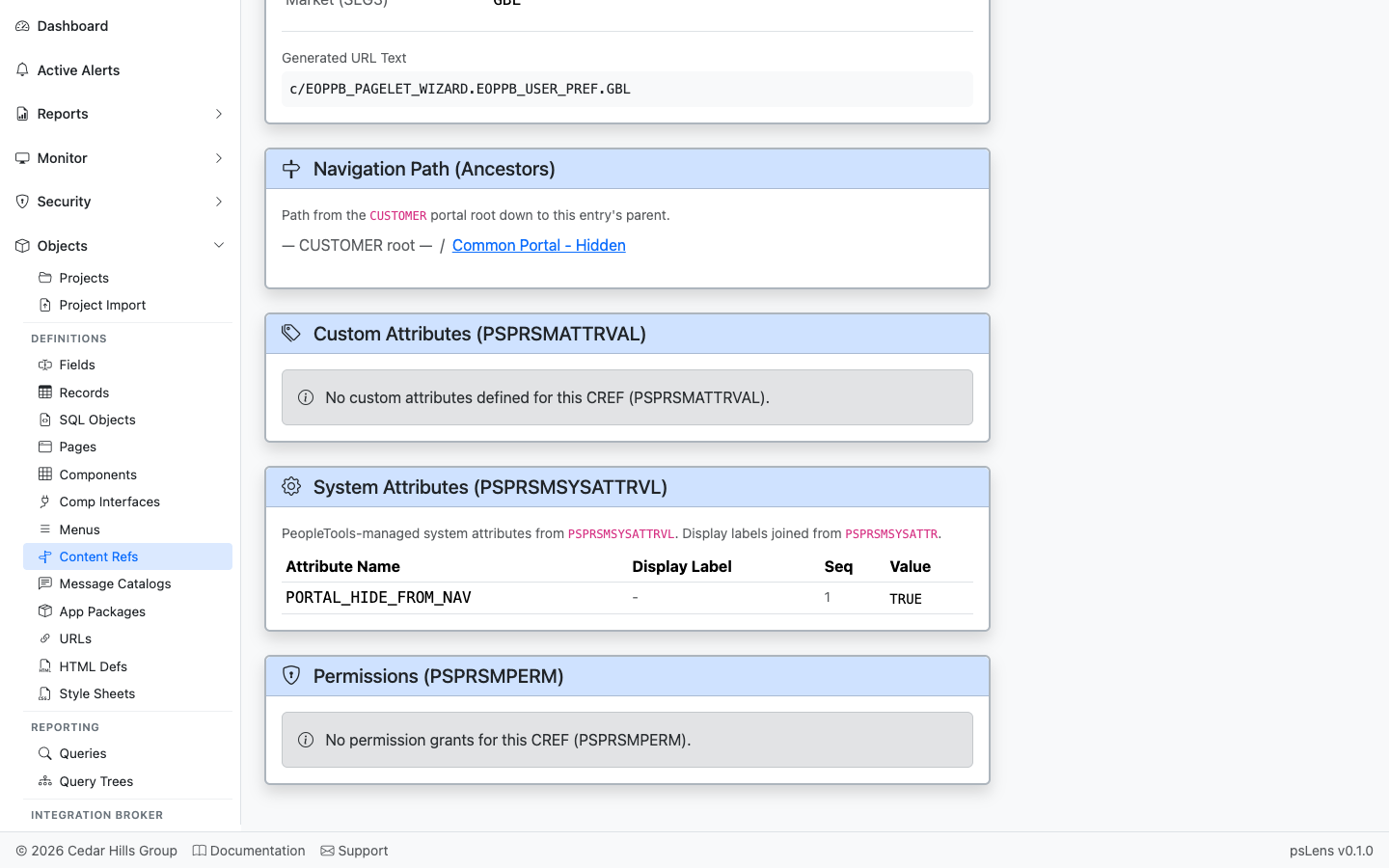
System attributes from PSPRSMSYSATTRVL with friendly labels
System attributes from PSPRSMSYSATTRVL with friendly labels (e.g., PORTAL_LABEL, PORTAL_OBJTYPE_DESC, PTPP_* personalization keys). These configure how the CREF behaves at runtime.
Permissions
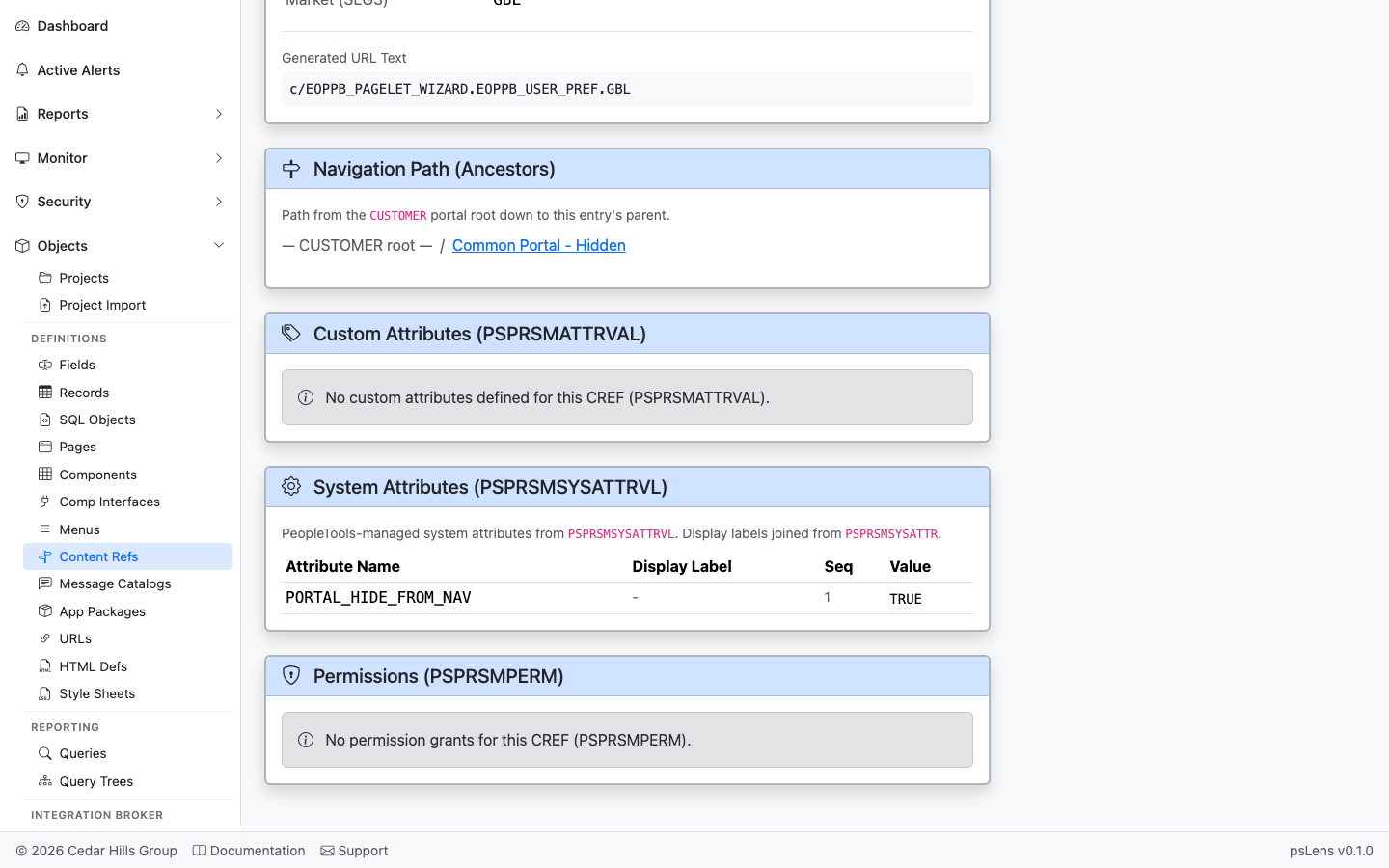
Permission lists with grant access to this CREF
Permission lists (PSPRSMPERM) that have been granted access to this CREF — the security side of “who can see this in the menu?”.