Chrome Extension
Categories:
Overview
The psLens Chrome Extension pairs Google Chrome with your self-hosted psLens deployment. When you open any PeopleSoft Internet Architecture (PIA) component, the Chrome side panel displays live component metadata, authorized permission lists, component pages, and on-demand field definitions right beside the page.
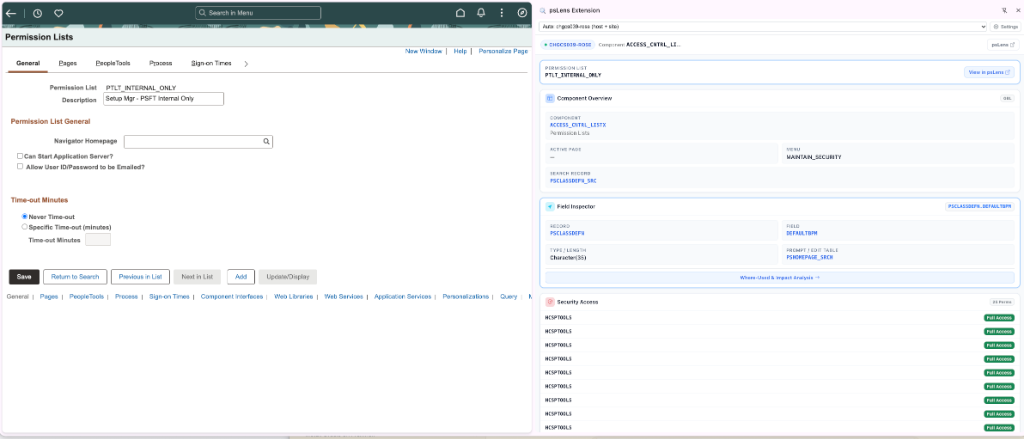
psLens side panel open alongside the PeopleSoft Permission Lists component, inspecting the active definition and pinned field.
Installation
Chrome Web Store (Recommended)
Install the extension directly from the Chrome Web Store. Chrome automatically updates it when new versions ship.
Install psLens Extension from Chrome Web StoreOffline / Air-Gapped Installation
If your workstation cannot reach the Chrome Web Store:
- Sign in to your psLens instance and open Tools > Chrome Extension in the sidebar.
- Click Download (.zip) to download the unpacked extension bundle.
- Navigate to
chrome://extensionsin Google Chrome and enable Developer mode in the top-right corner. - Click Load unpacked and select the extracted
extensiondirectory.
Configuration & Pairing
After installation, the extension Options page opens automatically (you can also open it anytime by right-clicking the psLens extension icon and selecting Options).
- Sign In to psLens: Ensure you are signed in to psLens in the same Chrome profile. The extension uses your authenticated psLens session cookie to query metadata.
- Enter Server URL: Enter the base URL of your psLens server (shown on Tools > Chrome Extension, e.g.
https://pslens.yourcompany.org). - Save & Connect: Click Save & Connect. The extension fetches your configured PeopleSoft databases, PIA hostnames, and local PIA node URIs from
/ext/api/environments.
Key Capabilities
Side Panel Component Inspection
Click the psLens extension icon in Chrome while viewing any PeopleSoft component. The side panel automatically:
- Matches the Environment: Maps the active tab to the right psLens database using PIA node URIs, hostnames, and site names—with a dropdown selector to override the target database (for example, viewing PROD metadata while on a DEV page).
- Direct Object Deep-Link: On PeopleTools security and Integration Broker setup components (
USERMAINT,ROLEMAINT,ACCESS_CNTRL_LISTX,IB_SERVICE,IB_NODE), shows a View in psLens card that jumps straight to that object’s detail page. - Component Overview: Shows the component, description, active page, menu, market, and search record, with direct links into psLens.
- Security Access: Lists the permission lists granting access to the component, distinguishing Full Access vs. Display Only, with a direct link to the full security and user audit in psLens.
- Component Pages: Lists all pages in the component (marking hidden pages) with direct links to each page definition.
In-Page Field Inspector
Hold Option (⌥) on macOS (or Alt on Windows/Linux) and hover over any input, dropdown, checkbox, or field label on a PeopleSoft page:
- A blue outline and floating badge show the underlying PeopleTools record and field name (for example,
PSCLASSDEFN.DEFAULTBPMorSTDNT_ENRL.ENRL_STATUS_REAS [row 0]). - Click while holding Option/Alt: The side panel pins that field, showing its record, field name, PeopleTools data type and length, prompt/edit table, field label, and a one-click Where-Used & Impact Analysis link into psLens.
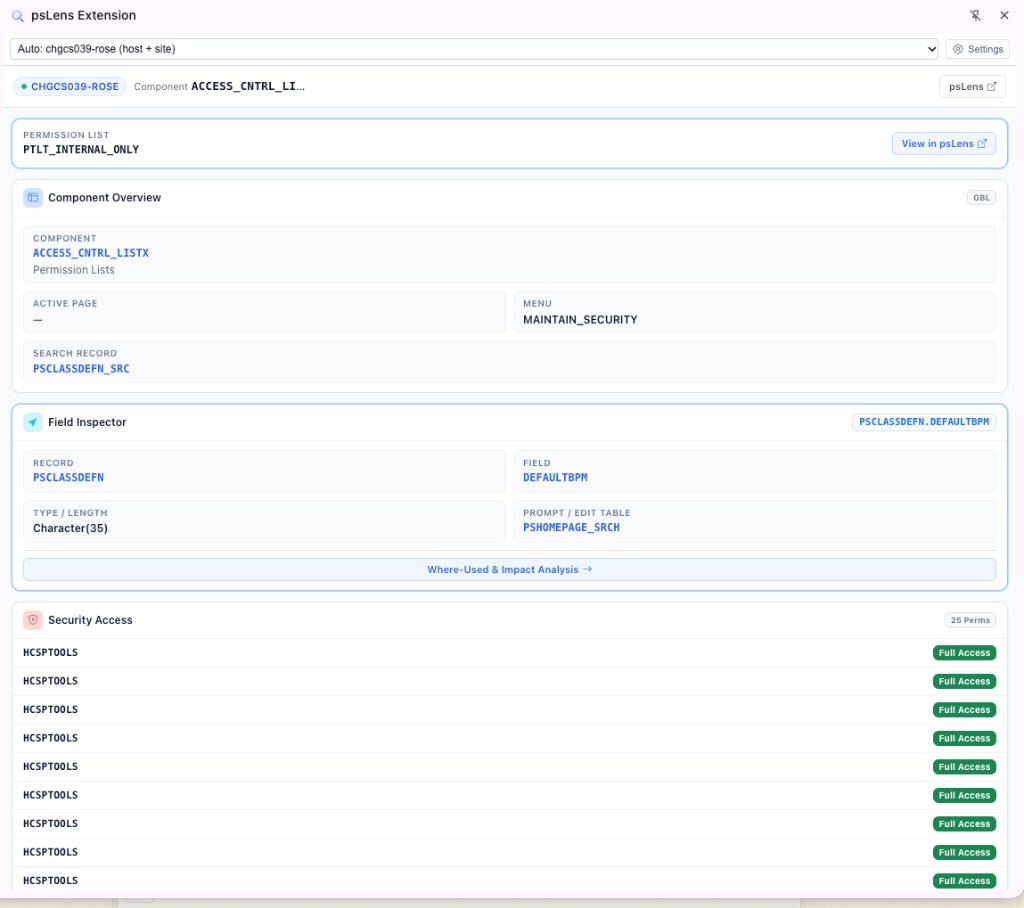
Detailed view of the psLens Extension side panel showing the auto-matched environment, component overview, pinned PSCLASSDEFN.DEFAULTBPM field definition, prompt table, and Security Access list.
Privacy & Security Boundary
The psLens extension is built to avoid reading transactional or personal data from PIA:
- No Form Values or Transactional Data: User inputs, form values, student records, employee data, and FERPA/HIPAA data are never read, captured, or transmitted.
- DOM ID Parsing for Field Inspection: The field inspector reads only the HTML element
idattribute (such asPSCLASSDEFN_DEFAULTBPMorSTDNT_ENRL_ENRL_STATUS_REAS$0) to identify the PeopleTools record and field name. - Strict 5-Key Metadata Allowlist: To power the View in psLens shortcut on PeopleTools setup pages, the content script reads text only from five exact display-only metadata element IDs:
PSOPRDEFN_OPRID,PSROLEDEFN_ROLENAME,PSCLASSDEFN_CLASSID,PSOPERATION_IB_OPERATIONNAME, andPSMSGNODEDEFN_MSGNODENAME. No other page text is ever read. - Private Traffic Only: All requests go directly between your browser and your own psLens server using your existing authenticated session. There are no third-party servers or external telemetry.